

Managing Your MobiSystems Account
This guide shows how to handle each task from the MobiSystems Account Center in your browser. Your MobiSystems account is the login that links your MobiOffice licence, settings, and MobiDrive storage across your devices. Once it's set up, you'll occasionally need to keep it current: change a password, clear a full device list, add an email, or close the account. The steps work the same whether you use MobiOffice on Windows, Mac, Android, or iOS.
Before you begin
Make sure you have:
A MobiSystems account. If you don't have one yet, see Creating and managing your MobiOffice account.
The email address linked to your account.
An internet connection.
Note: You manage your account in a browser, so you can do this from any device.
How to open your MobiSystems Account Center dashboard
The Account Center is the web dashboard where you manage everything about your account. Most tasks in this guide start here.
1. Go to the MobiSystems Account Center.
2. Enter your account credentials, then click Continue.
3. To open your details, click Edit Account next to your name.
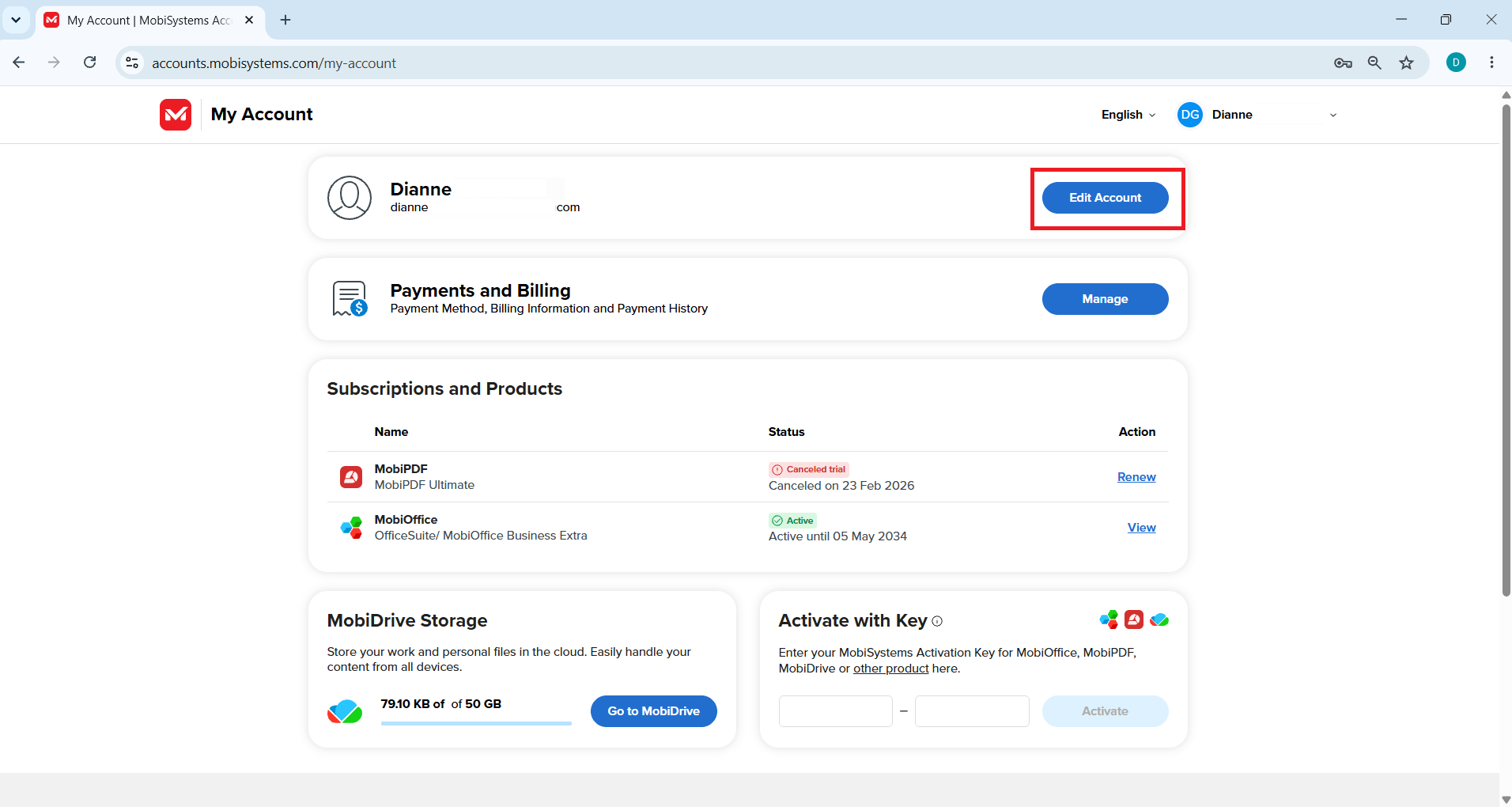
Tip: You can also reach the Account Center from inside any MobiOffice app. Click your account icon, then select Manage Account.
How to reset a forgotten password
Use this if you can't sign in because you don't remember your password.
1. On the sign-in screen, click Forgot Password?.
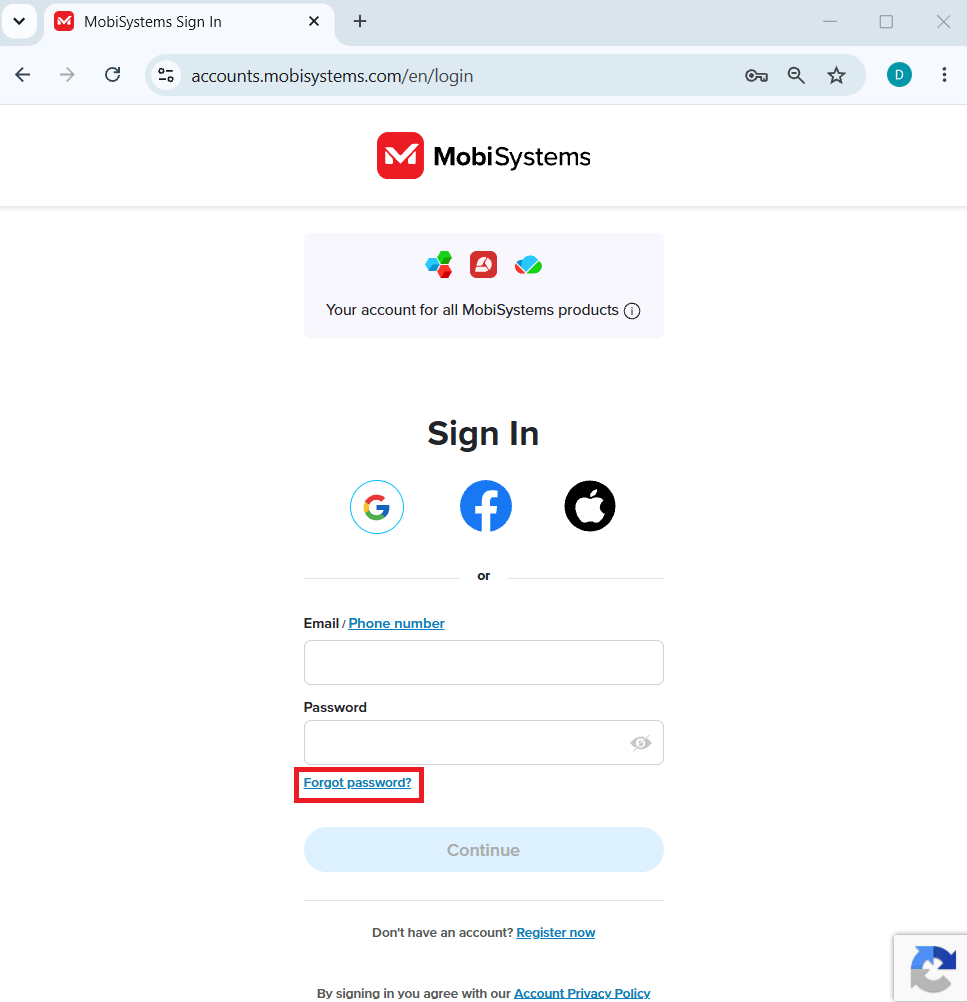
2. Enter the email address linked to your account, then click Continue.
3. Open the password recovery email in your inbox and click Reset Password.
4. Back in the recovery window, type a new password and sign in.
How to change your current password
Use this when you're already signed in and want to update your password.
1. In the Account Center, click Edit Account.
2. Click Change Password.
3. Enter your current password, then your new password.
4. Click Save.
Your password updates right away.
Tip: For a strong password, mix uppercase and lowercase letters, numbers, and symbols. Avoid names and birthdays and update it from time to time.
How to resolve a "Device limit exceeded" error
Each plan allows a set number of devices. When you reach it, you see a Device limit exceeded message. Free up a slot by removing a device you no longer use.
1. Sign in to the Account Center and open My Account.
2. Under Subscriptions and Products, find your subscription and click View.
3. Open the My Devices tab to see every device signed in with your account.
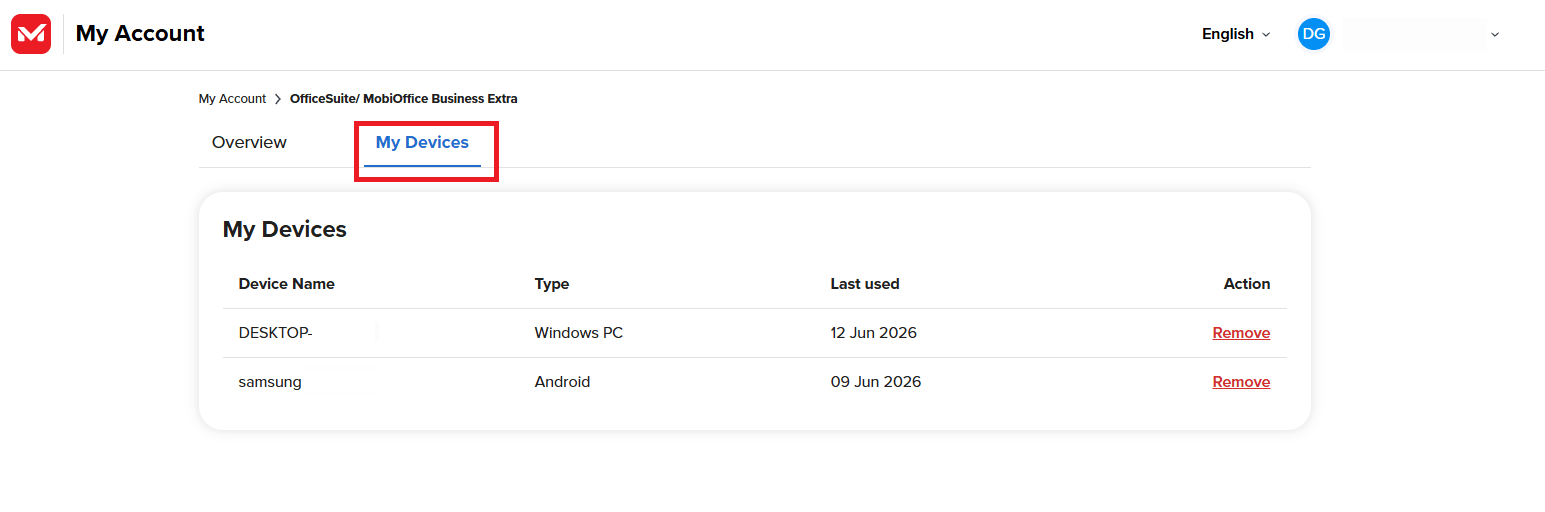
4. Click Remove next to a device you don't use. Remove any you don't recognize.
5. Install MobiOffice on the new device and sign in to add it.
Note: Device limits differ by plan. Remove inactive devices before you try to add a new one.
How to add a second email address
Linking a second email gives you another way to sign in and keeps an existing licence tied to a new address.
1. In the Account Center, click Edit Account.
2. Under Account Details, find the Email section and click Add Email.
3. Type the new email address, then click Add Email again to confirm.
4. Open the confirmation email and verify the address.
Note: The new email address can't already belong to another MobiSystems account.
How to delete your MobiSystems account
Deleting your account is permanent. Back up anything you want to keep before you start.
1. In the Account Center, click Edit Account.
2. Scroll to the Delete Account section and click Delete Account.
3. Enter your password to confirm it's you.
4. Click Delete Account again to finish.
When you delete your account, the following data is erased and can't be recovered:
Your name, email addresses, password, and phone numbers.
Your profile photo and user settings.
Files stored in your MobiDrive.
Your contacts and chat history.
Important: Deleting your account does not cancel a subscription bought through the App Store, Google Play, or another seller. Cancel that subscription separately to stop billing.
If you only want to stop a subscription, go to the Subscriptions and Products section and cancel it instead of deleting your account.
Troubleshooting
The recovery email didn't arrive. Check your spam or junk folder. If it's still missing, return to the sign-in page and request the email again.
I removed a device but still see the limit. Sign out and back in to refresh your session, then check the Linked Devices tab again.
I can't add my second email. The address may already belong to another MobiSystems account. Use a different email or delete the unused account first.
My new password won't save. Make sure your current password is correct and your new password meets the strength rules.
Where to go next
You can now keep your MobiSystems account secure and up to date. Next, set up your account on your other devices or activate your license.


