

Formatting Text and Paragraphs
Formatting makes your documents easier to read and gives them a polished look. This guide shows you how to change fonts, apply bold or italic, adjust alignment and spacing, and reuse formatting across your document in MobiDocs.
Before you begin
Make sure you have:
MobiDocs installed and signed in.
A document open in MobiDocs.
Format text
You can change the font, size, style, and color of any text in your document.
Change the font and size
1. Select the text you want to change. To select the entire document, press Ctrl + A.
2. In the ribbon, click the font dropdown and choose a font.
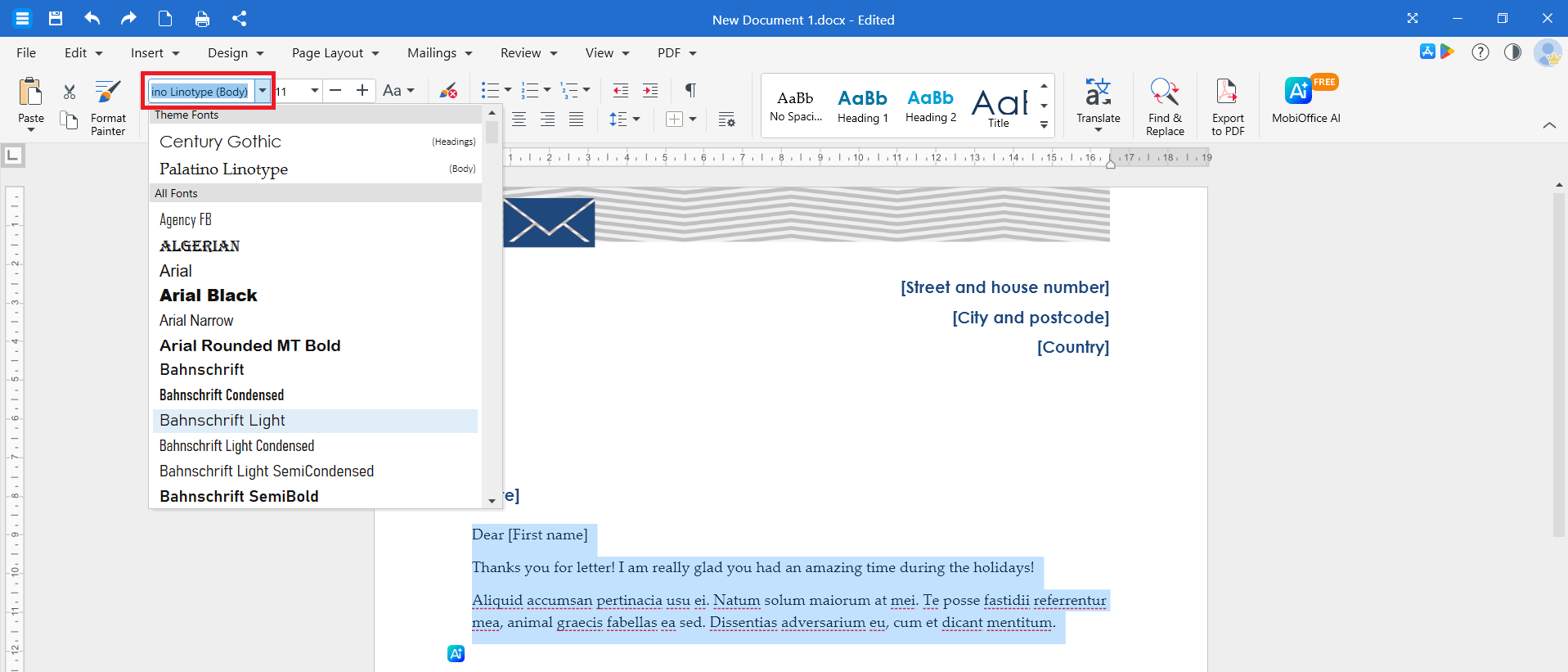
3. Click the size dropdown next to it and choose a font size.
Tip: You can also right-click the selected text, choose Font, and adjust the font type, size, colour, and style in one dialogue. Click OK to apply.
Apply bold, italic, or underline
1. Select the text you want to change.
2. In the ribbon, click B for bold, I for italic, or U for underline.
Keyboard shortcuts:
Ctrl + B for bold
Ctrl + I for italic
Ctrl + U for underline
On Mac, use Cmd in place of Ctrl.
Change text colour and highlight
1. Select the text you want to change.
2. In the ribbon, click the arrow next to the Font Colour button and choose a colour.
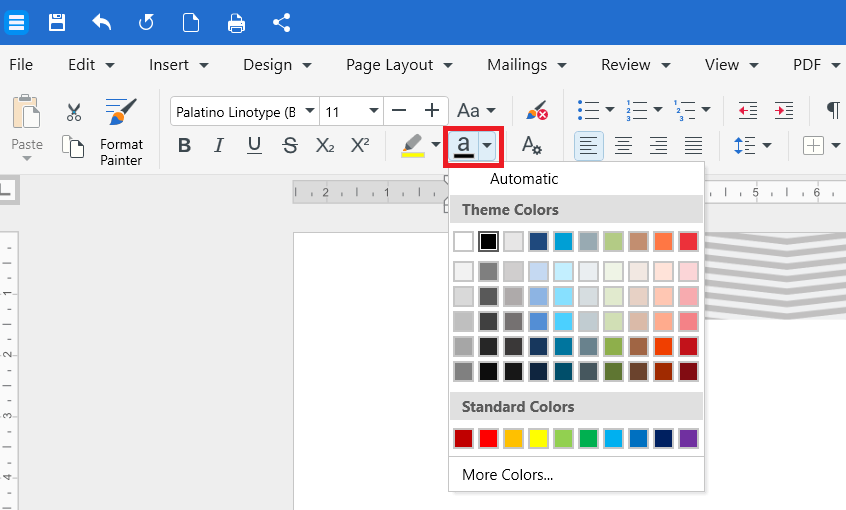
3. To highlight text, click the arrow next to the Highlight button and choose a colour.
To remove a highlight, select the highlighted text and choose No Colour from the highlight menu.
Change the default font
If you want every new document to use a specific font:
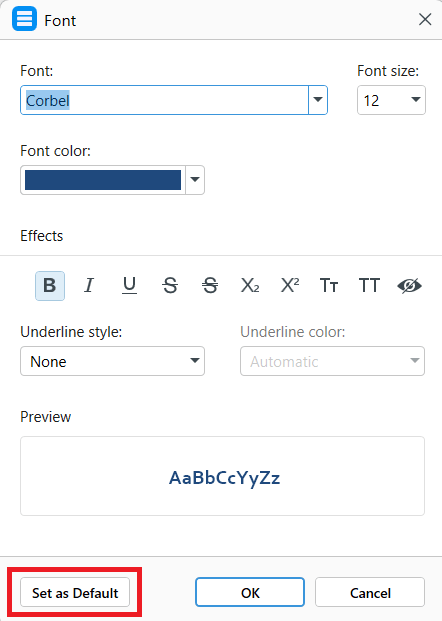
1. Press Ctrl + D to open the Font dialogue.
2. Choose the font, size, and styles you want.
3. Click Set as Default.
Format paragraphs
Paragraph formatting controls how blocks of text are positioned on the page.
Change paragraph alignment
1. Click anywhere inside the paragraph or select multiple paragraphs.
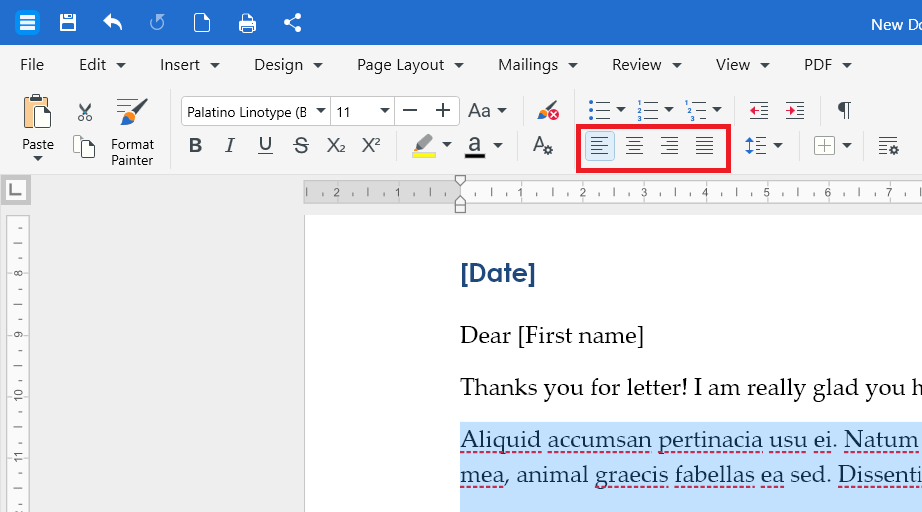
2. In the ribbon, click one of the alignment options: Align Left, Centre, Align Right, or Justify.
Keyboard shortcuts:
Ctrl + L for left
Ctrl + E for centre
Ctrl + R for right
Ctrl + J for justified
Change line spacing
1. Click anywhere inside the paragraph or select multiple paragraphs.
2. In the ribbon, click Line Spacing.
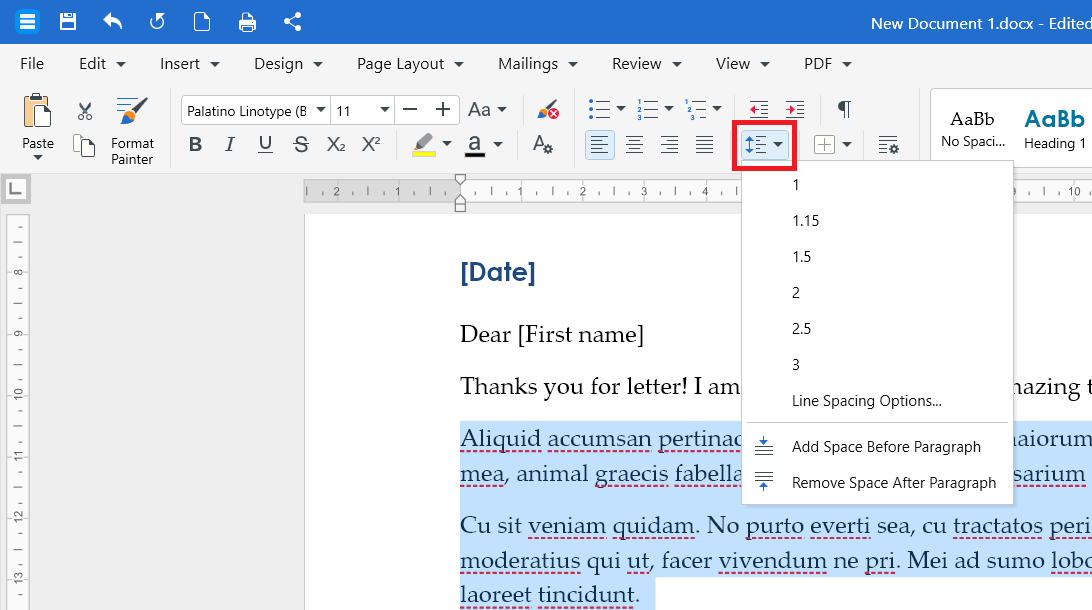
3. Choose a value like 1, 1.15, 2.0, and so on.
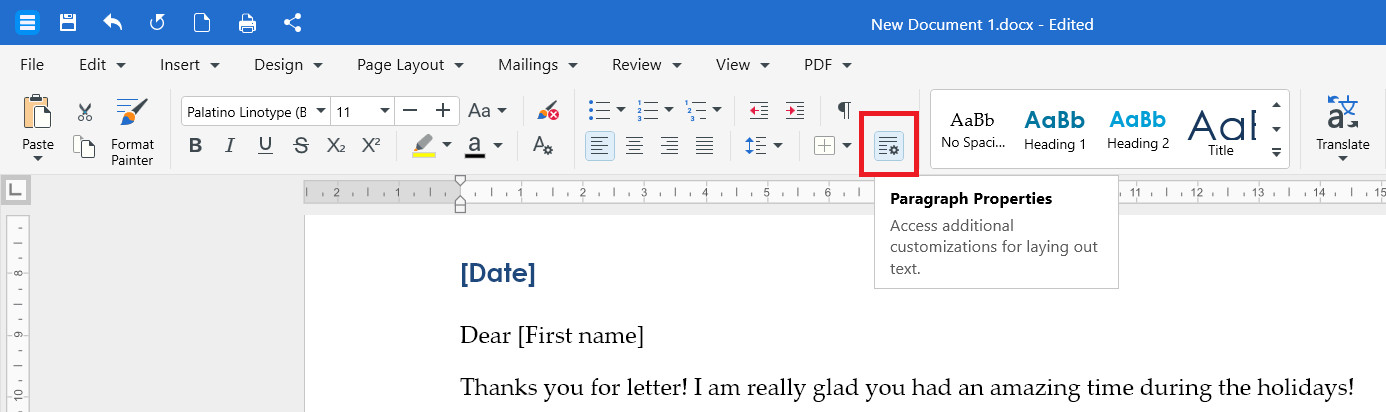
To make precise adjustments to spacing, indentation, and pagination, click on Paragraph Properties in the ribbon.
Add or remove space before or after a paragraph
1. Click inside the paragraph you want to change.
2. In the ribbon, click Line Spacing.
3. Choose Add Space Before Paragraph. To remove the space, choose the matching Remove option.
Indent paragraphs
1. Click inside the paragraph.
2. In the ribbon, click Increase Indent to move the paragraph right, or Decrease Indent to move it left.
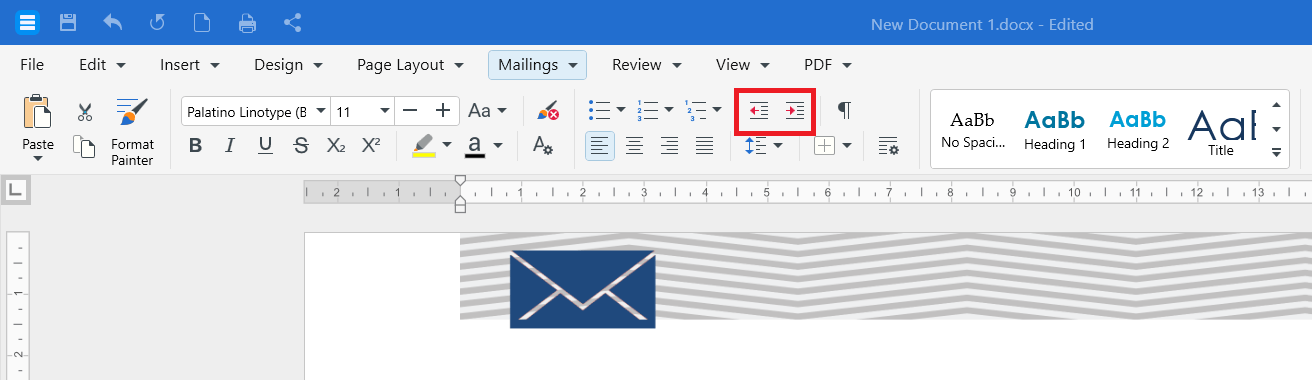
For finer control, open Paragraph Properties and enter exact values in the Left, Right, and Special indent fields.
Apply a style
Styles let you format headings, titles, and body text with one click and keep your document consistent.
1. Click inside the paragraph you want to style or select the text.
2. In the ribbon, open the Styles gallery.
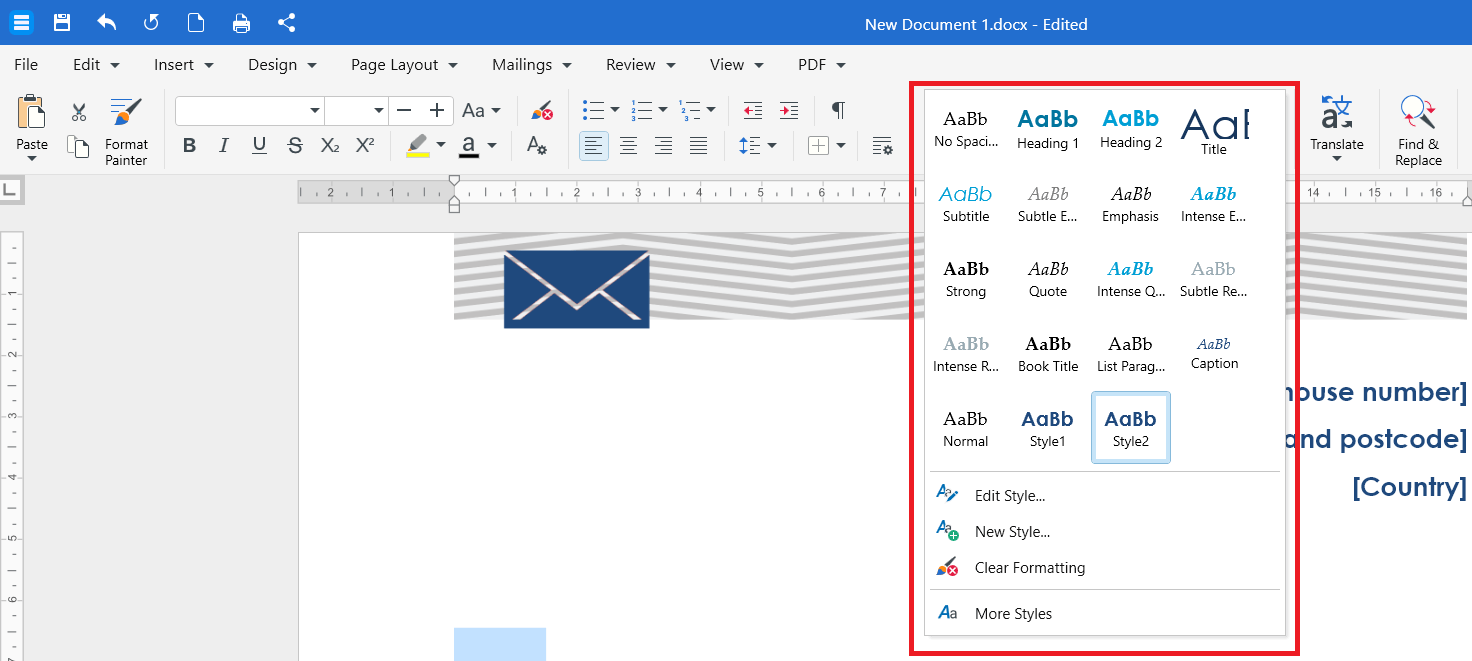
3. Click a style such as Heading 1, Heading 2, or Title.
Tip: If you change a style later, every paragraph using that style updates automatically.
Reuse formatting with Format Painter
Format Painter copies formatting from one place in your document and applies it to another.
Note: Format Painter is a Premium feature. If you're on the Free plan, clicking Format Painter will prompt you to upgrade or start a trial before you can use it.
1. Select the text with the formatting you want to copy.
2. In the ribbon, click Format Painter.
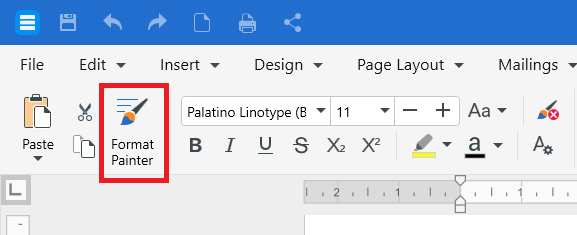
3. Click and drag across the text you want to update. The formatting is applied.
To apply the same formatting in multiple places, double-click Format Painter first. When you're done, click Format Painter again or press Esc to turn it off.
Format text and paragraphs on Android or iOS
1. Open your document in the MobiDocs app.
2. Tap and hold to select text, then drag the handles to extend the selection.
3. Tap the formatting toolbar at the bottom of the screen.
4. Choose the option you want: font, size, bold, italic, colour, alignment, line spacing, or indent.
Troubleshooting
Formatting buttons are greyed out. Click inside the document first. If the document opened in read-only mode, switch to editing mode.
My font isn't in the list. MobiDocs uses the fonts installed on your device. Install the font in your system, then restart MobiDocs.
My formatting doesn't carry over to other devices. If you used a font that's only on your computer, another device may substitute a different font. Stick to standard fonts if you switch between devices often.
Styles look different from what I expected. Styles inherit from the document's theme. Try a different theme from the Design or Page Layout tab.
Format Painter won't apply. Confirm you're on a Premium plan or an active trial — Format Painter isn't available on Free.
Where to go next
You've learned how to format text and paragraphs. Try one of these next:


