

Signing in to MobiDocs
Signing in connects MobiDocs to your MobiSystems account and activates your license, so you can use premium features, save files to MobiDrive, and pick up your work on other devices. This guide shows you how to sign in to MobiDocs on Windows, Mac, Android, iOS, and MobiOffice Online, and how to fix common sign-in problems.
Before you begin
Make sure you have:
A MobiSystems account. If you don't have one, follow the steps in Creating and managing your MobiOffice account.
MobiDocs installed on your device.
An internet connection.
Sign in to MobiDocs on Windows
1. Search for MobiDocs on the Windows Search bar or open it from the Start menu.
2. Click the face icon to sign in, or open the Account menu and then click Sign In.
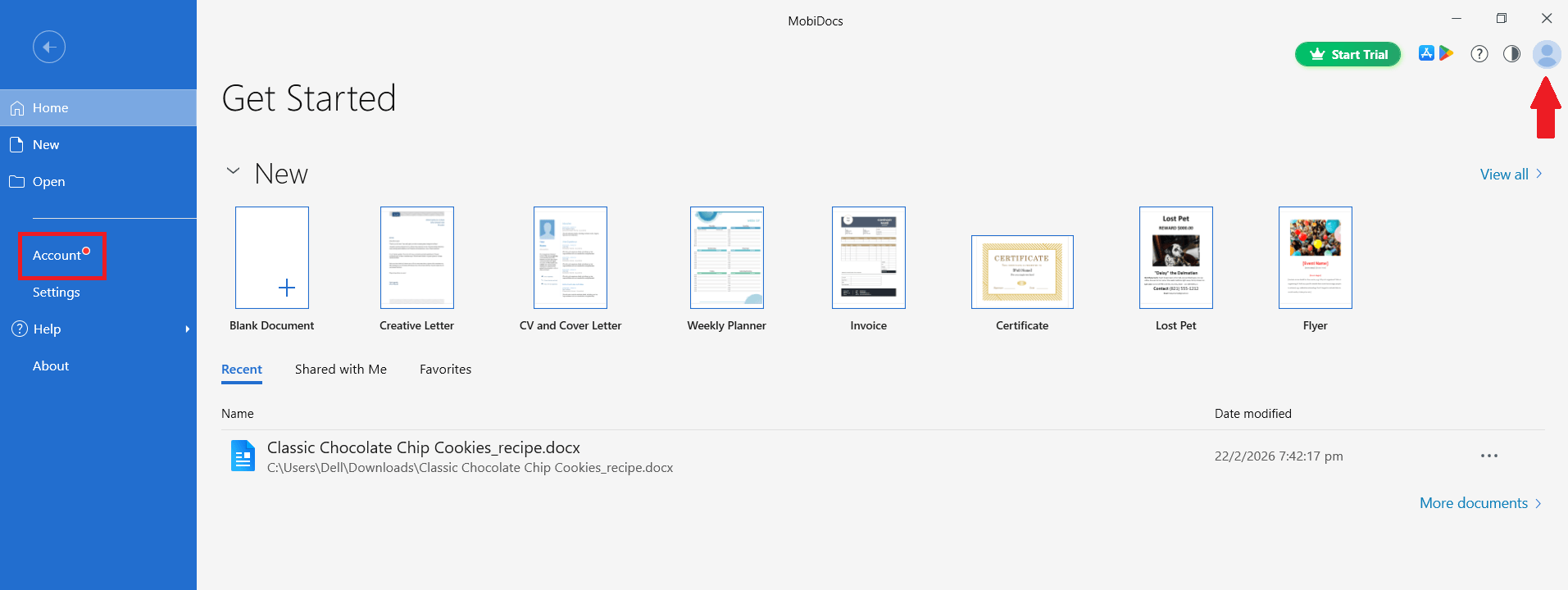
3. In the dialog box, click the Google, Apple, or Facebook option and follow the prompts.
4. If you used an email address for your account, enter the email then click Continue. Add your password to sign in.
Tip: If you don't have an account yet, click Create Account on the sign-in window and follow the on-screen steps.
Sign in to MobiDocs on Mac
1. Open MobiDocs from the Applications folder or Launchpad.
2. Click the Account menu.
3. Click Sign In.
4. Enter your email and password, or select the Google, Apple, or Facebook option.
5. Wait for MobiDocs to confirm your account.
Sign in to MobiDocs on mobile
MobiDocs is accessible within the MobiOffice app for both Android and iOS. To sign in to MobiOffice, follow these steps:
1. Open the MobiOffice app.
2. Tap Account.
3. Tap Sign In.
4. Enter your email and password, or select the Google, Apple, or Facebook option.
5. Wait for MobiOffice to confirm your account.
Sign out or switch accounts
Use these steps if you share a device or need to switch accounts.
1. Open MobiDocs.
2. Open the Account section.
3. Select Sign Out.
4. Sign in again with the account you want to use.
Troubleshooting
I forgot my password. On the sign-in window, select Forgot password? and follow the steps to reset it.
Premium features aren't showing up. Sign in with the same MobiSystems account you used to buy your subscription. Switching social sign-in providers (for example, Google to Apple) creates a separate account.
I get a "device limit reached" message. Open My Account, go to Linked Devices, and remove a device you no longer use. Then try signing in again.
Where to go next
You're signed in and ready to work. Try one of these next:


