

Inserting regular and pivot tables
In this guide, you'll insert a table to keep a set of data organized, and a pivot table to summarize and analyse larger datasets. A table styles your data and makes it easier to manage, while a pivot table groups and totals your data so you can spot patterns fast. The steps start with Windows, followed by shorter sections for Mac, Android, and iOS.
Before you begin
Make sure you have:
MobiOffice installed on your device. See Installing MobiOffice on multiple devices.
A spreadsheet open in MobiSheets. See Creating and editing spreadsheets.
Signed in to MobiSheets. See Signing in to MobiSheets.
An internet connection, if you want to save to the cloud.
Insert a table on Windows
1. Select the range of cells you want to include or click a cell inside your data.
2. Open the Insert tab from the dropdown menu.
3. Select Table.
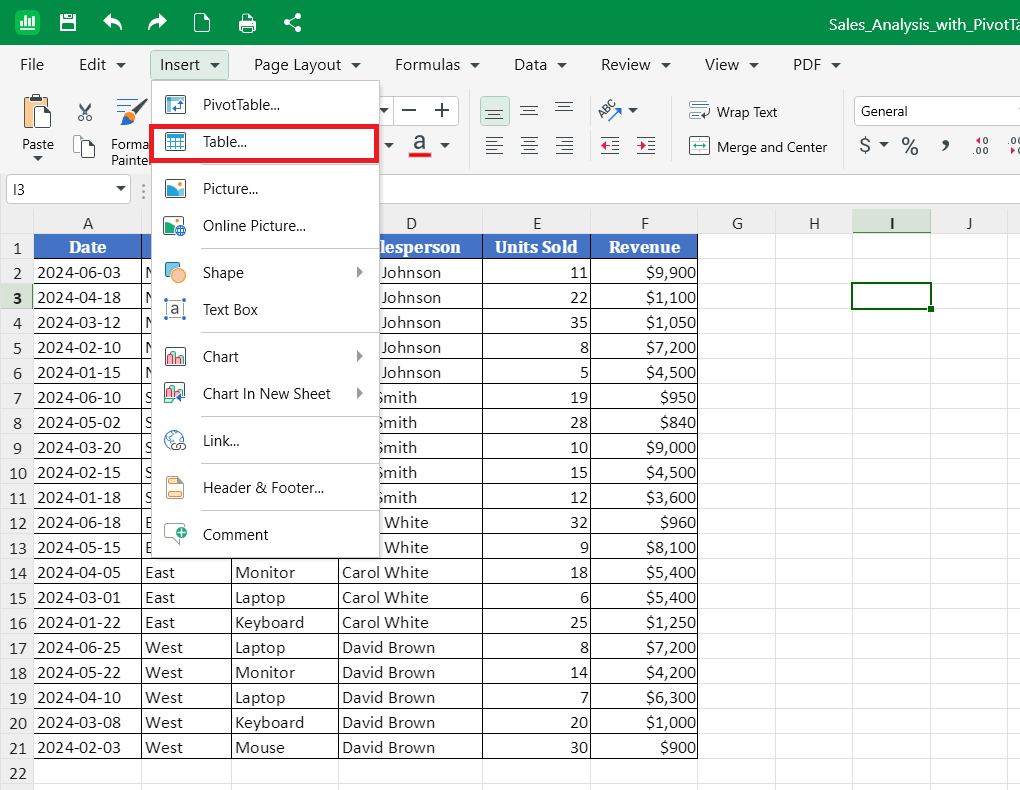
4. Check the table range. You can change it before you confirm.
5. Click OK.
6. Use the options in the Format Table window to style your table.
To turn a table back into normal cells later, select the table and click Convert to Range. Your data stays in place, but the table styling and tools are removed.
Insert a pivot table on Windows
Prepare your data for a pivot table. A pivot table needs clean source data. Before you start, check that your data:
Has a single row of headers at the top.
Has no empty rows or columns.
Has no merged cells.
This helps the pivot table read every column correctly.
To insert a pivot table, follow these steps:
1. Click anywhere inside your source data.
2. Open the Insert tab from the dropdown menu.
3. Select PivotTable. The Insert Pivot Table window opens.
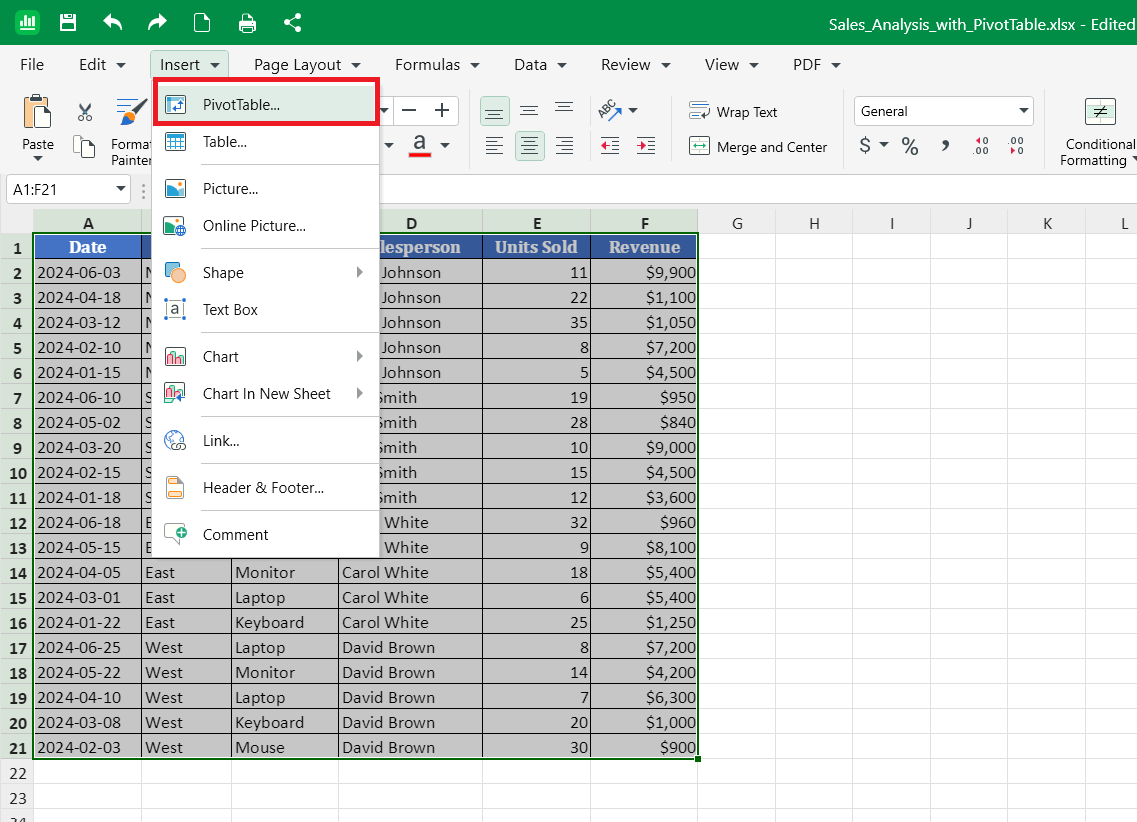
4. Check the Table/Range. To change it, click the grid icon and select your data range.
5. Under Destination, choose where to place the pivot table:
New Worksheet to add it to a new sheet, or
Existing Worksheet to place it on the current sheet. Click the grid icon, then select a cell outside your source data.
6. Click OK. A blank pivot table appears, and the Pivot Table Options panel opens.
Build your pivot table
1. In the Pivot Table Options panel, find the list of fields. These are your column headers.
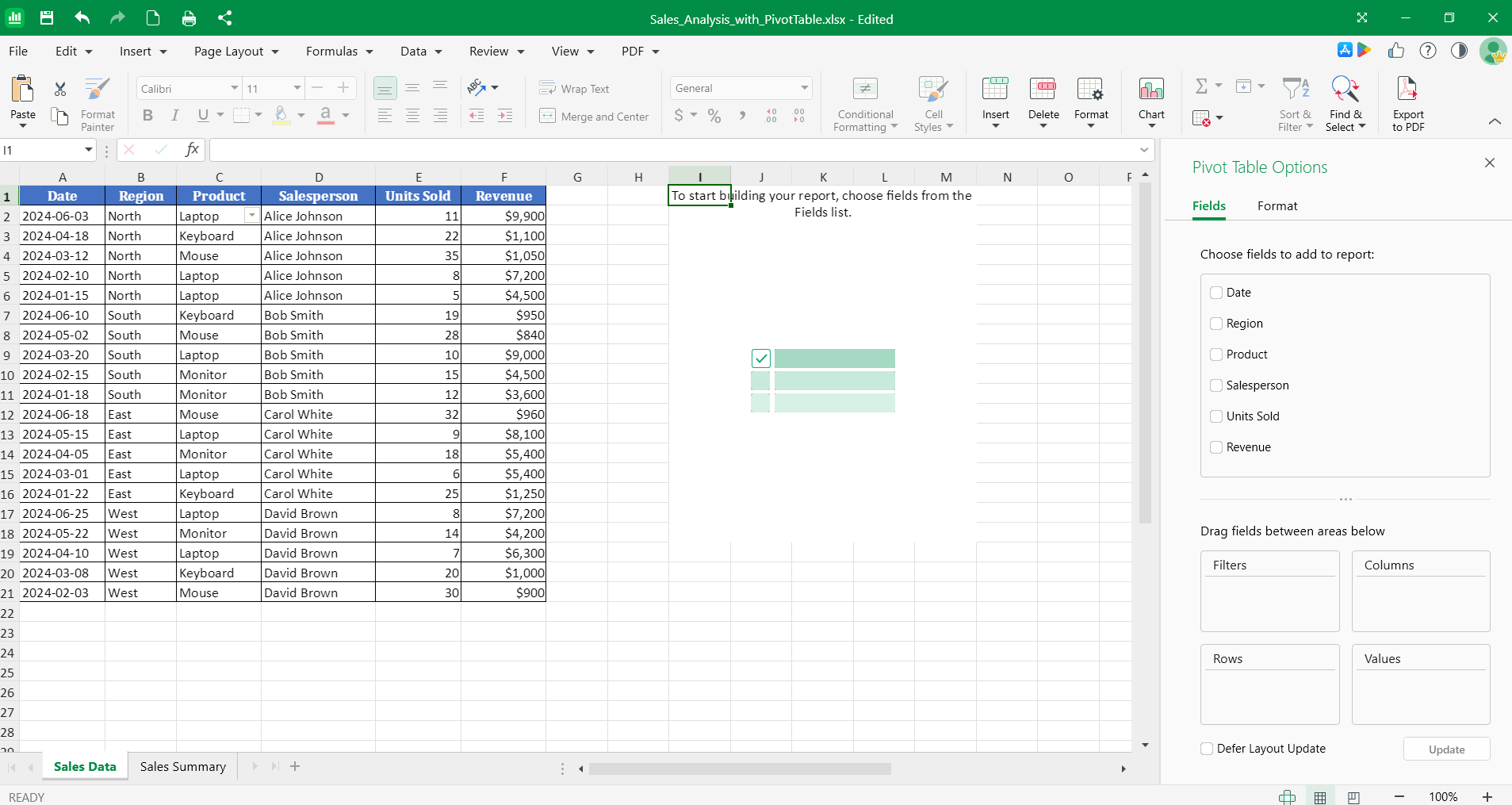
2. Add fields to the areas to organize your data:
Filters to filter your data.
Rows to list values down the side.
Columns to spread values across the top.
Values to calculate totals, such as Sum or Count.
3. The pivot table updates as you add each field.
Tip: To change a calculation, select the field in the Values area and choose a different option, such as Count instead of Sum.
Format a pivot table
1. Click inside your pivot table.
2. In the Pivot Table Options area, click Format.
3. Choose a layout that fits your data.
Delete a pivot table
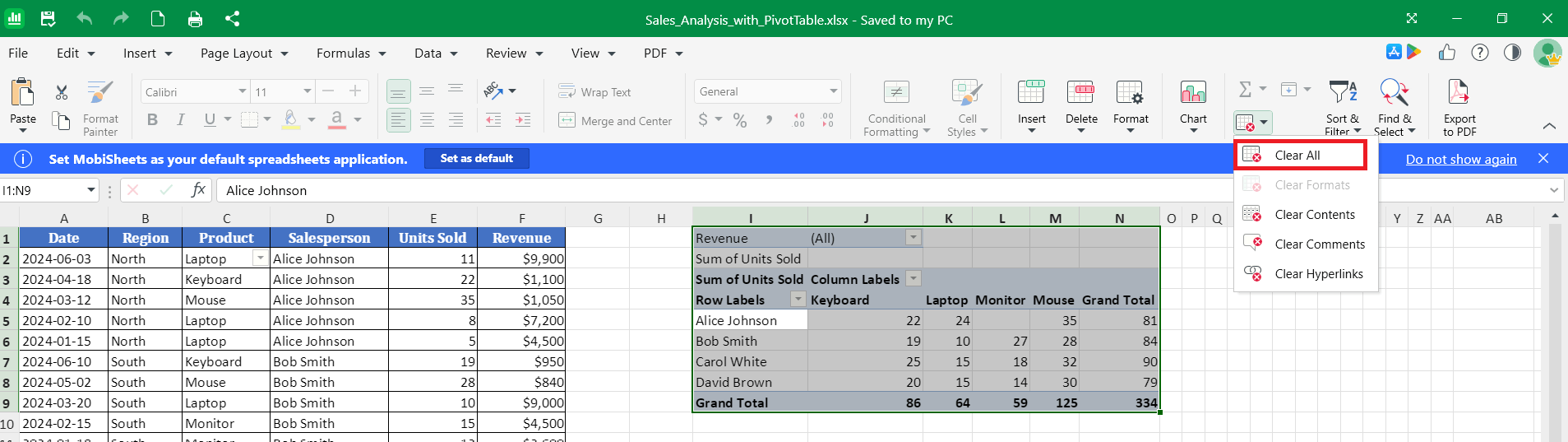
1. Click anywhere inside the pivot table, then press Ctrl + A to select the pivot table.
2. In the ribbon, click the Clear button then select Clear All.
Tables on Mac
1. Open your spreadsheet in MobiSheets.
2. To insert a table, select your data, open the Insert tab, and select Table.
Note: Pivot tables can only be viewed and not created on macOS.
Tables on Android and iOS
On phones and tablets, MobiSheets is part of the MobiOffice app.
1. Open your spreadsheet in the MobiOffice app.
2. Select your data by tapping a cell and dragging the handles.
3. Tap Insert, then choose Table.
Note: MobiOffice app users on Android and iOS can only view and modify a pivot table's layout, name, and style. To modify a pivot table, select a cell in the pivot table then tap PivotTable.
Troubleshooting
My pivot table won't build correctly. Check your source data. Remove empty rows, merged cells, and any extra header rows, then try again.
My pivot table didn't update after I changed the data. Pivot tables don't always refresh automatically. Right-click anywhere inside the pivot table and select Refresh from the context menu.
I can't find the table styling options. The Format Table window opens when you insert a table. To change the styling later, right-click inside the table or pivot table and select the relevant formatting option from the context menu.


