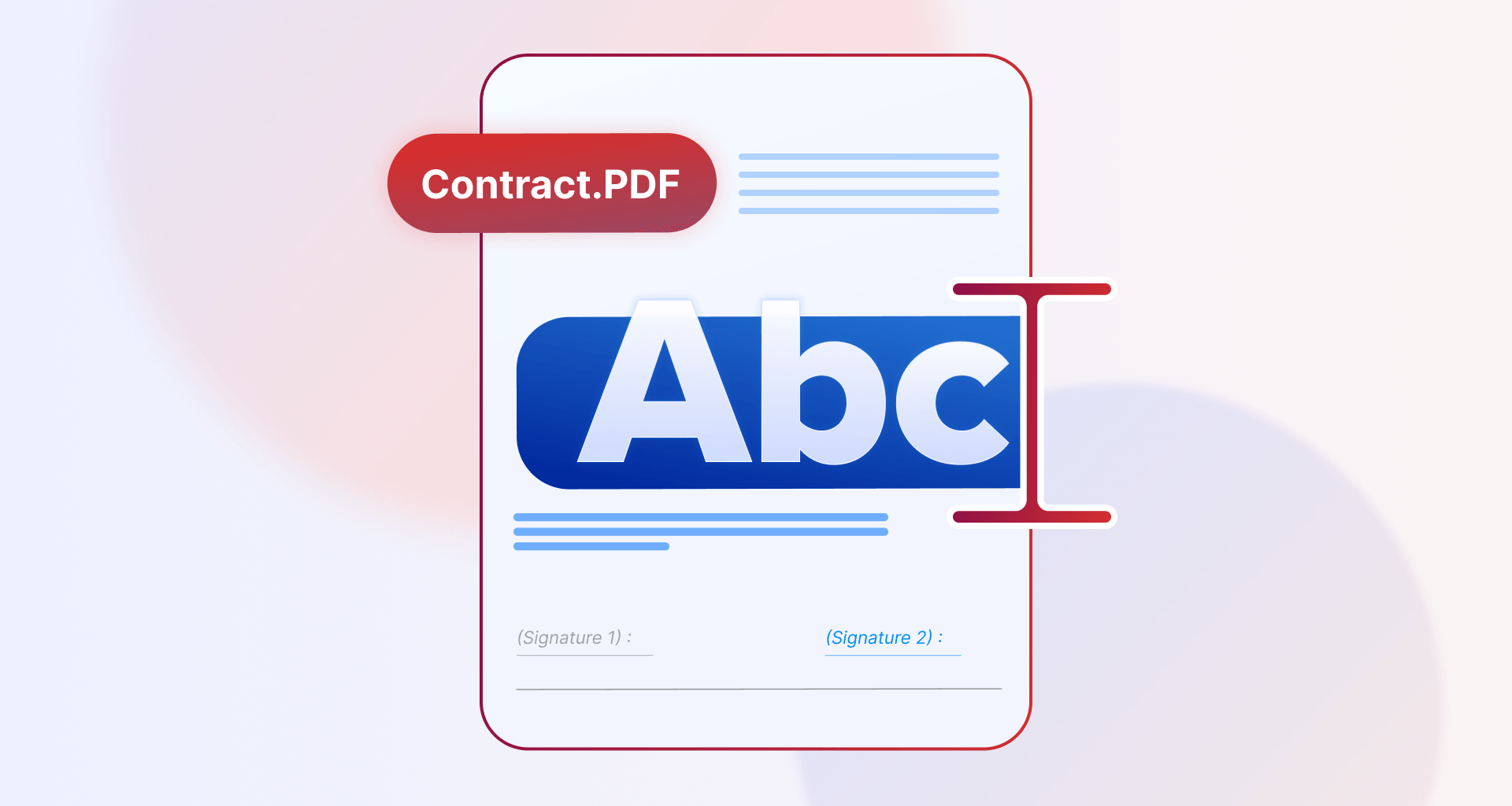
You can type on a downloaded PDF by using a PDF editing tool that lets you add text, fill forms, and modify content, even when the file appears read-only.
Many PDFs are scanned, flattened, or missing form fields, which prevents direct typing. With MobiPDF, you can safely edit these files offline while keeping your information protected. In this guide, you’ll learn exactly how to type on a downloaded PDF using an intuitive pdf editing tool.
What does “typing on a PDF” actually mean?
Typing on a PDF means adding new text, filling in form fields, or editing existing content without changing the original structure. In most cases, users want to write answers, add notes, or complete forms while keeping the layout intact.
It does not always mean redesigning the document. Depending on the file type, you may use text boxes, form fields, or full editing tools. Understanding these differences helps you choose the right method.
Why can’t you type on some PDF files?
You can’t type on some PDFs because they were created for viewing only, protected for security, or saved as scanned images. These formats are by design preventing direct text input by the user.
Knowing the reason helps you apply the correct and authorized solution instead of forcing changes that may affect document integrity.
PDFs without form fields
Many PDFs are static documents that look interactive but do not contain fillable areas. Without form fields, you cannot click and type directly, even though the layout resembles a form.
In these cases, you must use a text tool to add new text boxes manually.
Flattened or protected PDFs
Flattened PDFs merge all elements into one layer, removing editable fields. Protected PDFs may restrict editing to preserve legal or business records. 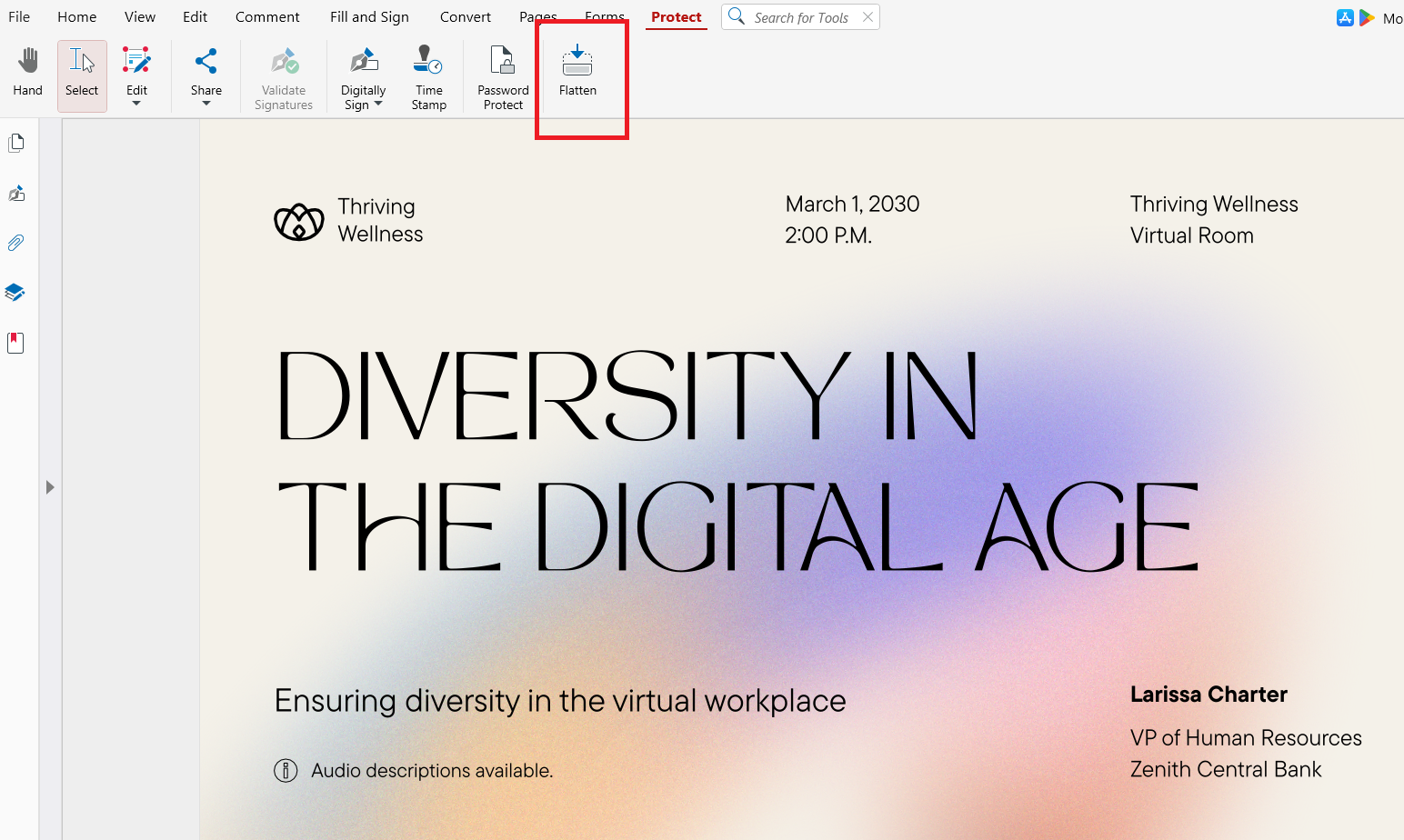
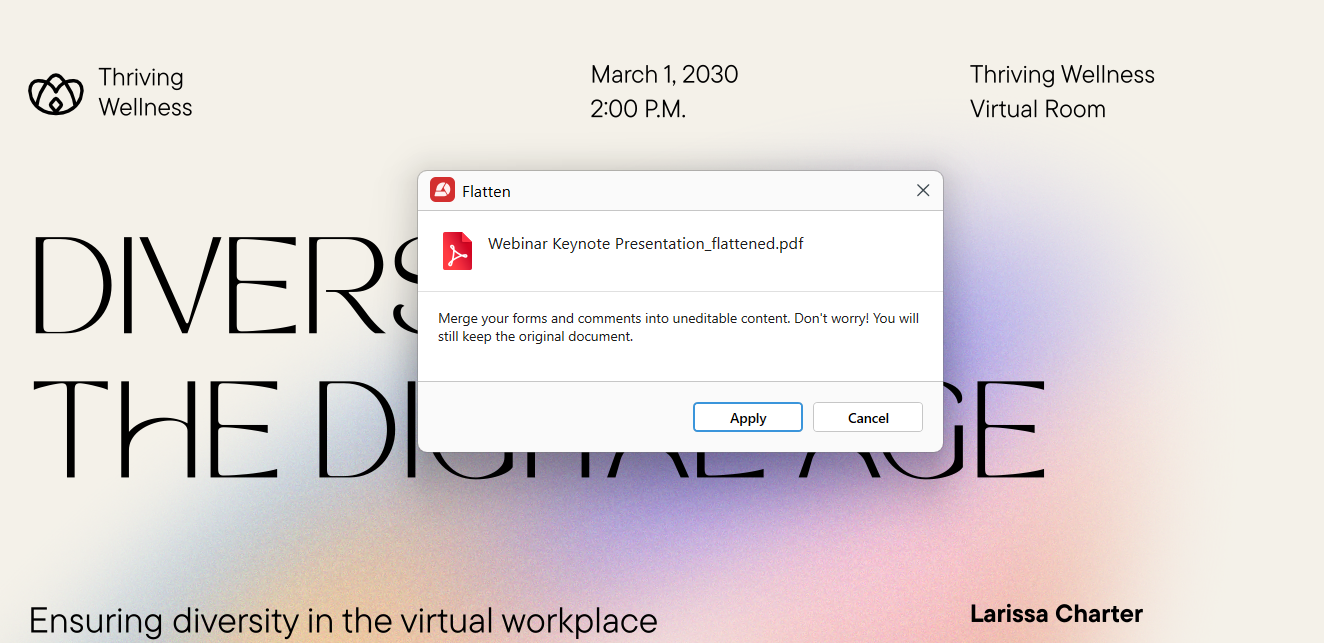 These restrictions exist for security and compliance. You should only modify such files if you have proper permission.
Scanned PDFs (image-based content)
Scanned PDFs are made from photos or scans of paper documents. They contain images instead of real text, so computers cannot recognize letters automatically.
Without OCR, these files cannot be typed into directly.
How to type on a downloaded PDF (step by step with MobiPDF)
You can type on most downloaded PDFs by using MobiPDF’s built-in editing and text tools. These features work offline and help keep your data secure.
Follow these steps to start typing on your document.
1. Open the downloaded PDF
Launch MobiPDF and open your downloaded file from your computer or cloud storage. Save the file locally if you plan to work offline.
Once opened, check whether the document contains editable fields or requires text tools.
2. Use the Edit tab.
Select the Edit tab in Home and you will see your options to edit, including text writing. 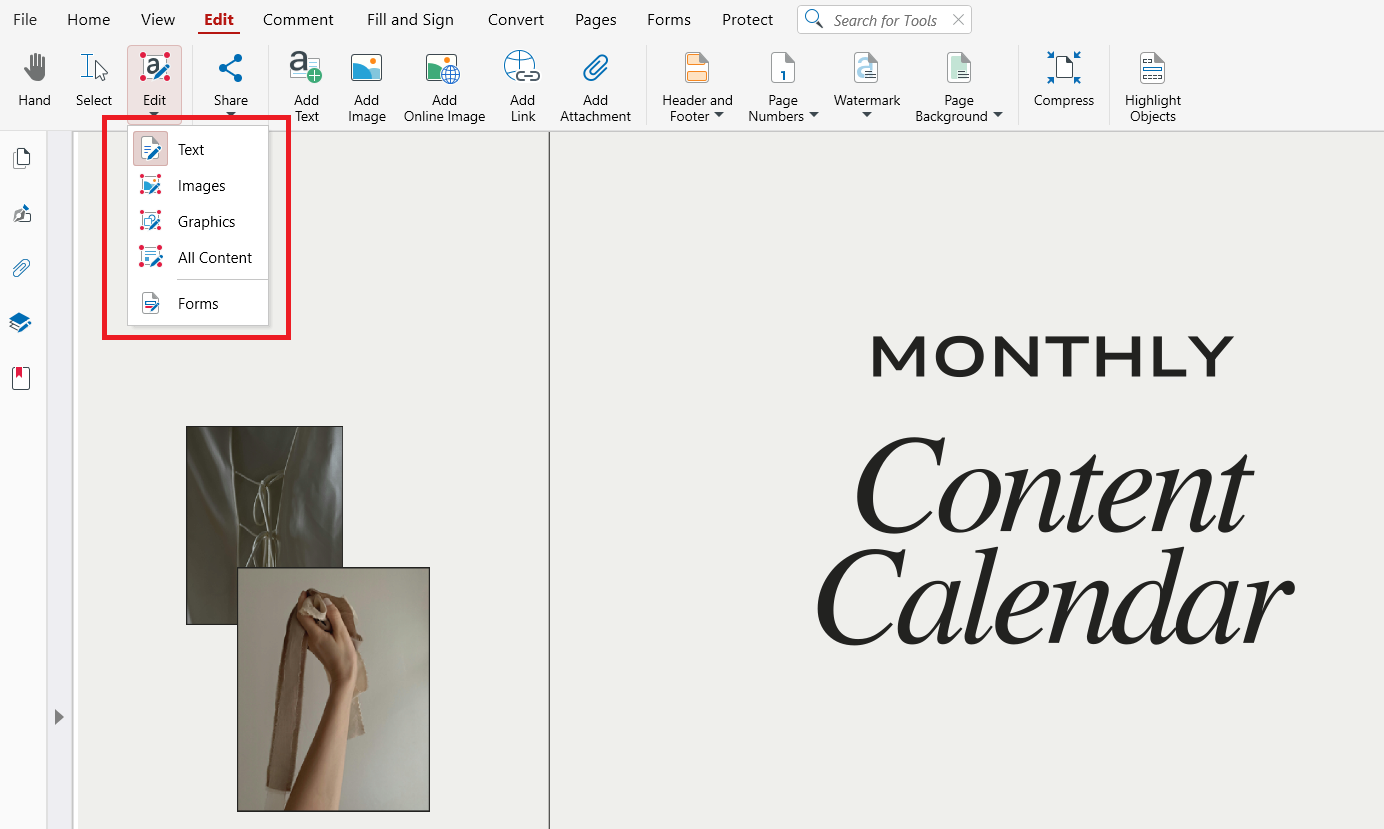 If the PDF contains form fields, click inside them to type directly.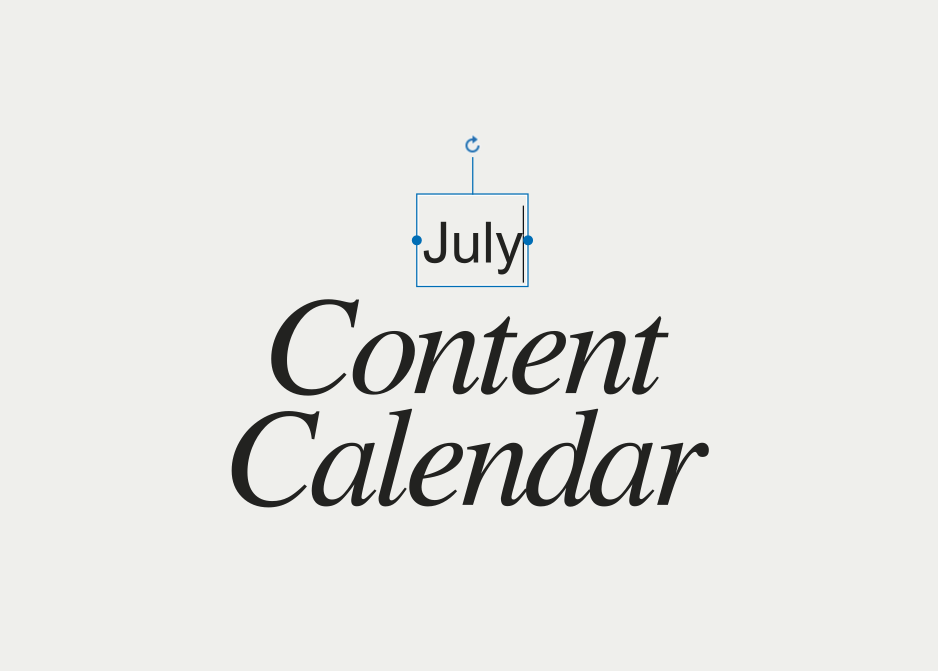
3. Place and format your text
Use Text Annotation to place a box where you want to type and enter your text. Adjust font size, style, and alignment to match the original layout. 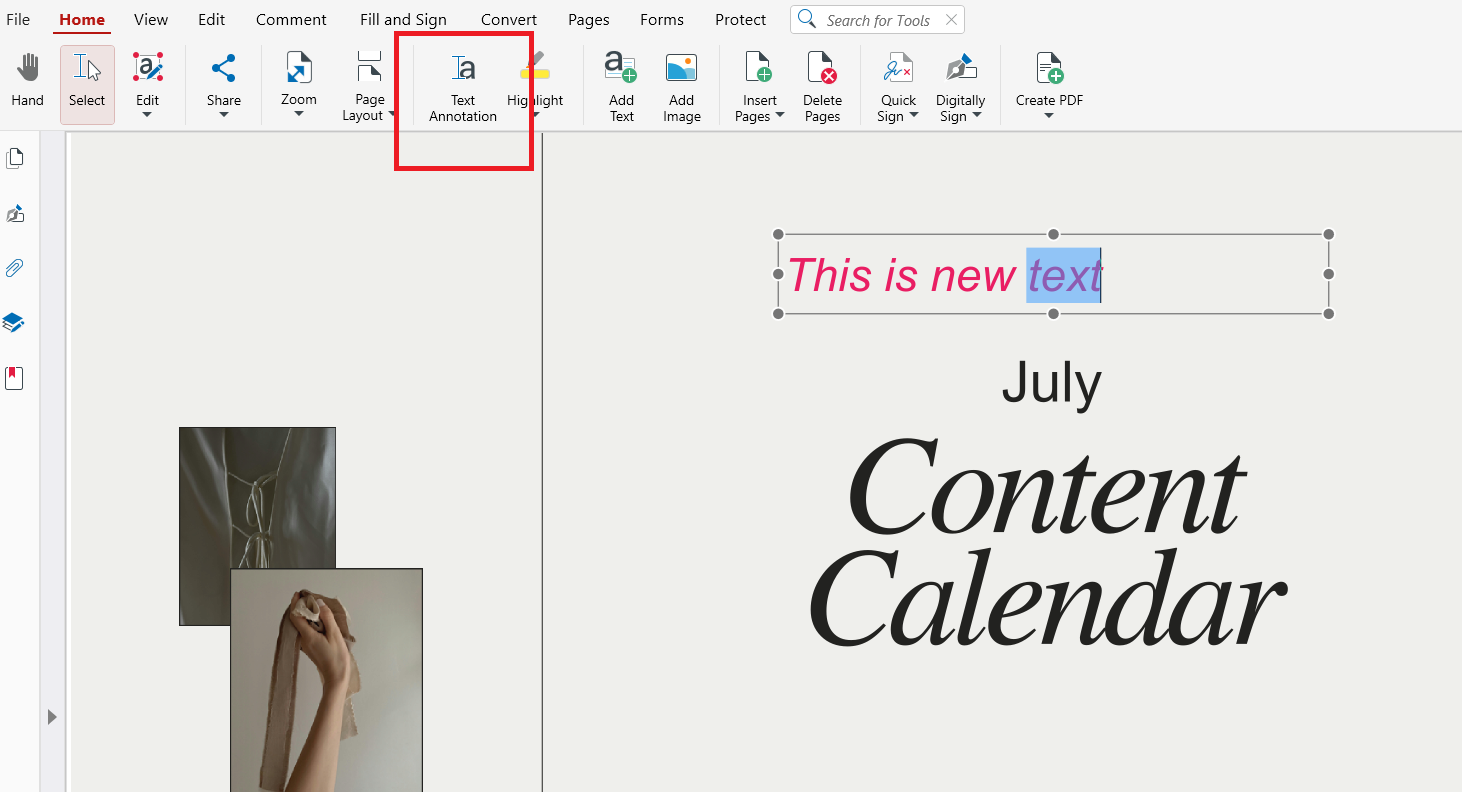 Proper formatting helps your additions blend naturally with the document. Save your file when finished to preserve changes.
How to type on a PDF that cannot be edited
If a PDF cannot be edited, you can still add text using overlays or file conversion. MobiPDF lets you insert text boxes or if that’s not possible – convert files to editable formats.
You may convert the PDF to Word, edit it, and convert it back. This works for restricted files but may affect formatting, so always review the result.
How to type on a scanned PDF
To type on a scanned PDF, you must first use OCR to convert images into editable text. OCR analyzes the file and recognizes characters automatically.
After OCR is complete, you can edit, fill forms, and add notes. MobiPDF offers built-in OCR to simplify this process.
Common problems when typing on PDFs (and how to fix them)
Typing on PDFs can cause formatting and alignment issues, especially in rigid layouts. These problems usually result from font mismatches or limited editing layers.
Most issues can be fixed using proper tools and careful formatting.
Text alignment issues
If text looks misaligned, adjust the text box position and spacing. Zooming in helps with precise placement.
Matching the original margins improves consistency.
Font inconsistencies
Some PDFs use embedded fonts that cannot be edited. Choose the closest available font and size to maintain uniformity.
Avoid mixing multiple font styles in one document.
Layout shifts
Layout shifts occur when added text pushes existing elements. Use fixed-size text boxes and avoid resizing original content.
Preview your document before saving the final version.
Frequently asked questions
How do I type on a downloaded PDF file?
Open the file in MobiPDF and select the Edit or Add Text tool. Click where you want to type and enter your text. Save the document to keep your changes.
Why can’t I type on a PDF even though it isn’t locked?
The file may not contain editable layers or form fields. It could also be flattened or scanned. In these cases, you need text tools or OCR.
How can I type on a scanned PDF?
You must apply OCR to convert images into editable text. After recognition, you can type normally. MobiPDF includes built-in OCR for this purpose.
What’s the difference between typing, editing, and filling out a PDF form?
Typing adds new text boxes, editing changes existing content, and filling forms uses predefined fields. Each method uses different tools. Choosing the right one protects the layout.
Can I type on a PDF without changing the original layout?
Yes, by using properly sized text boxes and matching fonts. Avoid resizing existing elements. Previewing before saving helps prevent layout changes.
Why does my text shift or break the layout when I type in a PDF?
This usually happens because of rigid formatting or font mismatches. Fixed text boxes and similar fonts reduce this risk. Careful placement improves stability.
Try MobiPDF for secure PDF editing
If you regularly work with downloaded PDFs, a reliable editing tool makes a difference. MobiPDF provides secure, offline-capable features for typing, editing, and OCR.
Download MobiPDF to simplify your PDF tasks and enhance your workflow.