Crop PDF pages, one at a time or all at once
Crop PDF pages in MobiPDF by drawing the area you want to keep, or by setting exact margins for the top, bottom, left and right of the page. Apply to one page or all pages in the document and see a preview before you crop.

Draw the area you want to keep
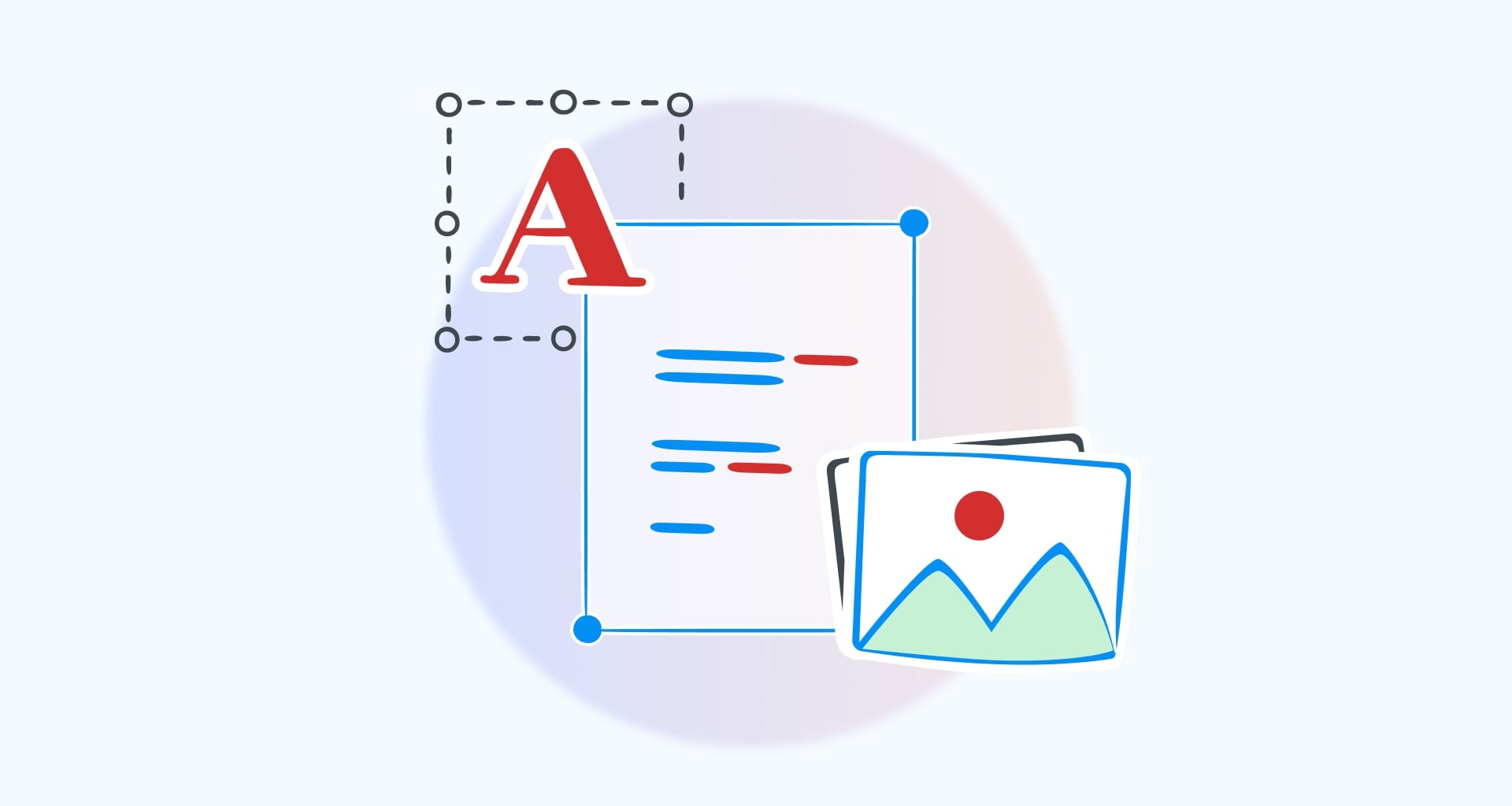
Crop Area lets you crop PDF pages by drawing a rectangle around the part you want to keep. Open the Edit tab, select Crop, then choose Crop Area. Drag across the page, adjust the box using the handles at its corners and edges, and apply the crop. Use it to trim white space around a scan or cut a page down to one chart.

Set exact margins for every page
Crop Pages gives you exact control in the Set Crop Box window. Choose Inch, Millimetre, Centimetre, or Points, then enter values in the Top, Bottom, Left, and Right fields. Select All pages or enter a Page range. The live preview shows the adjusted area and cropped page size before you select Crop. For a different page size, MobiPDF also handles resizing pages.

Crop one page or the whole document
The Page range controls where the same crop is applied. Enter a single page to change only that page, choose several pages, or select All pages for the whole document. Applying one set of margins for cropping is useful for removing repeated scanner borders, printer crop marks, or wide margins around exported slides.

Keep working on the file
Cropping takes place inside the MobiPDF editor, so your document stays open when you finish. Once the crop looks right, you can move straight into editing text and images or just save the file as it is. The steps above match cropping pages in the user guide, screenshots included.

Why crop PDFs with MobiPDF?

MobiPDF gives you two ways to crop a PDF: drag a rough area by eye when you're working quickly or set exact margins in Crop Pages when you need the same result on every page. You get live preview before you commit and the page range lets you trim one page or the whole document without guessing. Cropping happens inside the same editor you already use, and the file stays ready for the next task.
FAQ

Open the PDF in MobiPDF.
Go to the Edit tab and select Crop.
Choose Crop Area or Crop Pages.
Draw and adjust the area to keep, or set the margins and Page range in Set Crop Box.
Select Crop to apply the change.
Yes. On the Edit tab, select Crop, then Crop Pages. In the Set Crop Box window, enter the margins you want and choose All pages under Page Range. Check the live preview and cropped page size, then select Crop to apply the same settings throughout the document.
Yes. Use Crop Area on the page you are viewing, or open Crop Pages and enter that page in the Page range field. Crop Area works well when you want to select visually, while Crop Pages lets you enter exact margins and review the result before applying it.
No. Cropping changes the visible area of the page, and the content outside it stays inside the file, so it can be recovered by resetting the crop box. You can also undo the crop with Ctrl+Z before you save. To remove information permanently, use PDF redaction instead.
Yes. Crop Area can trim uneven white space or a scanner border from an individual scanned page. If the same border appears throughout the file, use Crop Pages, set the margins once, and apply them to the required Page range or to All pages.
Cropping changes which part of the existing page is shown by trimming its edges. Resizing changes the page dimensions or paper size. Use Crop when you need to remove margins or isolate part of a page and Resize when the page itself needs different dimensions.
No. Cropping requires a paid plan — the feature isn't available in the free version of MobiPDF. Other page tools, like filling out a form or adding a comment, may still work in the free version, so check the pricing page for exactly what each plan includes before you upgrade.
Get more PDF tips straight from our experts