To fill out a PDF form on Windows, open it in a PDF editor: if the form has fillable fields, click each field and type; if it is a flat scan, add text and check marks over the lines with the Fill and Sign tools. Then save or flatten the form so your answers cannot be changed.
First, check what kind of form you have
Before choosing a method, click the place where your first answer should go. If a cursor appears or the field becomes active, you have an interactive form with real fillable fields. You can enter information directly into it.
If clicking the line or box does nothing, the document is probably a flat form. This often happens with a scanned form, a paper form saved as a PDF, or a document exported without interactive fields. It may look fillable, but the lines and boxes are only part of the page image. You can still complete it by placing text, dates, and marks over the right areas.
A flat form works for a one-off response, but an interactive version is more practical when the document will be completed repeatedly. If you manage the original document, creating a fillable PDF yourself lets people enter their answers directly into reusable fields.
Which method should you use?
Match the method to the form, not the other way around. Fillable fields take clicks and keystrokes. A flat form needs text placed over it by hand. And if you're on a computer with no PDF editor installed — a library terminal, a shared machine — a browser-based filler gets you through a one-off, with a trade-off worth knowing about.
Fill out a PDF form with fillable fields
If the PDF has active fields, you can fill it by clicking each field, entering the requested information, and saving a copy. In MobiPDF for Windows, the process works as follows:
Open the form. Start MobiPDF, select Open, and choose the PDF from your device. You can also open the file from File Explorer if MobiPDF is set as your PDF app.
Click in a field. An active text field or text box lets you place the cursor inside it. Type your answer as you would in any other document.
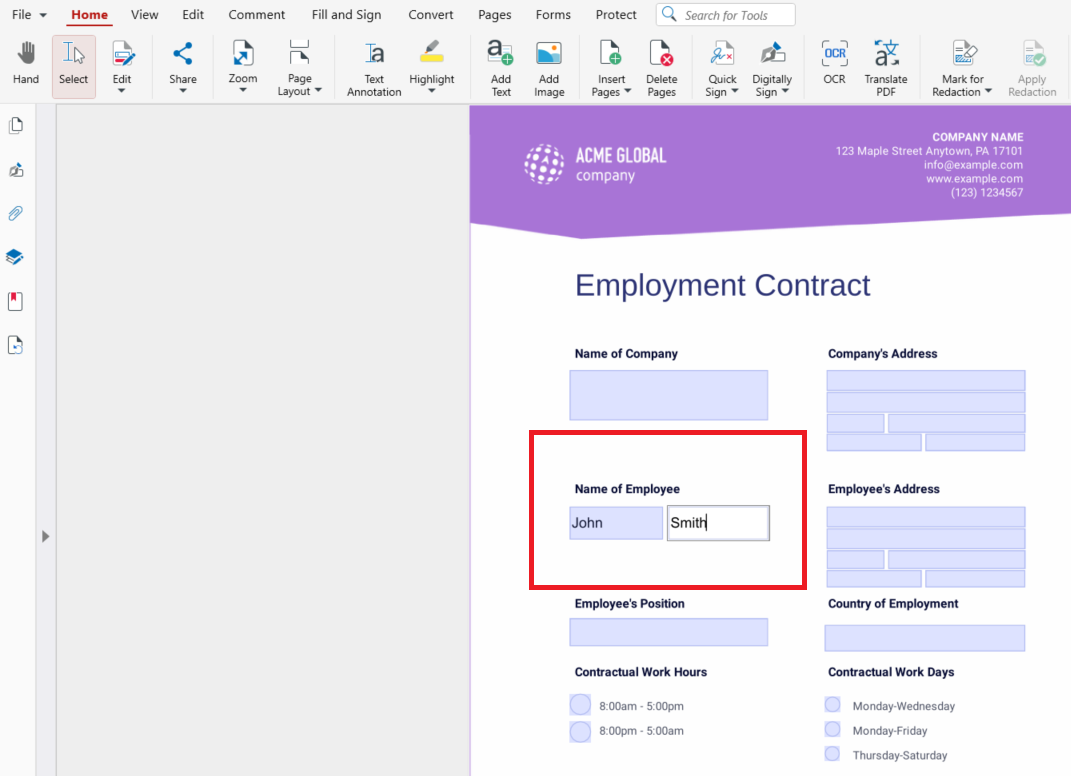
Complete the other field types. Select checkboxes for answers that allow more than one choice. Use radio buttons when the form expects one choice from a group. Lists and dropdowns let you choose from options supplied by the form creator. A button may reset, submit, or perform another action, depending on how the form was built. Leave any signature field until you are ready to sign.
Move through the form. Press Tab to go to the next field, or click the next place you need to complete. Review every page before saving, especially optional sections and boxes that may be easy to miss.
Save your completed copy. Use File → Save As if you want to preserve the blank original. Choose a clear filename and reopen the saved PDF to confirm that your answers are present. MobiPDF Free preserves values entered in standard interactive fields without adding a watermark, though printing from the free version does add one — so share the saved PDF itself rather than a printout if you need a clean copy.
Fill out a flat form (no fillable fields)
A flat form has no fields to click into, so instead of typing directly onto it, you place your answers on top of it — like writing over a printed page, but digitally and precisely aligned.
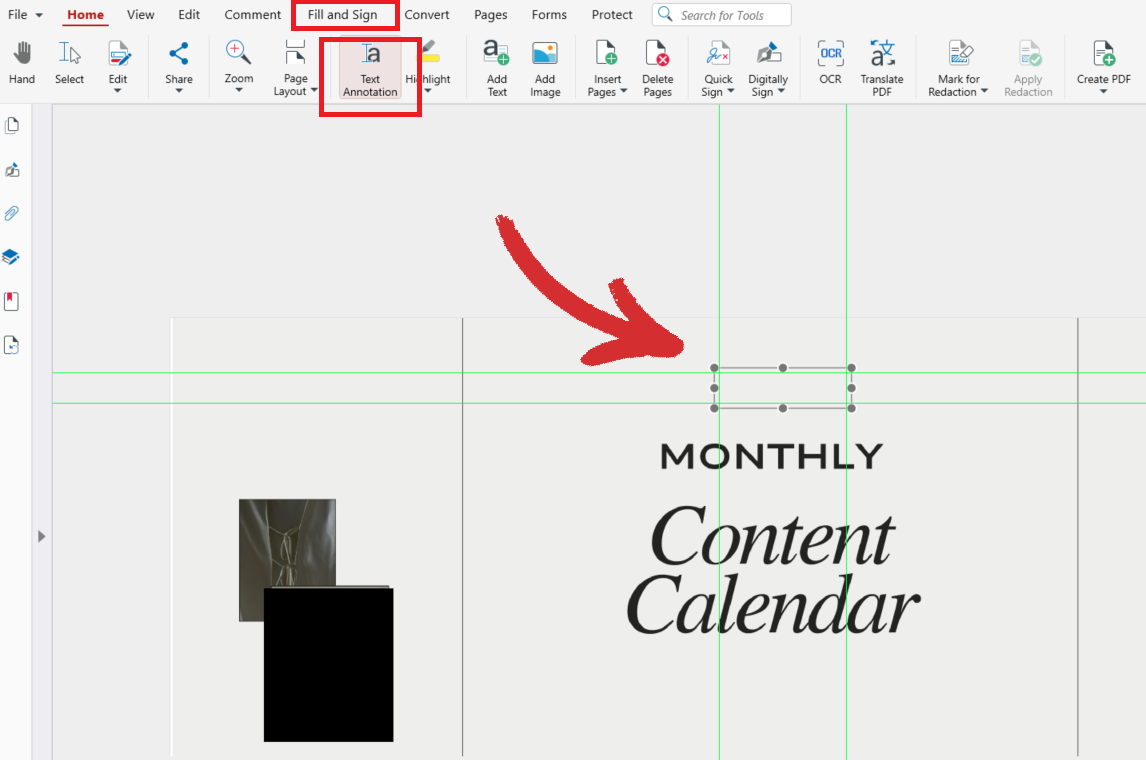
Open the flat PDF and switch to the Fill and Sign tab.
Select Text Annotation, then click where you want to place your text and type it—it sits exactly where you placed it, and you can reposition it if it lands slightly off the line.
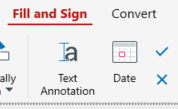
For date fields, use the Date tool the same way: click the spot, and the date is dropped in at that position.
For checkboxes or small boxes on the printed form, use the check mark or cross mark tool to place a mark inside the box, rather than typing a character.
Work through the form section by section rather than field by field — it's easier to keep annotations aligned when you're looking at one part of the layout at a time.
Zoom in before placing marks in tight spaces, so a check mark doesn't land half outside its box.
When every line and box is filled, save the file. Like an interactive form, these annotations remain editable unless the form is flattened afterward.
Fill out a PDF form in your browser
If you're on a computer where nothing can be installed — someone else's laptop, a public terminal — a browser-based PDF filler can get a single form done without leaving a footprint on the machine. Most work the same way: upload the file, place text or marks over it, then download the finished copy.
The trade-off is worth weighing before you use one: the form usually has to be uploaded to a website you don't control, and forms often carry personal information — names, addresses, sometimes more. For anything sensitive, or for forms you'll need to fill regularly, an editor installed on your own machine keeps that data local instead of passing through someone else's server.
Sign and lock the finished form
Once every field or annotation is in place, the form usually needs a signature and a way to stop it from being changed afterward.
For signing, the Fill and Sign tab — detailed further on the filling and signing in MobiPDF feature page — offers two options. Quick Sign places a picture of your signature: drawn, typed, or uploaded from an image. Digitally Sign instead applies a certificate-backed signature that ties the document to a verified identity, the stronger form of proof digitally signing a PDF walks through step by step.
To stop your answers from being edited after you send the form, use Flatten on the Protect tab. It merges form fields and comments into the page itself, so your answers are no longer editable fields. Add a Quick Sign signature before you flatten; if the form needs a digital signature, flatten first and use Digitally Sign last — any change after a digital signature invalidates it. Flatten saves a new file named <file>_flattened.pdf and leaves your original untouched — send the flattened copy, and keep the original for your own records; deciding when that trade-off is worth it is what when to flatten a PDF and why walks through in more depth.
PDF form problems and how to fix them
I can't type into the PDF.
The form is almost certainly flat, not interactive — clicking does nothing because there are no fields to click into. Use the Fill and Sign tools from the flat-form method above instead.
The form asks for Adobe.
It doesn't need to be Adobe specifically. Fillable fields are part of the PDF standard itself, not something proprietary to one company — any standards-compliant PDF editor can read and fill the same fields.
My checkbox won't tick, or ticking one un-ticks another.
That's usually a radio button group, not a set of independent checkboxes — radio buttons are built so only one option in the group can be selected at a time. If you're trying to select more than one, check whether the form intends for that field to be exclusive.
Alternative: MobiPDF
Every method above was shown in MobiPDF for Windows, and the same steps carry over from start to finish in one app: open the form, fill it — with a click for interactive fields or the Fill and Sign tools for a flat one — sign it with Quick Sign, flatten it, and add a digital signature last if the form needs one. No switching tools partway through, and no uploading a form with personal data to a website to get it done.
Filling and saving your own form are both included in the free version, so there's nothing to buy before trying it — and if you'd rather follow along click by click, filling out forms, step by step (user guide) walks the same sequence shown above.
FAQ
Yes — the Fill and Sign tools carry over to MobiPDF's Android and iOS apps, so you can add text annotations, dates, and checks to a flat form the same way you would on Windows. The complete form-filling and signing experience on mobile needs a paid MobiPDF license.
Yes — save the file at any point while you're filling it in, and your entries are still there, still editable, when you reopen it. Nothing about the form is final until you flatten it or send it as is.
Yes — filling in interactive fields is included in MobiPDF's free app, no upgrade needed. If you only need to fill out a single form once, a free browser-based filler works too, though it means uploading the file to a site you don't control.
Flatten it. Flatten on the Protect tab merges form fields and comments into the page, so your answers are no longer editable fields — send the flattened copy and keep the original. If the form needs a digital signature, add it after flattening.
Use Quick Sign to place a picture of your signature — drawn, typed, or uploaded from an image — for a quick, informal option, or Digitally Sign when the form calls for a certificate-backed signature tied to a verified identity.
Final thoughts
Most PDF forms that "won't let you type" aren't broken — they're just flat, and once you know which kind of form you're looking at, filling either one takes the same handful of clicks. Check for a cursor first, use the right tool for what you find, and flatten the result before you send it on.