ניתן לשמור מסמך Google Doc כ-PDF על ידי פתיחת הקובץ, לחיצה על קובץ ← הורדה ← מסמך PDF (.pdf) והמתנה להורדתו למכשיר שלך.
שמירת המסמך כ-PDF שומרת על עקביות הפריסה, הגופנים והרווחים, מה שהופך אותו לאידיאלי לשיתוף, הדפסה, הגשה או ארכיון. במדריך זה תלמד את הדרכים המהירות ביותר לייצא מסמך Google Docs ל-PDF במחשב ובנייד, כיצד להמיר מספר קבצים בו-זמנית וכיצד לתקן בעיות עיצוב נפוצות. תגלה גם כיצד MobiPDF יכול לעזור לך לערוך, למזג, לדחוס ולאבטח את קובצי ה-PDF שלך לאחר הייצוא.
דרכים שונות לשמור מסמך Google Doc כ-PDF
Google Docs מציע מספר דרכים מובנות להמיר את המסמך שלך ל-PDF. כל אחת מהן מתאימה למצבים שונים.
הורדה כ-PDF ב-Google Docs (השיטה המהירה ביותר)
זוהי האפשרות המהירה והאמינה ביותר עבור רוב המשתמשים.
שלבים (מחשב):
פתח את מסמך Google Doc שלך.
לחץ על קובץ בתפריט העליון.
בחר הורדה ← מסמך PDF (.pdf).
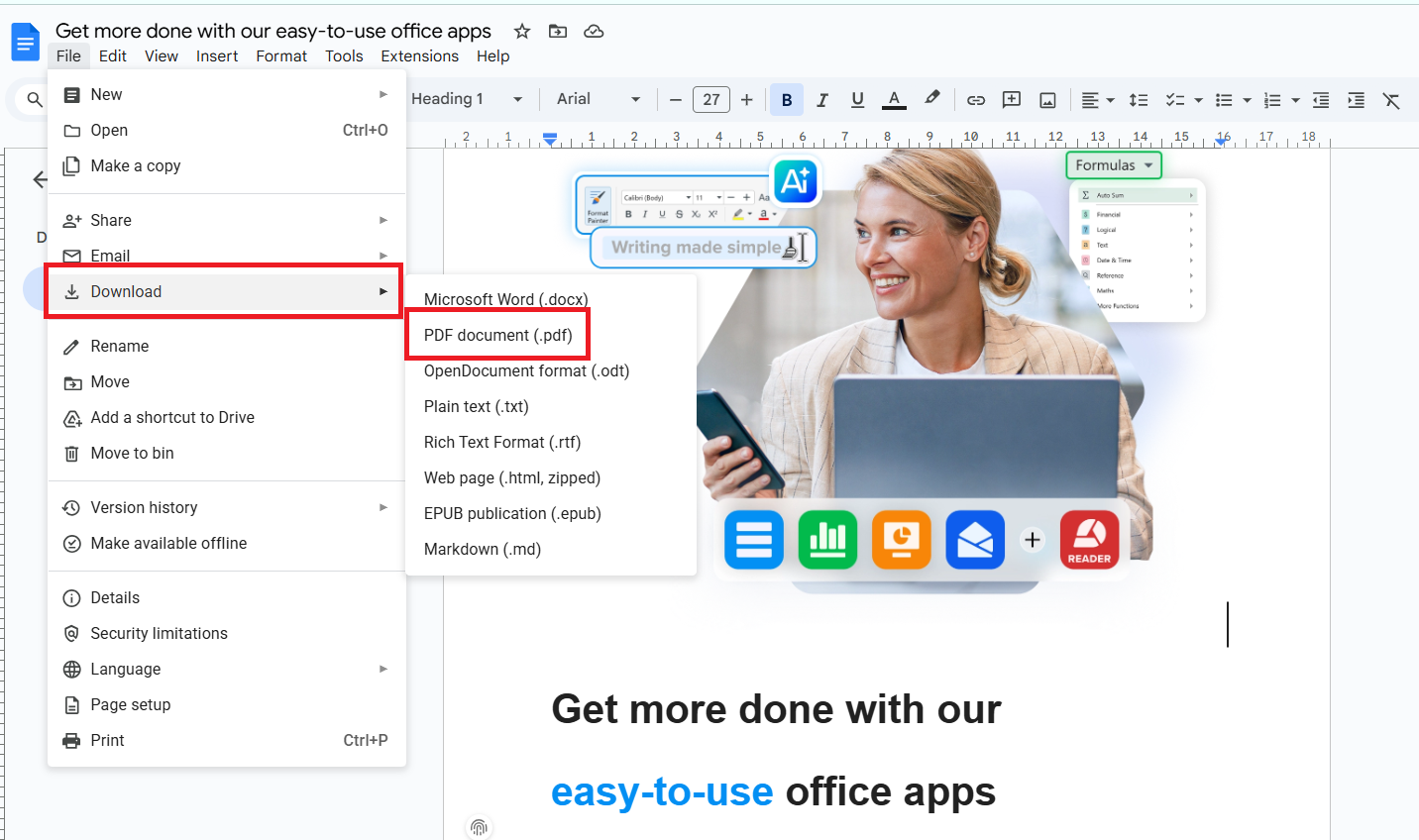
הקובץ יורד למכשיר שלך.
מתאים במיוחד ל:
ייצוא מהיר, שיתוף והדפסה.
הדפסה ל-PDF
הדפסה ל-PDF מעניקה לך שליטה רבה יותר על הפריסה, השוליים והגדרות העמוד.
שלבים (מחשב):
פתח את המסמך שלך.
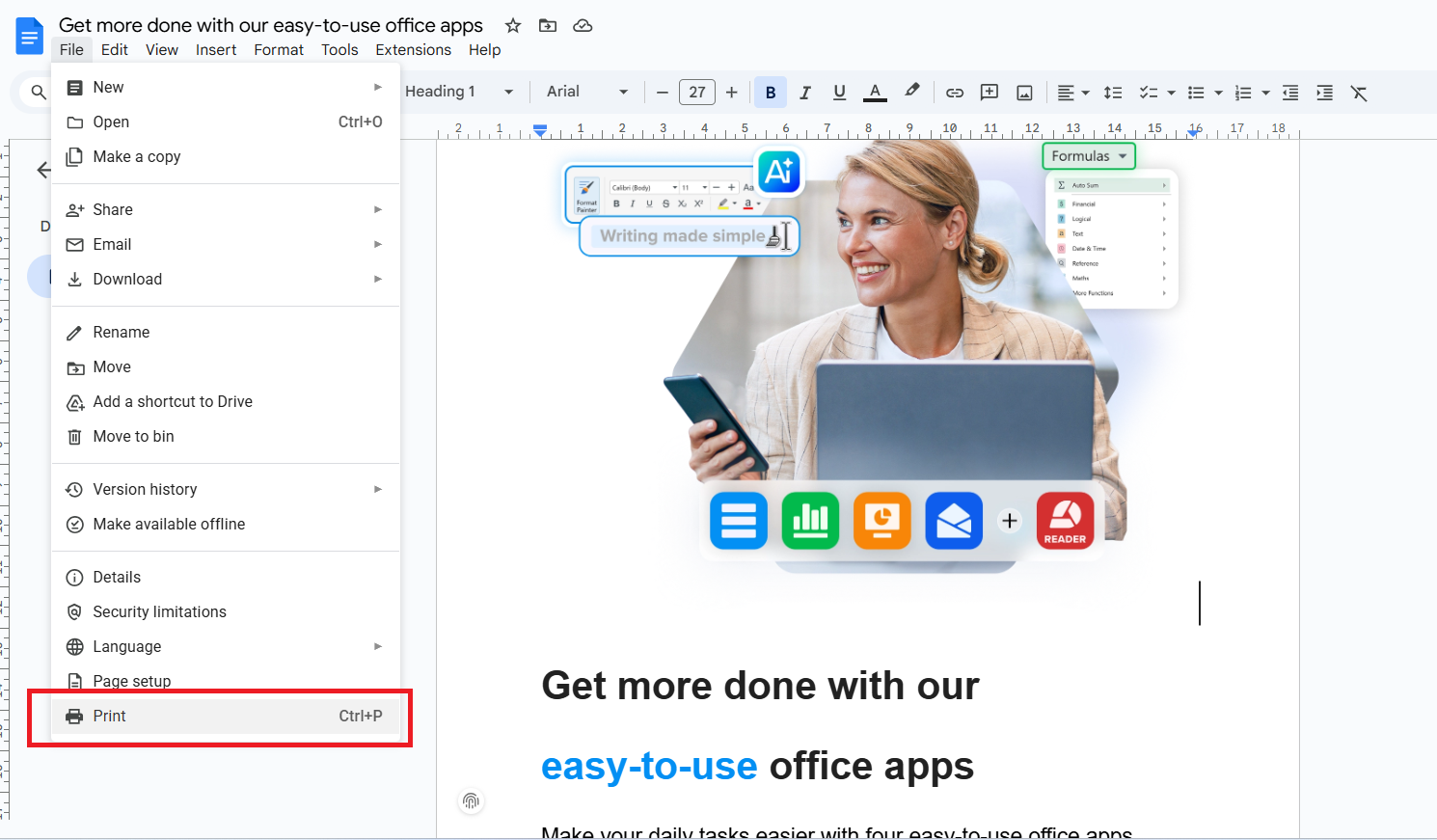
לחץ על קובץ ← הדפסה (או הקש Ctrl + P / Cmd + P).
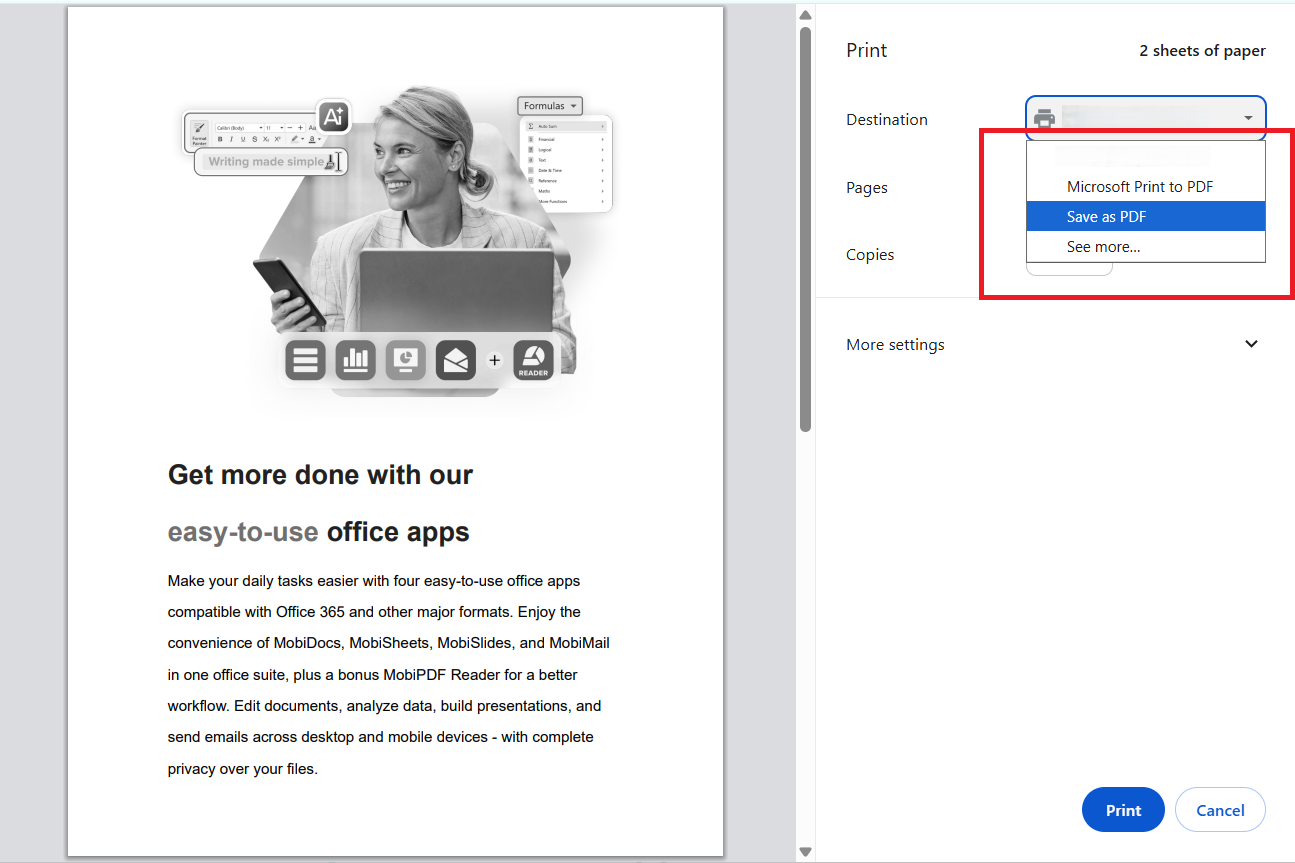
בתפריט המדפסת, בחר שמור כ-PDF.
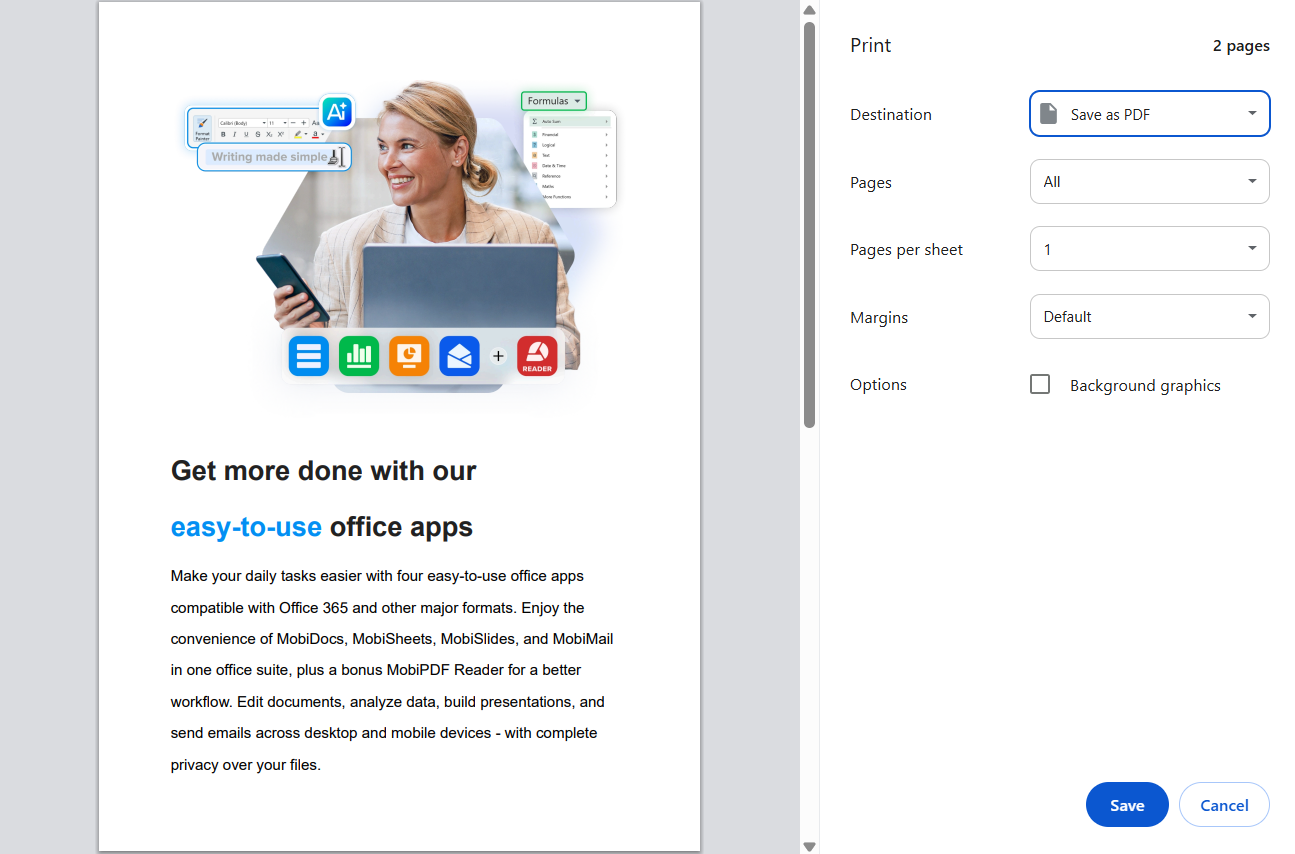
לחץ על שמור.
מתאים במיוחד ל: כאשר נדרשים שוליים מותאמים אישית, גודל עמוד או שינוי קנה מידה.
שמירת מסמך Google Doc כ-PDF בנייד
ניתן לייצא קובצי PDF מאפליקציית Google Docs ב-Android וב-iOS.
שלבים (נייד):
פתח את אפליקציית Google Docs.
פתח את המסמך שלך.
הקש על תפריט שלוש הנקודות (⋮).
בחר שיתוף וייצוא.
הקש על שמור בתור ← מסמך PDF.
הקש על אישור להורדה.
מתאים במיוחד ל: עבודה בדרכים וייצוא מהיר מהנייד.
מתי להשתמש בכל שיטה (טבלה)
טיפ: התחל עם הורד כ-PDF. אם הפריסה נראית שגויה, עבור ל-הדפס ל-PDF.
How to convert multiple Google Docs to PDF at once
A common question is: “How do I convert multiple Google Docs at once?”
Unfortunately, Google Docs does not offer native batch export. You can’t select multiple files and download them as PDFs in one click.
Here are three realistic ways to handle multi-file workflows.
Option 1: use a Google Workspace add-on
Some add-ons from the Google Workspace Marketplace can automate PDF exports.
How it works:
Install a batch export or PDF converter add-on.
Grant access to your Drive files.
Select multiple documents and export them as PDFs.
Pros:
Works inside Google Docs/Drive
No manual downloads
Cons:
Many are paid
Privacy and security vary
Features differ by provider
Best for: Teams that regularly export large volumes.
Option 2: use Google Drive + third-party automation (Google Apps script)
If you’re comfortable with automation, Google Apps Script can convert files in bulk.
How it works:
Create a script that loops through selected Docs.
Convert them to PDFs automatically.
Save them to a Drive folder.
Pros:
Fully customizable
Free if self-managed
Cons:
Requires technical skills
Setup takes time
Best for: Power users and IT teams.
Option 3: download your documents and convert with MobiDocs
This is one of the most reliable options if you need to convert multiple Google Docs into PDFs and manage them offline.
How it works:
Download your Google Docs as DOCX files.
Open with MobiDocs.
Go to File and choose Export to PDF.
Open the exported PDFs in MobiPDF.
Edit, merge, compress, or secure your documents as needed.
Pros:
Clear, step-by-step workflow
Works without an internet connection
Greater control over formatting and output quality
Easy transition from editing (MobiDocs) to PDF management (MobiPDF)
Cons:
Requires downloading files to your device first
Best for: Freelancers, students, and office users who want reliable batch processing.
Common Google Doc to PDF formatting issues (and how to fix them)
Sometimes PDFs don’t look exactly like your original document. Here’s how to fix the most common problems.
Page size mismatch, margins, and scaling
Problem:
Text is cut off, too small, or shifted.
Fixes:
Go to File → Page setup in Google Docs.
Match your target size (A4 or Letter).
Set margins to at least 0.5 inches (1.27 cm).
Use Print to PDF and adjust scaling to 100%.
Tip: Always match page size before exporting.
Fonts and special characters changing in the PDF
Problem:
Fonts look different or symbols disappear.
Fixes:
Use standard fonts (Arial, Times New Roman, Roboto).
Avoid rare or custom fonts.
Check File → Download → PDF instead of Print if fonts shift.
If needed, embed fonts via Print to PDF.
Tip: Standard fonts reduce compatibility issues.
Images shifting, disappearing, or looking blurry
Problem:
Images move, overlap, or lose quality.
Fixes:
Set images to In line with text.
Avoid “Wrap text” for critical layouts.
Upload high-resolution images (at least 150–300 DPI).
Re-export using Print to PDF for better rendering.
Тip: Inline images export more reliably.
Tables breaking across pages or overflowing the margin
Problem:
Tables split awkwardly or run off the page.
Fixes:
Resize columns manually.
Reduce font size inside tables.
Use Format → Line & paragraph spacing → smaller spacing.
Insert manual page breaks before large tables.
Tip: Resize tables before exporting.
Links, headers/footers, and page numbers not appearing as expected
Problem:
Missing or misaligned headers, footers, or links.
Fixes:
Double-check Insert → Headers & footers.
Make sure “Different first page” is disabled (if not needed).
Reinsert page numbers.
Test export with Download as PDF and Print to PDF.
Tip: Preview headers in Print view first.
איך MobiPDF מסייע אחרי שממירים את מסמכי Google Docs ל‑PDF
כשהמסמך שלך בפורמט PDF, לא צריך לעצור את זרימת העבודה. MobiPDF עוזר לך לשפר, לאבטח ולהכין קבצים לשימוש יומיומי.
ערוך את ה‑PDF בלי לחזור ל‑Google Docs
צריך לתקן טעות כתיב או לעדכן חלק במסמך?
עם MobiPDF אפשר:
לערוך ישירות טקסט ותמונות
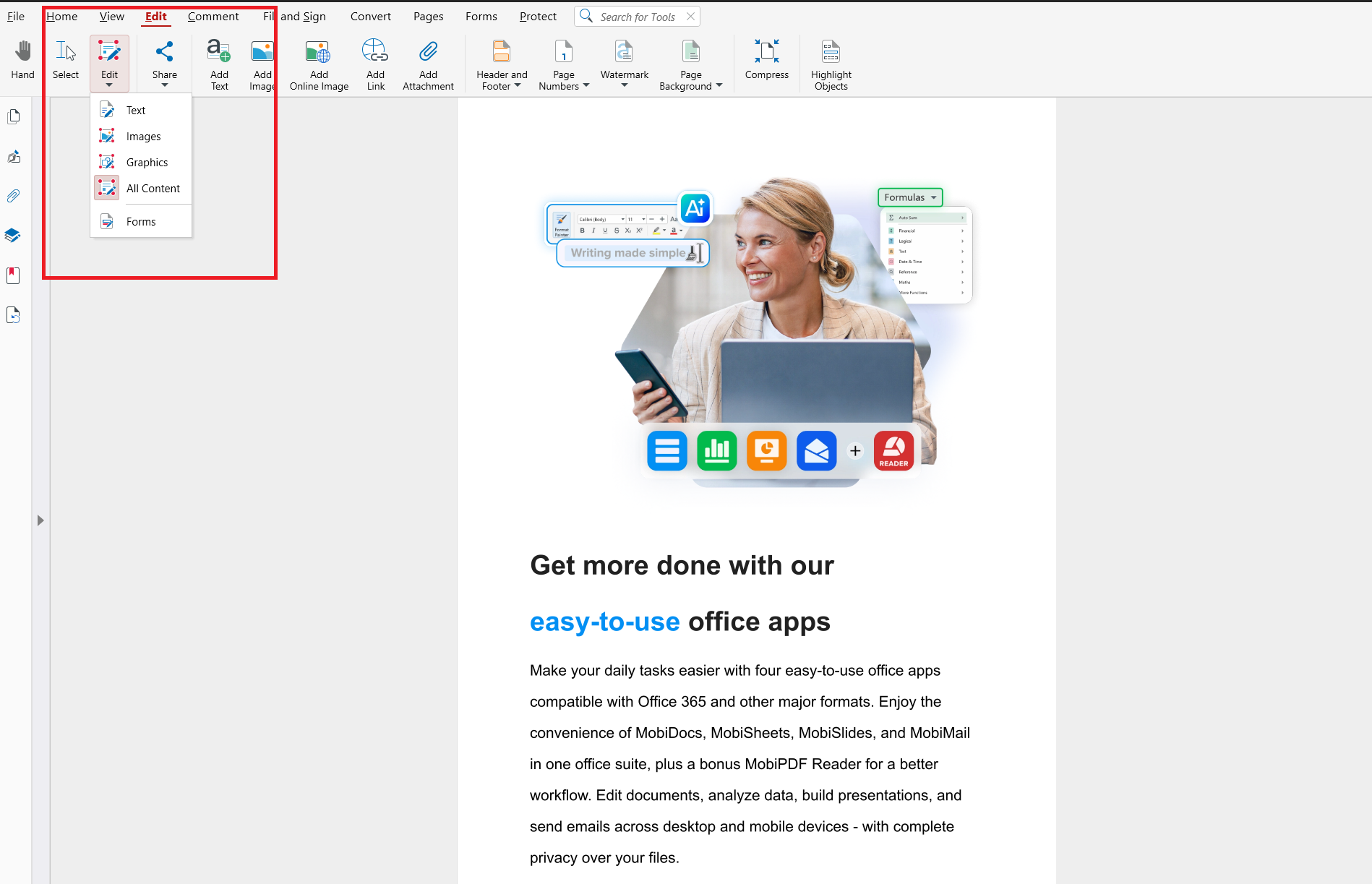
לכוונן את הפריסה
להוסיף הערות והדגשות
איחוד כמה קובצי PDF למסמך אחד
מתאים במיוחד ל:
דוחות
תיקי עבודות
הגשות
אחד כמה קבצים מיוצאים למסמך אחד, נקי ומסודר, בתוך שניות.
דחיסה של ה‑PDF
קובצי PDF גדולים מקשים על שליחה במייל או העלאה.
MobiPDF מאפשר לך:
להקטין את גודל הקובץ
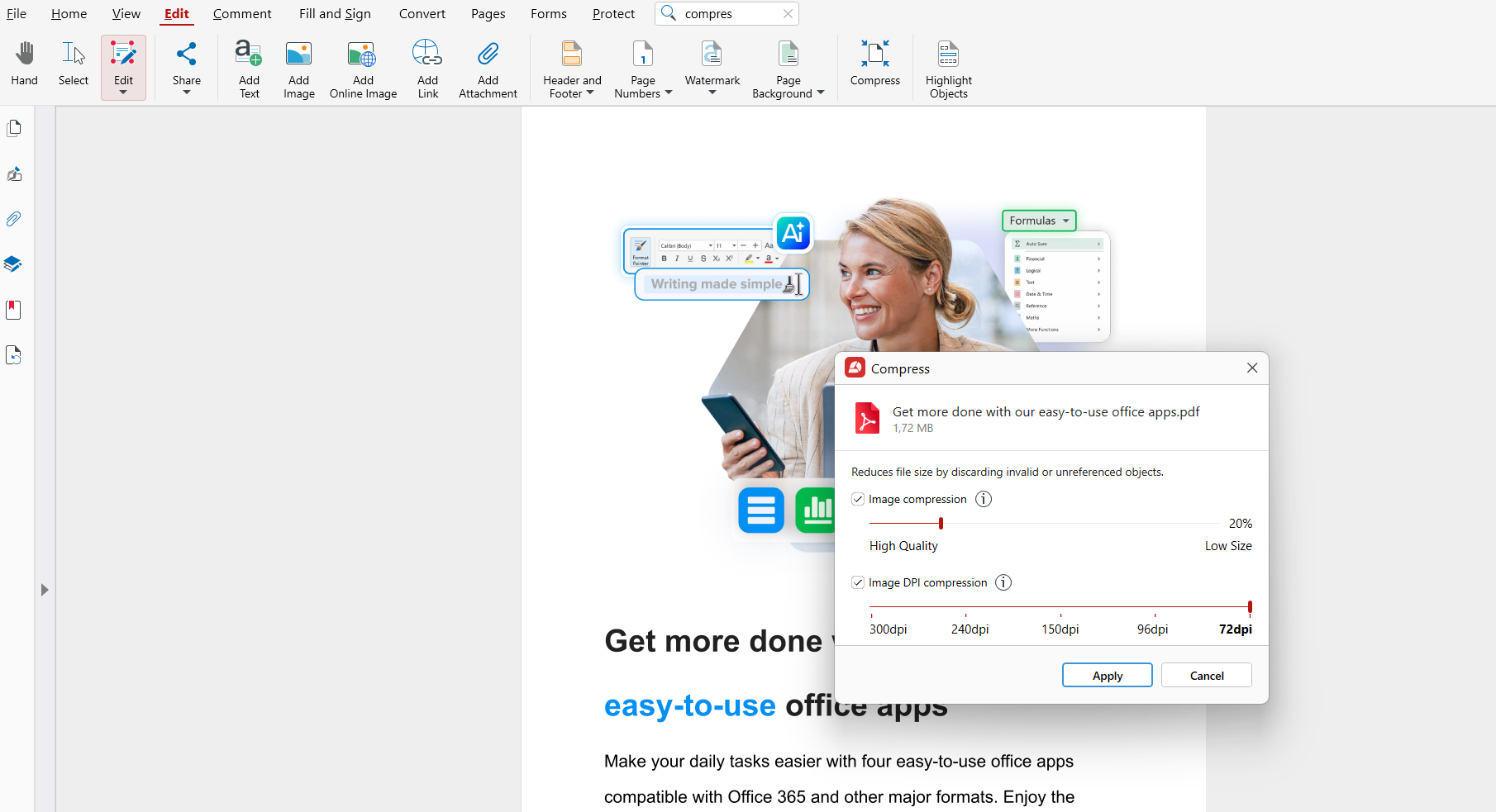
לשמור על איכות נוחה לקריאה
לייעל את הקובץ לשיתוף
הוספת חתימה או מילוי טפסים
לחוזים, טפסי בקשה ואישורים, תוכל:
להוסיף חתימות דיגיטליות
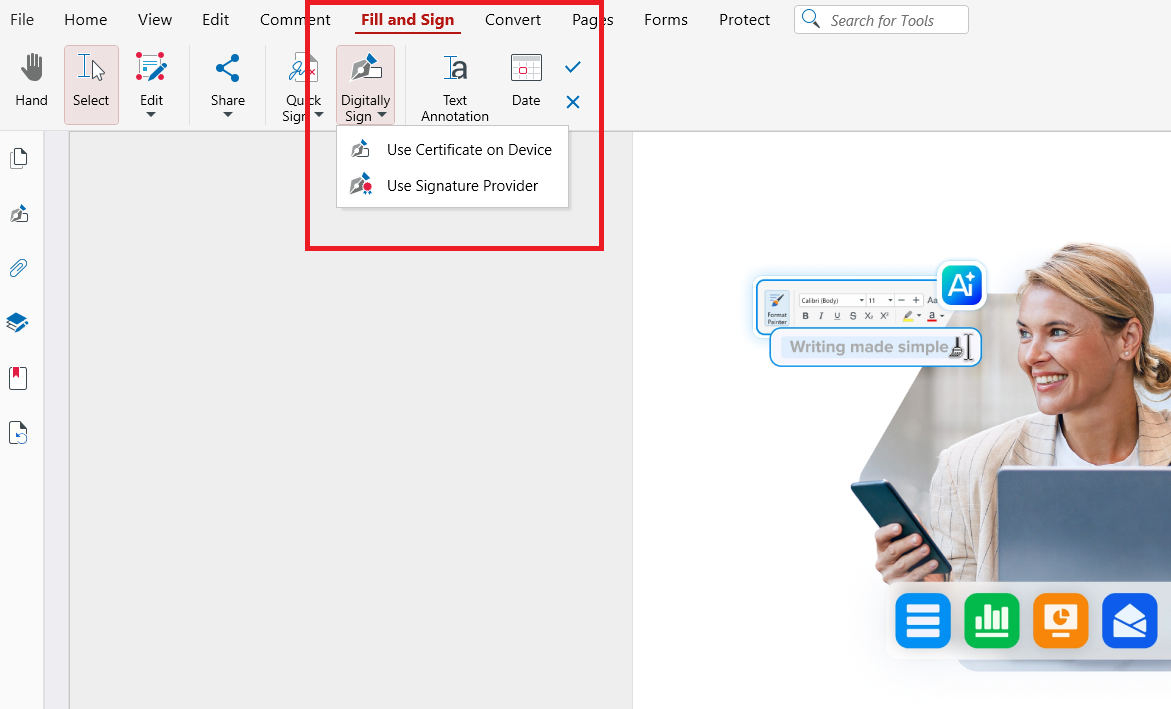
למלא שדות אינטראקטיביים
לשמור טפסים שמולאו באופן מאובטח
עבודה במצב לא מקוון עם אבטחת קבצים מלאה
בניגוד לכלים שפועלים רק בענן, MobiPDF מאפשר לך:
לעבוד גם בלי חיבור לאינטרנט
להחזיק את הקבצים על המכשיר שלך
להפעיל הגנת סיסמה והצפנה
מתאים במיוחד למסמכים רגישים.
שאלות נפוצות
האם אפשר לשמור מסמך Google Docs כ-PDF אם יש לי גישת צפייה בלבד?
כן, אם הבעלים מאפשר הורדות. לחץ על קובץ ← הורדה ← PDF. אם האפשרות מושבתת, תצטרך לבקש הרשאה.
מה הדרך הטובה ביותר לשמור מסמך Google Docs כ-PDF מבלי לאבד את העיצוב?
השתמש תחילה ב-הורדה כ-PDF, ועבור ל-הדפסה ל-PDF אם עליך לתקן בעיות פריסה.
האם אפשר להמיר מספר מסמכי Google Docs ל-PDF בבת אחת?
לא, Google Docs אינו תומך בייצוא אצווה, ולכן תזדקק לתוסף, לאוטומציה, או לכלי כמו MobiPDF.
מדוע מסמך Google Docs שלי נראה שונה לאחר ייצוא ל-PDF?
זה קורה בדרך כלל בגלל גודל עמוד, תאימות גופנים, מיקום תמונות, או בעיות פריסת טבלאות.
מה עליי לעשות אם ה-PDF לא מוריד מ-Google Docs?
רענן את הדף, נקה את מטמון הדפדפן, נסה דפדפן אחר, או השתמש ב-הדפסה ל-PDF במקום.
כיצד MobiPDF יכול לעזור לי לעבוד עם הקבצים שייצאתי?
MobiPDF מאפשר לך לערוך, למזג, לדחוס, לחתום ולאבטח את קובצי ה-PDF שלך לאחר הייצוא.
מחשבות לסיום: ממסמכי Google Docs ל-PDF מקצועיים
שמירת מסמך Google Docs כ-PDF היא פשוטה. עבור רוב המשתמשים, קובץ ← הורדה ← PDF עושה את העבודה תוך שניות. כשאתה זקוק לשליטה רבה יותר, עיבוד אצווה, או עריכה לאחר ייצוא, שילוב של Google Docs עם MobiPDF מעניק לך תהליך עבודה גמיש ומקצועי.
מוכן לנסות את MobiPDF?