To crop a PDF in MobiPDF, open your file, go to Pages→ Crop, and apply the crop to one or multiple pages.
Cropping a PDF is one of the fastest ways to clean up a document, remove unwanted margins, trim blank space, refine scanned pages, or highlight specific content. Whether you're preparing a file for printing, improving readability, or optimizing page layout, the crop tool lets you isolate exactly the area you need. This guide explains how to crop a PDF file step-by-step.
Key takeaways
You can crop any part of a PDF page using the Crop feature in MobiPDF.
MobiPDF allows cropping individual pages, multiple pages, and entire documents.
Cropping works for scanned PDFs, forms, reports, and image-based pages.
All cropping in MobiPDF is fully offline, secure, and suitable for sensitive files.
What does it mean to crop a PDF?
Cropping a PDF means cutting away unwanted areas from a page – such as white margins, headers, footers, scanner borders, page numbers, or irrelevant content. The visible area becomes smaller, and the final document looks cleaner and more focused.
In MobiPDF, cropping does not delete content permanently – it simply hides the trimmed regions while keeping the original data intact for future adjustments.
Cropping is especially useful for:
Tidying up scanned documents.
Removing black edges from mobile scans.
Focusing attention on charts or images.
Preparing PDFs for printing.
Creating visually consistent pages.
How to crop a PDF using MobiPDF (step-by-step)
To crop a PDF using MobiPDF you can use this easy, step-by-step workflow and learn how to define any area of the page with accuracy.
Here are the steps to do that.
Launch MobiPDF and open the PDF you want to crop.
Navigate to Page → Crop
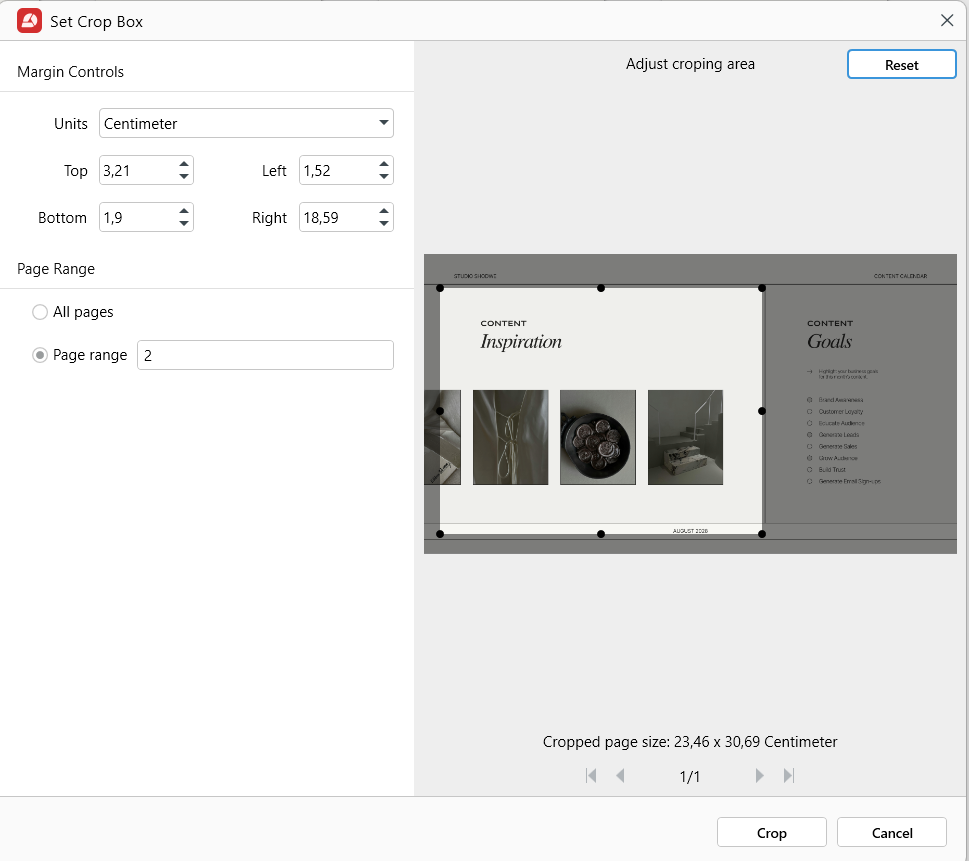
Set custom margins according to your preferences.
Tip: Click Reset to return to the original page size, drag the crop handles to remove unwanted margins.
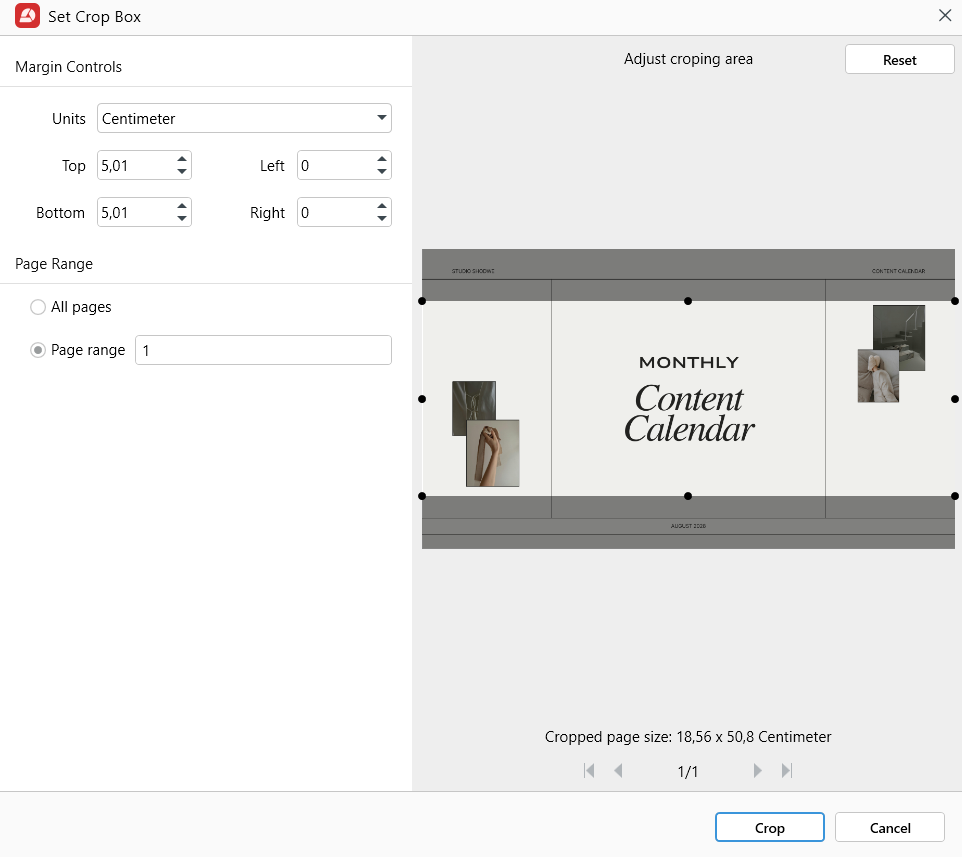
When satisfied, click Crop to apply the changes.
This is ideal when:
Preparing PDFs for print.
Standardizing margins across documents.
Removing scanner shadows or border artifacts.
Ensuring consistent page layouts
How to crop multiple pages in a PDF
If your document has consistent margins or unwanted space across multiple pages, you can crop them all simultaneously.
Open the PDF in MobiPDF.
Go to Pages. You will see all the pages of your document displayed.
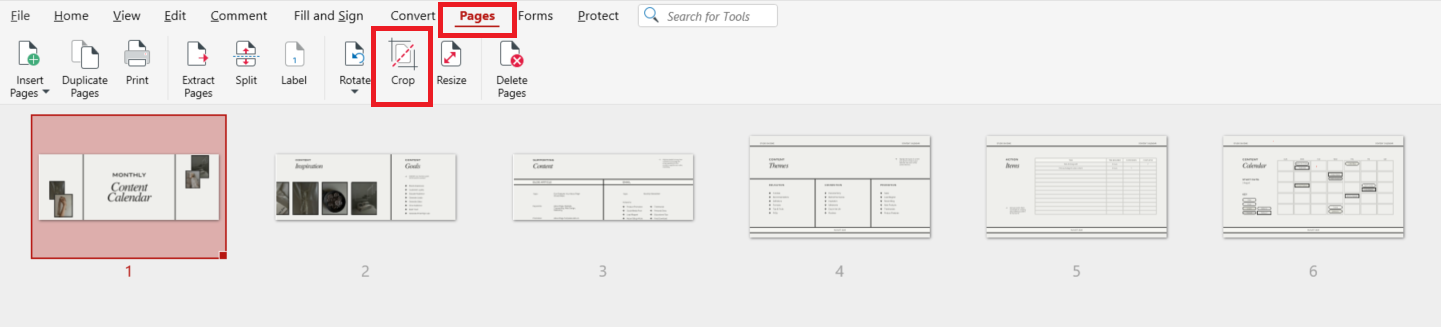
Click on all the pages you want to crop - you can hold Ctrl while selecting.
After you've selected the pages you want to crop, click Crop.
In the popup window, choose the margins for your pages and click Crop.
Your changes will be applied to all the pages you've selected simultaneously.
Best practices for cropping a PDF
To achieve the highest-quality results:
Use Crop to remove distracting margins and improve readability.
For scans, crop out all dark borders for a cleaner appearance.
Avoid cropping too tightly around text to keep spacing balanced.
Apply the same crop dimensions across multiple pages for consistency.
Frequently asked questions
How do I crop a PDF?
Open your file in MobiPDF -> Pages -> Crop → adjust the margins → Apply.
How to crop a PDF file on Windows?
Use MobiPDF and follow the Crop Pages workflow. It works on any Windows device.
Will cropping reduce file quality?
No. Cropping hides unwanted areas but keeps original resolution intact.
Can I undo a crop in MobiPDF?
Yes. Use Undo or re-open the Crop Pages tool to adjust the visible area again.
Ready to crop your PDFs more efficiently?
Download MobiPDF and crop any PDF with accuracy, speed, and complete offline security. Trim pages, fix scans, and refine layouts — all in a powerful desktop editor built for professional results and long-term reliability.