

Installing MobiOffice on Multiple Devices
Your MobiOffice license works across Windows, Mac, Android, and iOS, so you can install the suite on each of your devices and use the same account everywhere. This guide walks you through how to download and install MobiOffice on each platform, and how to manage the devices linked to your account.
Note: MobiMail and MobiPDF Reader are not available on Mac.
Before you begin
Make sure you have:
A MobiSystems account.
Your purchase confirmation email, if you bought MobiOffice from the MobiSystems website.
An internet connection.
A device that meets the MobiOffice system requirements.
Device limits at a glance
The number of devices you can use depends on your plan.
If you reach your device limit, you can free up a slot from My Account. See the Manage linked devices section below.
Install MobiOffice on Windows
You can install MobiOffice on Windows from the MobiSystems website or the Microsoft Store. Most users should use the website installer.
Install from the MobiSystems website
1. Go to the MobiOffice download page.
2. Click Free Download. The MobiOffice_Setup.exe file downloads to your device.
3. Open your Downloads folder and double-click MobiOffice_Setup.exe.
4. If Windows asks for permission, click Yes.
5. The MobiOffice installer offers an option to also install MobiPDF. Keep it selected to install MobiPDF Reader or clear the checkbox to skip.
6. Click Install and wait for the installation to finish.
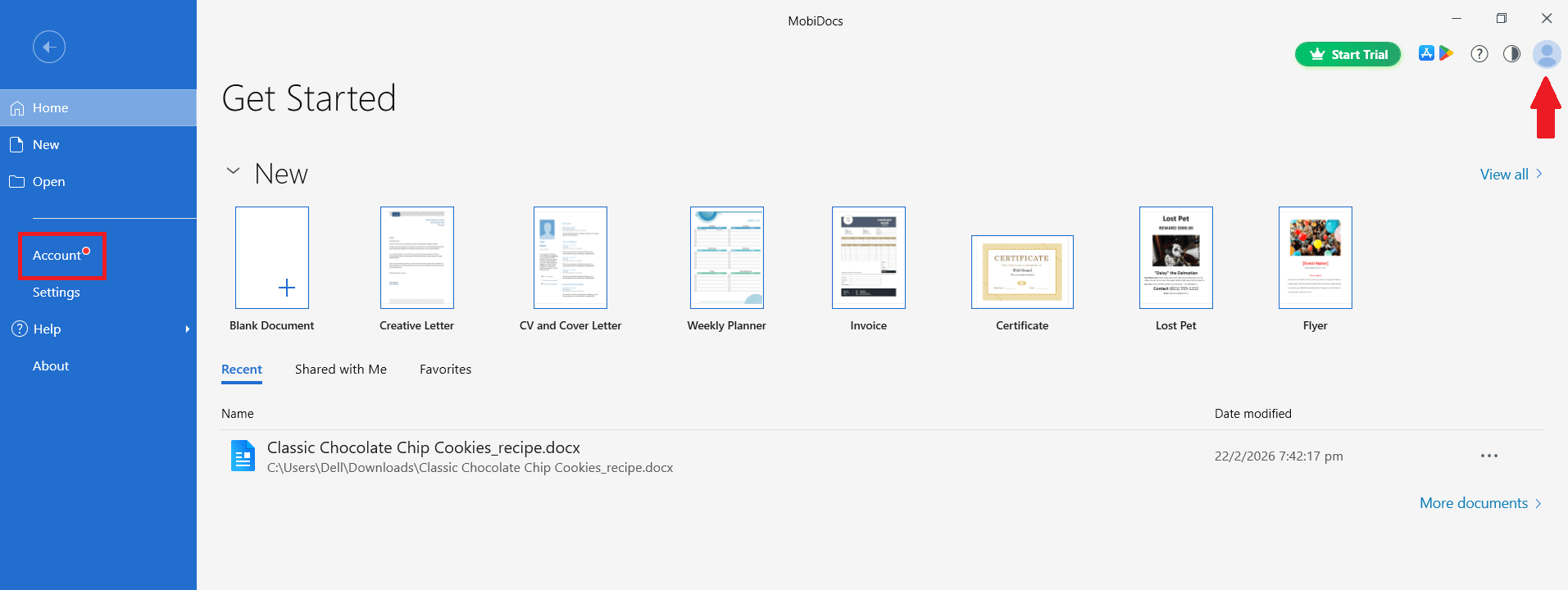
7. When MobiDocs opens, click Sign In or Account and enter your MobiSystems account credentials.
Install from the Microsoft Store
1. Open the Microsoft Store app on Windows.
2. In the search box, type MobiOffice.
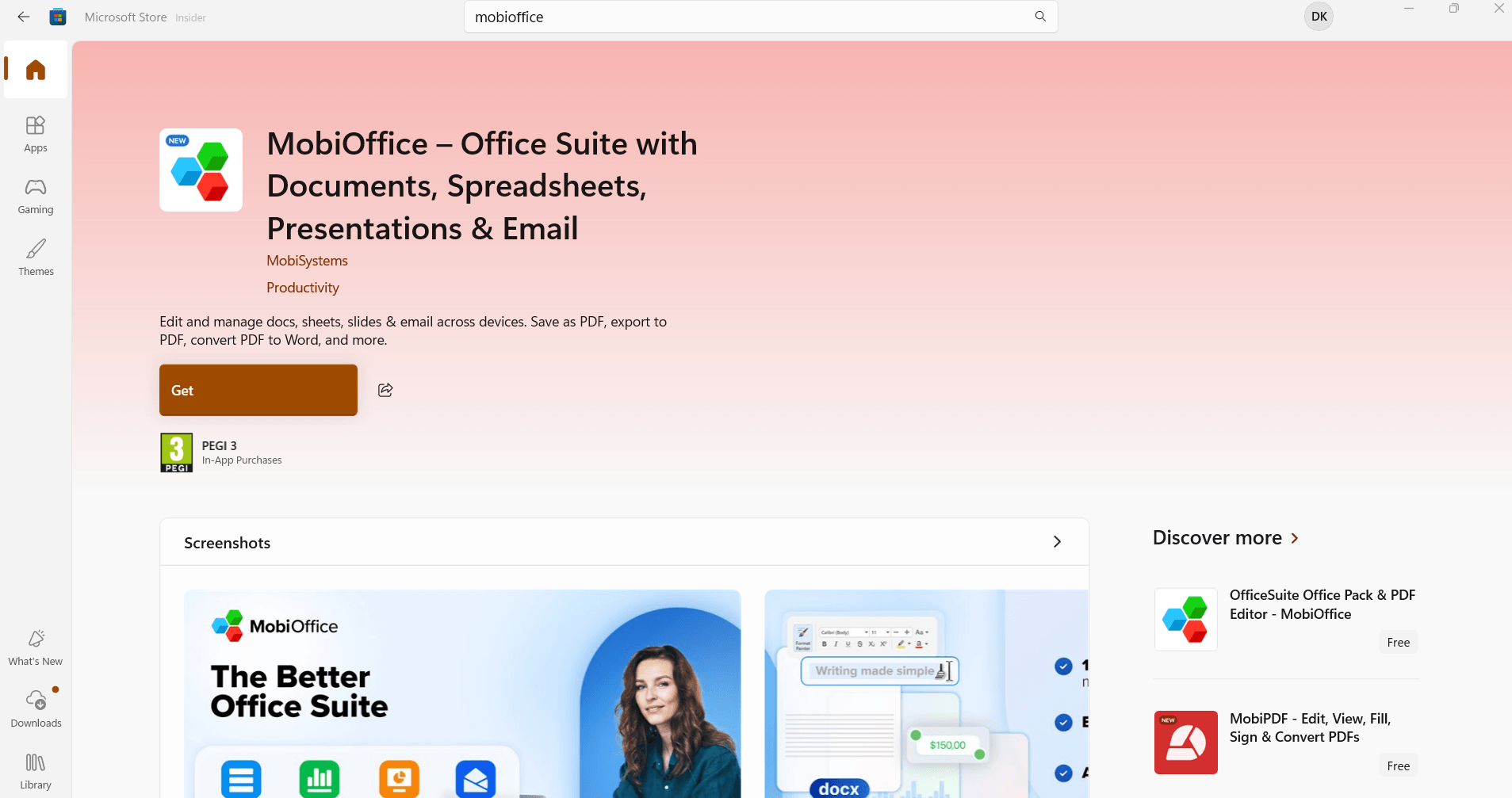
3. Click Get.
4. Open MobiOffice when the install completes.
5. Sign in with your MobiSystems account.
Note: The Microsoft Store also lists the legacy OfficeSuite app. OfficeSuite is no longer updated or supported. To get the current version, make sure you select MobiOffice.
Install on a corporate device
For business deployments, MobiOffice is available as an MSIX installer. See the enterprise deployment guide for details.
Install MobiOffice on Mac
1. Go to the MobiOffice download page.
2. Click Free Download for Mac.
3. Open the downloaded .dmg file.
4. Drag the MobiOffice icon into your Applications folder.
5. Open Launchpad or your Applications folder and click MobiDocs, MobiSheets, or MobiSlides.
6. If macOS asks whether to open an app downloaded from the internet, click Open.
7. In the app, click Account and sign in with your account.
Note: MobiMail and MobiPDF Reader are not available on Mac.
Install MobiOffice on Android
1. Open the Google Play Store on your Android device.
2. Search for MobiOffice: Word, Sheets, PDF.
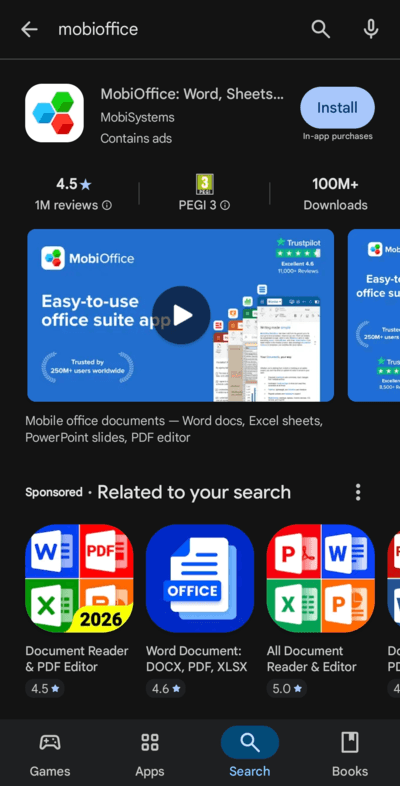
3. Tap Install.
4. Open the app once it's installed.
5. Tap Account and sign in with your MobiSystems account.
You can also start the install from the MobiOffice download page by scanning the Android QR code with your phone.
Install MobiOffice on iOS
1. Open the App Store on your iPhone or iPad.
2. Search for MobiOffice: Word, Sheets, PDF.
3. Tap Get, then confirm the install with Face ID, Touch ID, or your Apple ID password.
4. Open the app once it's installed.
5. Tap Account and sign in with your MobiSystems account.
You can also start the install from the MobiOffice download page by scanning the iOS QR code with your phone.
Manage linked devices
Your MobiSystems account keeps a list of every device where MobiOffice is signed in. You can review or remove linked devices at any time through your account dashboard.
1. Sign in to your MobiSystems account and open My Account.
2. Navigate to the Subscriptions and Products section then select the product you want to view.
3. In the Linked Devices tab, review the list of devices linked to your account.
4. To free up a slot, click Remove next to a device you no longer use.
The next time you sign in to MobiOffice on a new device, MobiOffice activates your license automatically if a slot is available.
Move MobiOffice to a new device
If you're replacing a computer or phone, you don't need to transfer files manually or re-enter your activation key.
1. On the new device, install MobiOffice using the steps above.
2. Open MobiOffice and click Sign In.
3. Use the same account you used on your previous device.
4. If you're at your device limit, follow the steps in Manage linked devices and remove the old device.
For more on activation keys and license transfers, see Activating your license and checking product version.
Troubleshooting
My mobile install doesn't show premium features. Sign in with the same MobiSystems account you used to buy your subscription. Switching social sign-in providers (for example, Google to Apple) creates a separate account.
I'm at my device limit. Open My Account > Linked Devices and remove a device you no longer use.
MobiMail isn't available on my Mac, Android, or iOS device. This is expected. MobiMail is available on Windows only.
Where to go next
You've installed MobiOffice on your devices. Next, sign in and activate your full feature set, or jump straight into your first task.


