This article was updated on Dec 16, 2025
To convert a PDF to an image, open the file in MobiPDF, select Convert → To Image, choose the image format, adjust the quality or DPI, and export. Each PDF page will be saved as a separate high-quality image you can use in presentations, designs, or online content.
Converting a PDF to an image is one of the quickest ways to share content online, reuse document pages in presentations, or prepare visuals for design projects. You might need a PDF to PNG, PDF to JPEG, or a simple way to export a page as an image. Modern tools make the process fast and reliable – and yes, that’s possible, on any device.
This guide explains how to convert a PDF to an image using MobiPDF. You’ll also learn the difference between JPEG and PNG, how to avoid quality loss, and the best settings for your task.
Let’s see what it’s all about.
Why convert a PDF to an image (PNG or JPEG)?
You convert a PDF to an image to make sharing easier, reduce file size, and prepare pages for editing or design. Images upload quickly, open on any device, and fit better into web, social media, and slide formats. Here’s why so many students, professionals, and teams rely on PDF-to-image conversion.
Easier sharing across platforms
Most social networks don’t support PDFs, so saving your PDF as JPEG or PNG lets you post it on LinkedIn, Instagram, Slack, or your internal workspace without a hitch. Images load instantly as well, which improves communication.
Smaller, faster files
A large, image-heavy PDF can be dozens of megabytes in size. Converting to JPEG dramatically reduces file size while still keeping good quality – ideal for email or cloud sharing.
Greater creative flexibility
A PDF page turned into a PNG becomes editable in design tools like Photoshop, Figma, or Canva. PNG supports transparency, sharp lines, and lossless editing, which helps when preparing reports, mockups, or web graphics.
What’s the best format when converting PDF to image: PDF to PNG or PDF to JPEG?
Choose PNG for clarity, transparency, and print work; choose JPEG for small file sizes, fast sharing, and social media.
Each format has its own advantages and disadvantages. Here’s the gist:
JPEG (JPG)
Great for: social posts, email attachments, cloud sharing
Compression: lossy
Pros: small size, fast loading
Cons: no transparency, less ideal for graphics and text
PNG
Great for: web design, print, presentations, branding
Compression: lossless
Pros: transparent backgrounds, sharper details
Cons: larger files
Work smart. Start your free trial run of MobiPDF.
How do I convert a PDF to an image?
To convert a PDF to an image in MobiPDF, open your file, select Convert → To Image, choose PNG or JPEG, adjust quality levels, and export.
Here’s how to save a PDF as a JPEG or PNG:
Install and run the program.
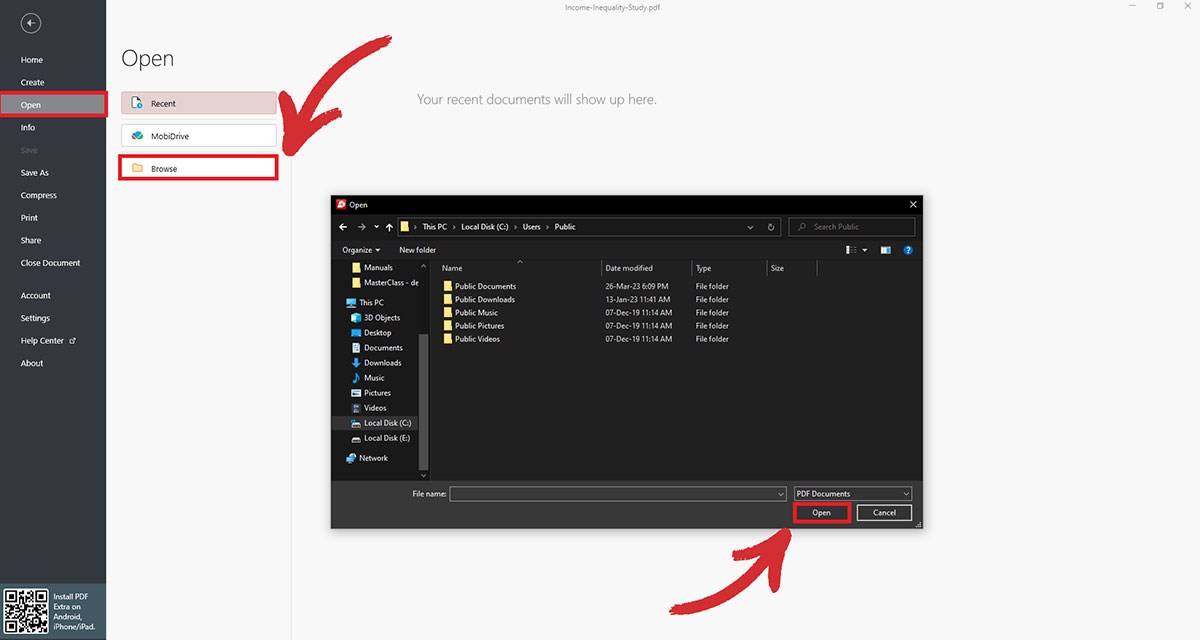
From the File screen, go to Open → Browse, then select your PDF.
Navigate to the Convert section of MobiPDF and click To Image.
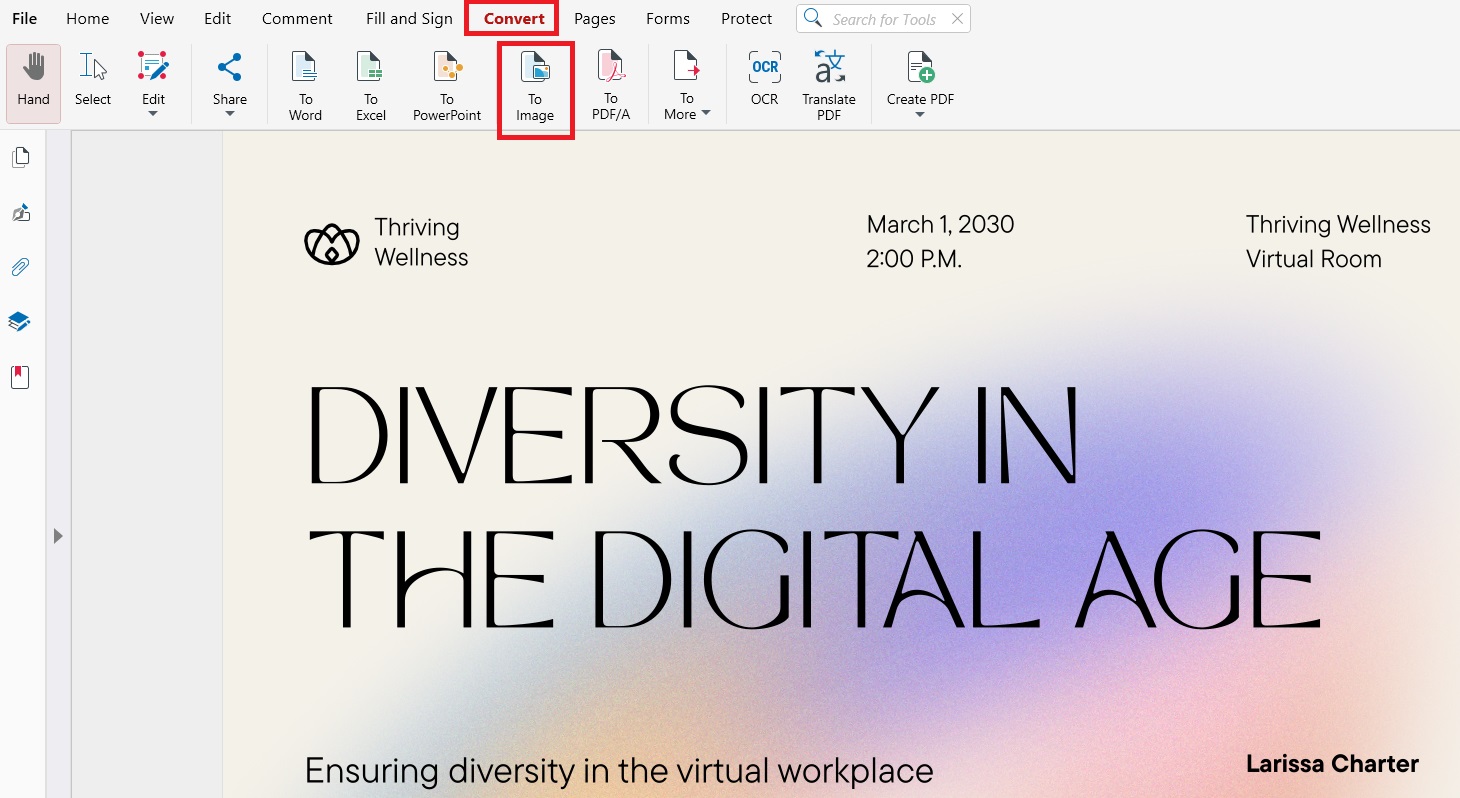
A dialog window will prompt you to choose the image format (JPEG or PNG) and the post-compression image quality (Low, Medium, or High).
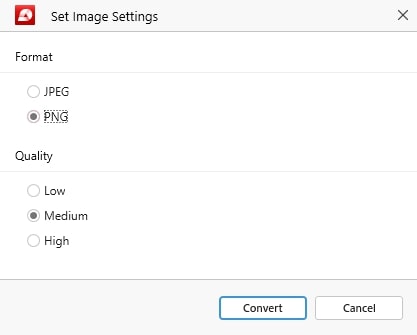
Click Convert to turn your PDF pages into images that you can then share or incorporate into your presentation, business report, or even another PDF file.
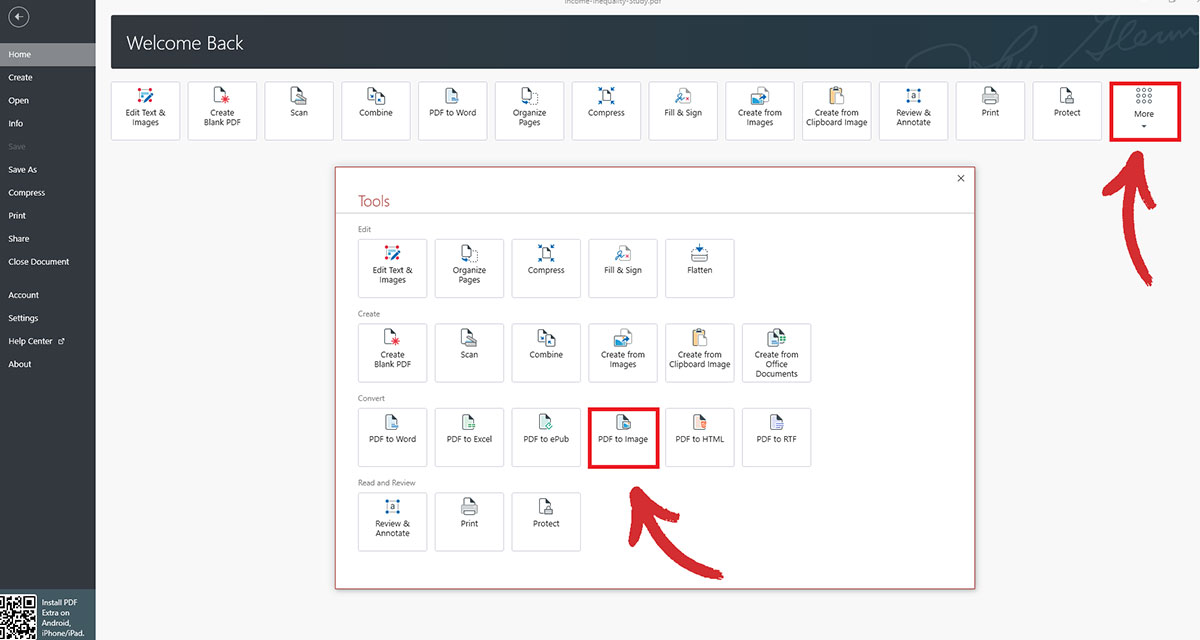
TIP: You can skip step 4 by choosing the appropriate tool straight from the File menu. Simply click More → PDF to Image and MobiPDF will ask you to select your desired image settings upon opening the file.
How to optimize your PDF file before the conversion process?
Optimize your PDF by removing unnecessary elements, compressing images, adjusting DPI, and setting an appropriate page size. These steps help reduce file size and improve the quality of your final PNG or JPEG.
Removing unwanted elements
Delete unwanted elements such as PDF annotations, bookmarks, attachments, and form fields as they can bloat the file size and affect the quality of the PDF to image conversion.
Select the right resolution (DPI)
300 DPI → best for printing and high-resolution graphics
72 DPI → ideal for social media and web displays
Higher DPI means larger files, so choose according to your needs.
Compressing PDF images
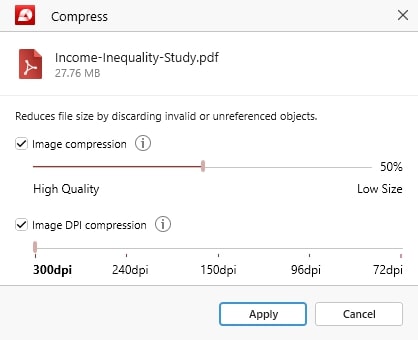
High-resolution images can quickly grow your document from a few kilobytes to several megabytes. PDF compression can reduce the file size while maintaining the image quality. MobiPDF’s compression tool is incredibly quick to use and also allows you to set the desired DPI and overall quality of the output images.
Adjusting page size
Some PDF documents may have a larger page size than needed, which can also bloat the file. Creating PDFs with smaller page sizes to match the content can help reduce the overall file size while keeping the image quality intact.
Frequently asked questions
How do I save a PDF as an image?
Open your file in MobiPDF, go to Convert → To Image, choose PNG or JPEG, and convert. You can also adjust DPI and quality levels before saving. The tool works on Windows, Mac, and mobile, so you can convert quickly on any device.
Can I save a PDF file as JPEG?
Yes! Just open the file in MobiPDF and choose PDF to Image → JPEG. Each PDF page will be exported as a separate JPEG image, which is perfect for social media, email, or quick sharing. You can also control the output quality to reduce file size.
How do I copy a PDF as an image?
Use the PDF to Image option in MobiPDF to export individual pages as PNG or JPEG files. This gives you a clean, high-quality image version of the page without needing to screenshot. It’s ideal when you need crisp text or graphics.
Final thoughts
Converting PDFs to images can be a simple and effective way of sharing your insights with others. It’s also great for conserving digital space since image-rich PDFs are often quite big, while images can be ultra-compressed with virtually no penalty quality-wise.
As long as you follow the best practices we’ve outlined above, such as removing excess annotations or adjusting your page size, you won’t face any trouble getting great mileage out of MobiPDF’s fast and simple PDF to image conversion tool.
Not looking for image conversions?
Check out our guides on the remaining file conversion types supported by MobiPDF: