

Creating and Managing Your MobiOffice Account
A MobiSystems account is what links your MobiOffice license to your devices. You'll need one to start a free trial, activate a subscription, sync your settings across platforms, and access your cloud storage. This guide walks you through how to create a MobiSystems account, sign in to MobiOffice, manage your profile and subscription, and update or delete your account when needed.
Before you begin
Make sure you have:
The latest version of MobiOffice installed on your device.
A working email address, or a Google, Facebook, or Apple ID you'd like to use for sign-in.
An internet connection.
How to create an account
There are multiple ways to create an account. You can create your account from the MobiSystems website, from the MobiSystems account portal, or within any MobiOffice app. You can also sign up for an account using your social logins.
Create an account on the MobiSystems website or account portal
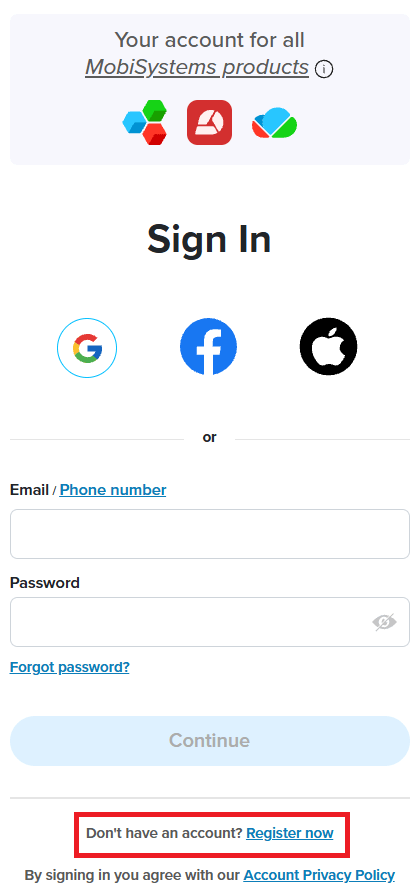
1. Go to the MobiSystems website and click Sign in. Alternatively, you can go to MobiSystems account portal https://accounts.mobisystems.com/
2. Click Register now in the sign in page.
3. Enter your email address and a password, then click Create an Account.
4. Verify your email address from the link sent to your inbox.
5. Open MobiOffice and sign in with your new account.
Sign up with Google, Facebook, or Apple ID
If you'd rather not create a separate password, you can sign up using a social account.
1. On the Sign In screen, you can click on any of the Google, Facebook, or Apple icons you want to use.
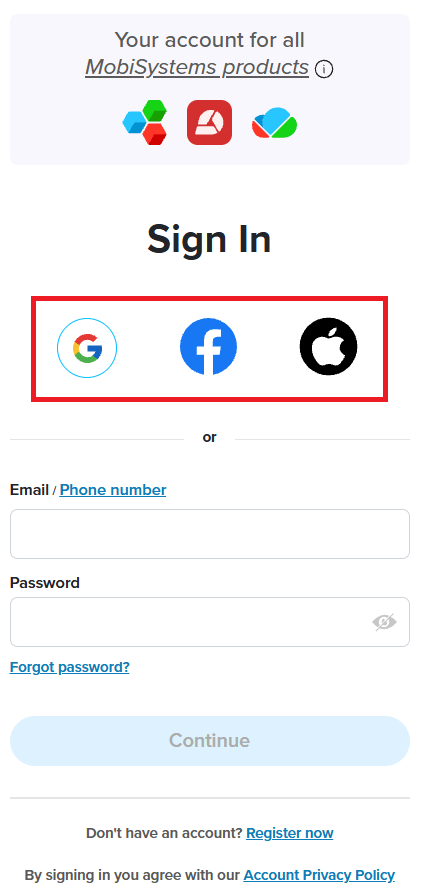
2. Sign in to the chosen service and authorize MobiSystems.
3. Your MobiSystems account is created automatically using your social account email.
Create an account within a MobiOffice app
1. Open MobiOffice.
2. Click the face icon in the top-right corner or choose Account from the options on the left pane.
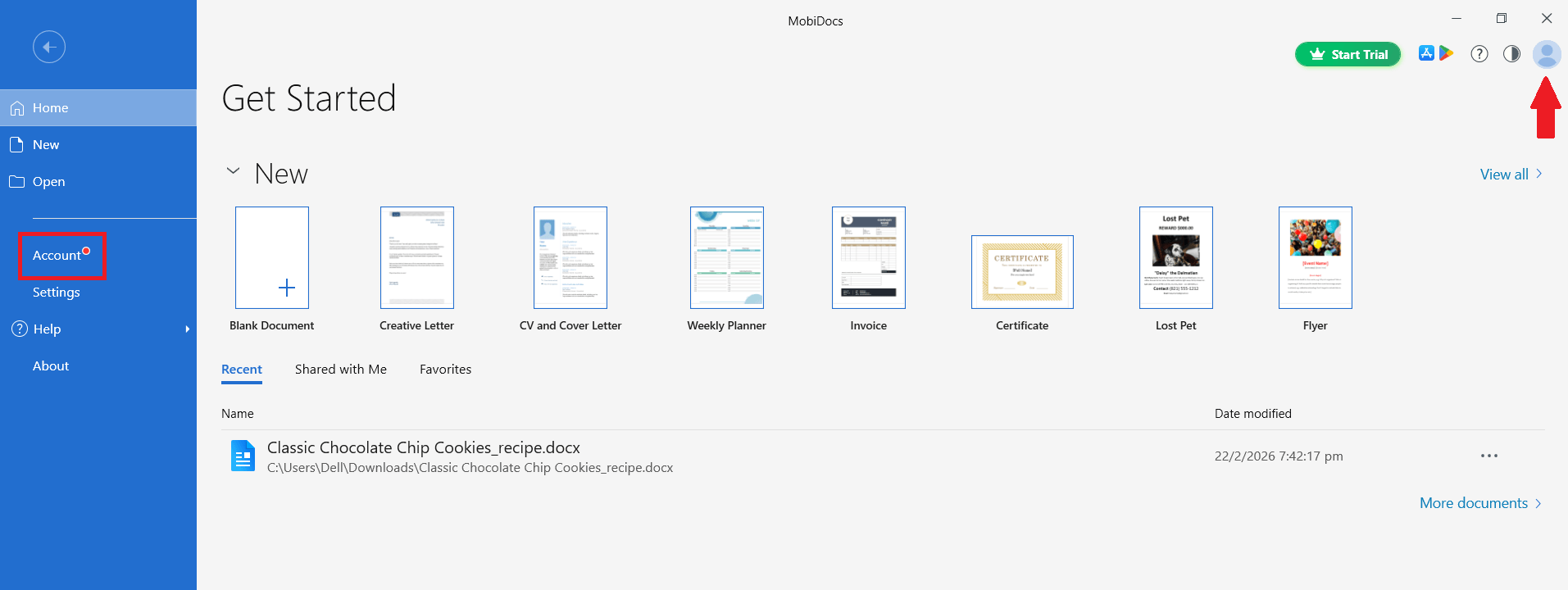
3. Click Sign In.
4. Enter your email and password or choose your social sign-in method in the sign in dialog box.
5. Click Continue.
The first time you sign in, MobiOffice may guide you through a short setup.
How to access your account settings
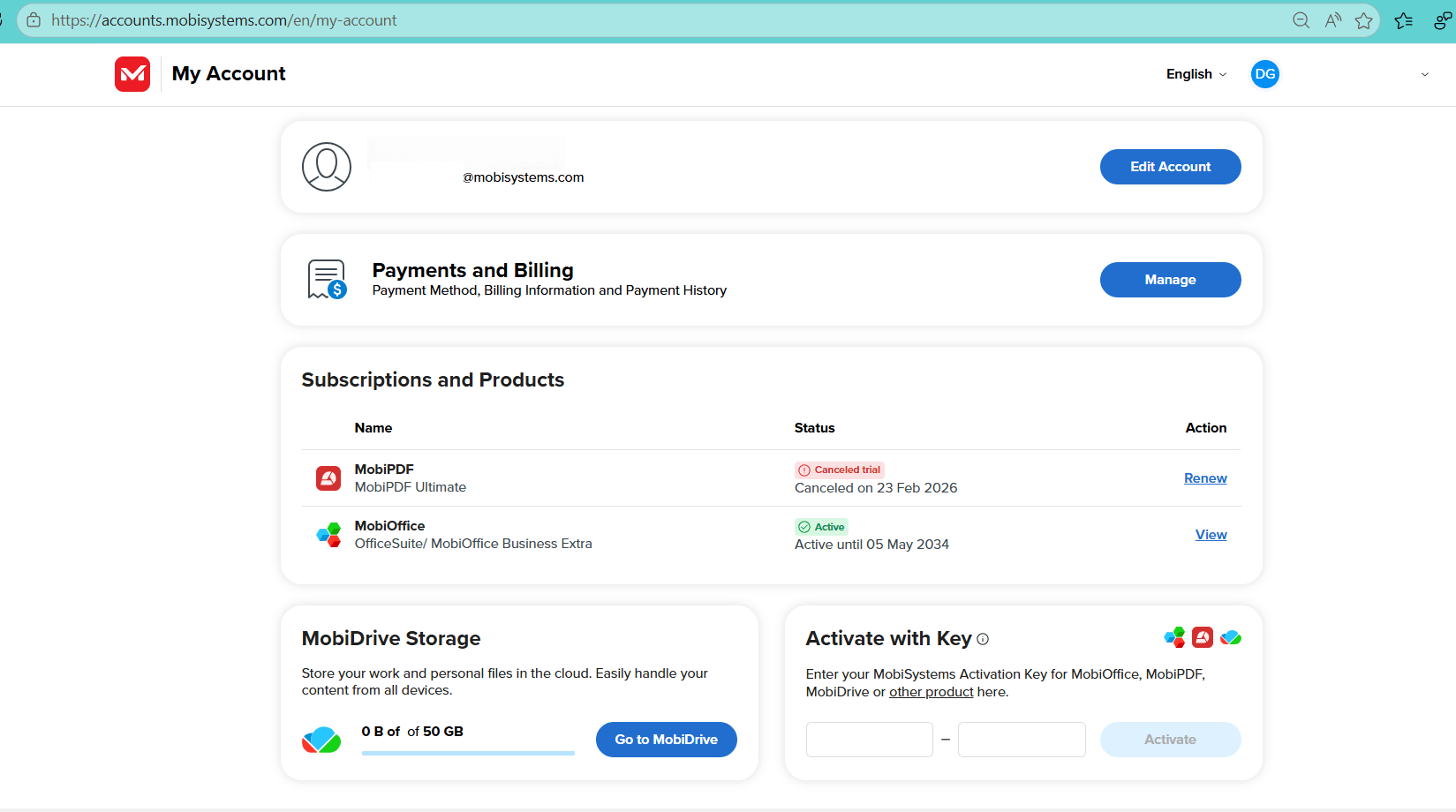
All account settings live in the My Account dashboard. To access your account settings:
1. Open MobiOffice and sign in.
2. Click the face icon in the top right corner or choose Account from the options on the left pane.
3. Select Manage Account. A browser opens to your account page.
From your My Account dashboard you can:
Edit and update your account details like updating your name or email address, changing your password, or deleting your MobiOffice account.
Manage payment methods and view your billing information and payment history.
View your products and subscriptions.
View your cloud storage usage.
Enter activation keys for other MobiSystems products.
How to manage your subscriptions and devices
View your subscription details
In your My Account dashboard, the Subscription and Products section shows a list of MobiSystems apps that you are subscribed to or had a subscription for. To view your subscription details:
1. Navigate to the Subscriptions and Products section in the My Account dashboard.
2. Click on the subscription you want to view. Alternatively, you can click View.
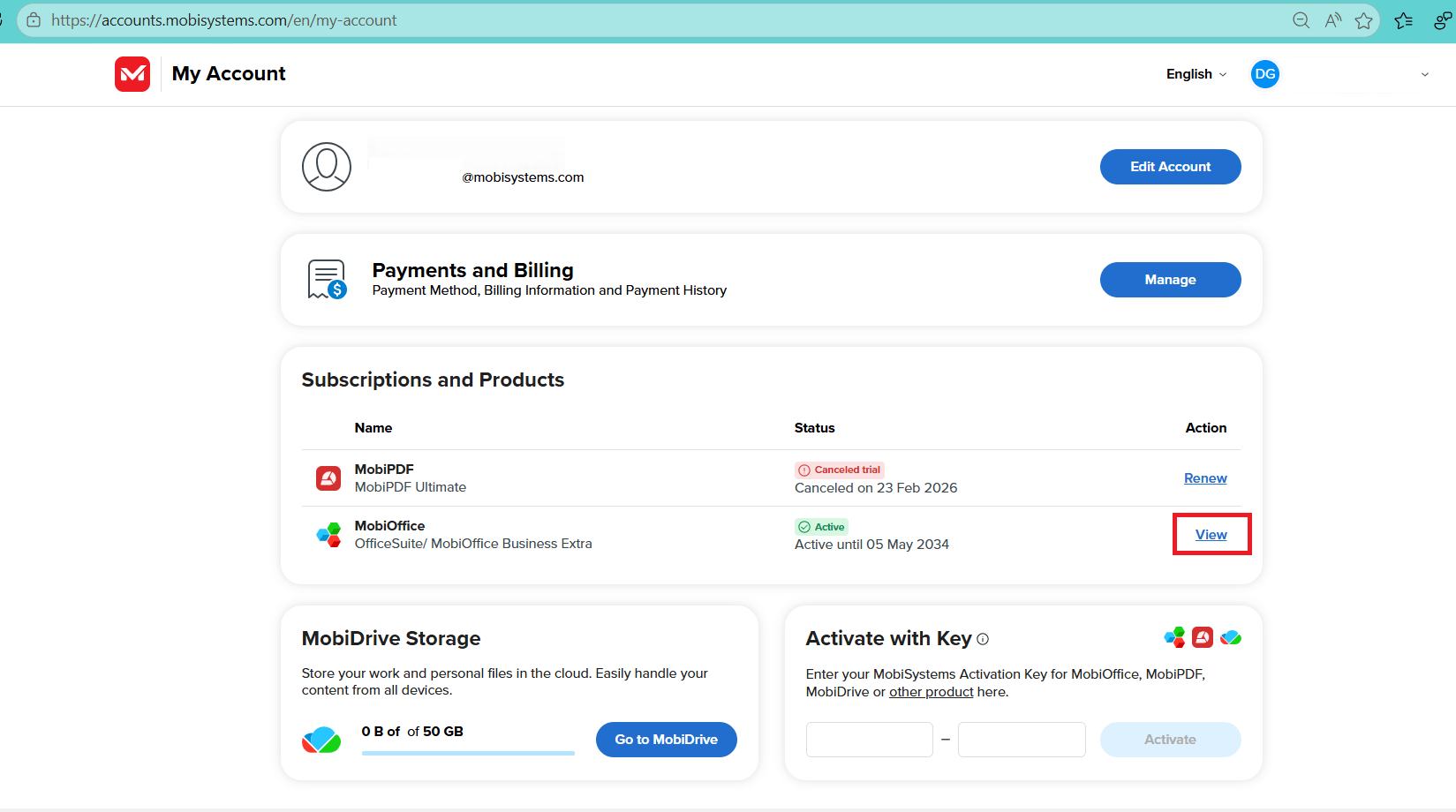
3. In the Overview tab, you can check your subscription start and end dates and the name of registered owner.
Manage linked devices
To manage devices linked to a MobiOffice account:
1. Open My Account.
2. Navigate to the Subscriptions and Products section.
3. Select the product you want to view then click View.
4. In the Linked Devices tab, review the list of devices linked to your account.
5. To free up a slot, click Remove next to a device you no longer use.
Add a second email address
You can link more than one email to your MobiOffice account. This is useful if you want to associate an existing license with a new email.
1. Open My Account then click Edit Account beside your name.
2. Click Add email address.
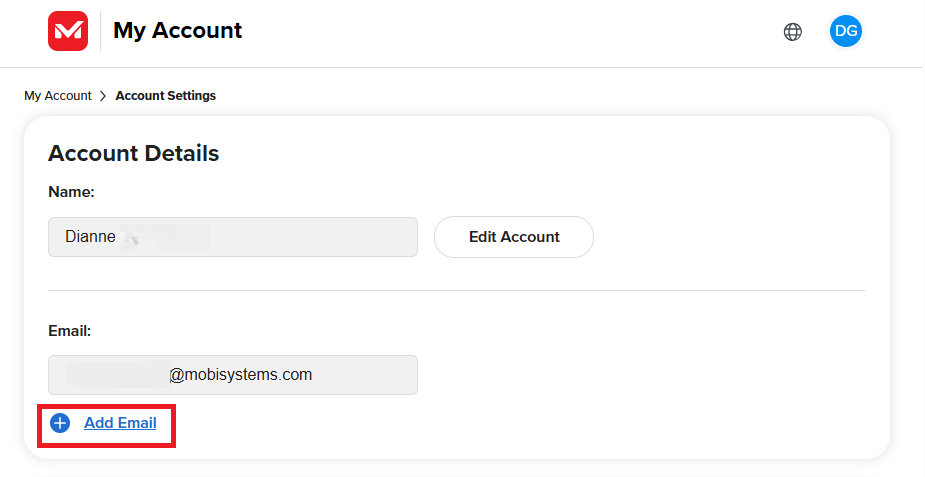
3. Enter the new email and click Add Email.
4. Verify the address from the link sent to your inbox.
How to change your password
1. Open My Account then click Edit Account beside your name.
2. Click Change Password under the Change Password section.
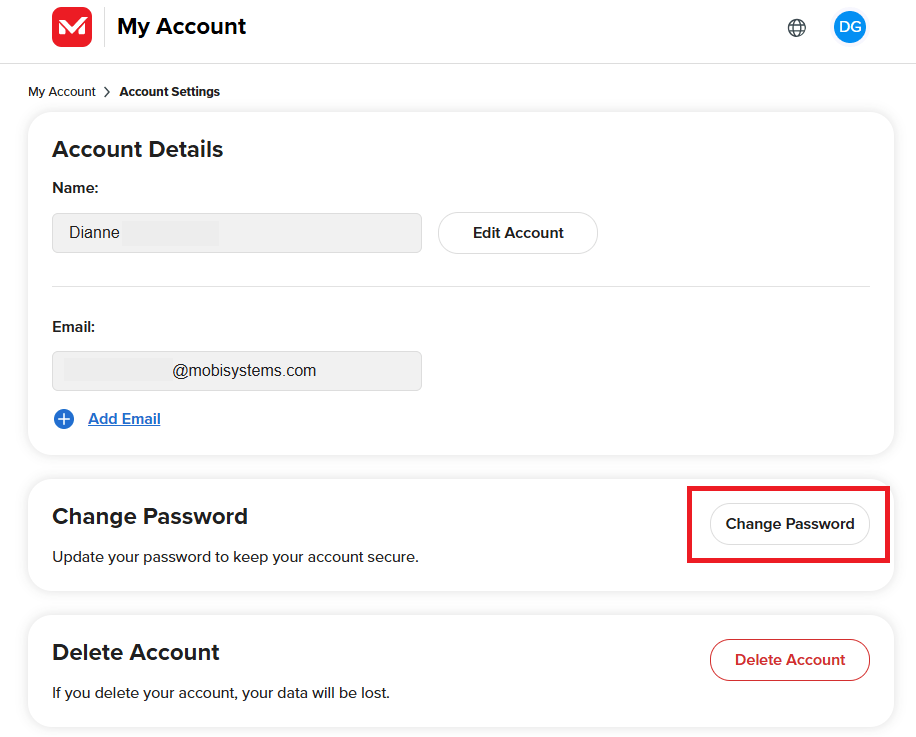
3. In the dialog box, enter your current password, your new password, then confirm your new password.
4. Click Save.
If you've forgotten your password, click Forgot password? on the sign-in screen and follow the email instructions to reset it.
Manage team subscriptions
For team subscriptions, you can add or remove team members within the My Account dashboard. Each member added to a team subscription receives an invitation email. They must create an account using the same email address where the invitation was sent.
To add or remove team members, follow these steps:
1. Sign in to My Account and click on your team s’s subscription.
2. Click Manage seats.
3. Click Add account to add a new team member.
4. To remove a team member, select the member then click Delete.
View cloud storage usage
You can view your cloud storage usage in your My Account dashboard or by signing in to MobiDrive via browser.
How to delete your MobiSystems account
Account deletion is permanent. Before you continue, make sure you've backed up any files you want to keep.
1. Open My Account then click Edit Account beside your name.
2. Scroll to the Delete Account section.
3. Click Delete Account.
4. Confirm your decision when prompted.
When you delete your account, the following data is permanently erased and cannot be recovered:
Your name, email address, password, and phone numbers.
Profile photos and user settings.
Files stored in your MobiDrive.
If you only want to cancel a subscription without deleting your account, go to the Subscriptions and Products section in your dashboard and manage your subscriptions instead.
Troubleshooting
I didn't receive the verification email. Check your spam or junk folder. If it's not there, return to the sign-in page and click Resend verification email.
I can't access premium features after signing in. Make sure you're signed in with the same account you used to purchase the subscription.
I've reached the device limit. Open My Account, go to Devices, and remove any devices you no longer use.
My social sign-in isn't working. Confirm you're using the same ID you originally signed up with. Switching providers creates a new, separate account.
I forgot which email I used. Try signing in with each of your email addresses, or use Forgot password? to receive a reset link.
Where to go next
You're set up and signed in. Next, install MobiOffice on your other devices or activate your license.


