

Opening and Syncing Files with MobiDrive
MobiDrive is the cloud storage included with your MobiOffice account. When you save files to MobiDrive, they're available from any device where you've signed in – your Windows PC, Mac, Android phone, or iPhone. This guide explains how to connect MobiDrive in MobiOffice, open and save files to your cloud, install the MobiDrive desktop app for automatic syncing, and access shared files.
Before you begin
Make sure you have:
MobiOffice installed on your device.
A MobiOffice account.
An internet connection.
Sign in to MobiDrive in MobiOffice
You access MobiDrive through your MobiOffice account. Once you sign in to a MobiOffice app, your MobiDrive cloud storage appears as a file location alongside your local drive.
1. Open MobiDocs, MobiSheets, or MobiSlides.
2. Click Sign In in the top-right corner.
3. Enter the email and password for your MobiOffice account, or sign in with Google, Facebook, or Apple.
4. Click Sign In.
MobiDrive now appears in the list of file sources on the Home screen.
Open a file from MobiDrive
You can open a MobiDrive file directly from any MobiOffice app.
1. Open MobiDocs, MobiSheets, or MobiSlides.
2. On the Home screen, click Open then choose MobiDrive in the list of file sources.
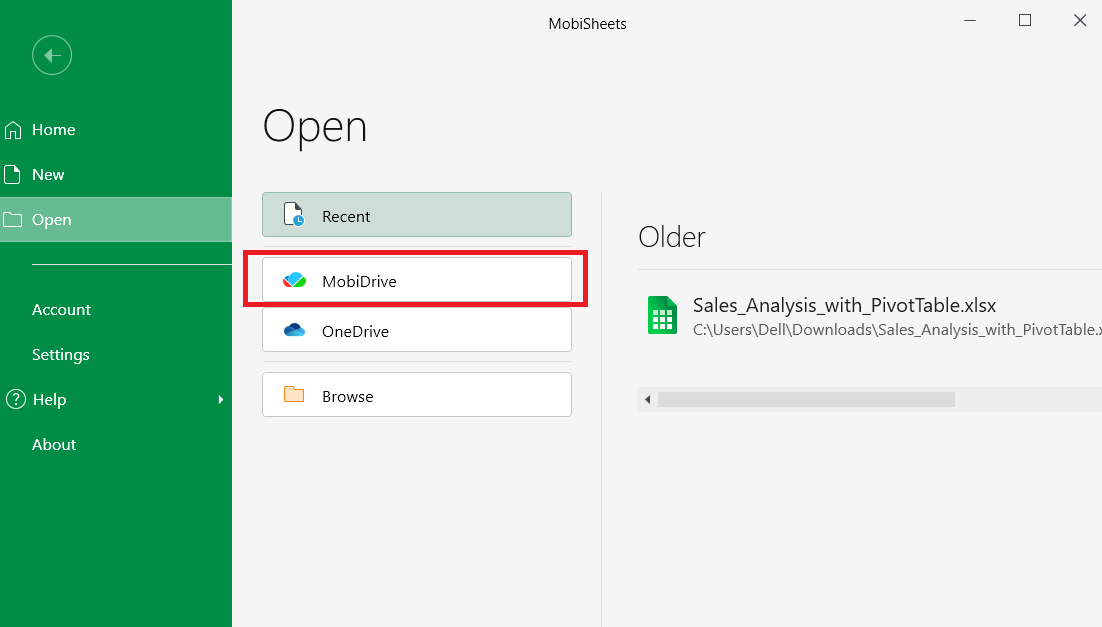
3. Browse your folders to find the file you want.
4. Click the file to open it.
The file opens in the matching app. Any changes you make are saved back to MobiDrive when you save the file.
Save a file to MobiDrive
You can save a new file directly to MobiDrive, or move an existing local file to your cloud.
Save a new file to MobiDrive
1. Open the file you want to save.
2. Click File > Save As.
3. In the location list, select MobiDrive.
4. Choose a folder or click New Folder to create one.
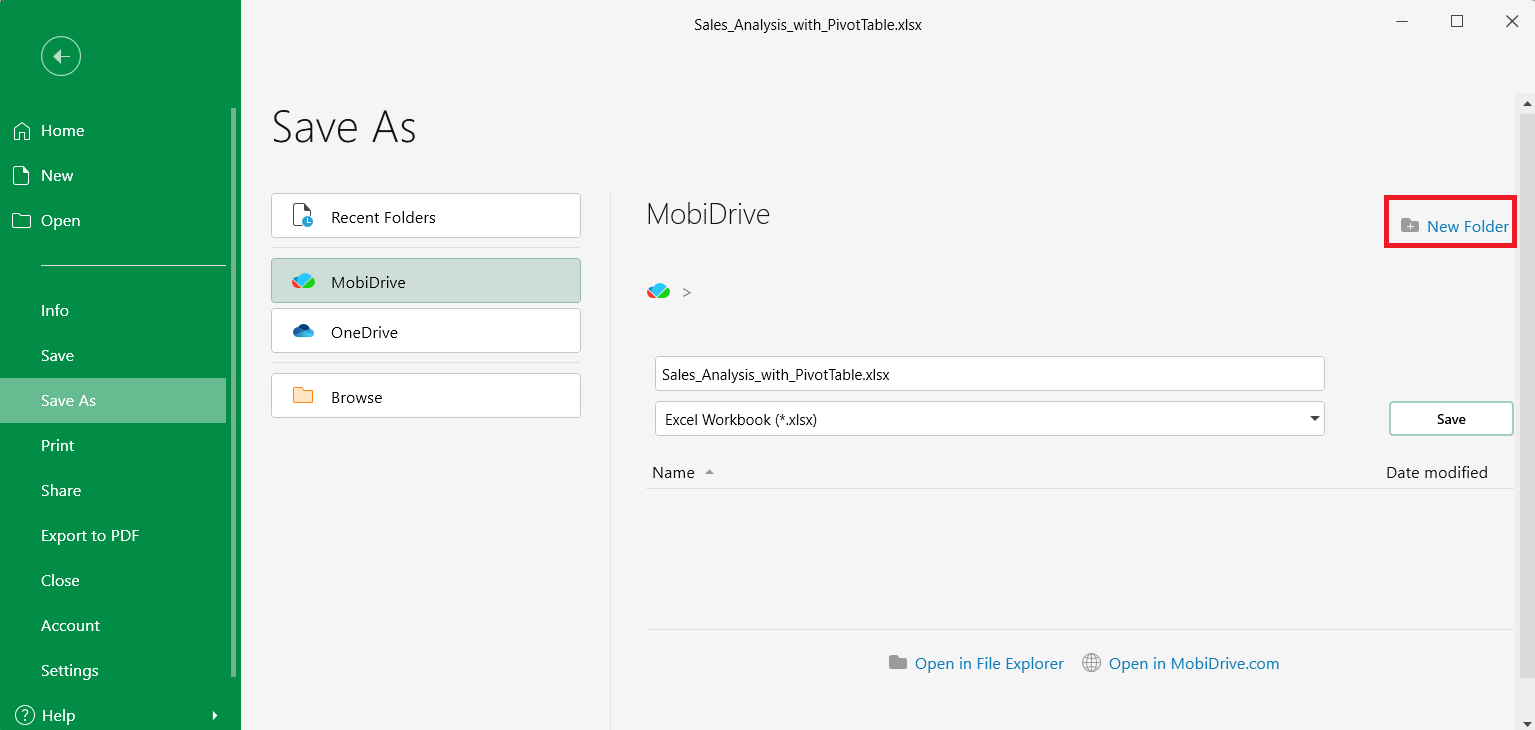
5. Enter a file name and click Save.
Save an existing local file to MobiDrive
1. Open the file in MobiDocs, MobiSheets, or MobiSlides.
2. Click File > Save As.
3. Select MobiDrive as the location.
4. Choose a folder and click Save.
The file is now stored in your MobiDrive cloud and is available on every device signed in to your MobiOffice account.
Install the MobiDrive desktop app for automatic syncing
The MobiDrive desktop app adds a synced folder on your computer. Files you put in this folder upload to your cloud automatically. Files in your cloud download to the folder so you can open them with any program.
Install MobiDrive on Windows
1. Go to the MobiDrive page and download the Windows app.
2. Open the installer and follow the on-screen steps.
3. After installation, click the MobiDrive icon in your taskbar.
4. Click Get started to sign in.
5. Choose your sign-in method and enter your MobiOffice account credentials.
6. Choose where to place your MobiDrive sync folder, then click Next.
7. Wait for your files to download. You can now open MobiDrive files directly from File Explorer.
Any time you save a file to your MobiDrive folder, it syncs to your cloud automatically.
Install MobiDrive on Android or iOS
1. Open the Google Play Store or App Store.
2. Search for MobiDrive.
3. Tap Install or Get.
4. Open the app and sign in with your MobiOffice account.
On mobile, MobiDrive opens as its own app rather than a synced folder. Tap any file to open it in the matching MobiOffice app.
Mark a file for offline use
You can keep a copy of any MobiDrive file on your device so you can open it without an internet connection.
On the MobiDrive mobile app
1. Open the MobiDrive app.
2. Find the file you want to keep offline.
3. Tap the menu icon next to the file.
4. Select Available offline.
Offline files update automatically the next time you connect to the internet.
On Windows
Files in your MobiDrive sync folder are already available offline. Edits you make while offline sync to your cloud the next time you connect.
Share a file from MobiDrive
You can share any file in your MobiDrive cloud with others.
1. Open the MobiDrive app or sign in at mobidrive.com.
2. Find the file or folder you want to share.
3. Right-click on the file and choose Share. You can also click the share icon on top of the list.
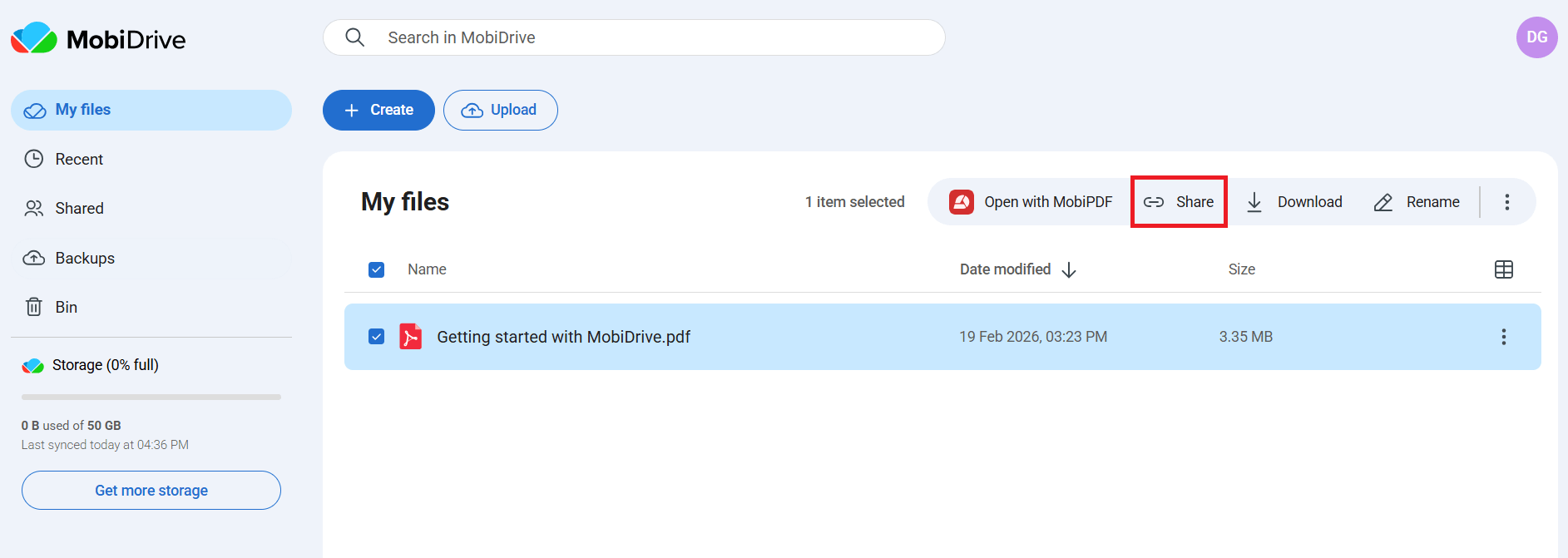
4. In the dialog box, choose Copy link to copy the automatically generated link. Anyone with a copy of the link can access the file you shared.
To see what you've shared, select Shared and choose between Shared by me or Shared with me sections in the MobiDrive app.
Troubleshooting
MobiDrive doesn't appear as a location in MobiOffice. Sign in to MobiOffice with your account. MobiDrive only appears for signed-in users.
A file isn't syncing. Check your internet connection. If you're using the desktop app, click the MobiDrive icon in the taskbar to see sync status and any error messages.
I'm out of cloud storage. Open the MobiDrive app or sign in at mobidrive.com to see how much space you've used. You can free up space by deleting files or upgrading your storage plan.
My file shows the wrong version. MobiDrive keeps version history for each file. Right-click on the file in the MobiDrive app and select Version history to restore an earlier version.
I can't sign in to MobiDrive on a new device. Confirm you're using the same email and sign-in method (password, Google, Facebook, or Apple) you used originally. Switching providers creates a separate account.
Where to go next
Your MobiOffice files are now backed up and synced across your devices. Next, learn how to keep working with your files in MobiOffice.


