

Setting up multiple email accounts
MobiMail lets you add several email accounts and manage them, so you can read and send mail from all your addresses without switching apps. This guide shows you how to add another account in MobiMail on Windows, how to add a work account, and how to fix common problems. Syncing more than one account is a premium feature, and you can add up to 10 accounts in total.
Note: MobiMail is available on Windows only.
Before you begin
Make sure you have:
MobiMail installed on your Windows device. MobiMail installs as part of MobiOffice.
An active premium subscription, since syncing more than one account is a paid feature.
One email account already set up in MobiMail. See the Introduction to MobiMail.
The email address and password for the account you want to add.
An internet connection.
Add another email account
1. Open MobiMail.
2. Click the File.
3. In Email Accounts, select Add Account.
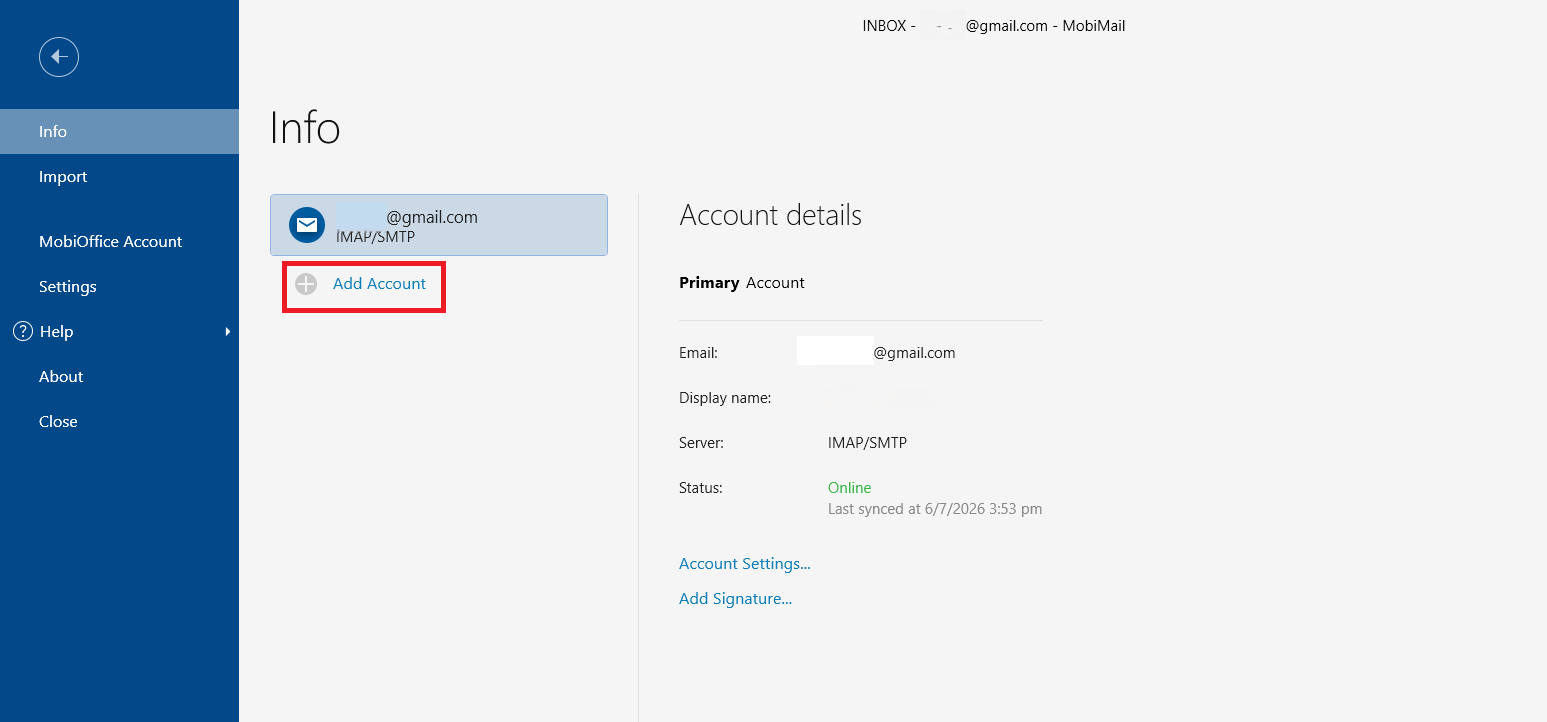
4. In the setup window, type the email address you want to add, then click Continue.
5. A window opens in your browser. Confirm the email address, then follow the prompts to sign in and allow access.
6. Click Continue to finish. The new account is added to MobiMail.
Tip: If the browser window doesn't open after you click Continue, copy the link from the loading screen and paste it into your browser.
Add a work or corporate account
Work accounts often need their own server settings. To add one, do the following steps:
1. In the setup window, type the email address.
2. Select Let me setup my account manually.
3. Click Continue.
4. Choose Exchange, Microsoft 365, or Other IMAP/POP3.
5. Enter your server details.
Note: If you don't know your server settings, ask your organization's system administrator.
View and switch between accounts
After you add your accounts, you can move between them from the same window.
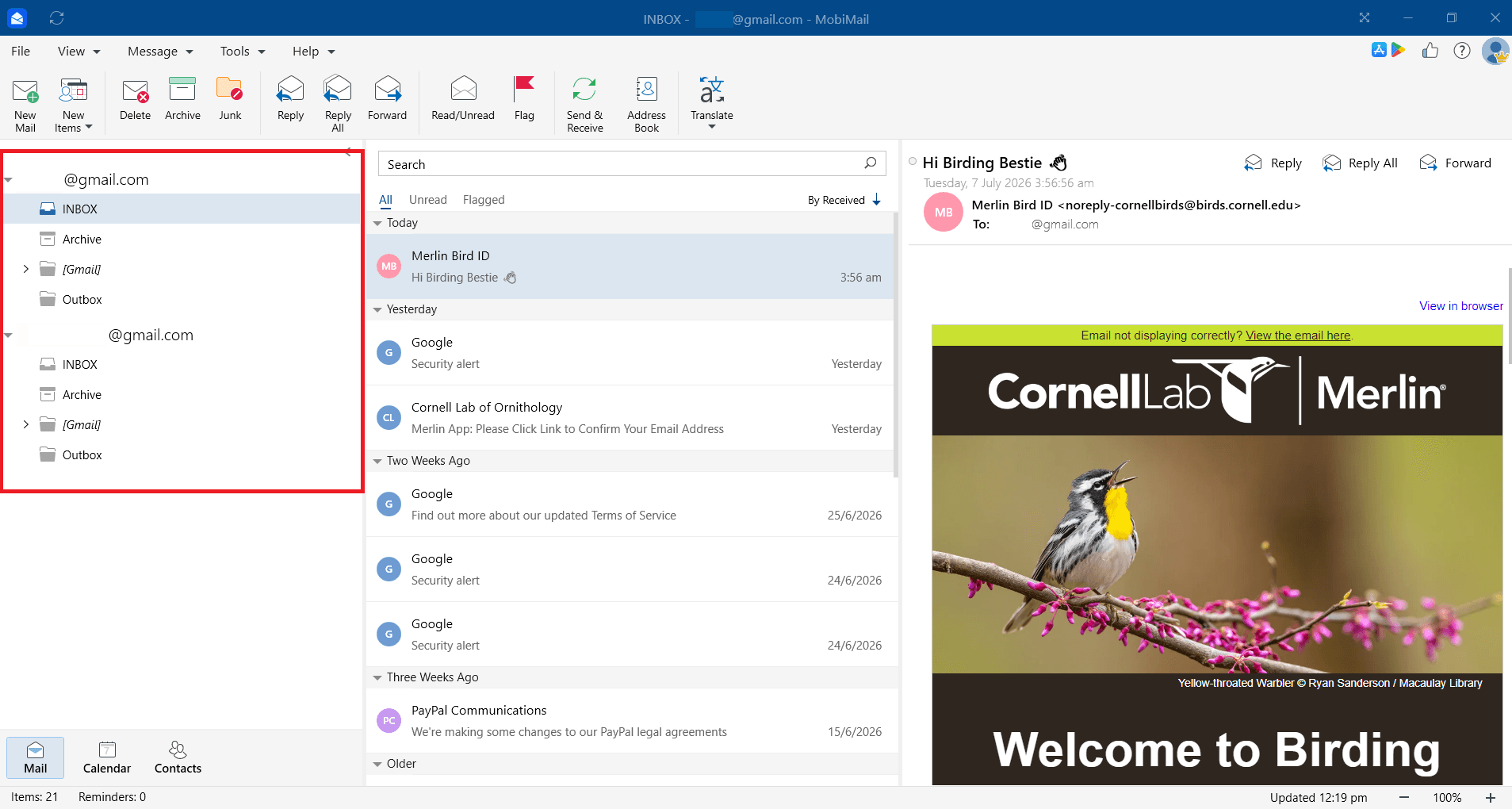
Your accounts appear in the folder list on the left. Select an account to open its inbox, drafts, and folders.
Troubleshooting
I can't add a second account. Syncing more than one account is a premium feature. Check that your subscription is active and that you're signed in to MobiOffice with the same account you used to buy it.
I've reached the account limit. MobiMail supports up to 10 accounts. Remove an account you no longer use before adding a new one.
The browser window didn't open. Copy the link from the loading screen and paste it into your browser to finish adding the account.
My new account is slow to sync. A large mailbox, more than a thousand folders, or a slow connection can each slow the first sync. Give it time to finish, especially for mailboxes above 300 MB.
My work account won't connect. Confirm your server name, type, port, and security settings are correct. If you're unsure, ask your system administrator.
Where to go next
You now have all your email accounts. Try one of these next:


