

Inserting checkboxes
In this guide, you’ll add clickable checkboxes to a spreadsheet in MobiSheets. Checkboxes make it easy to build to-do lists, attendance sheets, and project trackers that you can tick off as you go. This guide covers MobiSheets on Windows and Mac. This feature is not available on MobiOffice in Android and iOS.
Before you begin
Make sure you have:
MobiOffice is installed on your device. See Installing MobiOffice on multiple devices.
A spreadsheet is open in MobiSheets. See Creating and editing spreadsheets.
You’re signed in to MobiSheets. See Signing in to MobiSheets.
Insert a checkbox
1. Select the cell or range where you want the checkboxes.
2. Open the Insert menu.
3. Click Checkbox.
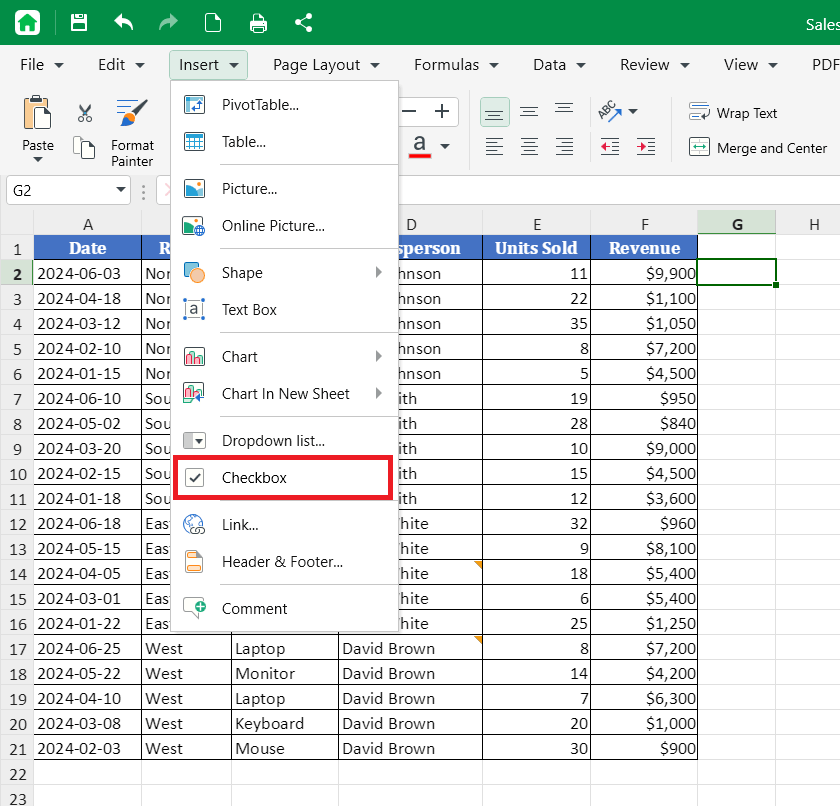
A checkbox appears in each selected cell.
Tip: To tick or clear several checkboxes at once, select them and press Space.
Use checkbox values in formulas
A ticked checkbox holds the value TRUE, and a cleared one holds FALSE. You can see the value in the formula bar. Use these values in formulas and conditional formatting rules. For example, =COUNTIF(B2:B20,TRUE) counts how many boxes in B2:B20 are ticked.
Tick or clear a checkbox
1. Click a checkbox to tick it.
2. Click it again to clear it.
Remove checkboxes
1. Select the cells with the checkboxes.
2. Press Delete. If any of the selected checkboxes are ticked, this clears them first. Press Delete again to remove the checkboxes.
Troubleshooting
I can’t find the Checkbox option. Checkboxes were added in MobiOffice version 11.70. Update MobiOffice to the latest version, then try again.
The checkbox doesn’t change when I click it. The cell may contain a formula. You can add a checkbox to a formula cell, but the formula sets its value, so clicking doesn’t change it. Remove the formula from the cell, then try again.


