

Compressing PDFs - Compressing PDF images

Compressing PDF images
If you want to also reduce the size of any images included in your PDF, but don’t want to play with the compression slider, then simply leaving the default compression settings and clicking “Apply” should do the trick. Still, if you’re the kind of person who likes to tinker with software settings, you’re very much welcome to do so but do note that high compression ratios may risk degrading your images beyond recognition, making them unusable.
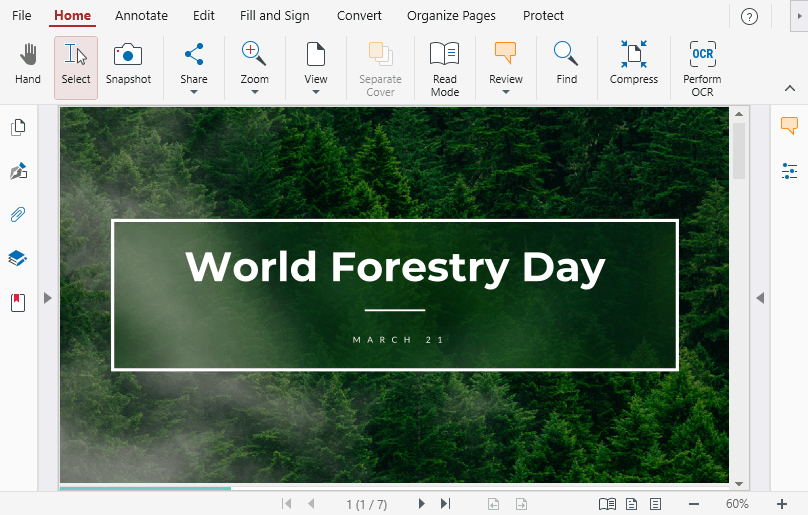
As you’ll see from the below example, it’s all about finding the perfect balance. First off, here’s an uncompressed version of a PDF file called “World Forestry Day” for reference.
Now, let’s crank the image compression slider up to 100% and see what you get.
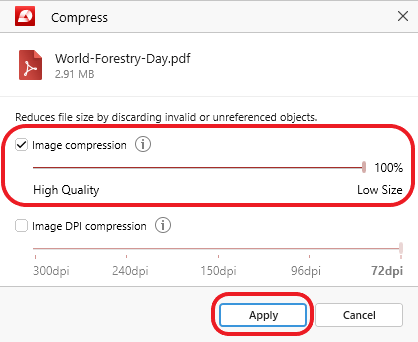
You’re off to a great start – according to MobiPDF, you’ve just reduced our file by 88.72%, going from the initial 2.91 MB down to just 336.44 KB!
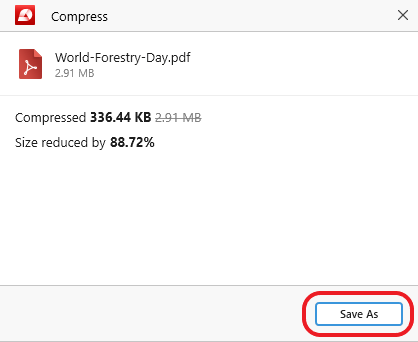
This incredible result, however, didn’t come without a cost. Once you click “Save As” and open the file, you’ll be welcomed by this pixelated art:
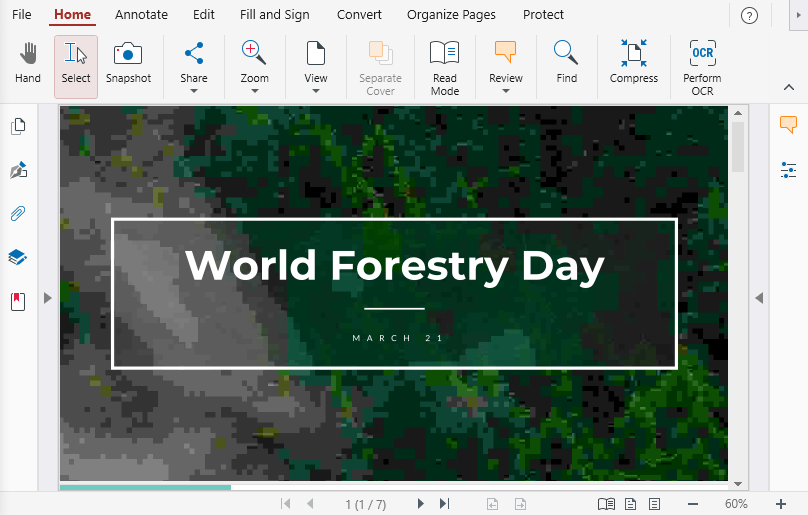
Now, that might be a good thing in instances where images are just there to fill the space. If they need to be printed, on the other hand, then this result is a clear no-go and a different approach is needed. Going back to the drawing board, let’s compare the above result to what you would have gotten if you dialed back the compression amount down to just 50%.
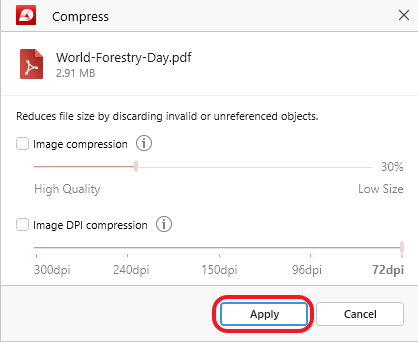
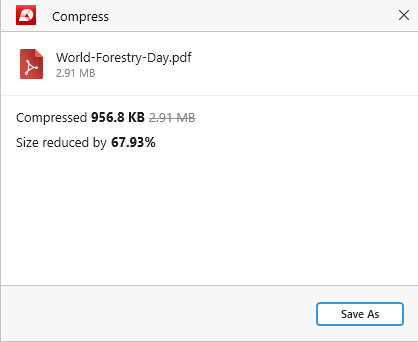
Running the file through the PDF compressor again, you quickly find out that the gains in storage space are still quite decent – 67.93% versus 88.72%.
However, when it comes down to the final result, there’s a night and day difference (or rather, there isn’t if we compare it to the uncompressed version of the file):
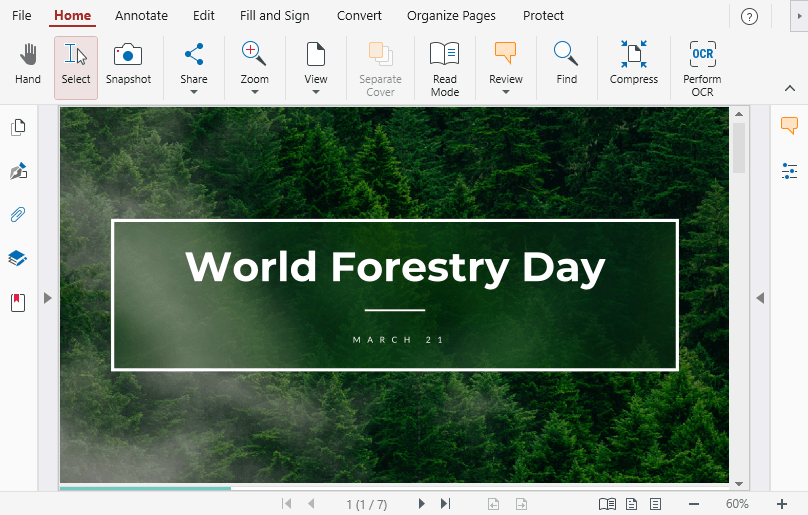
So, as you can see, setting the correct image compression amounts can sometimes mean all the difference. When it comes to choosing the correct settings, the type of document you’re working on will often give you a hint – print-friendly means using less compression; while web-friendly means using more compression, especially if you’re doing it for archival purposes.


