

Filling & signing PDFs: Accessing the tools menu
Accessing the fill & sign menu
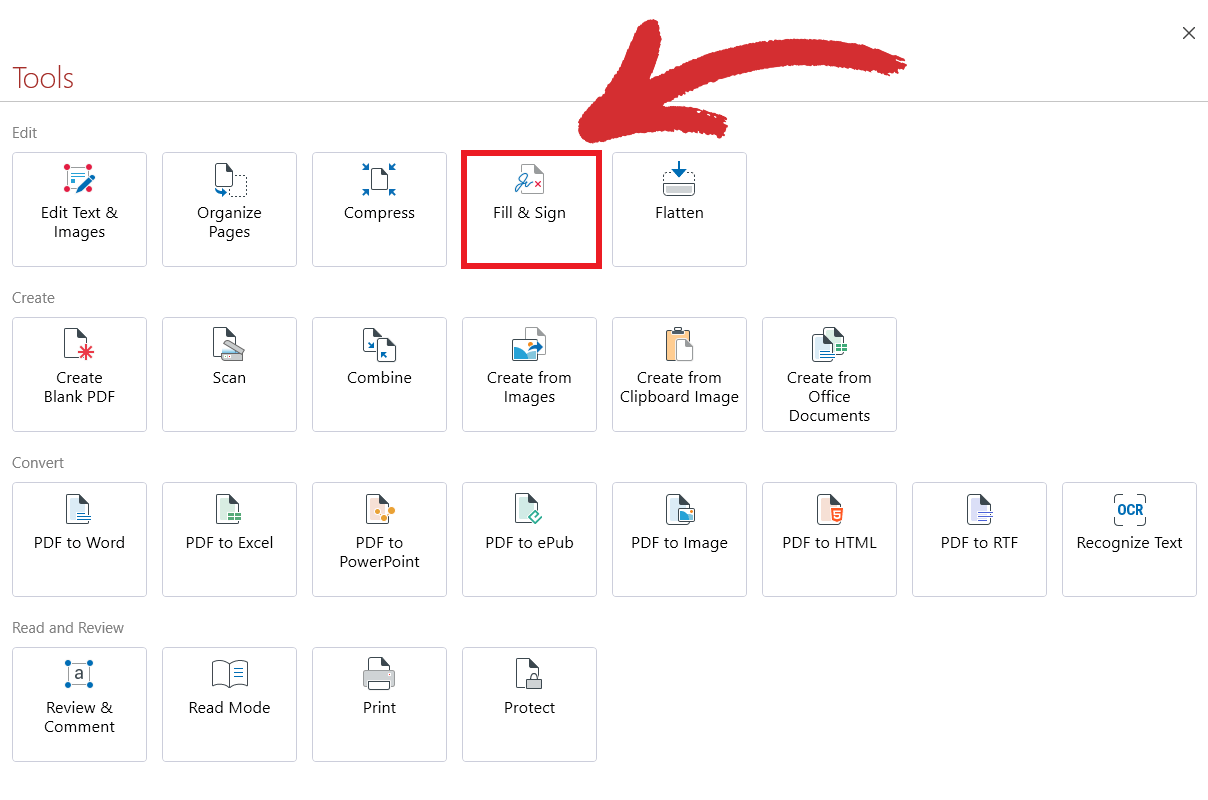
To fill out or sign your first document in MobiPDF, simply head over to “Home” → “Tools” → “Fill & Sign”.
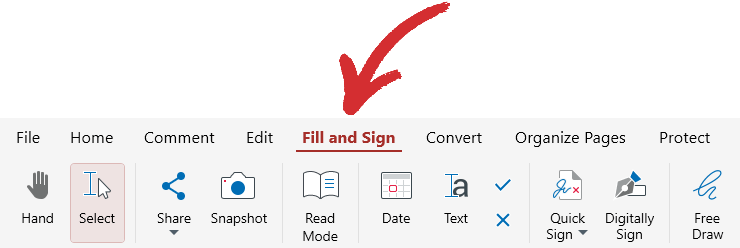
If you’ve already opened a PDF file that you want to sign, you can also access this functionality from MobiPDF’s tool ribbon.
A brief overview of the fill & sign tools
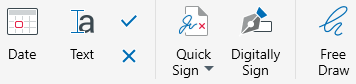
MobiPDF offers you six distinct fill and sign tools that give you the flexibility to work the way you want.
Let’s do a detailed breakdown of each one.
 Date: Add a current date to your document. The date is automatically generated by MobiPDF upon placing it in your document, e.g. 27-Feb-24.
 Text: Insert a resizable text box that is displayed on top of the existing PDF content.
 Check and “X” marks: insert check marks or “X” marks anywhere in your fillable form.
 Quick Sign: draw, type, or upload a picture with your signature.
 Digitally Sign: insert a special type of signature to guarantee that your document has not been tampered with since it was signed.
 Free Draw: add custom drawings anywhere in your document.


