To add pages to a PDF in MobiPDF, open your document, go to Pages in the main ribbon, select where you want to insert the new page, then choose Insert Blank Page, Insert from File, or Insert Image depending on what you need to add. This process lets you place new pages exactly where you need them while maintaining your document's formatting and structure.
Whether you're adding signature pages to contracts, inserting missing pages into reports, or building multi-page documents from separate files, MobiPDF provides the tools to expand your PDFs with precision. This guide shows you step by step how to add blank pages, pages from other PDFs, and scanned images as new pages in your documents.
What does it mean to “add pages” to a PDF?
Adding pages to a PDF means inserting new content into an existing document at a specific location. Unlike appending pages to the end, adding pages lets you place new content anywhere – between existing pages, at the beginning, or at the end of your document.
You can add the following types of pages:
Blank pages for signatures or notes
Pages extracted from other PDF files
Images or pages from a scanner
Images converted into PDF pages
Each method serves different purposes but follows similar workflows in MobiPDF.
Adding pages differs from merging PDFs because you're inserting specific pages into an existing document rather than combining entire files. This gives you precise control over document structure and page order.
How to add a page to a PDF
Adding pages to a PDF requires opening your document in a tool like MobiPDF, navigating to the Pages panel, and choosing the insertion method that matches your needs. The following sections cover the three main scenarios for adding pages.
How to add a blank page to a PDF
To add a blank page to a PDF, use the Insert from Blank Pages feature to create an empty page at your chosen location. This is useful for adding signature pages, notes sections, or placeholder pages.
Follow these steps in MobiPDF:
Open your PDF file in MobiPDF.
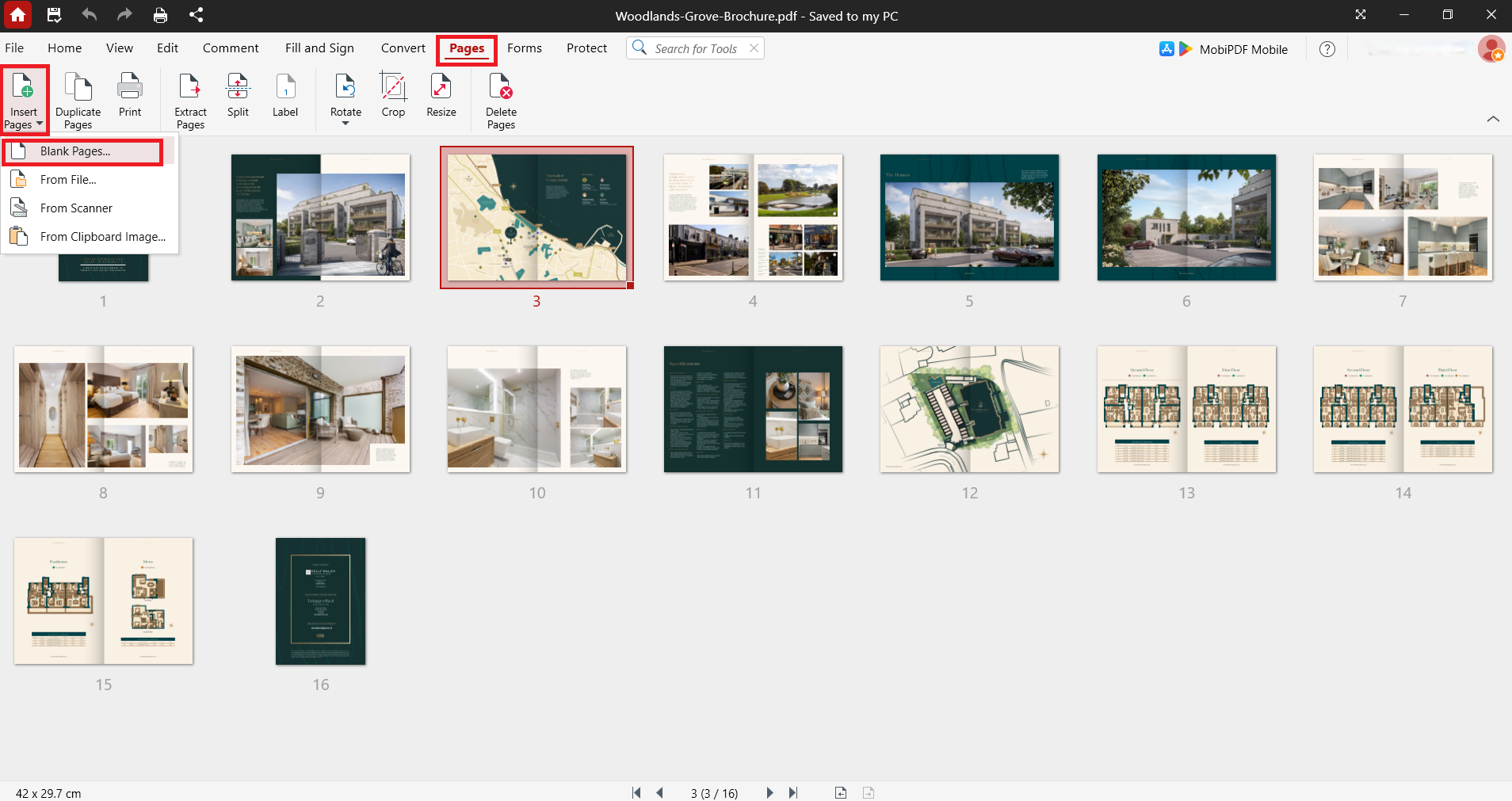
Go to the Pages tab in the main ribbon.
Click on the page thumbnail where you want to insert the blank page.
Select Blank Pages.
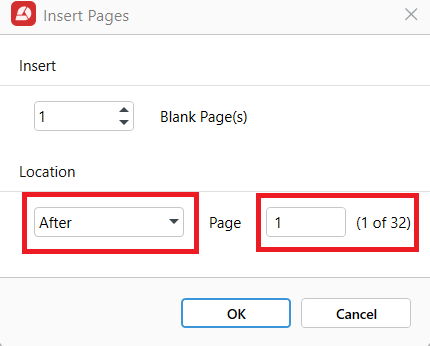
In the dialog box, choose to insert the selected page Before, After, As First, or As Last. You can also identify the page number where you want to insert the blank page.
Click OK.
The blank page appears immediately in your document at the specified location. You can add content to it later using the Edit tools.
Want to add pages quickly and easily?
How to add a page from another PDF
To add a page from another PDF, use the Insert from File function to select specific pages from external documents. This lets you combine content from multiple sources into one cohesive file.
Follow these steps in MobiPDF:
Open your main PDF file in MobiPDF.
In the Pages tab, select Insert Pages then choose From File.
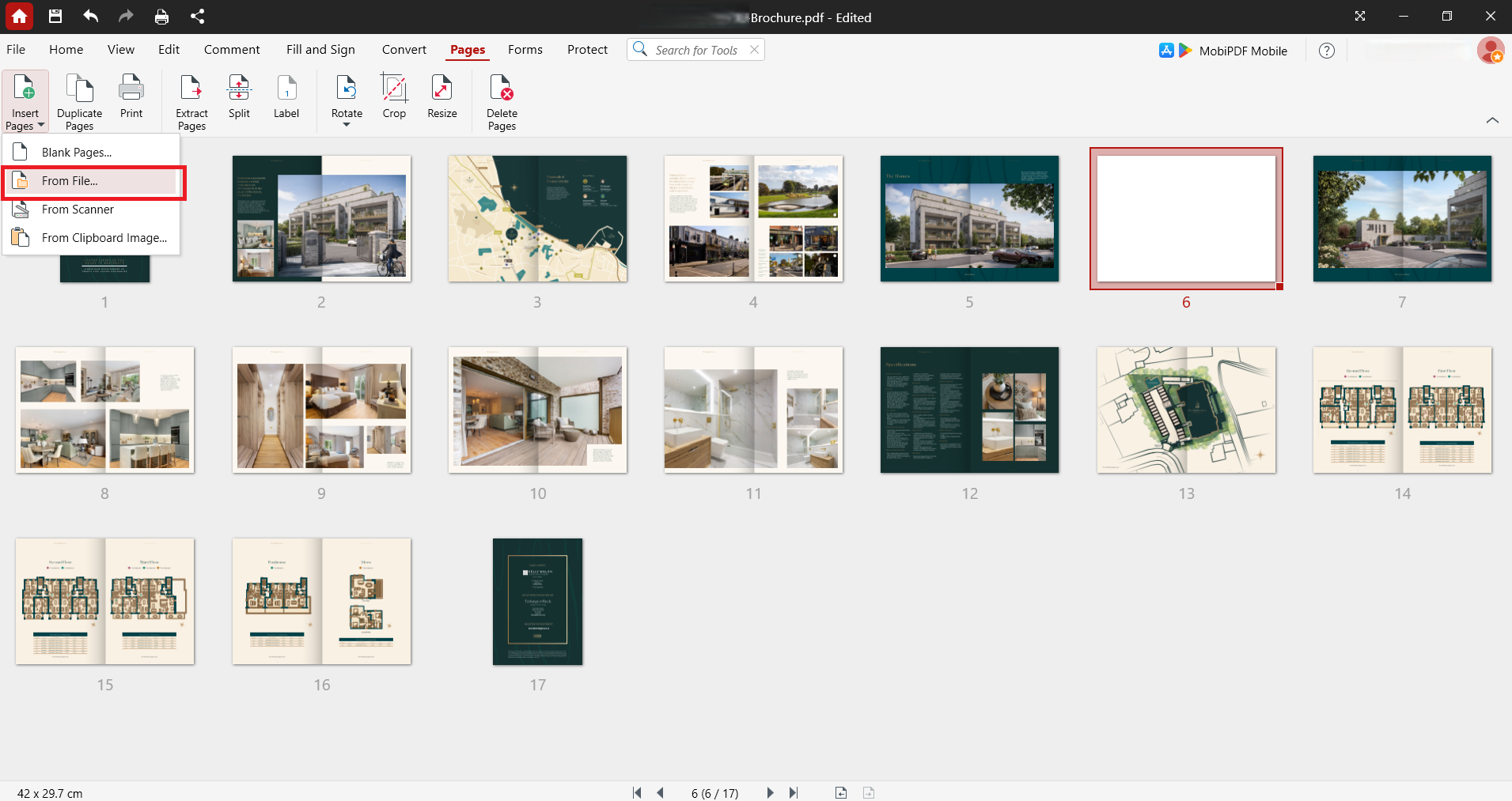
Browse and select the PDF file containing the pages you want to add in the following dialog box.
Choose to insert Before, After, As First, or as Last. You can also identify the page number where you want to insert the blank page.
Click OK.
The selected pages from the external PDF are inserted into your document. Page formatting, fonts, and images are preserved from the original file.
How to add a scanned page or image as a new PDF page
To add a scanned page or image as a new PDF page, use the Insert from Scanner or Insert from Clipboard Image function to convert JPG, PNG, or other image files into PDF pages. This is essential for adding scanned documents, photos, or screenshots to existing PDFs.
Follow these steps in MobiPDF:
Open your PDF file in MobiPDF.
In the Pages tab, select Insert Pages then choose From Scanner or From Clipboard Image.
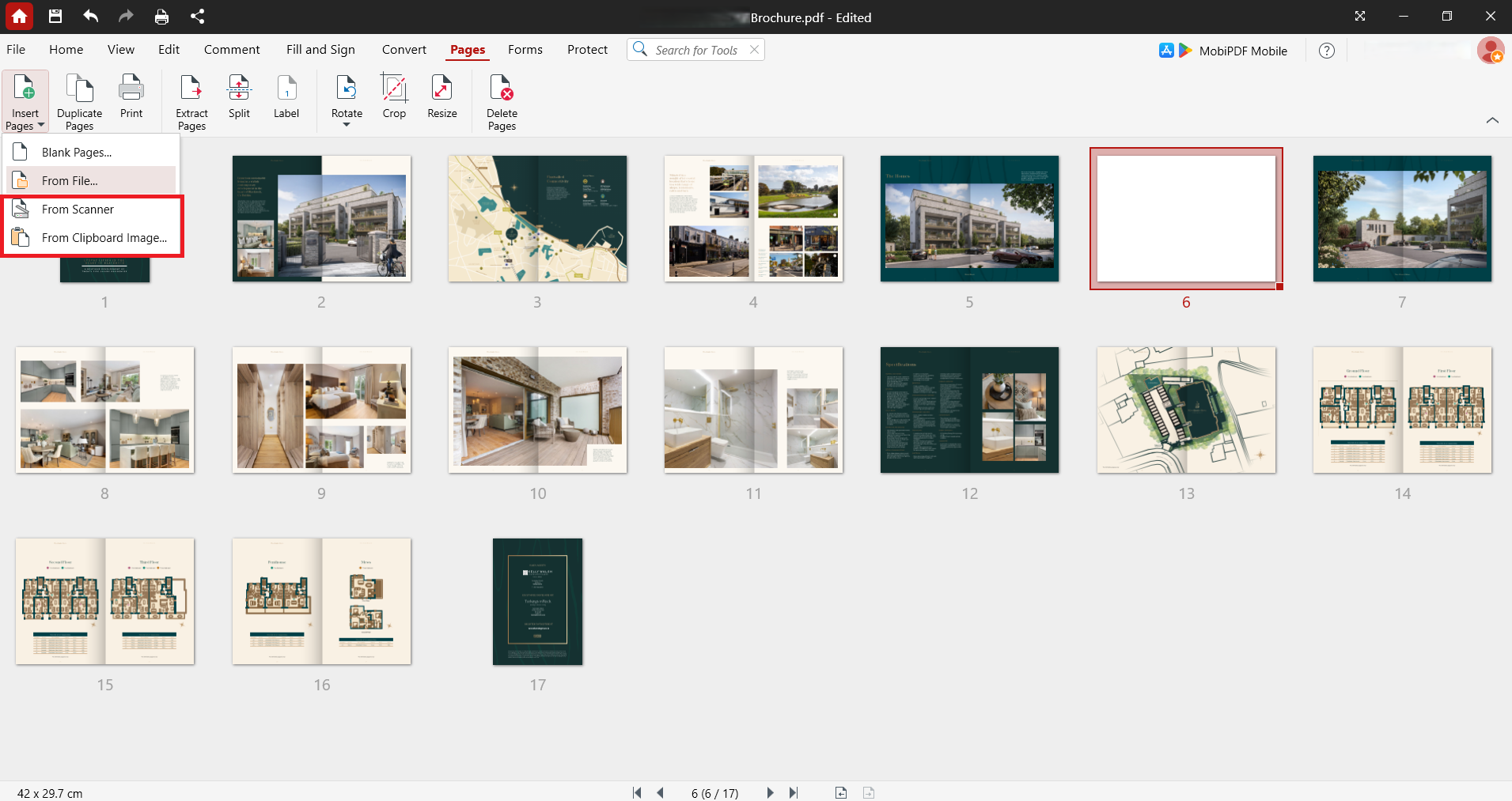
Browse and select your image file (JPG, PNG, TIFF, etc.)
Choose to insert Before, After, As First, or as Last. You can also identify the page number where you want to insert the blank page.
Click OK.
The image or scanned page is converted to a PDF page and inserted at your specified location. The image becomes a permanent part of your PDF document.
How to add multiple pages at once
To add multiple pages at once, use the Insert from Blank Pages in MobiPDF to select a range of pages from another PDF or multiple image files. This saves time when building large documents or inserting entire sections.
For adding multiple blank pages:
Open your main PDF in MobiPDF.
Go to the Pages tab in the main ribbon.
Click on the page thumbnail where you want to insert the blank page.
Select Blank Pages.
In the dialog box, select the number of pages to insert, then click OK.
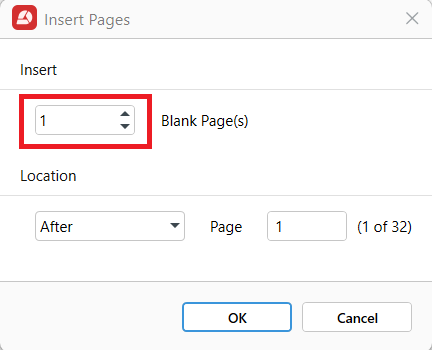
For adding multiple images as pages:
Open your PDF in MobiPDF.
Go to the Pages tab.
Select the insertion point.
Choose Insert Image or Insert from File
Select multiple image files (hold Ctrl or Cmd to select multiple files).
Click OK.
All selected pages or images are inserted in sequence at your chosen location. This method works efficiently for adding entire contracts, appendices, or scanned document batches.
Download MobiPDF to streamline your PDF page management and work more efficiently.
Common issues when adding pages to a PDF
When adding pages to PDFs, you may encounter permission errors, formatting mismatches, or save problems. Understanding these issues helps you resolve them quickly and complete your work without interruption.
Permission or read-only errors
If you receive a permission error, the PDF may be password-protected or set to read-only. Check if the file is locked or restricted for editing. In MobiPDF, go to Protect → Remove Security if you have the required password.
Page size mismatches
New pages may appear larger or smaller than existing pages if they come from documents with different page dimensions, creating inconsistent layouts. Check the page size settings and choose to match existing page dimensions when inserting pages.
Rotated or cropped inserts
Pages from other PDFs may insert with different orientations or crop settings, causing alignment issues. To avoid this, rotate inserted pages using the Pages → Rotate tool in MobiPDF. Adjust crop settings with Pages → Crop to match your document's layout.
Save or file corruption issues
If your PDF won't save after adding pages, the file may be corrupted or too large for available memory. Save your work incrementally as you add pages. If the file becomes too large, optimize it using File → Reduce File Size before saving.
Frequently asked questions
How do I choose where the new page goes?
Click on the page thumbnail in the Pages panel where you want to insert content, then select whether to insert before or after that page to give you precise control over page placement within your document.
How do I reorder pages if I insert a page in the wrong place?
In the Pages panel, click and drag the thumbnail of the misplaced page to its correct position. You can move pages anywhere in your document by dragging them to new locations.
Can I add pages from another PDF without changing the rest of my document?
Yes. Inserting pages from another PDF only adds the selected pages at your chosen location. Your existing content, formatting, and page order remain unchanged unless you specifically modify them.
Can I add an image (JPG/PNG) as a new PDF page?
Yes. Use Insert from Clipboard Image or Insert from File to select your JPG or PNG file. MobiPDF converts the image into a PDF page and inserts it at your specified location.
Why does the new page look different?
New pages may have different page sizes, margins, fonts, or orientations from your existing document. Check that the inserted page matches your document's dimensions and settings or adjust it using Crop and Rotate tools.
What's the fastest way to add multiple pages to a PDF?
Use Insert from Blank Pages and add the number of pages you want to add. When adding multiple PDF files or images, select multiple files at once to add all selected content in a single operation.
Add pages to PDFs with MobiPDF
Understanding how to add pages to PDFs gives you complete control over document structure and content. Whether you're inserting blank pages for signatures, adding pages from other documents, or converting scanned images into PDF pages, MobiPDF provides the tools you need.
With MobiPDF's offline capabilities, all page insertion happens locally on your device without uploading files to external servers. This keeps your documents secure throughout the editing process.
Ready to expand and organize your PDFs? Use MobiPDF to insert pages exactly where you need them and build complete, professional documents.