
Writing a letter on a computer is still one of the most common everyday tasks, whether you are sending a formal request, writing to a company, or sharing something personal with a friend. With MobiDocs for Windows, you can write a clean, well‑formatted letter in just a few steps.
This guide walks you through the full process of how to write a letter on a PC using MobiDocs (as part of MobiOffice). It is designed to be simple, practical, and easy to follow, even if you do not write letters often.
How to write a letter using a template
If you want to save time or you are unsure about the correct letter format, using a template is the easiest way to get started. Templates provide a ready‑made structure with proper spacing, alignment, and sections already in place.
Step 1: Open MobiDocs on Windows
Launch MobiDocs from your desktop or Start menu. Once the app opens, you will see the main screen where you can create or open documents.
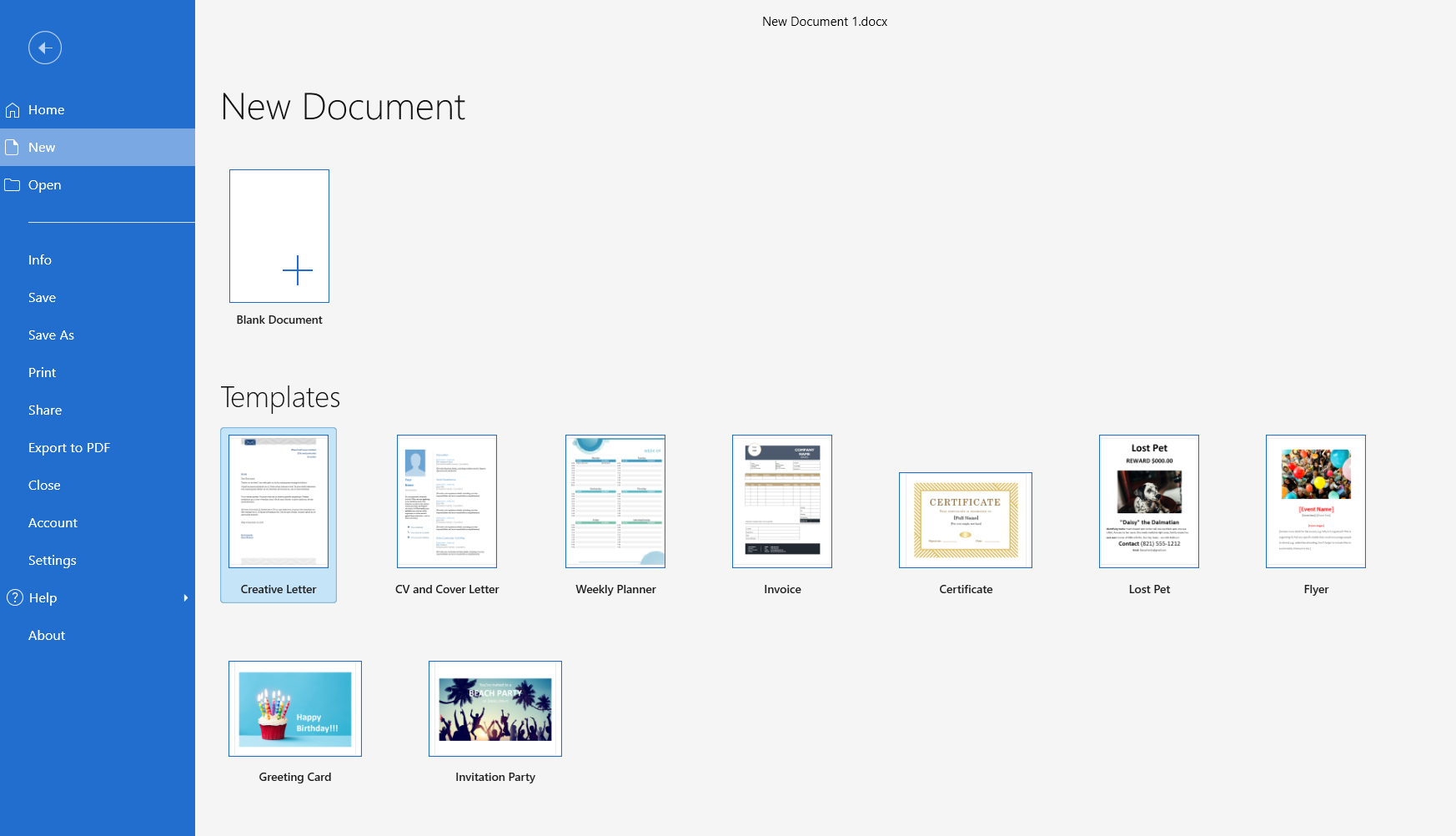
Step 2: Choose a template
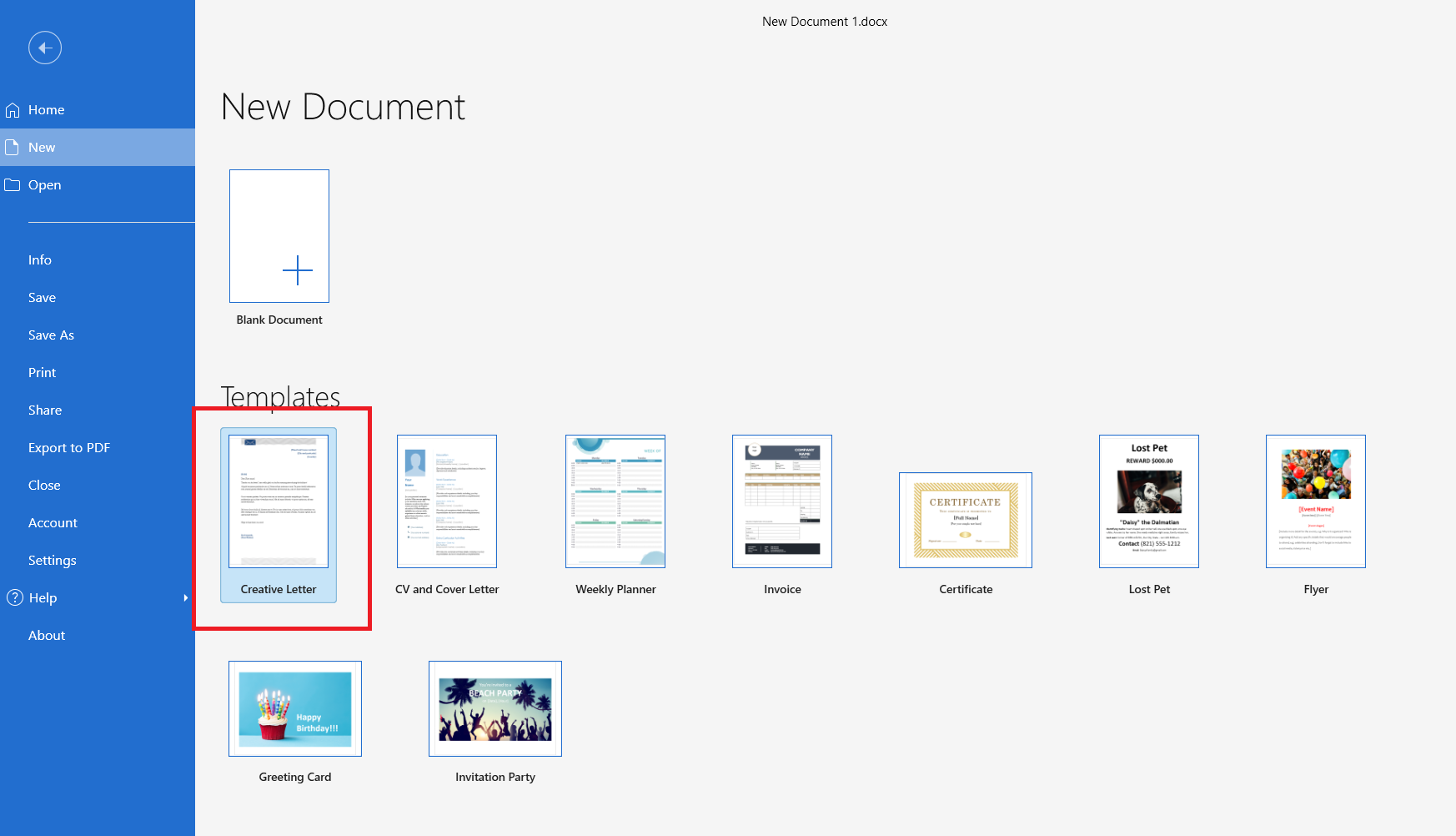
То create a letter from a template, click the Creative Letter template in the template library.
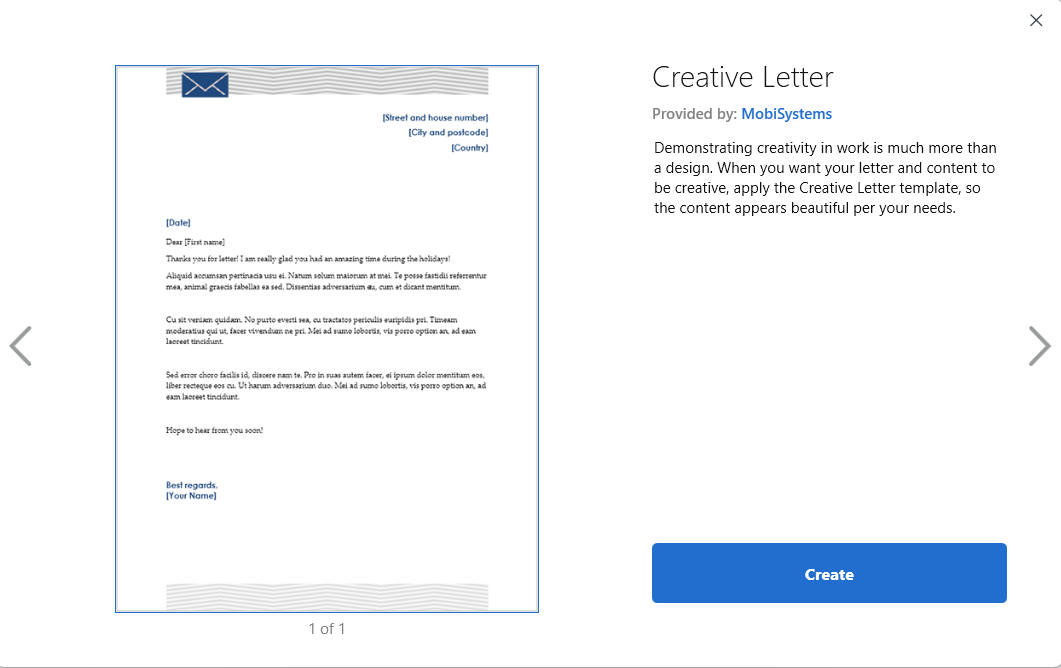
Step 3: Click Create.
On the template preview, click Create.
Step 4: Edit the placeholder text to your preference.
The template will open with sample text already in place.
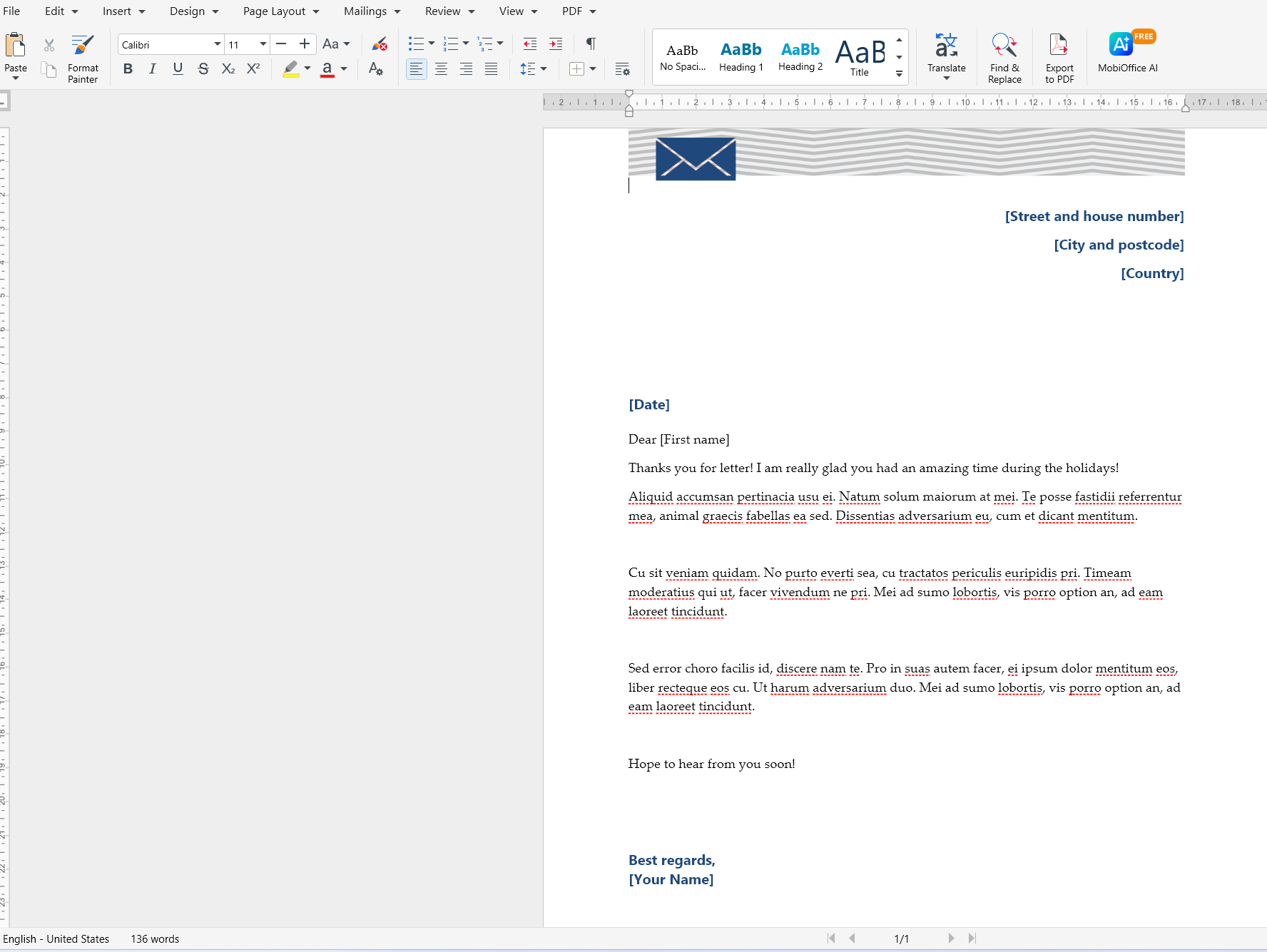
You can directly replace the placeholder content with your own:
Adress, city, country, date
The recipient’s details
The body text of your letter
The closing and signature
The formatting will adjust automatically, so you can focus on writing rather than layout.
Step 5: Review formatting
Before saving, check spacing, font size, and alignment. Templates are designed to follow standard letter format, but you can still customize fonts or margins if needed.
How to write a letter from a blank document
If you prefer full control over the layout or you are writing something informal, starting from a blank document is a great option.
Step 1: Open a blank document
In MobiDocs, click New document and choose Blank document. You will start with an empty page.
Step 2: Set up the page
Before writing, it helps to prepare the page:
Use standard margins (default margins usually work well)
Choose a readable font such as Arial, Calibri, or Times New Roman
Set the font size to 10–12 pt for body text
These settings make your letter easy to read and professional.
Step 3: Start writing your letter
Begin typing your letter from the top of the page, following the basic letter structure outlined below. Use line breaks between sections to keep everything clear and readable.
Starting from a blank document works well for personal letters or when you want a custom layout.
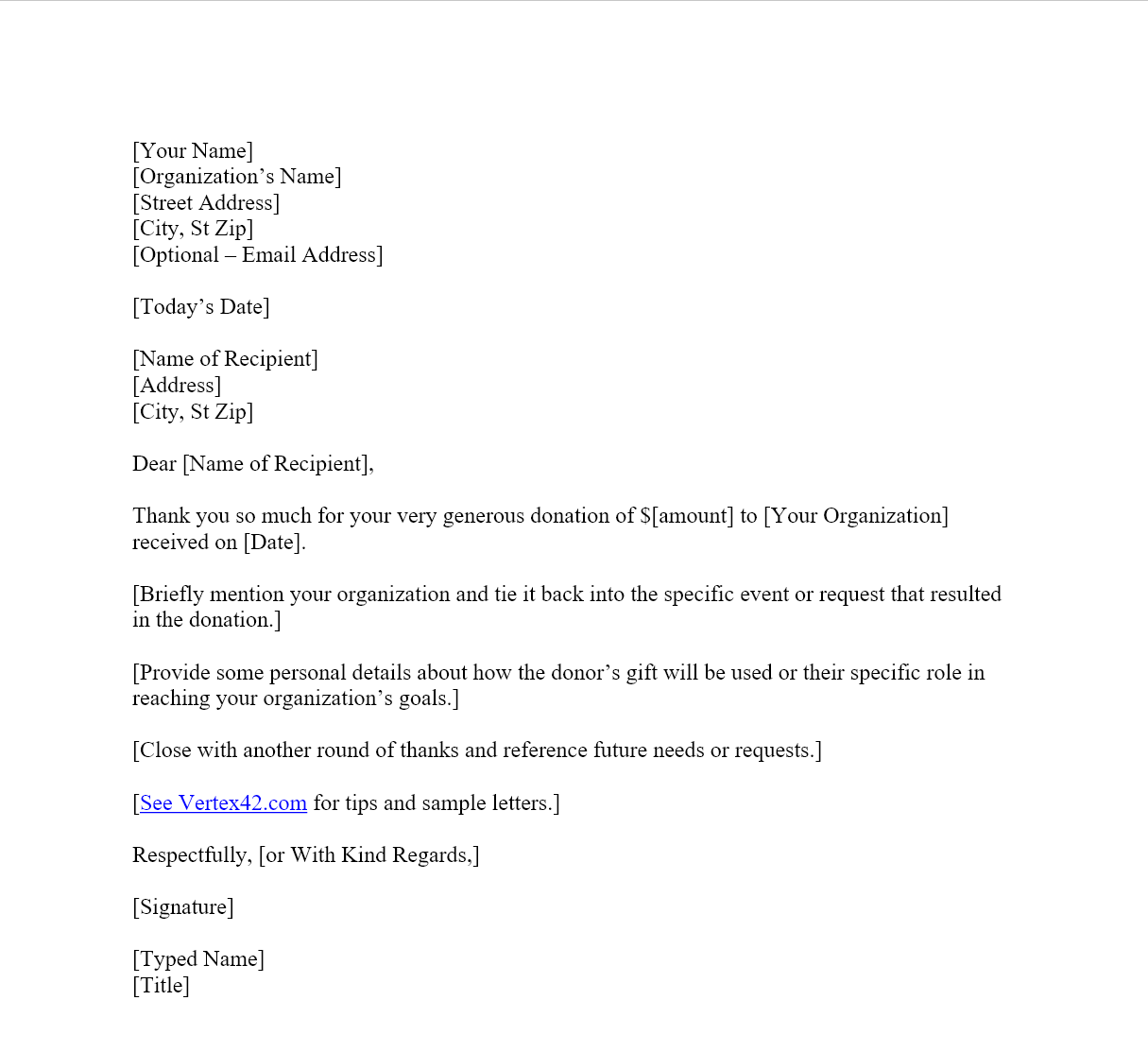
Basic structure of a letter
No matter which method you choose, most letters follow the same basic structure. Understanding this makes it easier to write clearly and confidently.
Heading and date
At the top of the letter, include:
Your name (optional)
Your address (optional)
The date
The date is usually aligned to the left or right, depending on your preferred style.
Greeting
Start your letter with a greeting. Common examples include:
Dear Mr. Smith,
Dear Hiring Manager,
Hello Anna,
Use a formal greeting for professional letters and a more relaxed one for personal messages.
Body of the letter
The body is where you communicate your main message. It usually consists of one to three paragraphs:
The first paragraph explains why you are writing
The middle paragraph provides details or explanation
The final paragraph wraps up your message or requests action
Keep sentences clear and focused. Avoid overly long paragraphs when writing on a computer, as shorter blocks of text are easier to read on screen.
Closing and signature
End your letter with a polite closing, such as:
Sincerely,
Best regards,
Kind regards,
Leave a few lines of space, then type your name. If you are printing the letter, you can sign above your typed name.
Save and export your letter
Once your letter is finished, saving and exporting it correctly ensures it can be shared or printed without issues.
Save as DOCX
To save your letter as an editable document:
Click File
Select Save As
Choose DOCX format
Pick a location on your PC
Click Save
DOCX is ideal if you plan to edit the letter later.
Export letter as PDF
If you need a final, share‑ready version:
Click File
Choose Export or Save as PDF
Select a location
Click Export
PDF files preserve formatting and are perfect for emailing or submitting official letters.
Common mistakes when writing a letter on a computer
Even with a good editor, small mistakes can slip in. Watch out for these common issues:
Forgetting the date
Using inconsistent fonts or sizes
Writing overly long paragraphs
Using an informal tone in a formal letter
Forgetting to save or export the final version
Taking a moment to review your letter before sending can prevent these problems.
Frequently asked questions
What is the correct format for a letter?
A standard letter includes a heading and date, greeting, body, and closing with a signature. Templates in MobiDocs follow this format automatically.
How do I start a letter?
Start with a clear greeting. For formal letters, use Dear followed by the recipient’s name or title. For personal letters, a friendly greeting works well.
How do I end a letter properly?
Use a polite closing such as Sincerely or Best regards, followed by your name. Match the tone of the closing to the tone of the letter.
Should I use a template or a blank document?
Use a template if you want speed and a professional layout. Choose a blank document if you want full control or are writing something informal.
Can I save my letter as a PDF?
Yes. MobiDocs allows you to export your letter as a PDF, making it easy to share or print without formatting changes.
Use MobiDocs as part of MobiOffice
Writing a letter on a PC does not have to be complicated. With MobiDocs you can choose a template or start from scratch, follow a clear structure, and save or export your letter in the format you need.