Filling & Signing PDFs - Quick signing
Quick signing contracts
Quick signing contracts
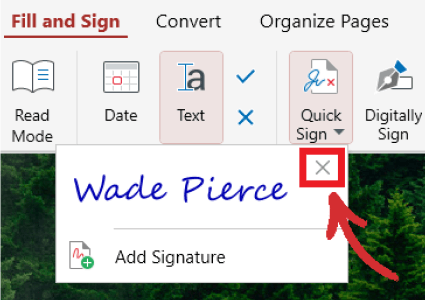
MobiPDF allows you to quickly sign documents by either drawing, typing, or uploading a picture of your signature. You can add a signature via “Quick Sign” → “Add Signature”. Once you’ve added a signature, you can then easily save and reuse it as many times as needed. Documents opened in MobiPDF can also be signed by multiple parties.
IMPORTANT: Saving your signed PDF will make your signature(s) a permanent part of that PDF!
Drawing your signature
To draw your signature, go to “Quick Sign” → “Add Signature” → “Draw” and add it manually with your mouse.
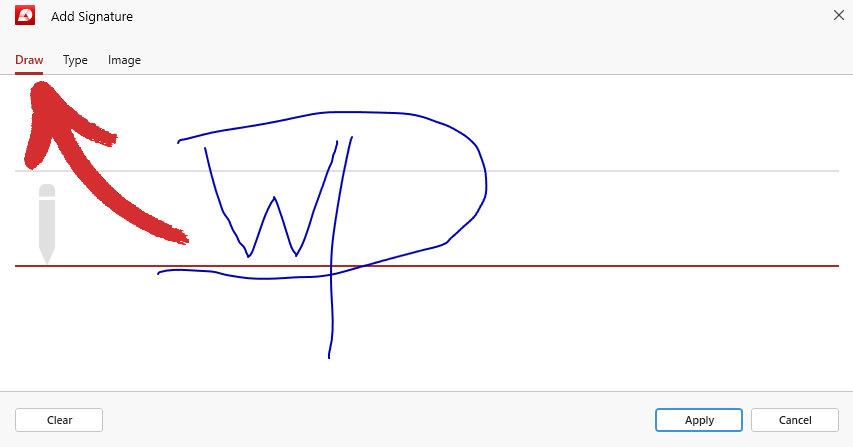
If you’re not happy with the result, simply click on “Clear” to start from scratch. Once you’re done, click “Apply” to save your signature for future use
Typing your signature
To type your signature, go to “Quick Sign” → “Add Signature” → “Type” and type your name or initials using your keyboard. If you’re not happy with the result, simply click on “Clear” to start from scratch. Once you’re done, click “Apply” to save your new signature for future use.
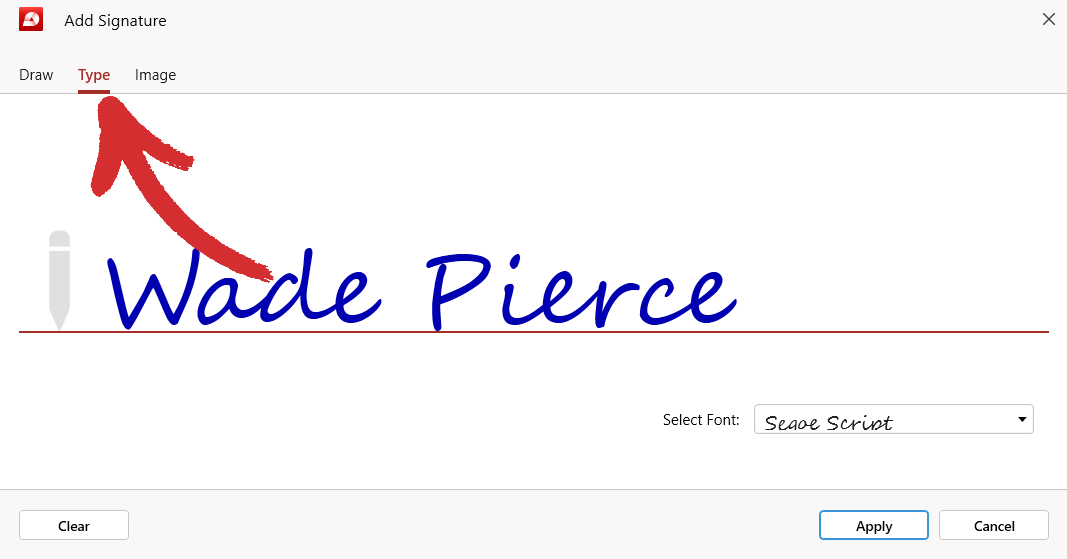
TIP: You can choose between three distinct fonts to further personalize your signature. These are: “Segoe Script”, “Gabriola”, and “Lucida Handwriting”.
Uploading your signature
If none of the above two methods work for you, you can also upload a photo of your physical (wet) signature, which MobiPDF will then automatically convert into an electronic signature.
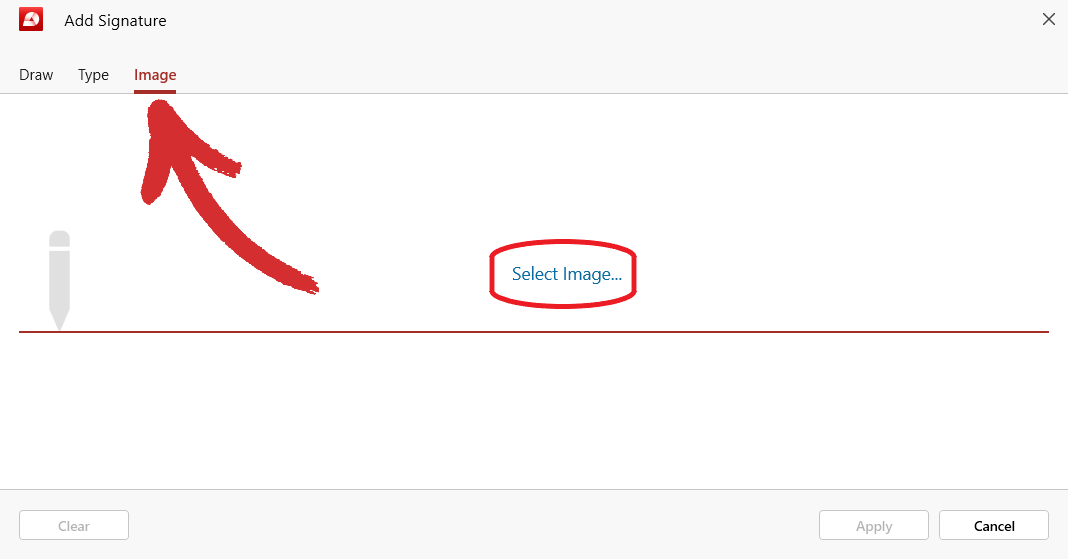
To upload your signature, go to “Quick Sign” → “Add Signature” → “Image”, then choose “Select Image” and navigate to where you have stored your picture on your device. If you’re not happy with the result, simply click on “Clear” to start from scratch. Once you’re done, click “Apply” to save your new signature for future use.
TIP: Make sure that the image you’re uploading is of decent quality and that there are no glare or shadows present to ensure the best results.
Deleting signatures
To delete a signature within your file, simply right-click it and choose “Delete” from the list of available options.
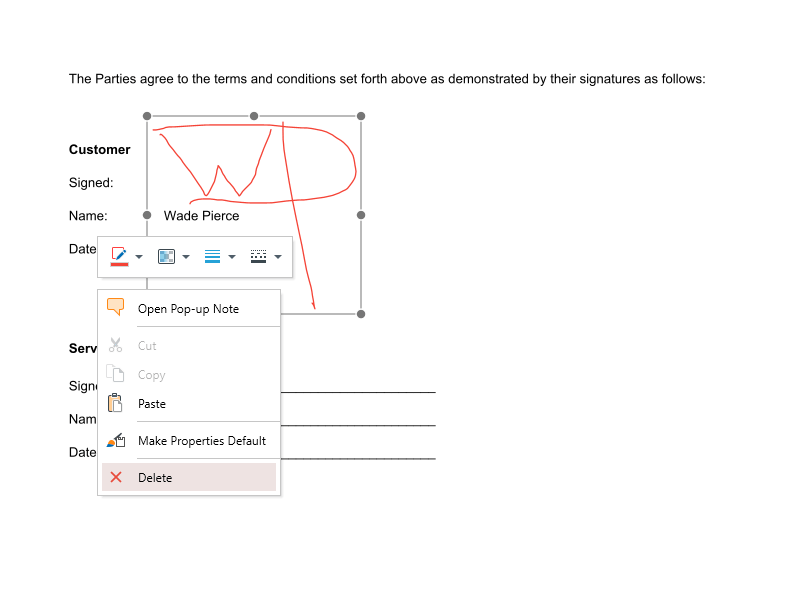
To remove a signature from the saved signatures list under “Quick Sign”, click the “X” mark next to the signature and confirm that you want to permanently remove it from your account.