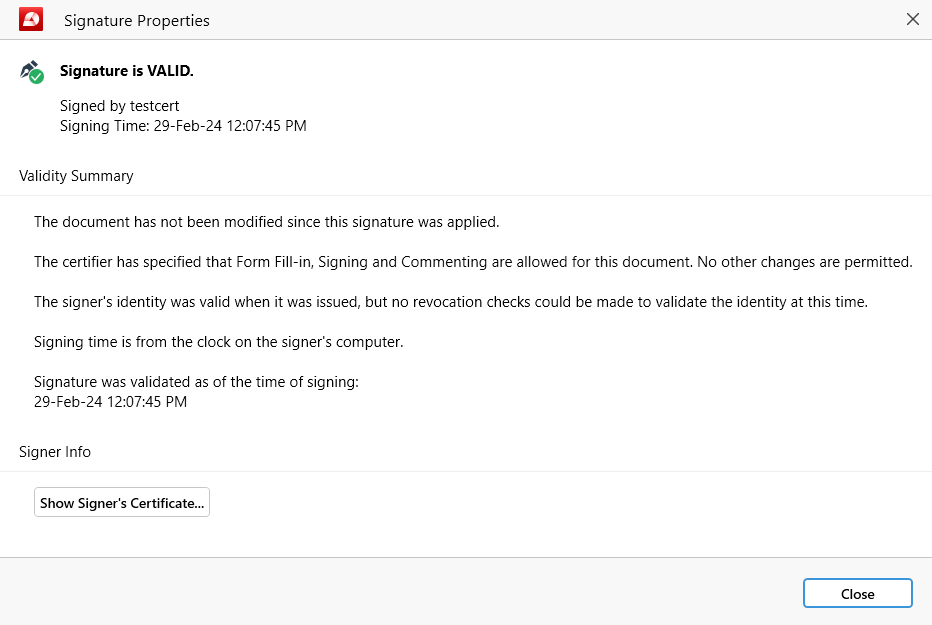
Securing PDFs - On digital signatures

Digitally signing documents
A digital signature acts like your unique electronic fingerprint on digital documents. It’s more secure than ink signatures as it uses a combination of a public key and a private key. Once you digitally sign a document, it can’t be altered, guaranteeing its authenticity worldwide.
MobiPDF allows you to digitally sign any PDF file with ease.
Adding digital signatures
To sign your document digitally:
1. Click on “Digitally Sign”.
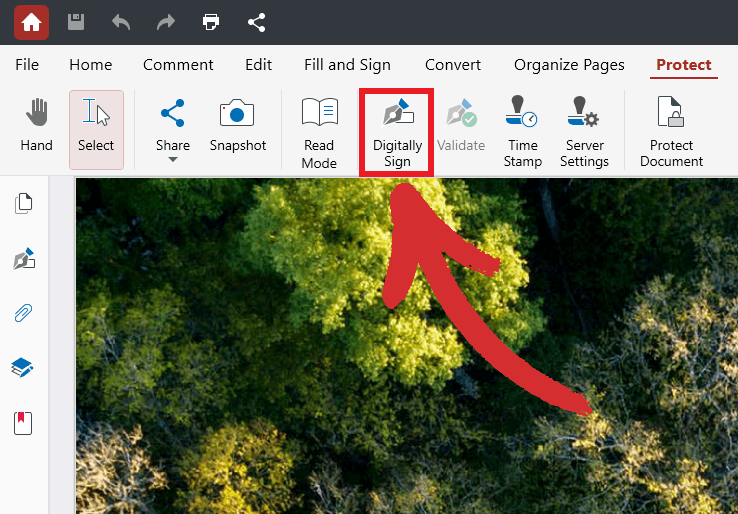
2. Choose where you want to place your digital signature.

3. Select your signature from the dropdown menu (if applicable).
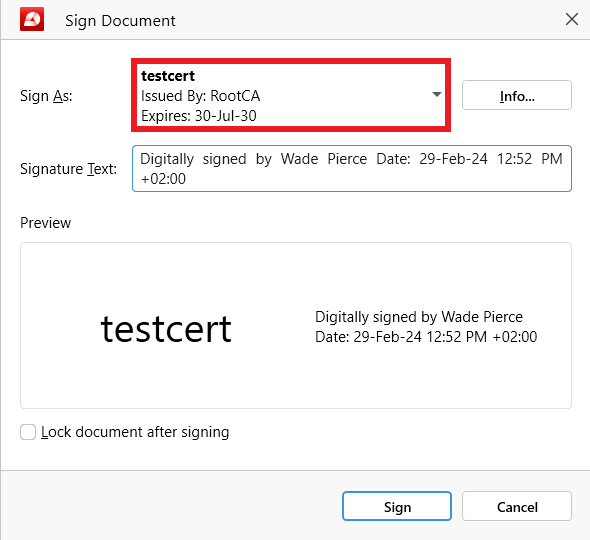
4. Edit the signature text, if needed.
5. Click on “Sign” to add your digital signature.
6. You’ve successfully signed your PDF digitally!

TIP: You can also lock your document after signing. In addition to prohibiting users from editing your document, this will also ensure that they won’t be able to leave comments and markups, as well as their own digital signatures and timestamps.
Deleting digital signatures
Sometimes, you may need to remove a digital signature from your document to update its contents or if you determine that it no longer needs to be protected. However, you can only remove digital signatures whose certificates are installed on your machine. In other words, you can only remove your personal digital signatures and not someone else’s.
With that said, to delete your digital signature from your PDF:
1. Access the dedicated “Digital Signatures” side panel.
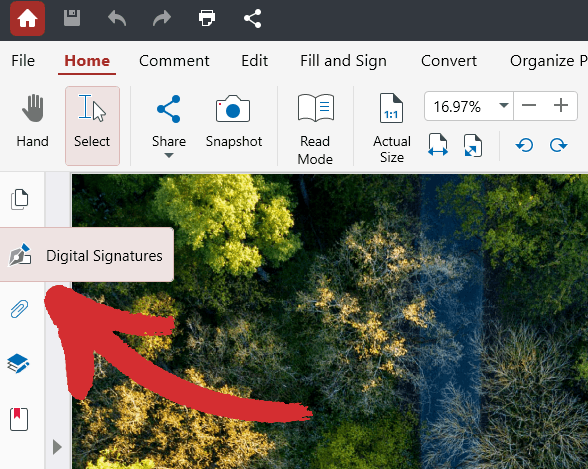
2. Right-click your signature from the presented list.
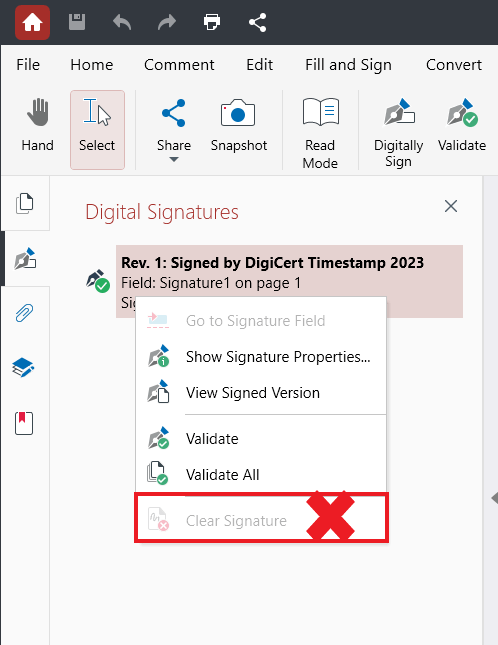
3. Choose “Clear Signature” to remove it from your PDF.
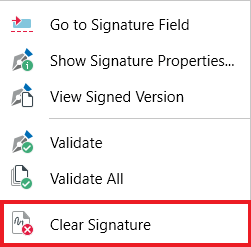
TIP: If your digital signature is not validated automatically, you can do so manually by clicking on “Validate” from the “Protect” section or right-clicking your signature in the side panel and clicking “Validate” or “Validate All”.