A qualified electronic signature (QES) is the EU’s highest level of e-signature under eIDAS. It is tied to an identity verified against a passport or ID card and has the same legal effect as a handwritten signature across the EU. You can apply one to a PDF from your PC and confirm it on your phone.
What a qualified electronic signature is
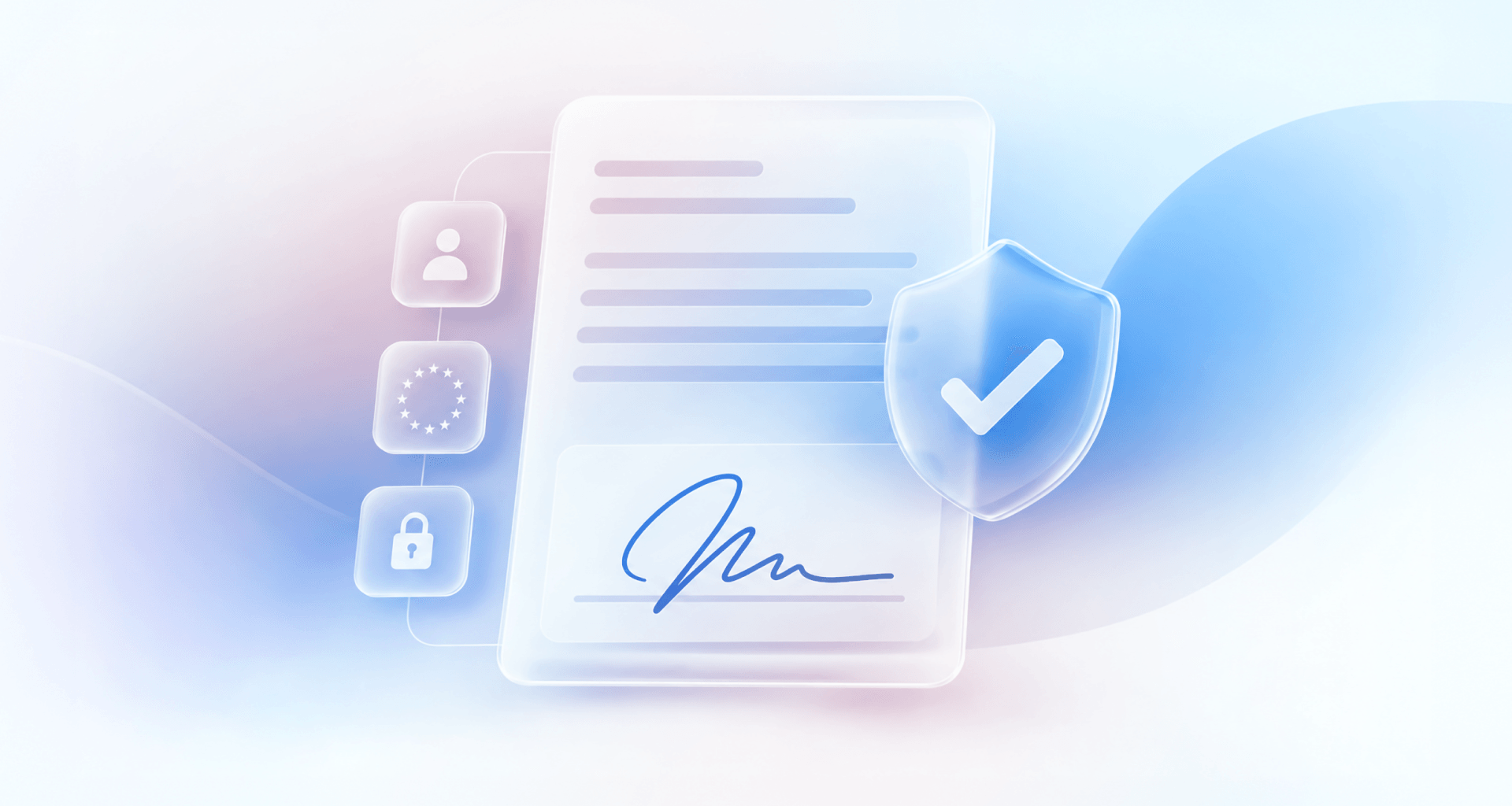
A qualified electronic signature links a document to a person whose identity has been verified by a qualified trust service provider. The rules come from eIDAS, the EU regulation on electronic identification and trust services. It defines three levels of electronic signature, and the qualified level is the highest.
Before issuing the signature, the provider checks the signer’s identity against an accepted passport or ID card. The resulting signature connects that verified identity to the document. If the document changes after signing, a validator can detect the change.
That distinction matters when the recipient needs more than a visible sign of agreement. A contract, declaration or formal application may require a way to identify the signer and check whether the signed document has remained intact. In the EU, eIDAS gives a qualified electronic signature the same legal effect as a handwritten signature.
A QES does not make every document suitable for every purpose by itself. You still need to follow any requirements for the document you are submitting. It does, however, provide a defined EU standard for verifying who signed electronically.
Simple, advanced, qualified: the three eIDAS levels
eIDAS sorts electronic signatures into three levels, and each level adds stronger proof of who signed.
A simple electronic signature (SES) can be a typed name or an image of your signature placed on the page. It shows intent in the same way as a handwritten wet signature, but it proves little about the person behind it.
An advanced electronic signature (AES) uses a certificate under the signer's control, usually stored on their device. It must identify the signer and show whether the document changed after signing.
A qualified electronic signature adds an identity check by a qualified provider. It is the only level that eIDAS treats as equal to a handwritten signature.
What you normally need for a QES (and what you can skip)
The traditional route to a qualified signature needs a certificate from a provider and hardware to hold it. The phone-based route removes most of that.
On the traditional route, you apply to a qualified provider and prove your identity, often with a visit to its office. The provider issues a qualified certificate on a smart card or USB token. You then need a card reader, the right driver software and a working setup on each computer you sign from. Certificates also expire and must be renewed.
This route still exists and works, and many people and organizations rely on it.
On the phone-based route, your verified identity stays with the provider. You confirm each signature in the provider's app on your phone. There is no card reader, no USB token and no certificate file to manage on your PC. You still verify your identity with the provider when you create your account.
How to add a qualified electronic signature from your PC
In MobiPDF for Windows, you request a qualified signature from Evrotrust inside the document and confirm it on your phone.
The process has two parts. On your PC, qualified signing in MobiPDF sends the signing request to Evrotrust. On your phone, the Evrotrust app asks you to confirm it. You do not need to leave the document or open a separate signing website.
Before you start, you need a paid MobiPDF plan and an Evrotrust account linked to your verified identity.
Open the PDF in MobiPDF for Windows.
Go to the Protect tab or the Fill and Sign tab.
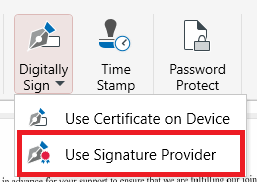
Select Digitally Sign.
Choose Use Signature Provider. The Evrotrust connect screen will open.
Connect MobiPDF to Evrotrust. You only need to do this the first time:
Get the Evrotrust app on your phone if you do not have it yet: scan the QR code or use the App Store or Google Play button.
Choose your country code from the dropdown.
Enter the phone number you use with Evrotrust.
Select Connect to Evrotrust.
Go to Digitally Sign -> Use Signature Provider.
Drop a signature field on the page, or select an area for the new signature.
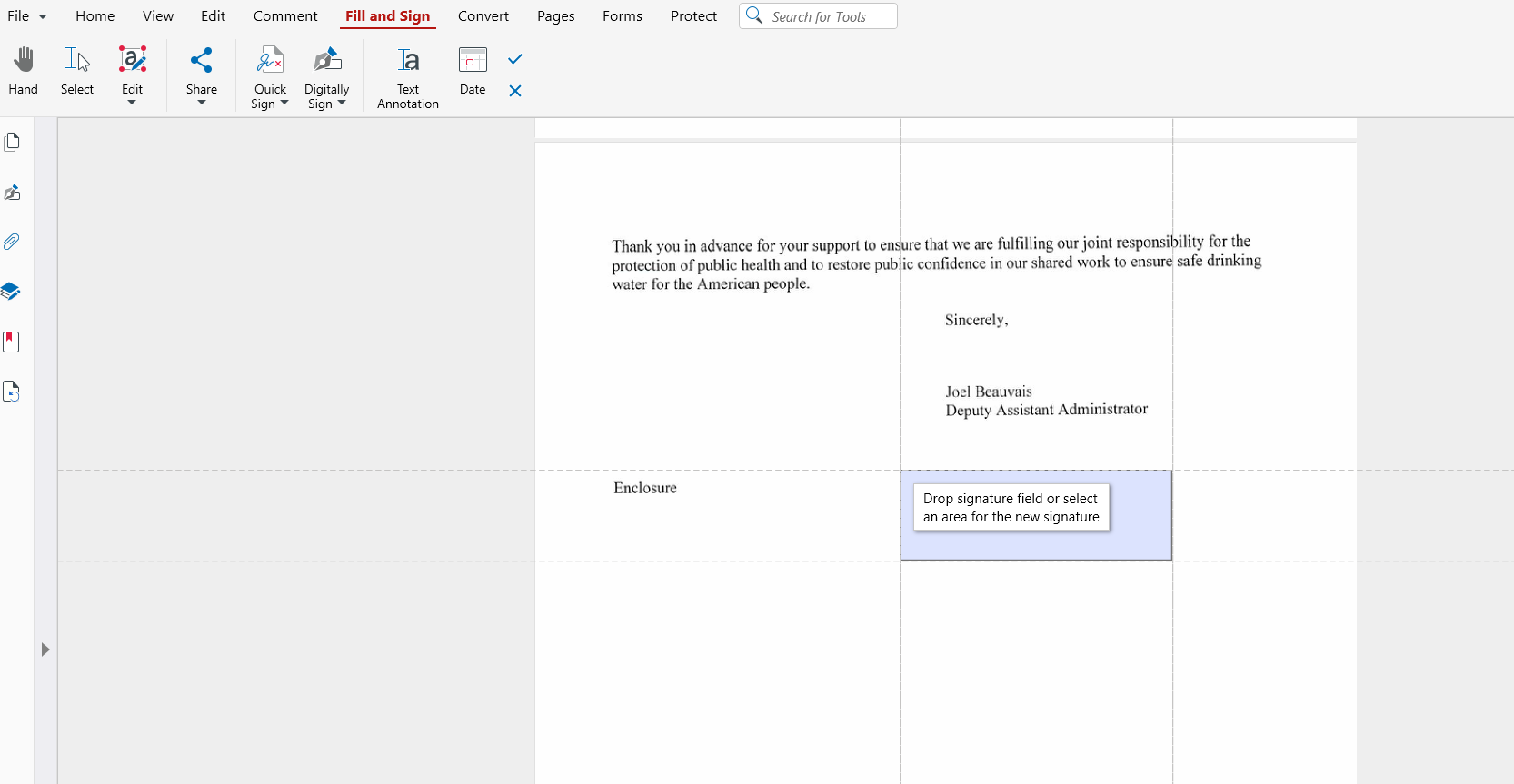
Check your Evrotrust signature in the window that opens.
Select Sign.
Confirm the signature in the Evrotrust app on your phone.
Your phone only confirms the signature. The PDF is signed in MobiPDF on your PC. The connect screen links MobiPDF to your Evrotrust account through your phone number, so you do not need a certificate file, a card reader or a USB token.
Digitally signing a PDF with a certificate on your device gives an advanced signature, not a qualified one. Qualified signing is part of the paid MobiPDF plans, so start by choosing the plan that suits you.
Is a qualified electronic signature legally binding?
Yes, within the EU. A qualified electronic signature is legally binding across the EU, with the same legal effect as a handwritten signature.
eIDAS is an EU regulation, so this rule applies directly in all 27 member states. A signature is only useful if others can check it. MobiPDF's digital signatures follow the PAdES standard for PDF signatures, so they are recognized by EU validators: official EU validation services report them as valid.
Outside the EU, the rules depend on each country's law. If a document will be used outside the EU, check the local requirements before you sign.
Who can use it
Qualified signing through Evrotrust in MobiPDF is for Windows users with an Evrotrust account and a paid MobiPDF plan. Users without an eligible plan see an upgrade prompt.
Evrotrust’s supported countries list (opens in a new tab) includes 69 countries as of September 23, 2026. It includes all 27 EU member states, as well as the UK, the US, Canada, Australia, Switzerland, Norway, Turkey and Ukraine. Passport and ID-card support differ by country, so check which document Evrotrust accepts from yours.
Having an accepted identity document lets you begin Evrotrust’s identity process. It does not remove the need to complete that process before using a qualified signature.
Alternative: MobiPDF
MobiPDF is a PDF editor for Windows where qualified signing sits next to Quick Sign and certificate signing, so you choose the level each document needs.
Use Quick Sign for a simple signature on everyday paperwork, such as an internal approval. Use a certificate for an advanced digital signature. Use Evrotrust when a document needs a qualified electronic signature.
Signing a document often comes after editing it. MobiPDF keeps the whole task in one editor, from the last change to the final signature. In the same app, you can also fill in forms and use PDF protection tools such as passwords.
Want to explore more? Download MobiPDF for Windows to try our PDF tools.
FAQ
A qualified electronic signature is the highest level of electronic signature under the EU's eIDAS regulation. A qualified trust provider verifies the signer's identity against a passport or ID card, and the signature has the same legal effect as a handwritten signature in the EU.
A digital signature uses a certificate to show that the document has not changed since signing and to name the certificate holder. A qualified electronic signature goes further: a trust provider has verified the signer's identity against an ID document, which gives it the same legal effect as a handwritten signature in the EU.
Yes, across the EU. Under eIDAS, a qualified electronic signature has the same legal effect as a handwritten signature in every EU member state, and a qualified signature issued in one member state is recognized as qualified in all the others.
Not with the provider route. Your verified identity is held by the qualified provider, such as Evrotrust, and you confirm each signature in its app on your phone. You do not need a card reader, a USB token or a certificate file on your PC.
At the time of writing, Evrotrust accepts passports or ID cards from 69 countries. These include all 27 EU member states, the United Kingdom and the United States, as well as Canada, Australia, Switzerland, Norway, Turkey and Ukraine. Evrotrust updates its list, so check its website for the current countries.
Qualified signing is available in the paid MobiPDF plans, in MobiPDF for Windows. Without a paid plan, MobiPDF shows an upgrade prompt when you select the feature. You also need an Evrotrust account.
Final thoughts
A qualified electronic signature gives an electronic document the same legal effect as a handwritten signature in the EU. What makes it qualified is a verified identity, checked by a qualified provider against a passport or ID card.
The traditional route relies on smart cards, readers and USB tokens, and it still works. With MobiPDF for Windows and Evrotrust, you add the signature from your PC and confirm it on your phone.
To see where signing fits in your PDF work, start with MobiPDF on your PC.