

Formatting cells and data entry
In this guide, you'll learn how to enter data into MobiSheets and format it so it's clear and easy to read. You'll be able to set number formats like currency and dates, change fonts and colors, align text, and add borders. Good formatting makes a spreadsheet easier to scan and share. The steps start with Windows, followed by shorter sections for Mac, Android, and iOS.
Before you begin
Make sure you have:
MobiOffice installed on your device. See Installing MobiOffice on multiple devices.
A spreadsheet open in MobiSheets. See Creating and editing spreadsheets.
Signed in to MobiSheets. See Signing in to MobiSheets.
An internet connection, if you want to save to the cloud.
Enter data on Windows
1. Click a cell, then type your text or numbers.
2. Press Enter to confirm and move down, or Tab to move right.
3. To edit a cell, double-click it and change the contents, or select it and type a new value to replace what's there.
Tip: To fill a series quickly, type at least two values to create a pattern, select the second cell, then drag the small square at the bottom-right corner down or across.
Format numbers, dates, and currency
Number formats change how a value is displayed without changing the value itself.
1. Select the cell or range you want to format.
2. In the ribbon menu, find the Number Formats dropdown menu.
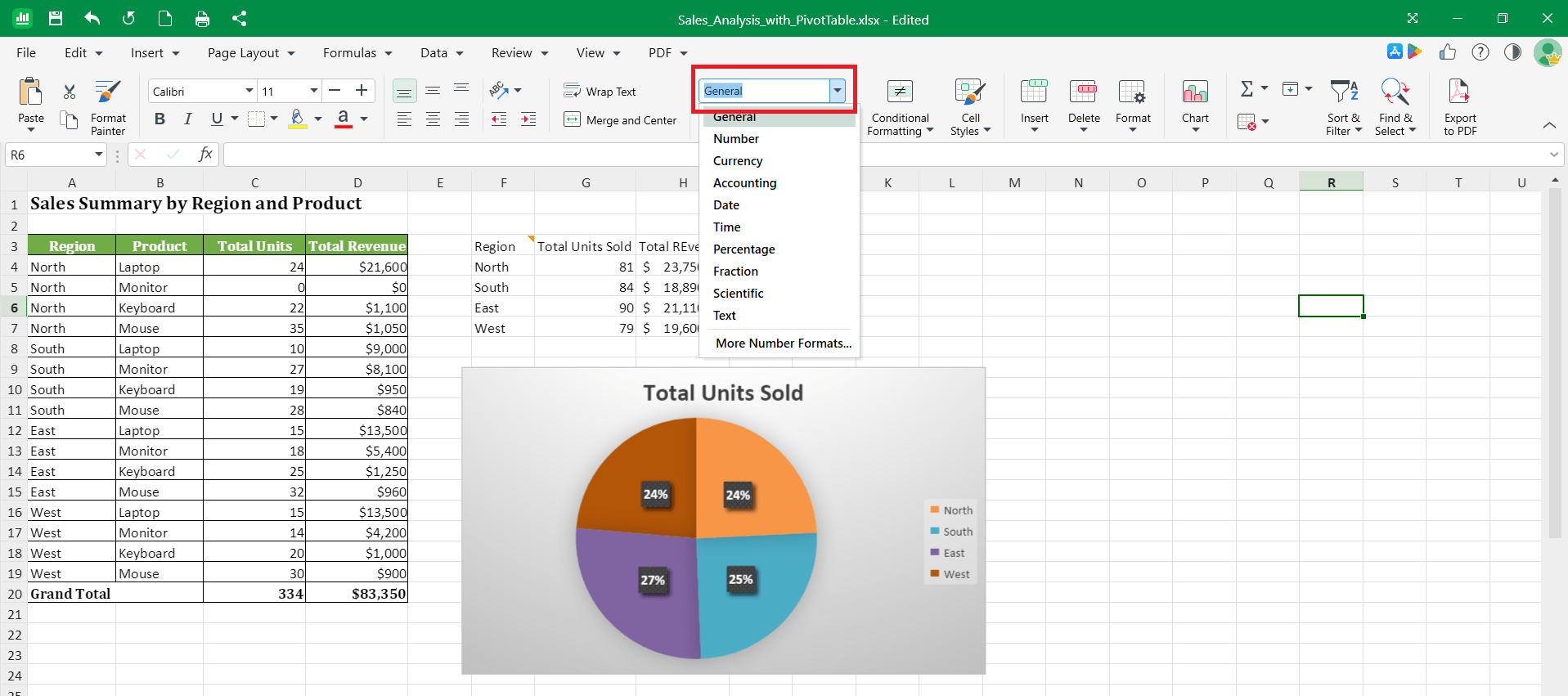
3. Choose a format from the list, such as Currency, Percentage, or Date.
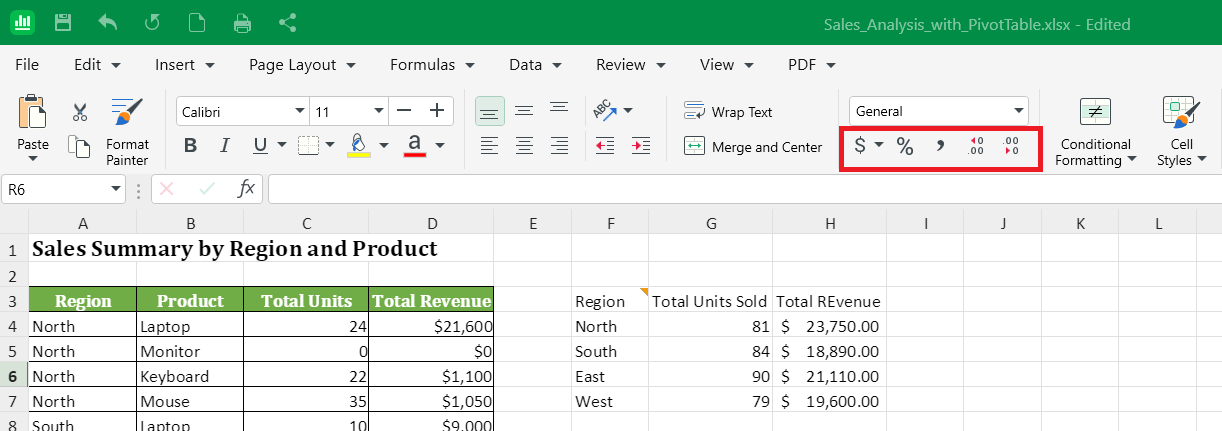
4. Use the buttons under the same dropdown menu to add or remove decimal places, format percentages or currency, or add commas.
Apply a custom number format
Use a custom format when the built-in options don't fit your data.
1. Select the cell or range.
2. Right-click and select Format Cells.
3. On the Number tab, click Custom.
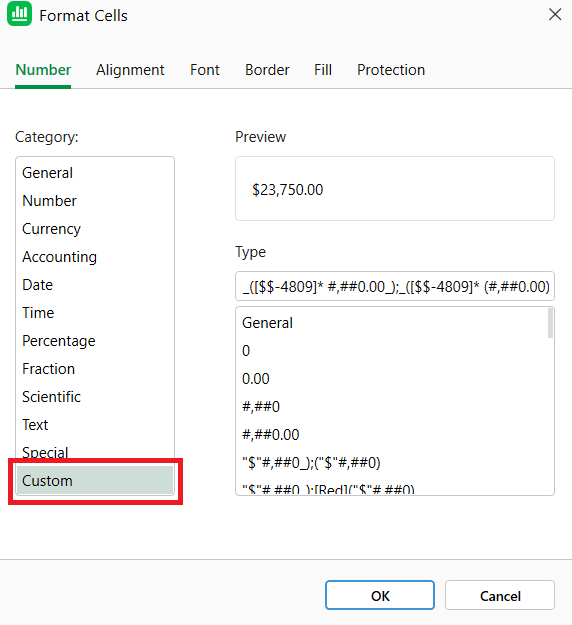
4. Type the format you want, then click OK.
The next time you open the Custom list, your format appears at the bottom.
Change fonts, colors, and alignment
1. Select the cell or range you want to change.
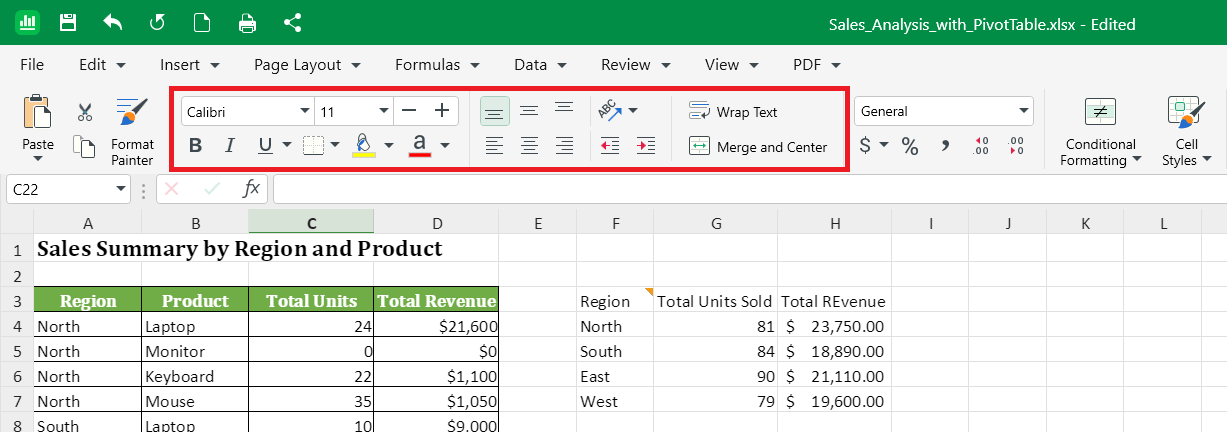
2. In the ribbon menu, use the Font section to set the font, size, and color, or to apply Bold, Italic, or Underline.
3. Use the Fill Color button to add a background color.
4. Use the Align section to set how text sits in the cell: left, center, or right, and top, middle, or bottom.
5. Select Wrap Text to show long entries on multiple lines inside one cell.
Add borders
1. Select the cell or range.
2. In the ribbon menu, click the arrow next to the Borders button in the Font section.
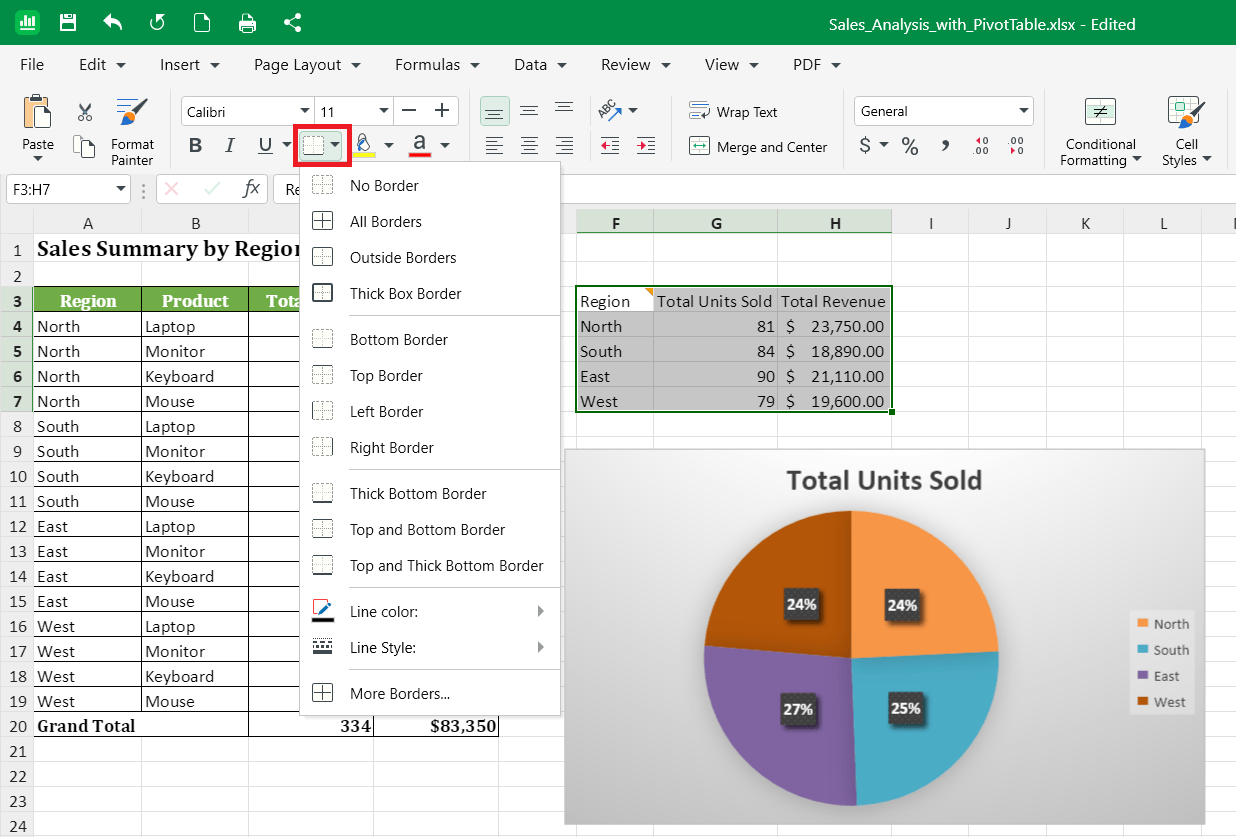
3. Choose a border style, such as All Borders or Outside Borders.
Copy formatting to other cells
Use Format Painter to apply the same formatting to other cells without setting it up again.
1. Select a cell that has the formatting you want.
2. In the ribbon menu, click Format Painter.
3. Select the cell or range you want to format.
Apply cell styles and conditional formatting
1. Select the cell or range.
2. In the ribbon menu, select between Conditional Formatting or Cell Styles dropdown menus.
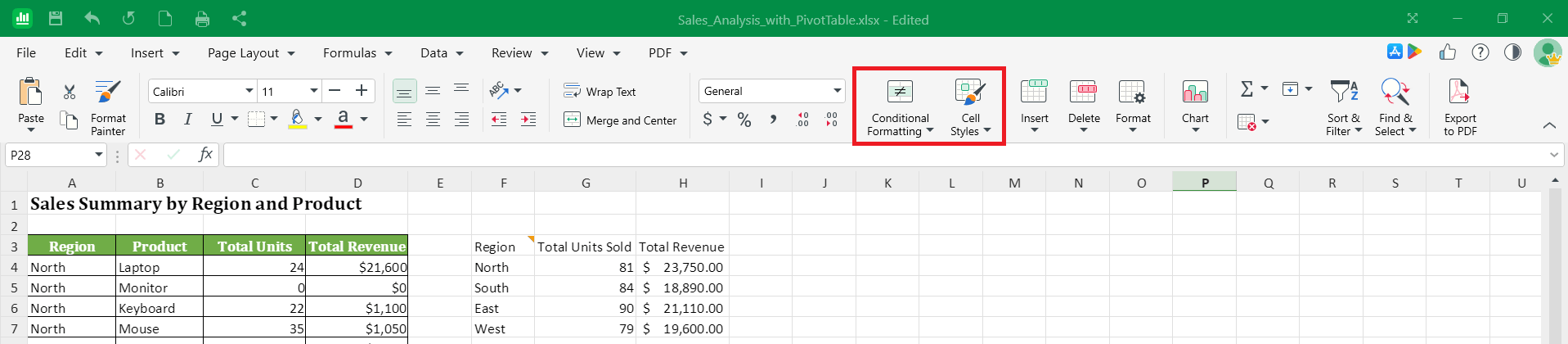
3. For a ready-made look, choose a cell style in the Cell Styles dropdown menu.
4. Select Conditional Formatting to change a cell's appearance based on its value, such as highlighting numbers above a set amount.
Format on Mac
1. Open your spreadsheet in MobiSheets.
2. Select the cell or range.
3. Use the ribbon menu to set number formats, fonts, colors, alignment, and borders, the same way as on Windows.
4. Right-click and select Format Cells for more options.
Format on Android and iOS
On phones and tablets, MobiSheets is part of the MobiOffice app.
1. Open your spreadsheet in the MobiOffice app.
2. Tap a cell or tap and drag to select a range.
3. Tap Home, then choose the formatting options for fonts, colors, alignment, or borders.
4. Tap Format to open other formatting options like Conditional Formatting.
Troubleshooting
A cell shows ##### instead of a number. The column is too narrow. Widen it by dragging the border of the column letter or double-click the border to fit the contents.
My number format didn't apply to a formula cell. Cells that contain a formula may not accept custom number formatting the same way as static numbers. Try a built-in format instead.
My dates show as numbers. Select the cells, open the Number section on the Home tab, and choose Date.
My text is cut off. Select the cell and turn on Wrap Text or widen the column.


