

Adding Speaker Notes and Using Presenter View
In this guide, you'll learn how to add speaker notes to your slides and present with Presenter View in MobiSlides. Speaker notes help you remember key points without putting them on your slides. Presenter View shows your notes and slideshow controls on your screen, while your audience sees only the presentation on a second display. The steps start with Windows, followed by shorter sections for Mac, Android, and iOS.
Before you begin
Make sure you have:
MobiOffice installed on your device. See Installing MobiOffice on multiple devices.
A presentation open in MobiSlides. See Creating and editing presentations.
A second display, such as a monitor or projector, connected to your device if you want to use Presenter View.
Add speaker notes on Windows
1. In the slide panel on the left, select the slide you want to add notes to.
2. Click View, then click Notes. Alternatively, you can click the Notes section on the bottom status bar.
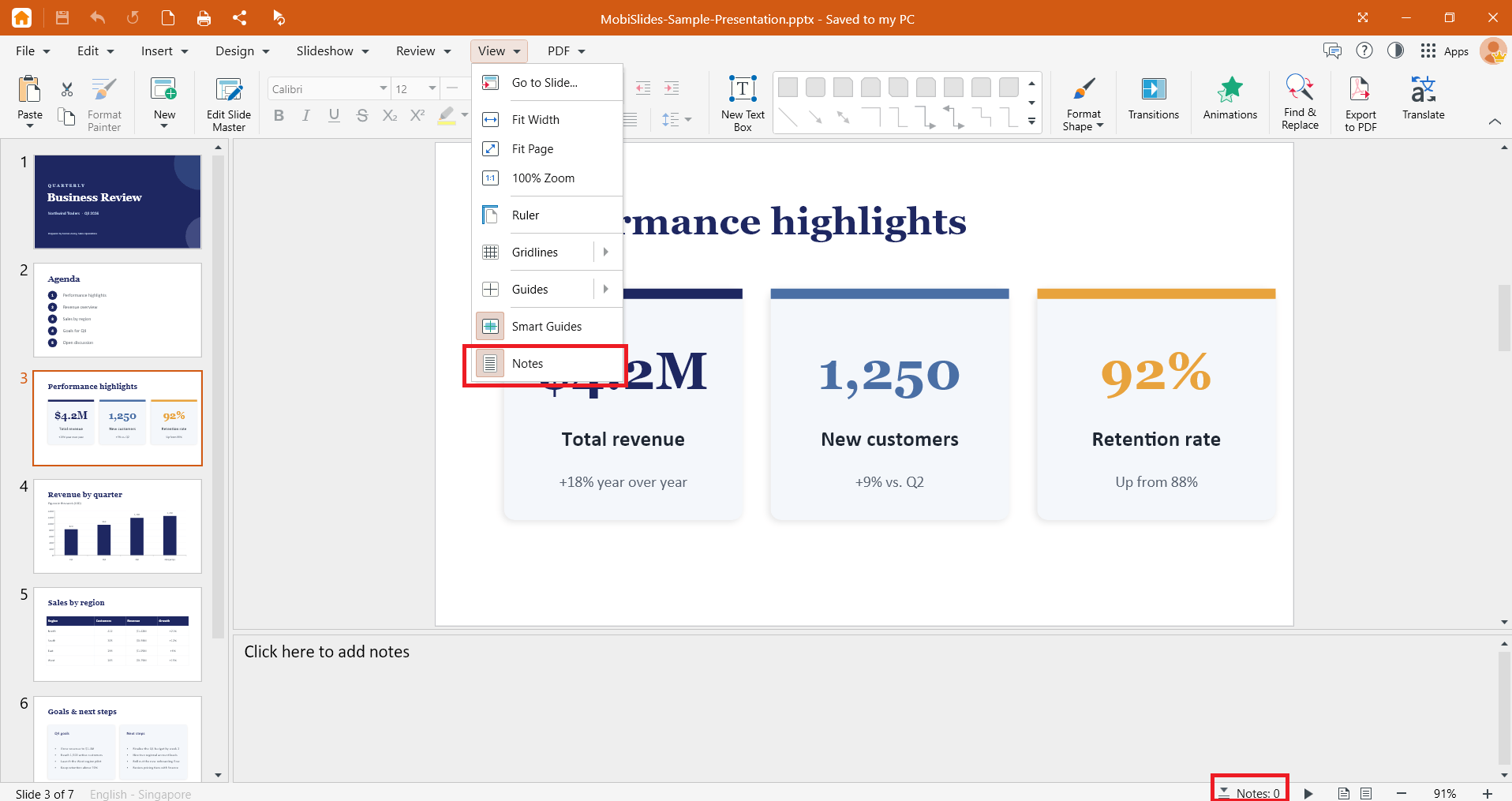
3. Type your notes.
4. Repeat for each slide that needs notes.
5. Press Ctrl+S to save your changes.
The status bar at the bottom of the window shows how many notes your presentation has.
To edit a note, click the notes section and change the text. To delete a note, select the text and press Delete.
Tip: Keep notes short. Use key words or brief reminders you can read at a glance, not full scripts.
Use Presenter View on Windows
Your audience won't see your speaker notes. They appear only on your screen in Presenter View.
1. Connect your second display.
2. Press Windows + P and select Extend, so each display can show different content.
3. Click Slideshow on the ribbon.
4. Click Use Presenter View.
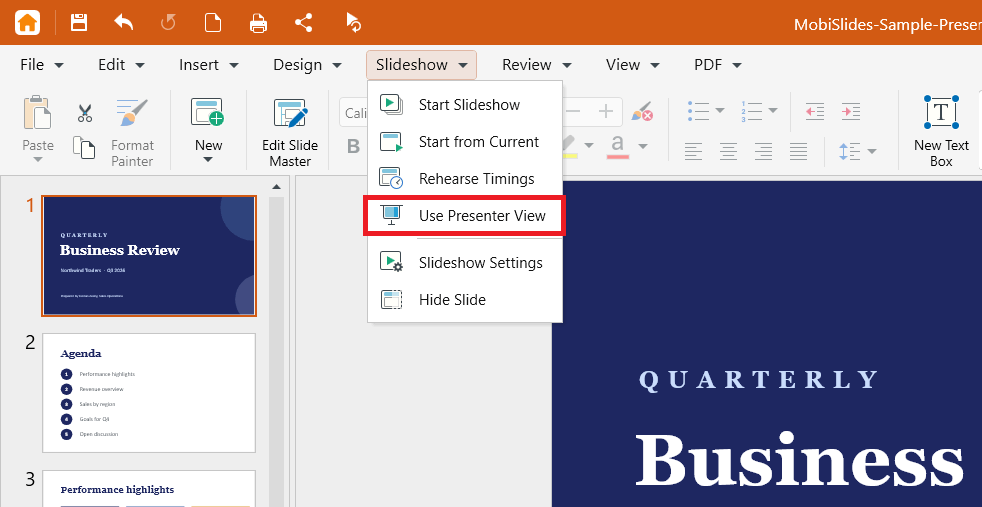
5. Your notes and controls appear on your screen. The slides appear on the second display.
6. Use the slideshow controls or your arrow keys to move between slides.
7. Press Esc to end the slideshow.
Start a slideshow without Presenter View
To present without your notes on screen, click Slideshow on the ribbon, then choose:
Start Slideshow to begin from the first slide.
Start From Current to begin from the slide you have selected.
Choose how slides advance
1. Click Slideshow on the ribbon.
2. Click Slideshow Settings.
3. Select Manually to advance slides yourself, Automatically to advance slides after a set time, or Use slideshow timings, if present.
4. If you select Automatically, use the up and down buttons to set the time interval.
Add notes and use Presenter View on Mac
The Mac layout matches Windows.
1. Open MobiSlides from Launchpad or your Applications folder, then open your presentation.
2. Select a slide and type your notes in the notes section below it.
3. Connect your second display. In System Settings > Displays, make sure the displays are not mirrored.
4. Click Slideshow on the ribbon, then click Presenter View.
Add notes and use Presenter View on Android and iOS
On phones and tablets, MobiSlides is part of the MobiOffice app.
1. Open your presentation in the MobiOffice app.
2. Select a slide and tap the Notes section on the bottom and double tap to add or edit notes.
3. Connect your device to a second display, such as an external monitor or TV.
4. Navigate to the Slideshow tab, then tap Presenter View. Your notes and controls appear on your device, and the slides appear on the second display.
Note: On Android, you can also cast your presentation to Google Chromecast. Make sure your device and Chromecast are on the same Wi-Fi network, then tap the three-dots menu in your presentation to start casting.
Troubleshooting
My audience can see my notes. Your displays are mirrored. On Windows, press Windows + P and select Extend. On Mac, turn off mirroring in System Settings > Displays.
Presenter View opens on the wrong screen. Set the display you want to use as your main display in your device's display settings, then start Presenter View again.
Presenter View only shows the slides. Check that a second display is connected and set to Extend.
My notes don't appear in Presenter View. Notes belong to one slide at a time. Select the slide and check that its notes section contains text.
My slides advance on their own. Click Slideshow > Slideshow Settings and select Manually.


