

Using File Templates for Better Productivity
This guide shows how to start a new file from a template in MobiDocs, MobiSheets, and MobiSlides, how to customize it, and how to save your own file as a reusable template. Starting from one means you begin with structure instead of a blank page, so you finish documents, spreadsheets, and presentations faster and keep them consistent. The steps below start with Windows, with notes for Android and iOS.
Before you begin
Make sure you have:
MobiOffice installed on your device. See Installing MobiOffice on multiple devices.
Signed in with your MobiSystems account, so you can save and reuse your templates.
An internet connection.
What a template is
A template is a ready-made file with the layout, fonts, and styling already set up. It opens as a copy of itself. You edit the copy, while the original stays unchanged, so you can reuse it as often as you like. MobiOffice includes built-in templates in MobiDocs, MobiSheets, and MobiSlides, and you can save your own.
How to start a new file from a template on Windows
The steps are the same in MobiDocs, MobiSheets, and MobiSlides.
1. Open MobiDocs, MobiSheets, or MobiSlides.
2. On the Home screen, click New.
3. Browse the available templates. Free templates open right away; templates marked Premium will prompt you to upgrade. The screenshot below highlights templates found in MobiSheets.
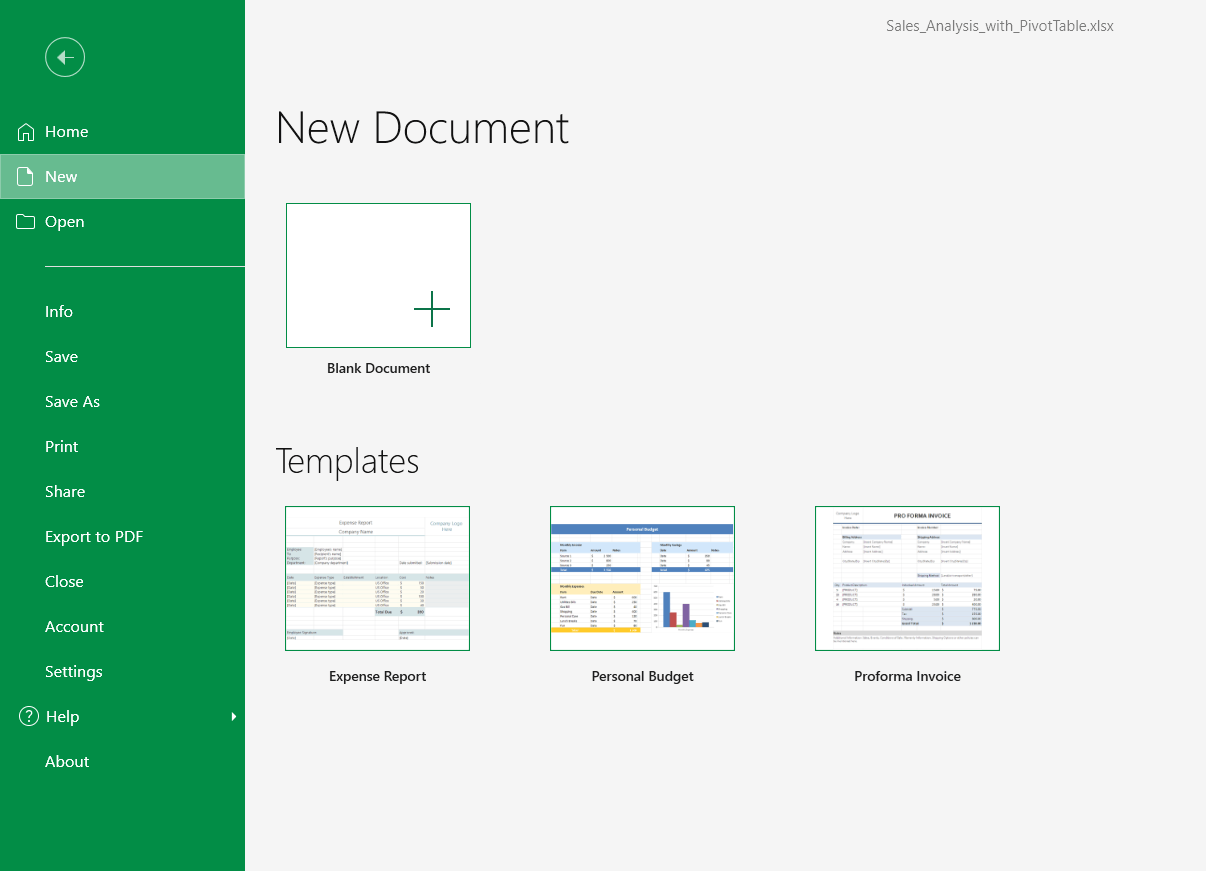
4. Click the template you want, then click Create from the dialog box that appears. A new file opens as a copy, ready to edit.
5. Edit your content, then use File > Save As to save the file.
Note: To start without a template, select Blank Document instead.
How to start a new file from a template on Android and iOS
1. Open the MobiOffice app.
2. Tap the + button.
3. Choose the type of file: a document, spreadsheet, or presentation.
4. Tap a template to open it or tap Blank to start from scratch. The screenshot below highlights presentation templates.
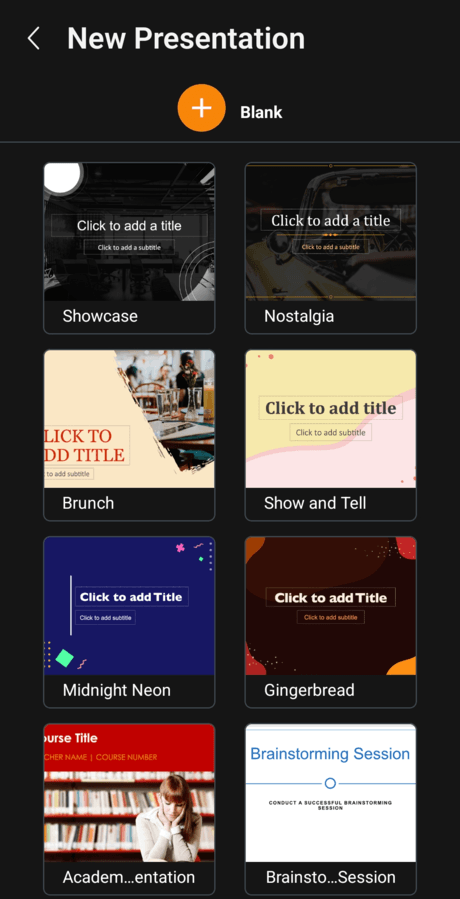
5. Edit your file, then tap Save.
Customizing a template
Templates aren't locked. After you open one, change anything you need:
Replace the placeholder text with your own.
Update the fonts, colors, and styles.
Add or remove images, tables, or slides.
Your changes apply only to the new file, not to the original template.
How to save your own file as a template
If you reuse the same layout often, save it as a template once, then reopen it whenever you need it. This example uses MobiDocs; the same idea works in MobiSheets and MobiSlides.
1. Create a document.
2. Apply the page layout, fonts, margins, and styles you want.
3. On the File tab, select Save As. On mobile, click the three vertical dots, then choose Save as.
4. Select the appropriate template type in the Save as type dropdown on Windows and iOS. On Android, select Template.
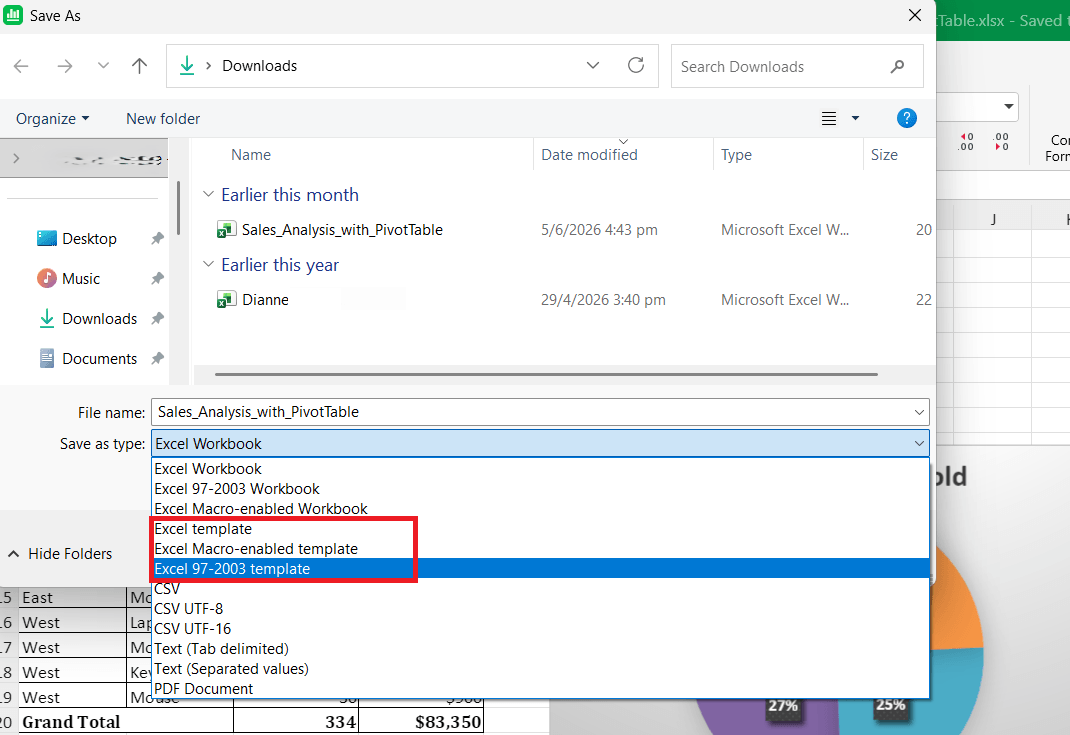
5. Choose where to save it, then select Save.
Tip: Open your saved template whenever you start a similar file. It opens as a fresh copy, so your original stays intact.
Troubleshooting
I don't see any templates. Open the New screen in the app. Templates appear there. If the list is empty, check your internet connection and reopen the app.
My edits changed the original template. Opening a template creates a new copy, so the original isn't affected. If you opened the template file itself, use File > Save As to save your work as a separate file.
I can't find my saved template. Note the folder you chose when you saved it, then reopen it from that location or from Recent files.
The Template option isn't showing on mobile. Swipe the File toolbar to reveal more options, then look for Save As > Template.
A template is asking me to upgrade. That template is a Premium template. Choose a free template instead, or upgrade to unlock it.
Where to go next
You can now start from a template and build your own. Next, learn how to create and format files in each app.


