Navigating PDF layers
MobiPDF gives you full control over each layer of your PDF file, including the ability to show, hide, and lock layers to prevent further changes.
What are PDF layers?
PDF layers are like transparent sheets stacked on top of each other. These layers can be created in applications like InDesign, AutoCAD, and Visio and allow you to view, navigate, and print content selectively, making it easier to manage complex documents.
How do PDF layers work?
Imagine you have a PDF with architectural plans. Each layer could represent different elements: walls, furniture, electrical wiring, etc. You can control the visibility of these layers, showing or hiding specific parts of the document. For example, you might want to view only the furniture layout without the walls or electrical details.
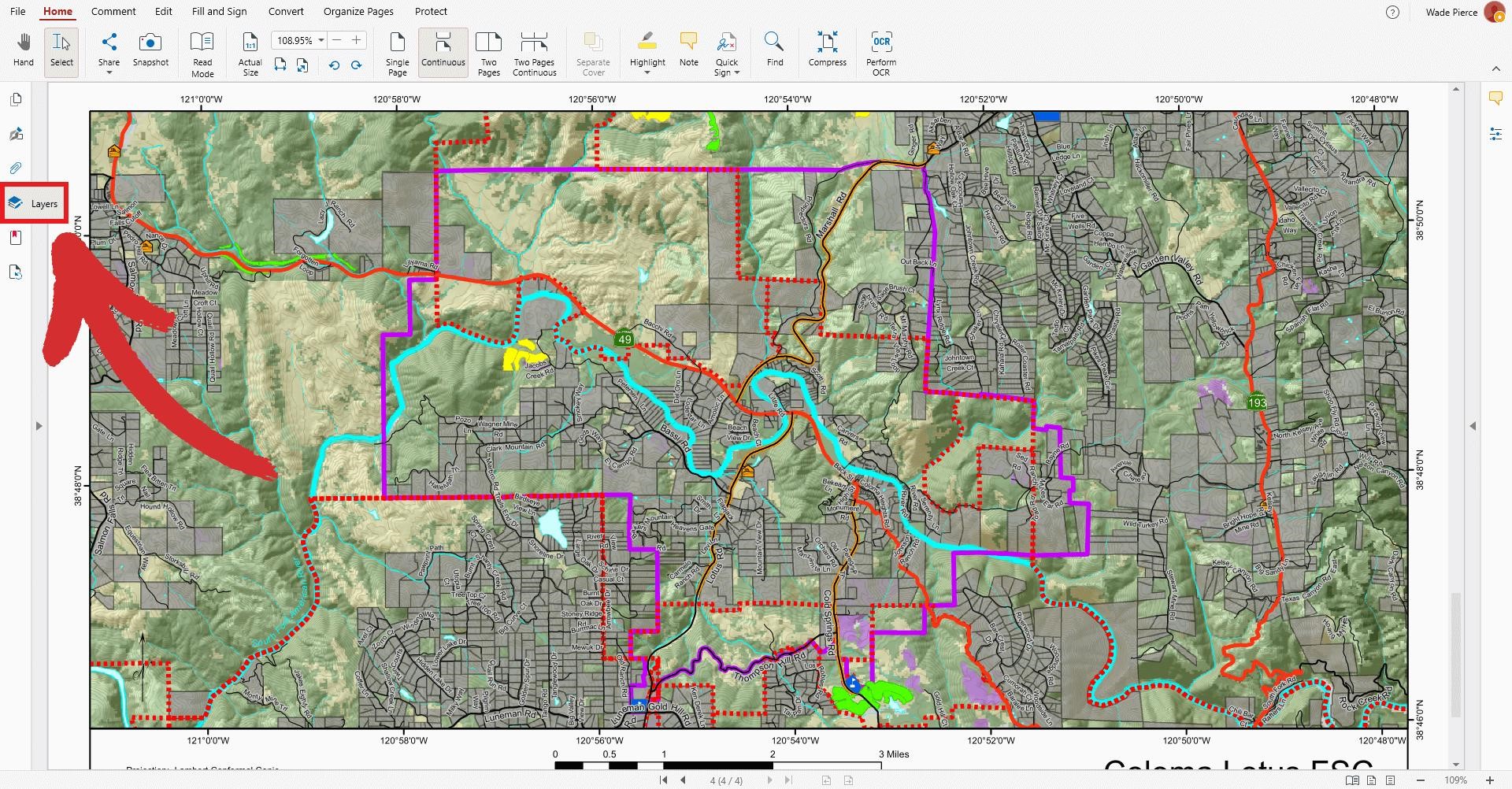
As another example, here is a map containing all its layers.
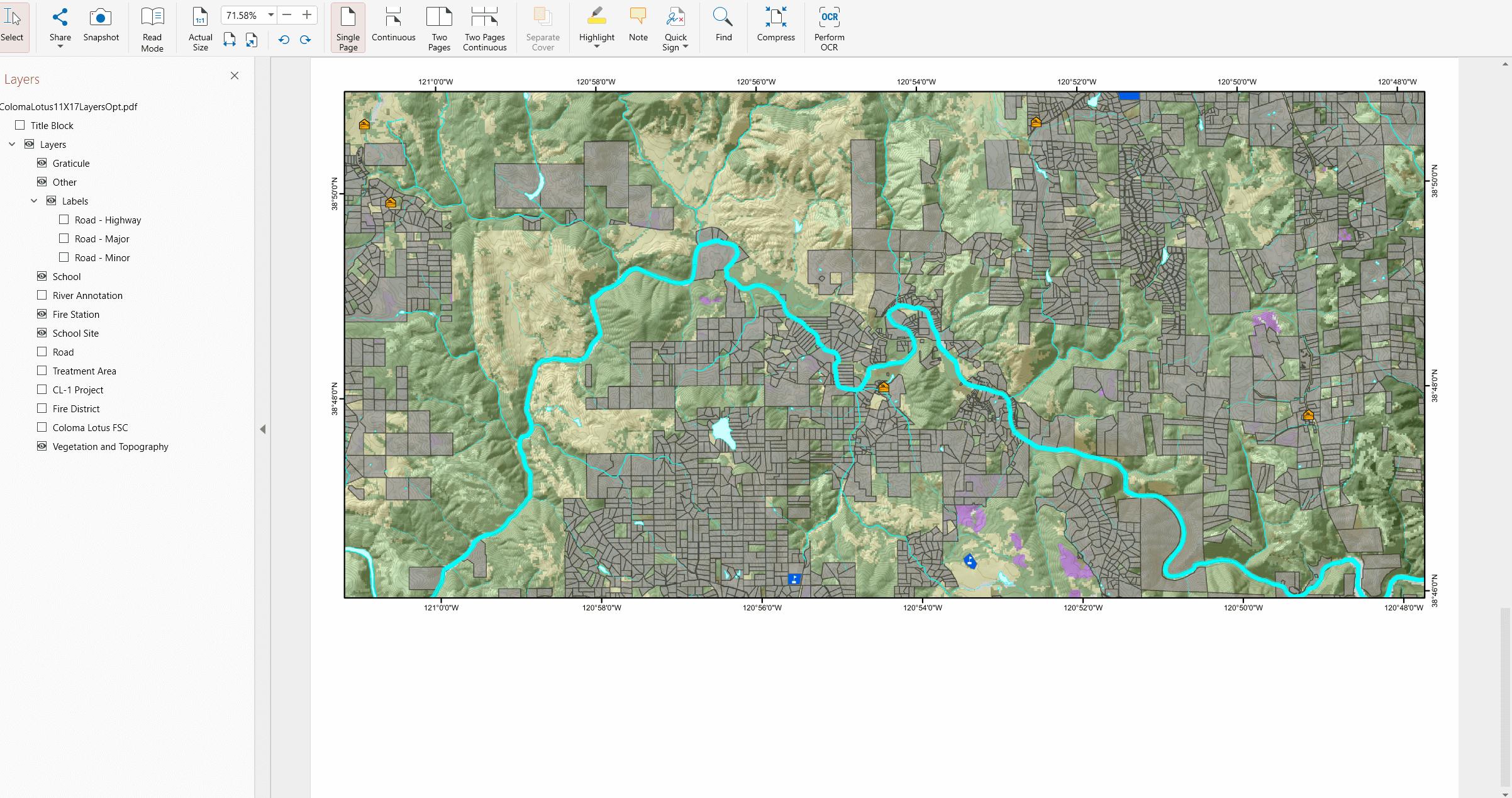
And here is that same map with some of its layers hidden from view.
Managing layers with MobiPDF
Switch layers on and off to see specific content
Remove unwanted layers for a cleaner view
Group and rename layers for added clarity
Exclude a certain layer from printing (just toggle its visibility)
To start editing layers, open your file and then navigate to the dedicated “Layers” tab.
If your PDF contains any layers, you will see a detailed list with collapsible items, which are usually labeled logically to know which layer serves what function.
To hide or show a layer, click the eye icon next to the corresponding layer.
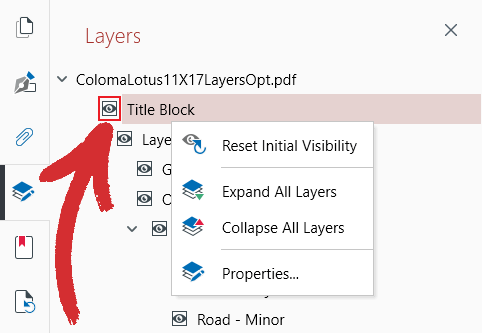
When the eye is visible, then the layer is also visible.

When the checkbox is blank, that means that the layer is hidden. This is a great way to declutter your document and to also ensure that these layers won’t be printed with the rest of your PDF.

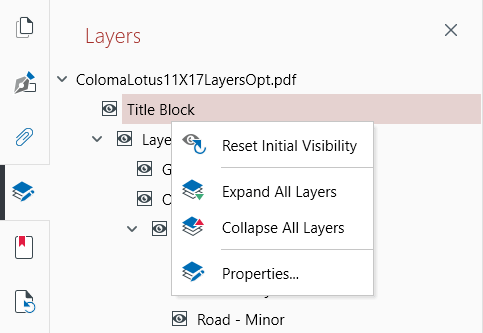
To access any of the remaining options of MobiPDF, simply right-click any of the available layers. These are:
 Reset Initial Visibility. Click this if you want to revert to the original layer settings.
 Expand All Layers. Click to show all subordinate layers under each main layer.
 Collapse All Layers. Click to hide all subordinate layers under each main layer.
 Properties. Click to access advanced settings, such as:
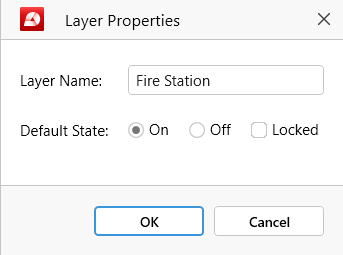
Layer Name: change the title of your layer to anything you like.
Default State: use this to configure the default layer behavior when you first open your file in MobiPDF or other PDF readers. For instance, you could set layers to be visible, hidden, or locked, meaning that they cannot be modified until you unlock them.
Locked layers will have a padlock symbol shown next to them.

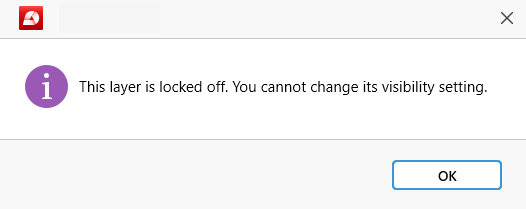
Double-clicking a locked layer will result in the following message:
TIP: You can set layers to be both hidden and locked by default as an extra protective measure.
Navigating pdf layers
PDF reading and commenting - Navigating PDF layers
Navigating PDF layers
MobiPDF gives you full control over each layer of your PDF file, including the ability to show, hide, and lock layers to prevent further changes.
What are PDF layers?
PDF layers are like transparent sheets stacked on top of each other. These layers can be created in applications like InDesign, AutoCAD, and Visio and allow you to view, navigate, and print content selectively, making it easier to manage complex documents.
How do PDF layers work?
Imagine you have a PDF with architectural plans. Each layer could represent different elements: walls, furniture, electrical wiring, etc. You can control the visibility of these layers, showing or hiding specific parts of the document. For example, you might want to view only the furniture layout without the walls or electrical details.
As another example, here is a map containing all its layers.
And here is that same map with some of its layers hidden from view.
Managing layers with MobiPDF
With MobiPDF, you can:
Switch layers on and off to see specific content
Remove unwanted layers for a cleaner view
Group and rename layers for added clarity
Exclude a certain layer from printing (just toggle its visibility)
To start editing layers, open your file and then navigate to the dedicated “Layers” tab.
If your PDF contains any layers, you will see a detailed list with collapsible items, which are usually labeled logically to know which layer serves what function.
To hide or show a layer, click the eye icon next to the corresponding layer.
When the eye is visible, then the layer is also visible.
When the checkbox is blank, that means that the layer is hidden. This is a great way to declutter your document and to also ensure that these layers won’t be printed with the rest of your PDF.
To access any of the remaining options of MobiPDF, simply right-click any of the available layers. These are:
Layer Name: change the title of your layer to anything you like.
Default State: use this to configure the default layer behavior when you first open your file in MobiPDF or other PDF readers. For instance, you could set layers to be visible, hidden, or locked, meaning that they cannot be modified until you unlock them.
Locked layers will have a padlock symbol shown next to them.
Double-clicking a locked layer will result in the following message:
TIP: You can set layers to be both hidden and locked by default as an extra protective measure.