

Advanced email and export tools
Beyond everyday mail, MobiMail includes tools to bring in your data from Outlook and other email clients and save emails as files. This guide shows you how to import Outlook data files, and calendar events, and export an email as a PDF or EML file in MobiMail on Windows.
Note: MobiMail is available on Windows only.
Before you begin
Make sure you have:
MobiMail installed on your Windows device. MobiMail installs as part of MobiOffice.
An email account set up in MobiMail. See the Introduction to MobiMail.
Any files you want to import (.pst, .ost, or .ics) saved on your device.
Import Outlook data and calendars
MobiMail imports data from Outlook and other email clients, which is useful when you switch computers or move from another app. Importing is a premium feature.
Import an Outlook data file (.pst or .ost)
A .pst or .ost file can hold your Outlook email, contacts, and calendar, including attachments.
1. Click the File tab.
2. Choose Import.
3. Select the Outlook Data File (.pst, .ost) option, then click OK.
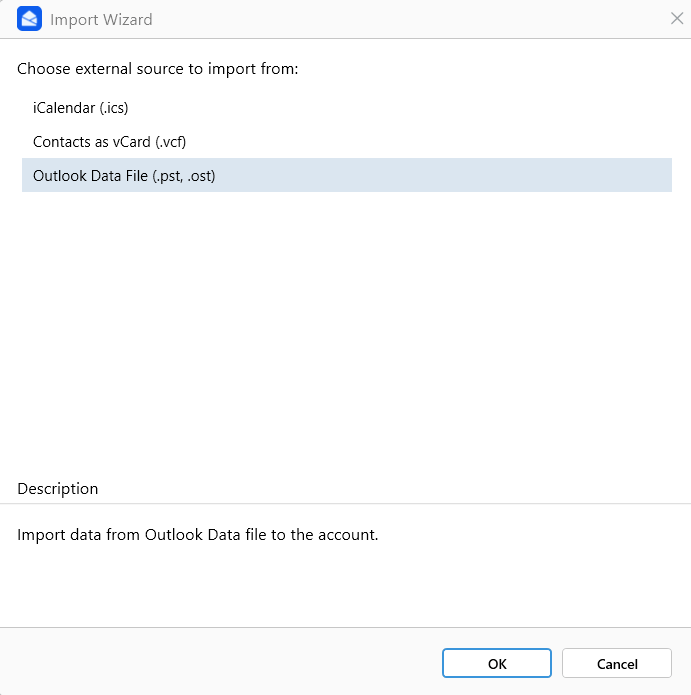
4. Browse to the file, select it, then click Open.
Note: Folder settings, message rules, and blocked-sender lists are not imported. Importing does not change your original data in Outlook.
Import calendar events (.ics)
1. Click the File tab.
2. Choose Import.
3. Select the iCalendar (.ics) option, then click OK.
4. Browse to the .ics file, select it, then click Open.
Save an email as an EML file
You can save an email to your Windows device or cloud as an EML file, which keeps the full message and its details.
1. Double-click to open the message you want to save.
2. On the ribbon, click Save.
3. In the Save as dialog box, use the Folder pane to choose a folder and location.
4. In the File name box, type a name for the file.
5. Click Save.
Tip: An EML file stores the full email header, which is normally hidden in MobiMail. To view it, right-click the saved EML file and open it with Notepad or another text editor. You'll see details such as the sender, recipients, subject, date, and routing information.
Save an email as a PDF
Save an email as a PDF when you want a fixed copy for records or sharing.
1. Open the message you want to save.
2. On the ribbon, click Print.
3. In the Printer dialog, choose Microsoft Print to PDF.
4. Click Print, then type a name in the File name box.
5. Click Save.
Troubleshooting
My imported data isn't complete. Folder settings, message rules, and blocked-sender lists aren't included in a .pst or .ost import. Only mail, contacts, calendar, and attachments transfer.
I can't import a file. Importing is a premium feature. Confirm your subscription is active, and check that the file is a supported type (.pst, .ost, or .ics).
I don't see Microsoft Print to PDF. Choose another PDF printer from the Printer list or turn on Microsoft Print to PDF in Windows features.
Where to go next
You now know how to import and export in MobiMail. Try one of these next:


