

Managing contacts and address books
MobiMail keeps your contacts in address books you can search, add to, and edit, so you can reach the right person without leaving your inbox. This guide shows you how to find a contact, add and edit contacts, search across multiple address books, and import contacts from a vCard (.vcf) file in MobiMail on Windows.
Note: MobiMail is available on Windows only.
Before you begin
Make sure you have:
MobiMail installed on your Windows device. MobiMail installs as part of MobiOffice.
An email account set up in MobiMail. See the Introduction to MobiMail.
A .vcf file saved on your device, if you plan to import contacts.
How address books work in MobiMail
The Contacts page shows one merged list of contacts from all your connected email accounts (mailboxes). By default, it doesn't separate them by account.
Each connected account has a checkbox in the folder pane. MobiMail shows contacts only from the accounts you've checked. Unchecking a box only hides that account's contacts from the list, it doesn't delete them.
If the same contact exists in more than one checked account, it will appear more than once in the merged list. This is expected behavior, not a bug.
Note: If you're not sure which account a contact belongs to, double-click the contact to open it. The contact card shows which account it's stored in.
Find a contact
You can find a contact from the Address Book, or search for one while you write a message.
Search the Address Book
1. Click Address Book on the MobiMail ribbon.
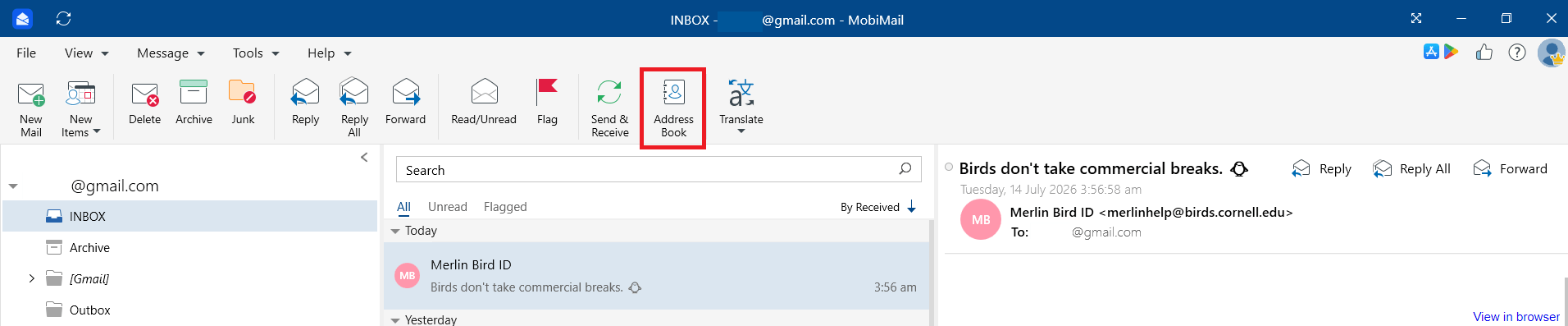
2. Start typing in the search field. MobiMail refines the results as you type.
Tip: If you have more than one account, click the default All Contacts dropdown to narrow your search to a specific address book.
Search while writing a message
When you click To, Cc, or Bcc in a new message, MobiMail suggests contacts from your address books. Keep typing to filter the alphabetized, name-sorted list.
Add a new contact
1. Open MobiMail and click Contacts.
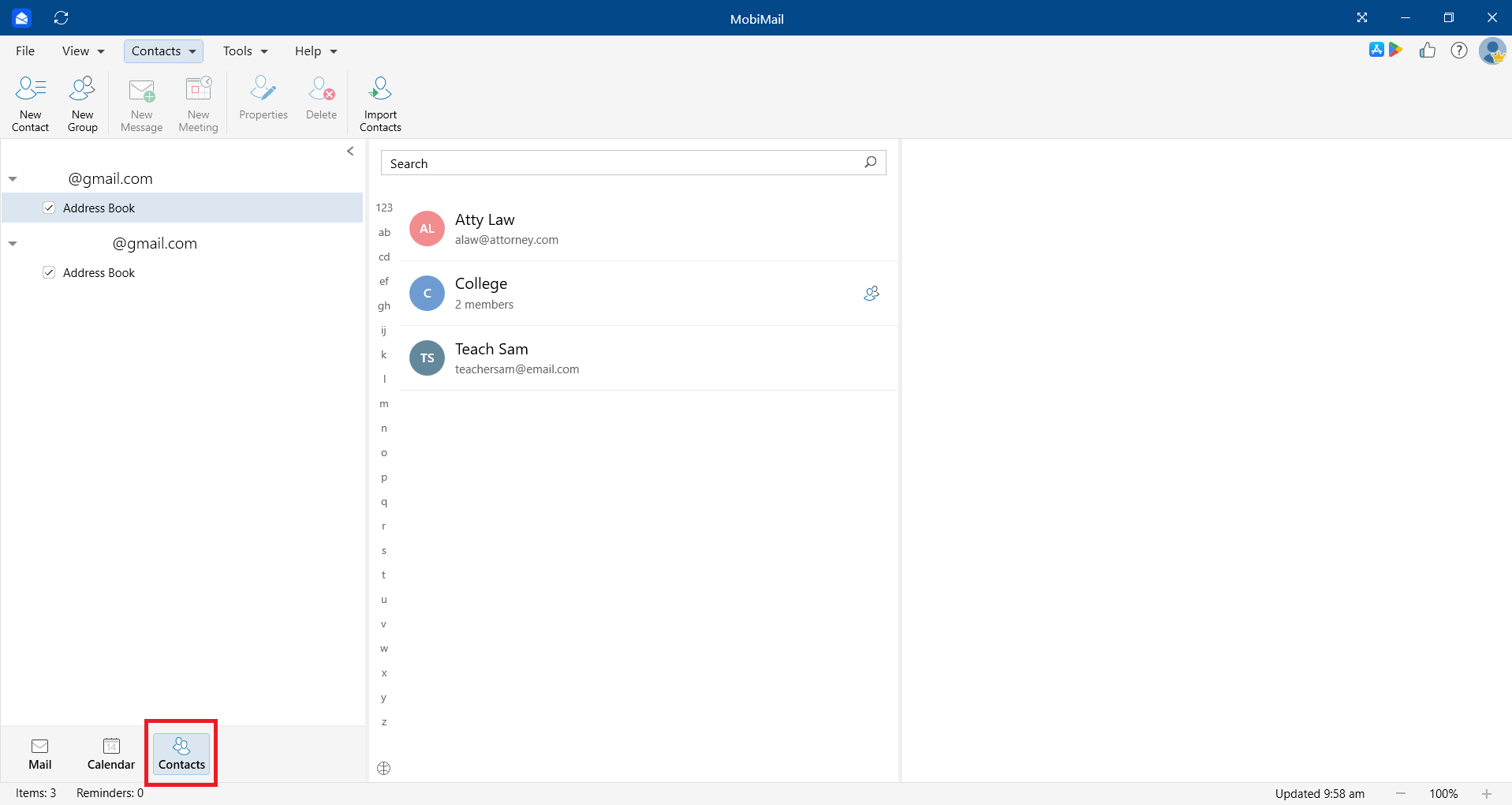
2. Click New Contact.
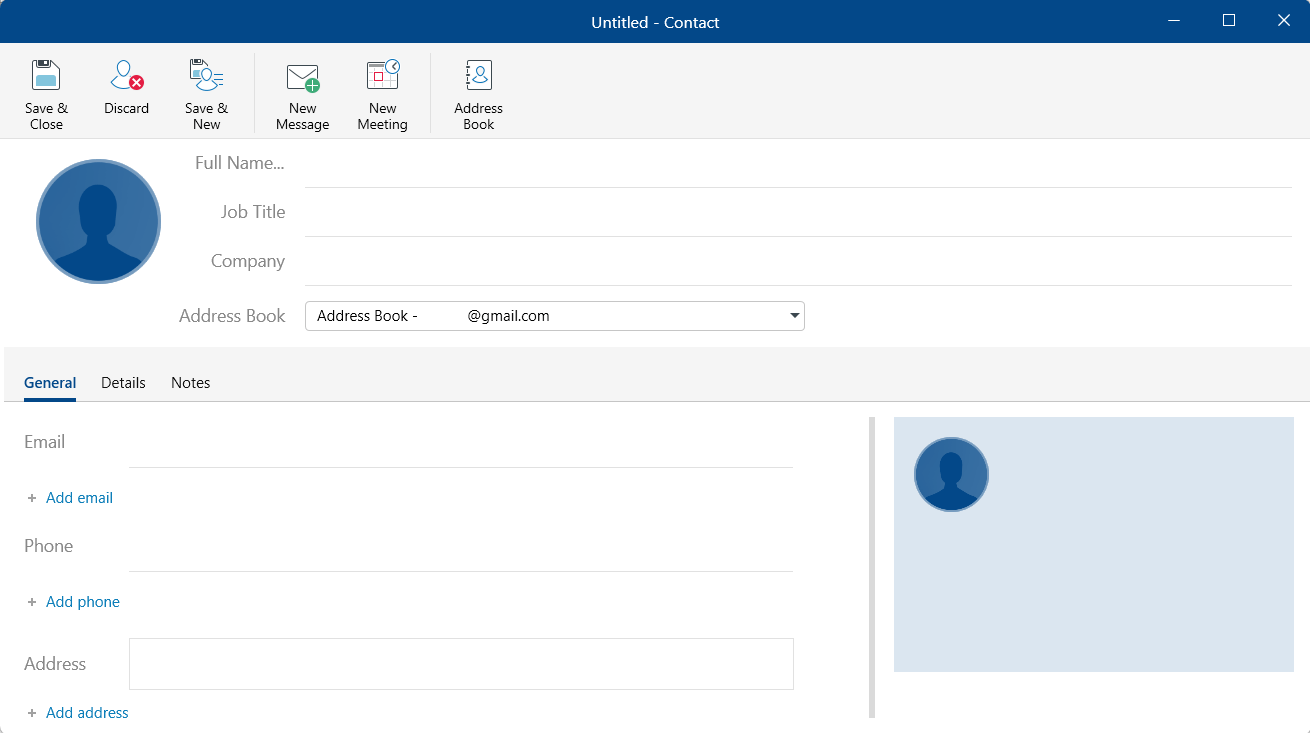
3. Enter the contact's details.
4. Click Save & Close to finish or Save & New to save and keep adding more contacts.
Edit a contact
Note: You can edit only contacts you added yourself. You can't change a contact that's part of a shared contact list.
1. Open MobiMail and click Contacts.
2. Click the contact you want to change.
3. Click Edit Contact.
4. Make your changes, then click Save & Close.
Delete a contact
1. Open MobiMail and click Contacts.
2. Right-click the contact you want to remove.
3. Select Delete.
Note: As with editing, you can only delete contacts you added yourself. Contacts that are part of a shared address book are read-only.
Managing contact groups
You can group related contacts together — for example, everyone on a project team — so you can message or invite them all at once.
Create a group
1. Open MobiMail and click Contacts.
2. Click New Group.
3. Name the group and add members from your address books.
4. Click Save & Close.
Delete a group
Right-click the group and select Delete.
Import contacts from a vCard (.vcf) file
Bring in contacts from another email client or device using a vCard (.vcf) file.
1. Click the File tab.
2. Choose Import.
3. Select Contacts as vCard (.vcf).
Note: Importing contacts is a Premium feature. If you're on the Free plan, MobiMail will prompt you to upgrade before you can complete the import.
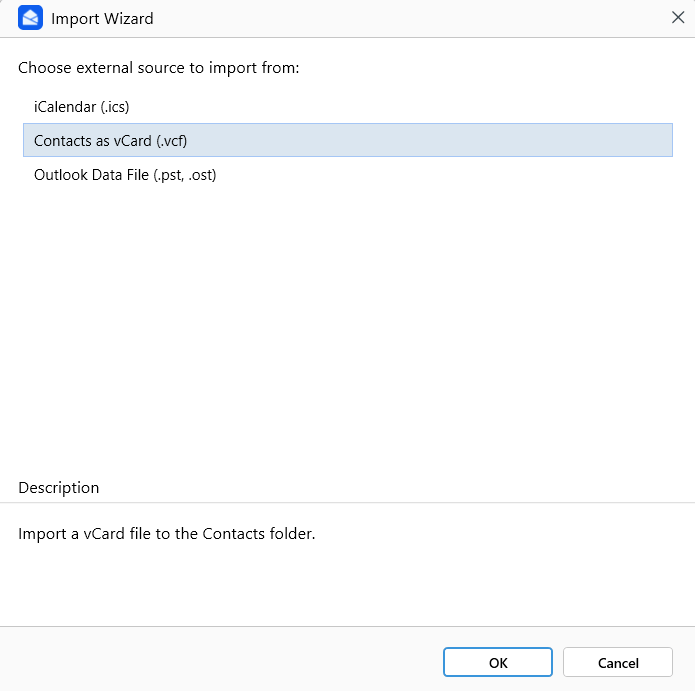
4. Browse to the .vcf file, select it, and confirm with OK.
Note: MobiMail imports contacts in vCard (.vcf) format only. CSV files aren't supported, because they can cause mismatched or missing details.
Troubleshooting
I can't edit a contact. You can only edit contacts you added. Contacts in a shared list are read-only.
My search shows contacts from the wrong account. Click All Contacts and select the address book you want to search.
My contacts won't import. MobiMail supports vCard (.vcf) files only. Convert a CSV list to .vcf first, then import it.
My new contact isn't showing up. Confirm you clicked Save & Close or Save & New, and check that you're viewing the right address book.
Where to go next
You now know how to manage your contacts and address books in MobiMail. Try one of these next:


