

Using the built-in calendar module
MobiMail includes a built-in calendar, so you can schedule events, set reminders, and keep track of your day right next to your email. This guide shows you how to open the calendar, create an event, set a reminder, and add events from a file in MobiMail on Windows. By the end, you'll have your first event on the calendar and a reminder set.
Note: MobiMail is available on Windows only.
Before you begin
Make sure you have:
MobiMail installed on your Windows device. MobiMail installs as part of MobiOffice.
Signed in to MobiMail. See Signing in to MobiMail.
An internet connection, so your calendar can sync with your email account.
Open the calendar
1. Open MobiMail.
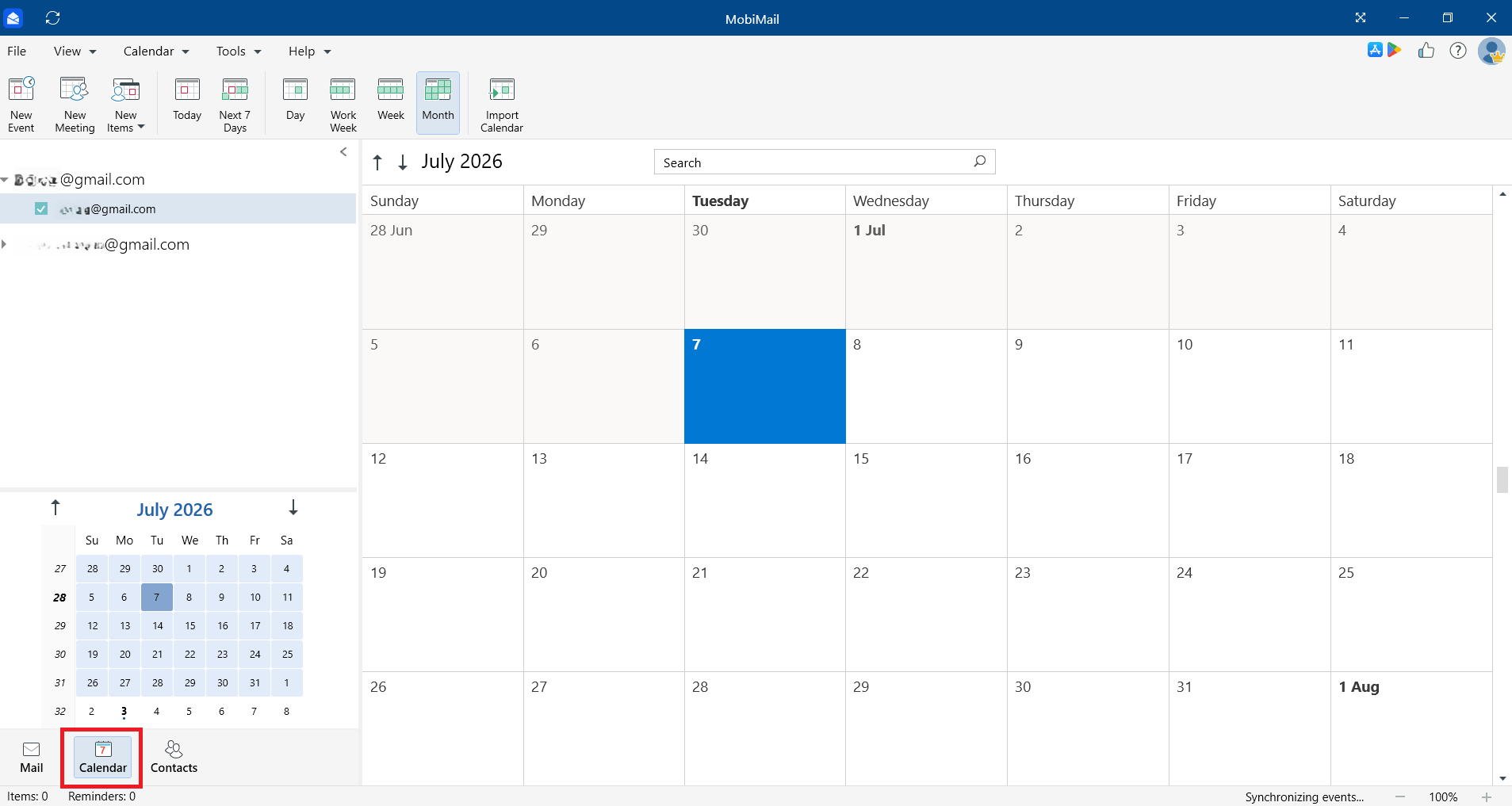
2. Switch from Mail to Calendar to open the calendar view.
Create an event
1. In the calendar, double-click the day and time you want, or click New Event.
2. Enter a title for the event.
3. Set the start and end date and time.
4. (Optional) Add a location and any notes.
5. (Optional) Choose the calendar where the event will be added in the Calendar field.
6. Set a reminder so you're notified before the event starts.
7. Click Save & Close.
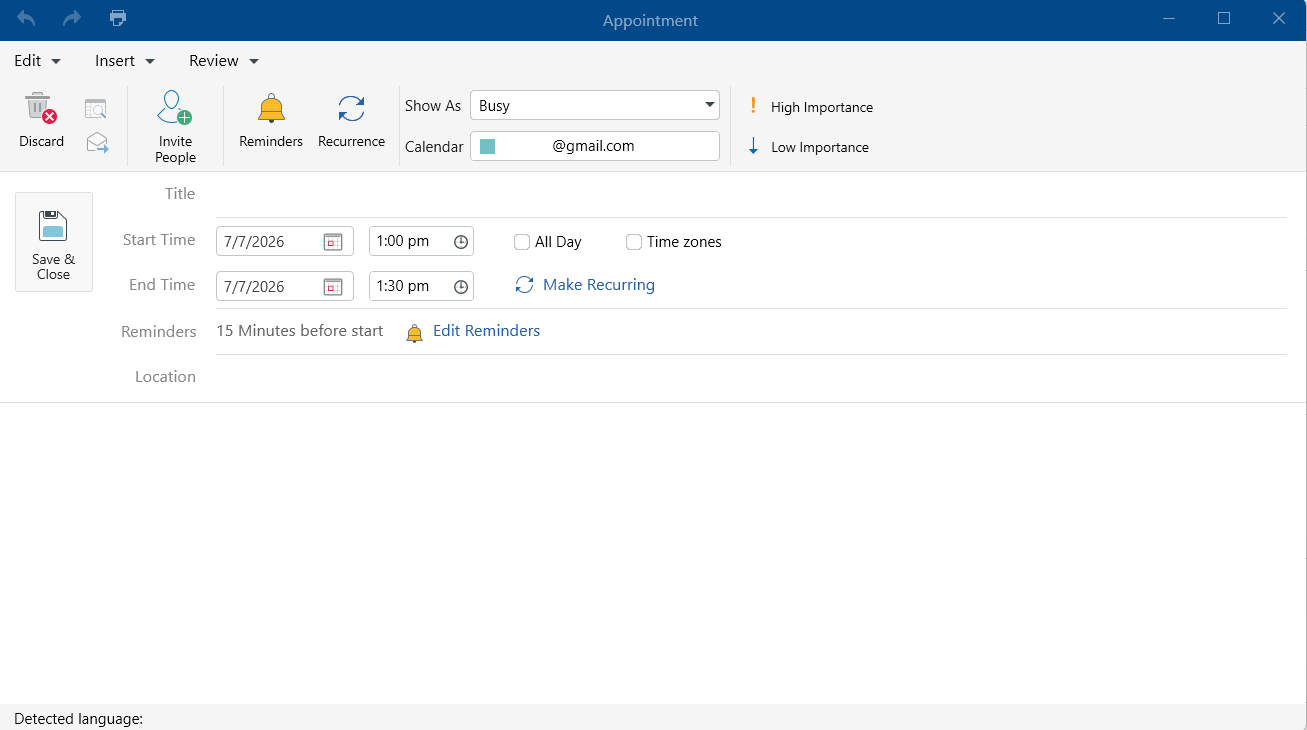
Your event now appears on the calendar.
Set a reminder
You can choose when MobiMail reminds you about an event.
1. Open the event or create a new one.
2. Click Reminders.
3. Choose how long before the event you want to be reminded, such as 15 minutes or 1 hour.
4. Click OK.
Invite people to an event
1. Open the event you want to share.
2. Click Invite People.
3. Add the email addresses of the people you want to invite in the Attendees field.
4. Click Send to send the invitations.
Add events from a calendar file
You can bring events into MobiMail from an iCalendar (.ics) file. Importing is a premium feature.
1. Click the File tab in the top-left corner.
2. From the main menu, choose Import.
3. Select iCalendar (.ics). Click OK.
4. Choose the file then select Open.
5. Confirm to add the events to your calendar.
Troubleshooting
My events aren't showing up. Check your internet connection and make sure you're signed in. Give the calendar time to sync with your email account.
I'm not getting reminders. Open the event and confirm a reminder time is set. Also check that notifications are turned on for MobiMail in your Windows settings.
I can't import a calendar file. Importing is a premium feature. Confirm your subscription is active, and make sure the file is an .ics file.
My reminder time is wrong. Check that your device's date, time, and time zone are correct, then reopen the event.
Where to go next
You now know how to schedule events and set reminders in MobiMail. Try one of these next:


