

Setting up optimal inbox view settings
MobiMail lets you adjust how your inbox looks and works, so you can scan, read, and manage mail comfortably. This guide shows you how to open your mail settings, show or hide the reading pane, move between folders and accounts, and find messages quickly in MobiMail on Windows. Setting these up once makes your daily email faster to work through.
Note: MobiMail is available on Windows only.
Before you begin
Make sure you have:
MobiMail installed on your Windows device. MobiMail installs as part of MobiOffice.
An email account set up in MobiMail. See the Introduction to MobiMail.
Open your mail settings
This is where MobiMail keeps language options for display and translation, and where you can set marking items after reading.
1. Open MobiMail.
2. Click File > Settings.
3. Click General Preferences to select the language for MobiMail.
4. Click MobiMail Preferences > Mail.
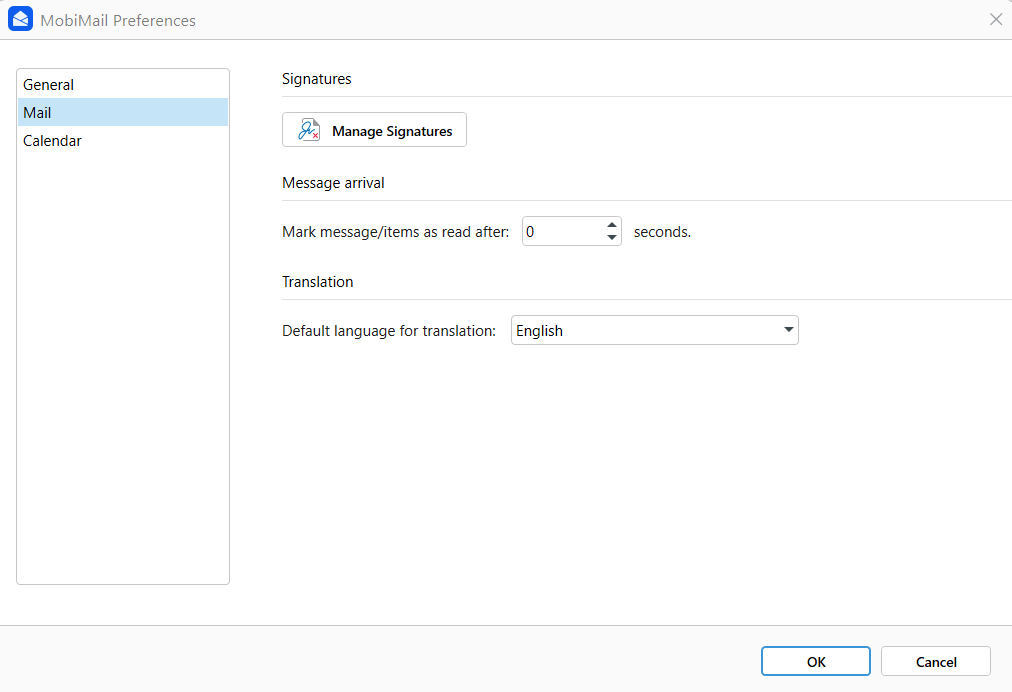
5. To automatically mark items or messages as read, set the number of seconds under Message arrival. New installs default to 0 seconds (marked as read immediately); if you're on an older install, your default may still be 3 seconds.
6. To set the default language for translation, select the language of your choice in the dropdown under Translation.
Show or hide the reading pane
The reading pane shows the selected message beside your message list, so you can preview mail without opening each one.
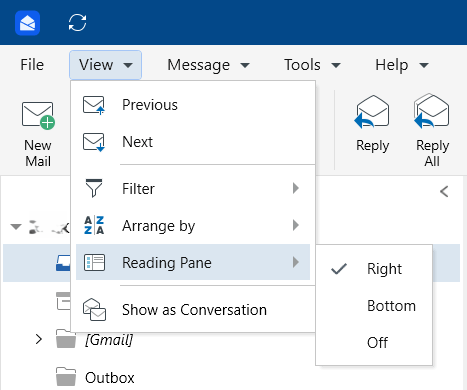
1. Open the View menu.
2. Click Reading Pane.
3. Select Right for messages to appear on the right part of your screen. Select Bottom for messages to appear on the bottom of your screen. Select Off to see your messages as a list.
Tip: Hide the reading pane to fit more messages on screen. Show it to read and reply while you scan your inbox.
Move between folders and accounts
Your folders, such as Inbox, Sent, and Drafts, appear in the list on the left. Select a folder to view its messages.
If you have more than one account, select a single account to view its messages.
Find messages faster
Use the search box to find messages by sender, subject, or keyword.
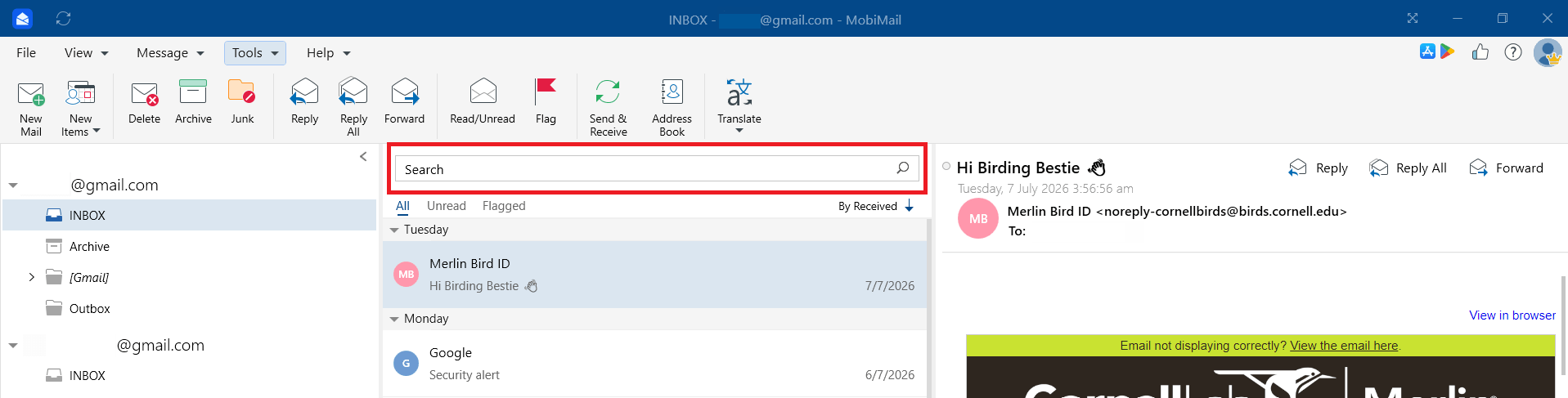
Open a message by selecting it in the message list. If the reading pane is on, the message opens beside the list; if it's off, the message opens in its own window.
Tip: Use search operators to search for specific items within MobiMail. To learn more about search operators, see How to Search for Specific Messages in MobiMail.
Work offline
You can read and write mail without a connection.
1. Open the Tools menu.
2. Turn on Work Offline.
Messages you send while offline are queued to go out once you reconnect.
Troubleshooting
The reading pane disappeared. Open the View menu and turn the reading pane back on.
I can't see messages from one account. Select that account's inbox, and check that the account is still connected and synced.
My inbox is slow to load. Large mailboxes take longer to sync. Give it time to finish, especially for mailboxes above 300 MB.
My settings didn't save. Reopen File > Settings > Mail Preferences > Mail and confirm your changes are applied.
Where to go next
You now know how to set up your inbox view in MobiMail. Try one of these next:


