

Creating and Editing Documents
This guide shows you how to create a new document in MobiDocs, open an existing file, make basic edits, and save your work. Use it as your starting point before moving on to formatting, AI tools, or sharing documents.
Before you begin
Make sure you have:
MobiDocs installed and signed in.
A MobiSystems account if you want to save to MobiDrive.
Tip: You must be signed in to your MobiSystems account before editing a document.
Create a new document
You can start a new document from a blank page or from a template.
Create a blank document
1. Open MobiDocs.
2. On the Home screen, click Blank Document. A new, empty document opens.
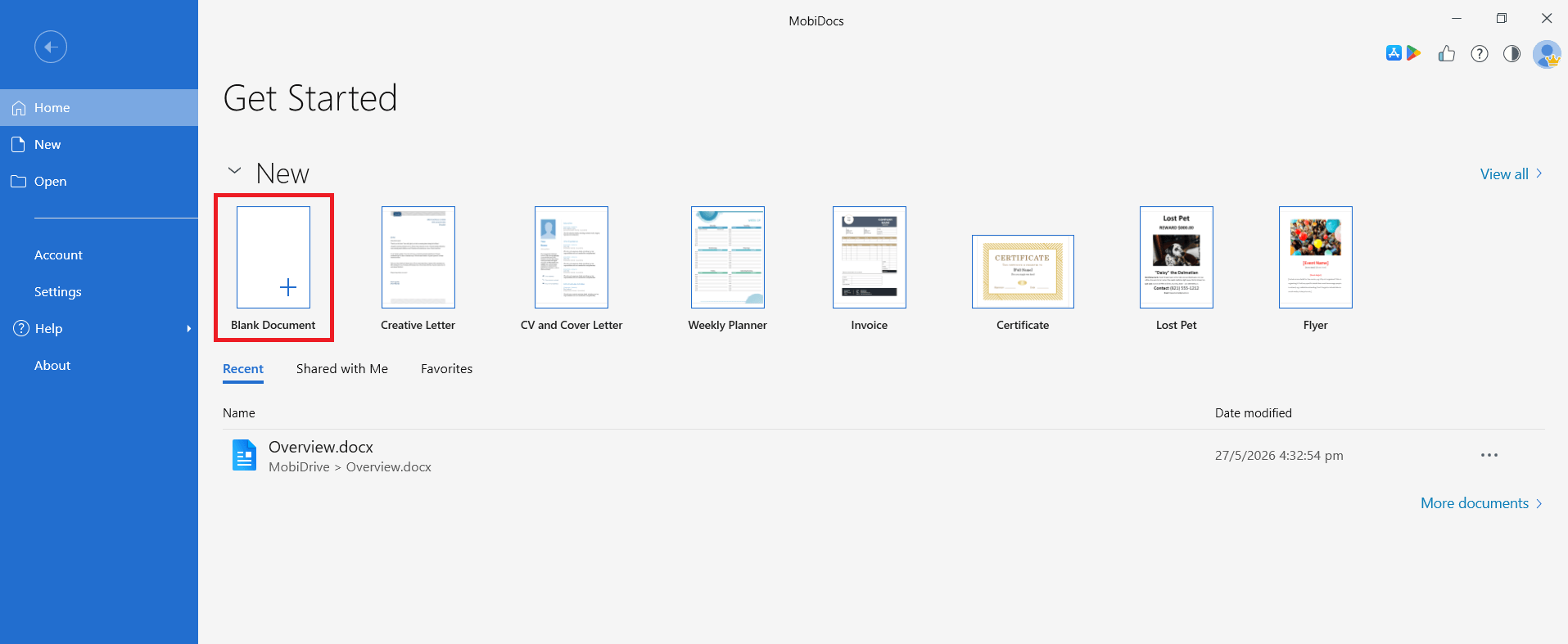
3. Click anywhere on the page and start typing.
Create a document from a template
Templates give you a ready-made layout for common documents like resumes, cover letters, and reports. To create a document from a template, follow these steps:
1. Open MobiDocs.
2. On the Home screen, browse the available templates and click the one you want to use.
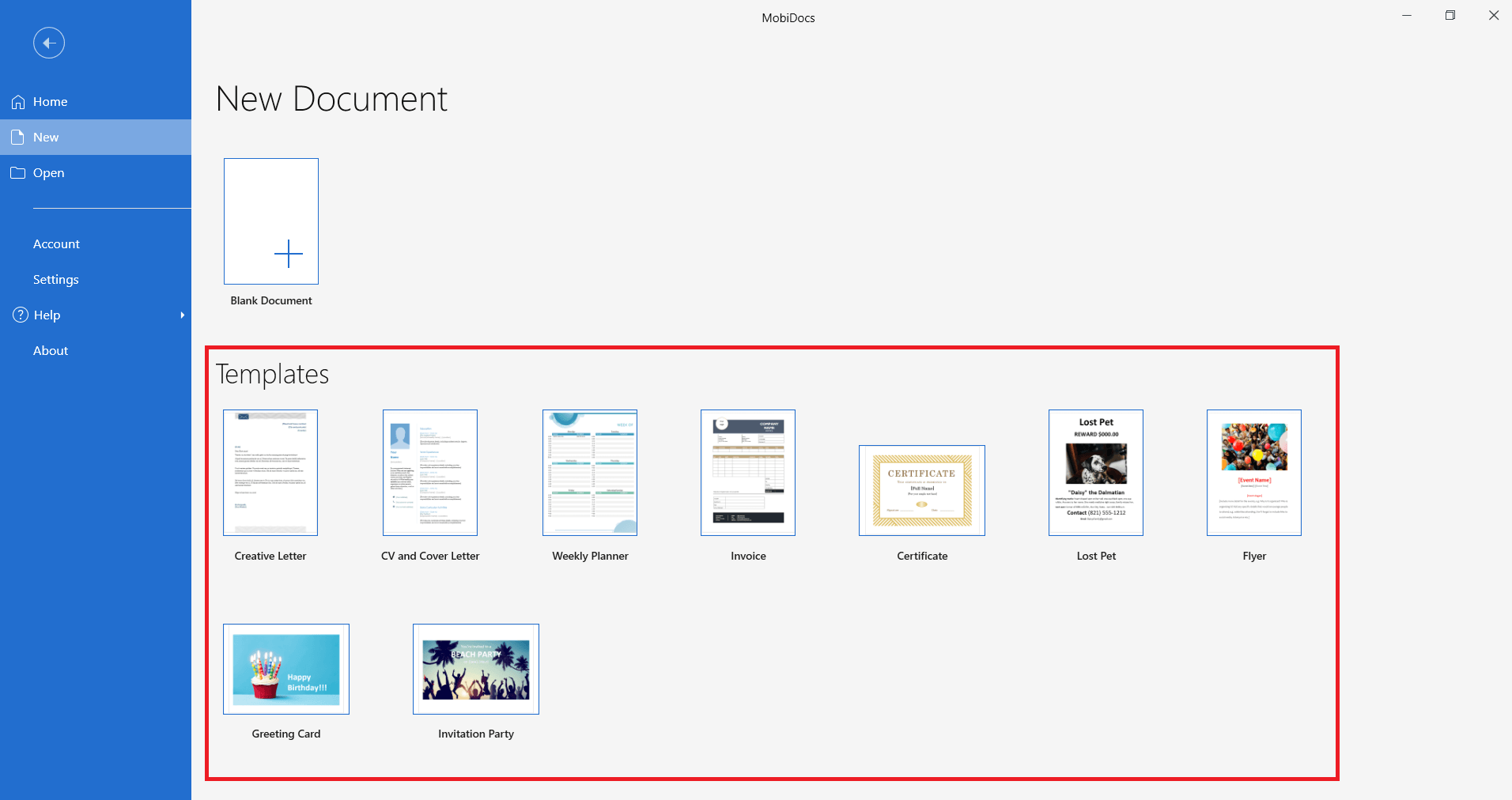
3. Replace the placeholder text with your own content.
Open an existing document
1. Open MobiDocs, then click Open.
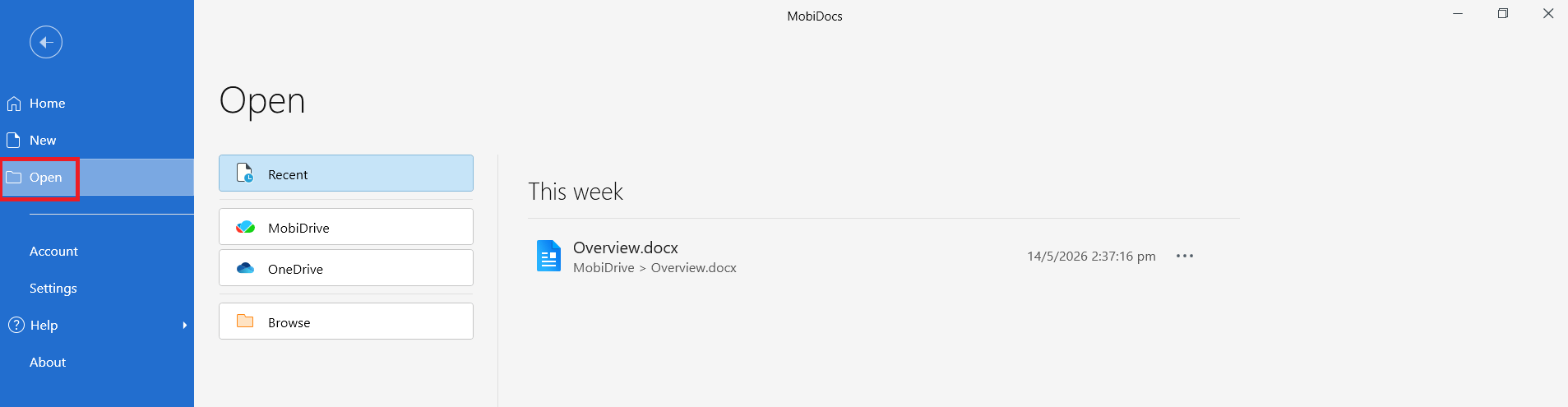
2. Browse to the location of your file: your device, MobiDrive, or a connected cloud service such as Google Drive, OneDrive, or Dropbox.
3. Select the file and click Open.
Tip: Recent files appear on the MobiDocs home screen. Click a file in the list to open it directly.
Edit your document
Once your document is open, you can add, change, or remove text.
Add and select text
1. Click where you want to add text and start typing.
2. To select text, click and drag across the words you want to change.
3. To select a single word, double-click it. To select a whole paragraph, triple-click anywhere inside it.
Copy, cut, and paste
You can move text within a document or between documents.
1. Select the text you want to copy or move.
2. Press Ctrl + C to copy, or Ctrl + X to cut. On Mac, use Cmd + C or Cmd + X.
3. Click where you want to place the text.
4. Press Ctrl + V (or Cmd + V on Mac) to paste.
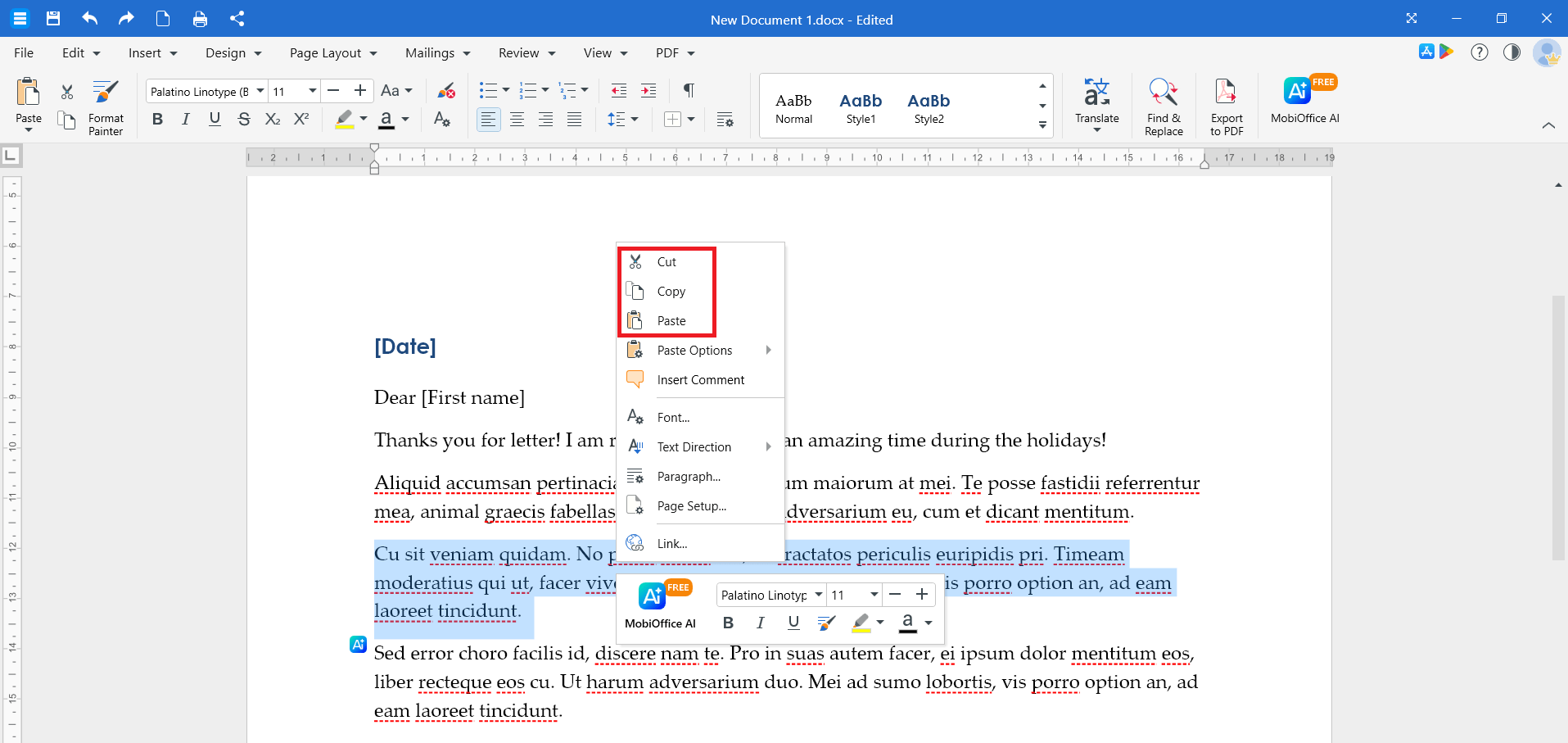
You can also right-click the selected text and choose Copy, Cut, or Paste.
Undo and redo changes
If you make a change you don't want to keep:
Press Ctrl + Z (or Cmd + Z on Mac) to undo.
Press Ctrl + Y (or Cmd + Y on Mac) to redo.
Save your document
You can save your document to a location of your choice.
1. Click the File tab.
2. Click Save to save your changes to the same file or Save As to save a copy.
3. Choose a location: MobiDrive, your device, or a connected cloud service.
4. Enter a file name then choose a file format (DOCX, DOC, RTF, TXT, etc.) from the dropdown menu.
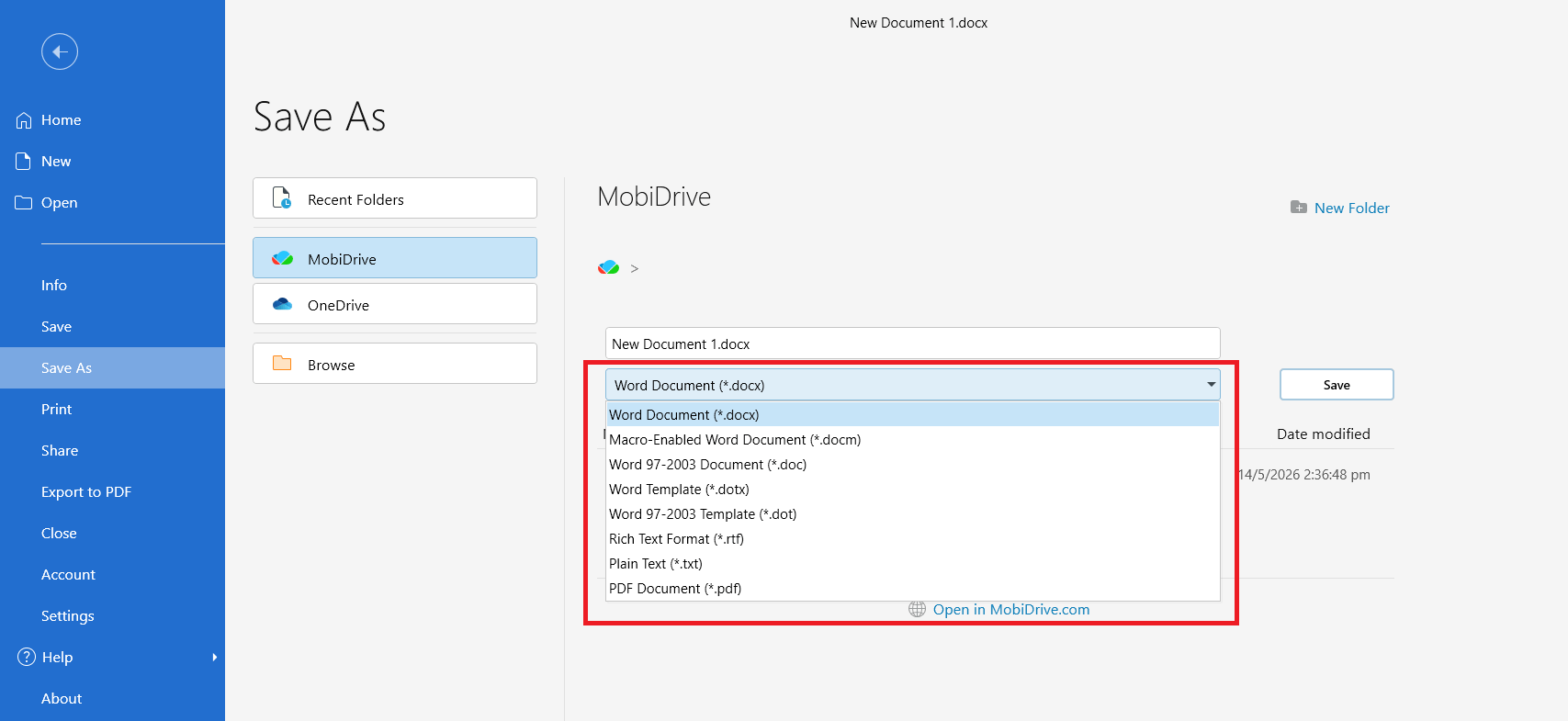
5. Click Save.
Tip: Press Ctrl + S (or Cmd + S on Mac) to save your document at any time.
Edit a document on Android or iOS
The steps are similar on mobile:
1. Open the MobiDocs app.
2. Tap New Document to create a file or tap Open to find an existing one.
3. Tap the page and use the on-screen keyboard to type.
4. Tap and hold to select text, then use the menu to copy, cut, or paste.
5. Tap Save when you're done.
Troubleshooting
My document won't open. Make sure the file isn't open in another app. If the file is in a cloud folder, check your internet connection and try again.
I can't type in my document. Click anywhere on the page to place your cursor, then start typing. If the file opened in read-only mode, click Edit to switch to editing.
I lost my changes. Check the Recent list on the MobiDocs start screen. If you've enabled MobiDrive sync, your latest version may also be in your MobiDrive folder.
MobiDocs is asking me to sign in to save. Saving to MobiDrive requires a signed-in MobiSystems account. Sign in, then try saving again.
Where to go next
You've created and saved your first document. Try one of these next:


