

Tracking Changes in Documents
Track Changes records every edit you make to a document – additions, deletions, and formatting – so reviewers can see what changed and decide what to keep. Use it when you're working with a colleague, getting feedback from a manager, or reviewing a contract. This guide shows you how to turn Track Changes on, work with tracked edits and comments, and accept or reject changes in MobiDocs.
Before you begin
Make sure you have:
MobiDocs installed and signed in.
A document open in MobiDocs.
Turn on Track Changes
1. Open your document in MobiDocs.
2. Click Review, then click Track Changes.
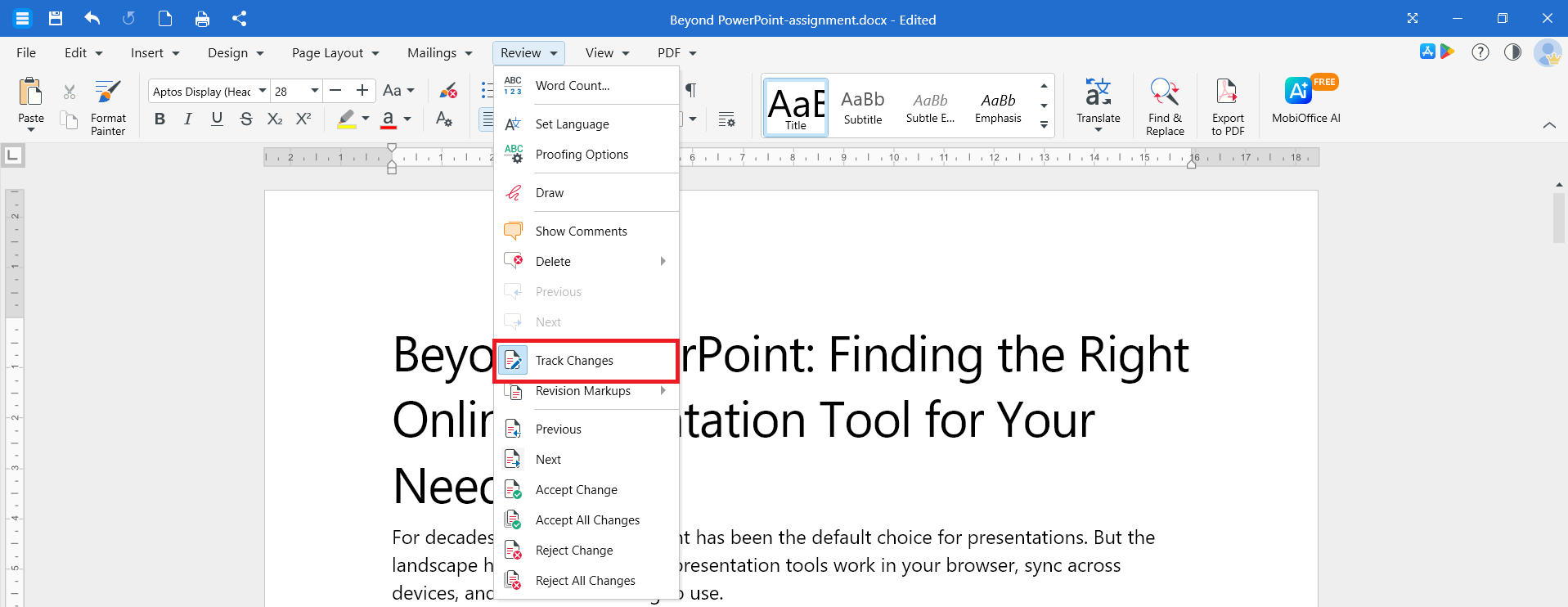
Track Changes is on when the button is highlighted. Any edits you or other reviewers make will now appear as tracked changes.
To turn Track Changes off, click Track Changes again. Edits that were already recorded stay in the document until you accept or reject them.
See who changed what
Tracked edits show up directly in the text:
Insertions appear in a different color.
Deletions appear in a different color with a strikethrough.
Formatting changes appear as a note in the margin or reviewing pane.
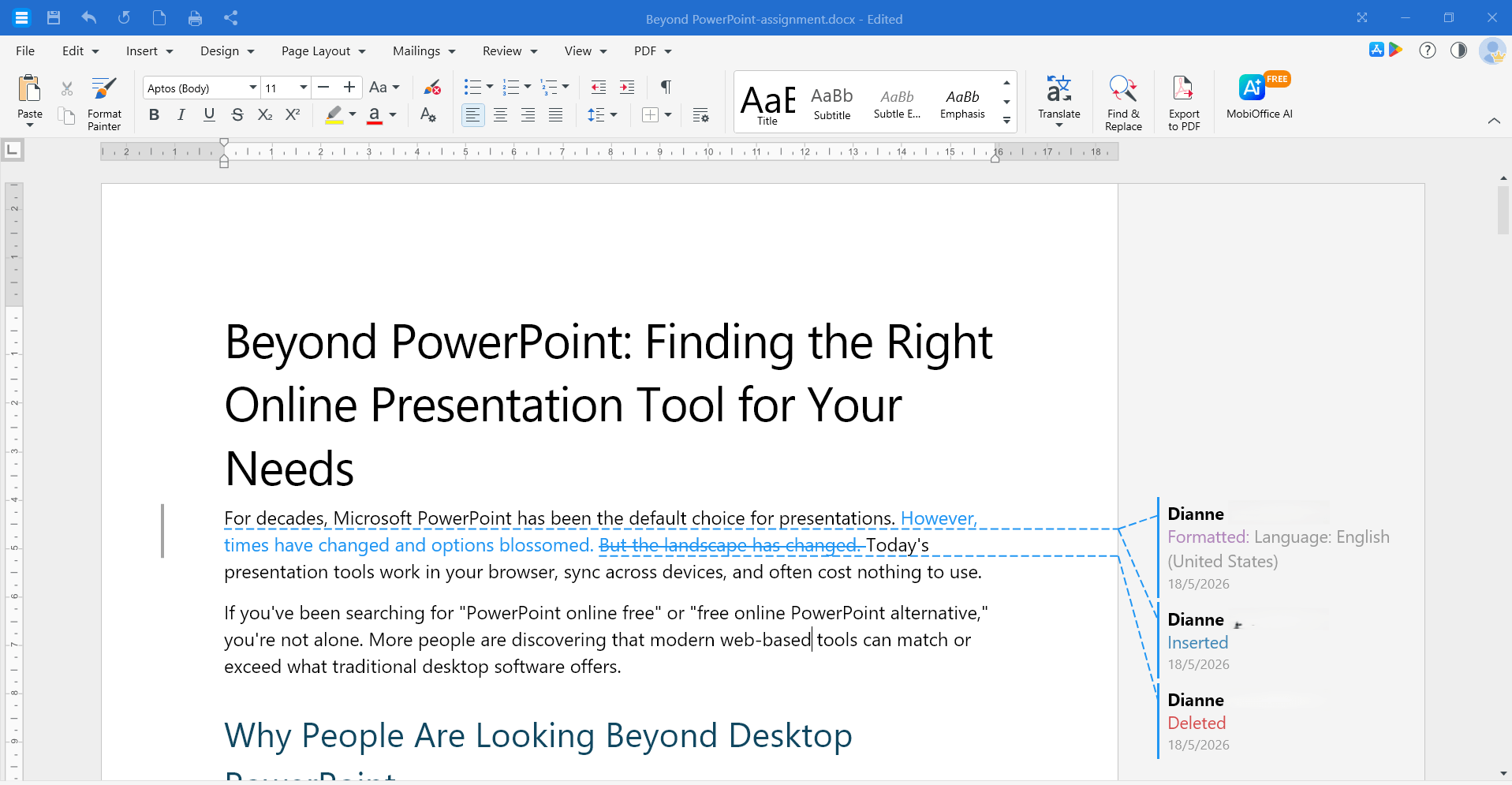
Each reviewer is assigned a different color, so you can see who made each edit. Click on an edit to see the reviewer's name and the date and time of the change.
Change how tracked edits are displayed
You can switch between markup views to make a document easier to read.
1. In MobiDocs, click Review then select Revision Markups.
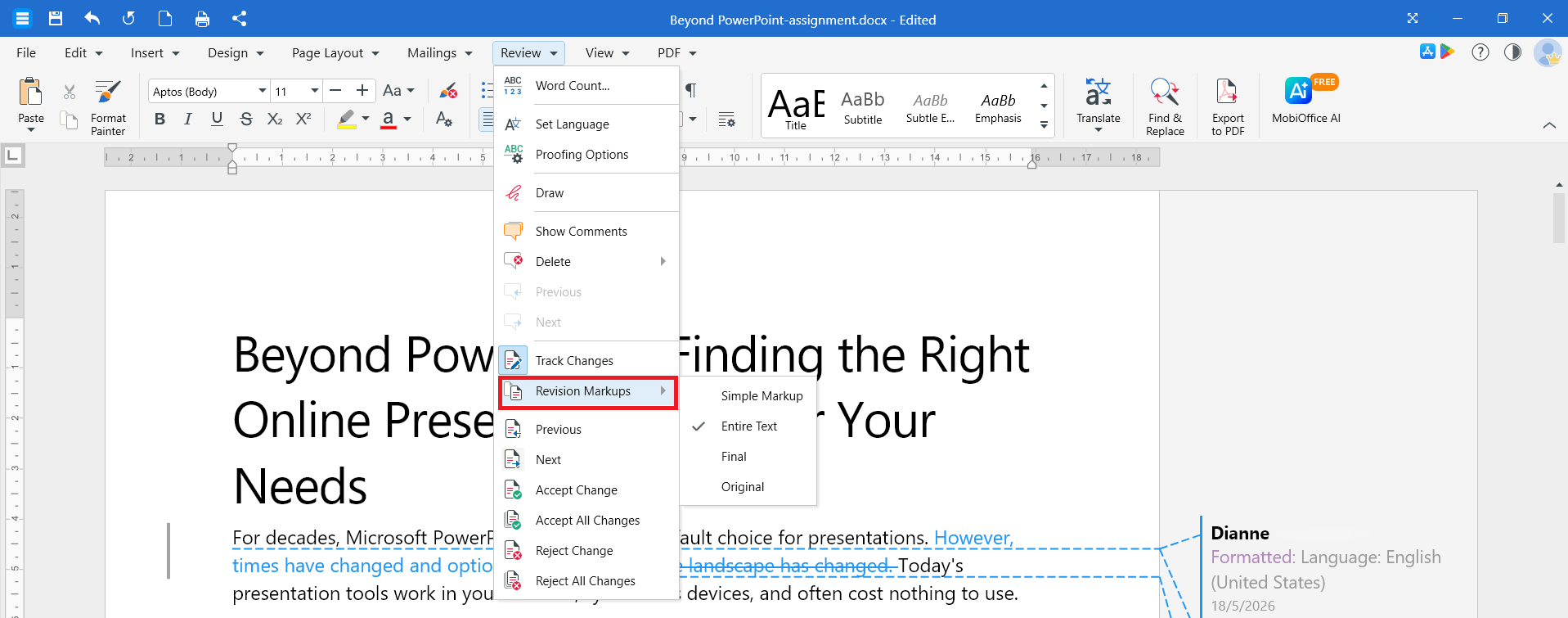
2. Choose one of the following:
Simple Markup to see a clean version with a vertical bar in the margin where edits were made.
Entire Text to see every change inline.
Final to preview the document as if all changes were accepted.
Original to see the document before any edits.
Revision Markups only changes how the document looks. It doesn't accept, reject, or remove any tracked changes.
Add, reply to, and delete comments
Comments let you leave feedback without changing the text. You can use comments with or without Track Changes turned on.
Add a comment
1. Select the text you want to comment on.
2. Click Insert, then click Comment. Alternatively, you can right-click on the text and select Insert Comment from the options.
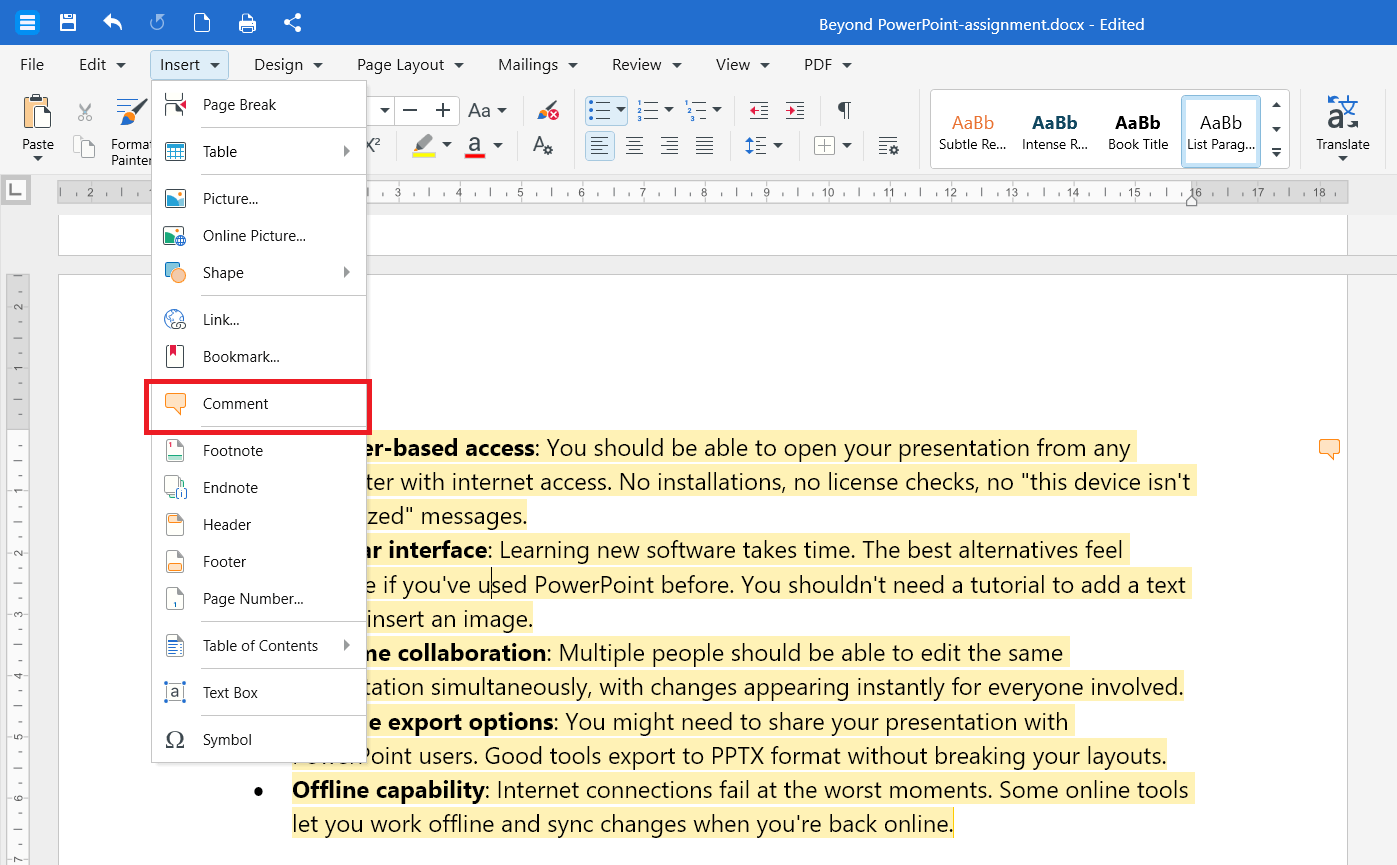
3. Type your comment in the Comments pane.
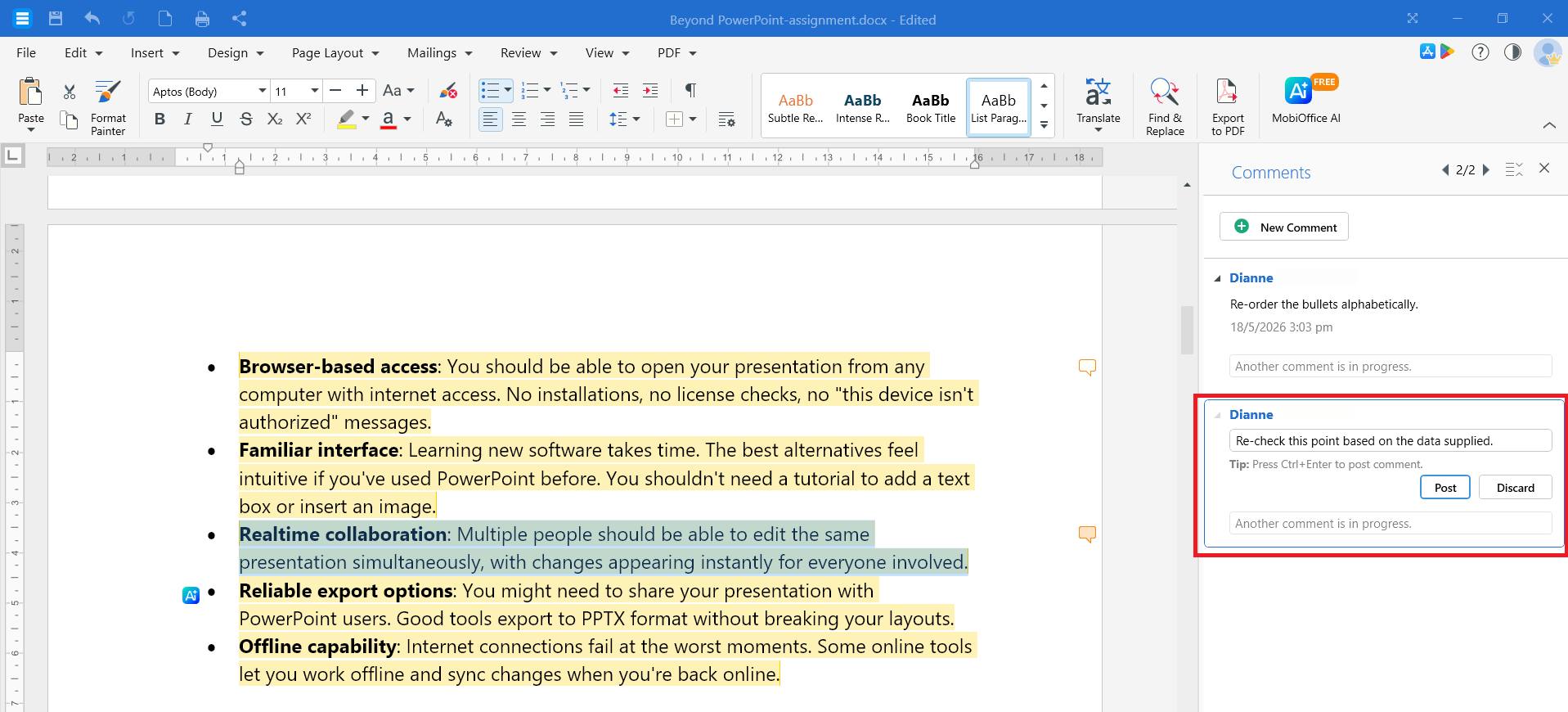
4. Click Post to save it.
Reply to a comment
1. Click the comment you want to reply to.
2. Click Reply.
3. Type your reply and click Post.
Delete a comment
1. Click the comment you want to remove.
2. Click Review > Delete, then click Comment. Alternatively, you can choose the comment from the Comments pane and click on the trash bin icon to delete a comment.
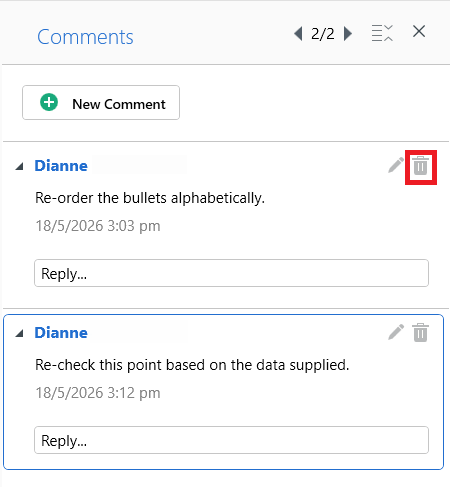
To remove every comment in the within a page or in the entire document, click the arrow next to Delete and choose All Comments on this page or All Comments in this Document.
Review tracked changes
When it's time to finalize the document, go through each change and decide whether to keep it.
1. Click Review, then click Previous or Next to go through each of the changes.
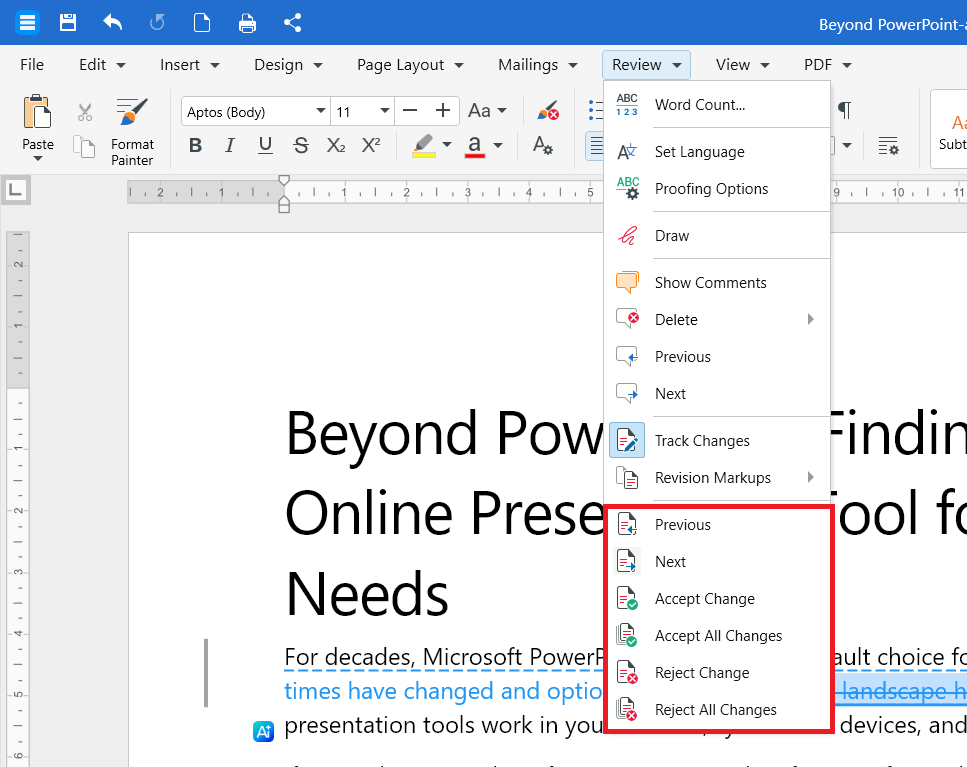
2. To keep the change, click Accept Change. To remove it, click Reject Change.
3. MobiDocs moves to the next change automatically. Repeat until you've reviewed every change.
Tip: To accept or reject a single change without moving on, right-click the change and choose Accept Change or Reject Change.
Accept or reject all changes at once
1. Click Review.
2. Select Accept All Changes to accept all changes.
3. To reject everything, click Reject All Changes.
After you accept or reject all changes, turn off Track Changes to stop recording new edits.
Track changes on Android or iOS
1. Open your document in the MobiOffice app.
2. Tap Edit. In the editor, tap Home then choose Review.
3. Tap Track Changes to turn it on.
4. To review changes, tap a tracked edit and choose Accept Changes or Reject Changes.
5. To add a comment, choose Insert and tap Comment. You can also select the text then tap New Comment/Add Comment from the context menu.
Troubleshooting
Tracked changes won't disappear when I turn Track Changes off. Turning off Track Changes only stops new edits from being recorded. To remove the existing markup, accept or reject each change.
I can't see who made a change. Click the edit on desktop, or tap it on mobile, to see the reviewer's name and timestamp. If the name is blank, sign in to your MobiSystems account before editing.
The document looks clean but tracked changes are still there. You may be in No Markup view. Switch to Entire Text from the Review dropdown to see every change.
The Accept and Reject buttons are greyed out. Click inside a tracked change first or use the Next button to jump to one.
Where to go next
You now know how to track, review, and resolve changes in MobiDocs. Try one of these next:


