

Adding a custom email signature
A signature is text that MobiMail adds to the end of your emails, such as your name, job title, or contact details. In MobiMail, you can create one or more signatures, apply them automatically to new emails and replies, and use a different signature for each account. This guide shows you how to create, format, and apply a signature in MobiMail on Windows.
Note: MobiMail is available on Windows only.
Before you begin
Make sure you have:
MobiMail installed on your Windows device. MobiMail installs as part of MobiOffice.
An email account set up in MobiMail. See the Introduction to MobiMail.
Note: Creating and managing signatures is a Premium feature. If you're on the Free plan, MobiMail will prompt you to upgrade before you can add or edit a signature.
Create a signature
1. Click the File tab.
2. Click Settings.
3. Select MobiMail Preferences.
4. Click Mail.
5. Choose Manage Signatures.
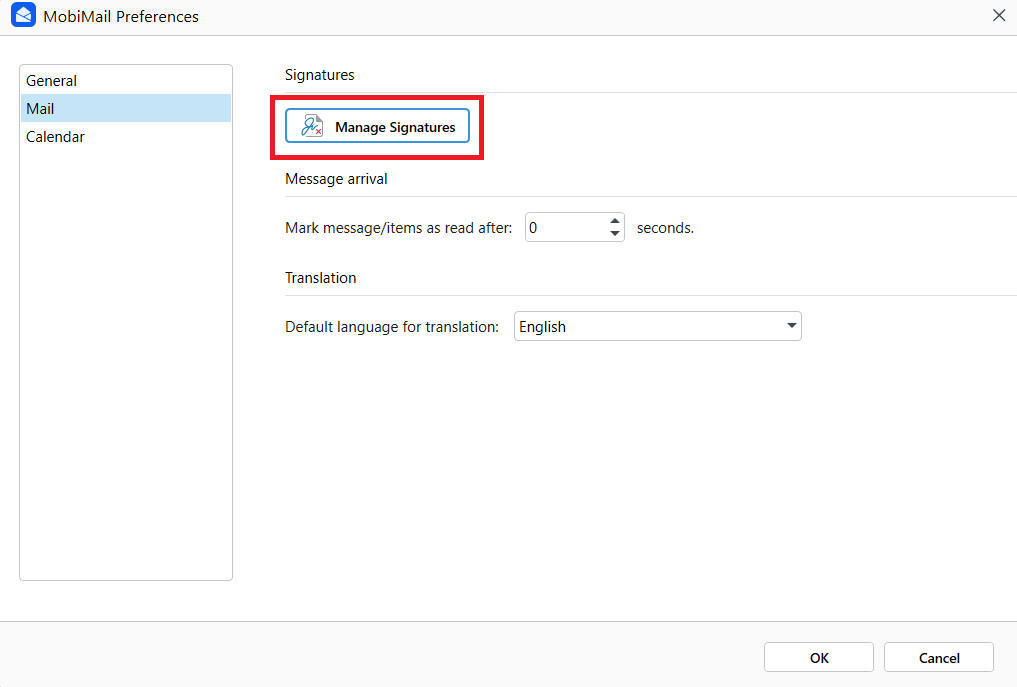
6. Click Add Signature, then type your signature.
7. Click OK to save it.
Your saved signatures stay in Manage Signatures until you delete them, so you can reuse them later.
Format your signature
While typing your signature, you can style it to match your brand or personal look.
Change the font, color, size, and text alignment.
Add a bulleted or numbered list.
Set a signature for new emails
1. Open Manage Signatures.
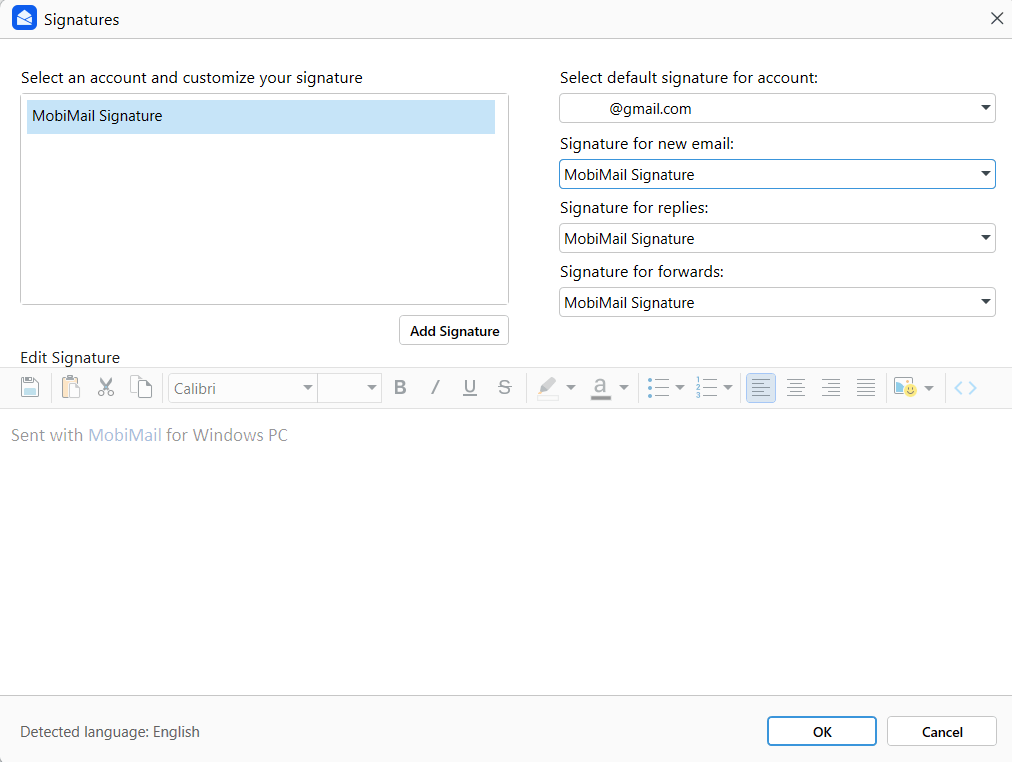
2. In the Signature for new email dropdown, select the signature you want.
3. Click OK.
Tip: To stop adding a signature to new emails automatically, choose (none) in the same dropdown.
Set a signature for replies and forwards
1. Open Manage Signatures.
2. In the Signature for Replies/Signature for forwards dropdown, select the signature you want.
3. Click OK.
Use a different signature for each account
If you have more than one account, you can match a signature to each one.
1. Open Manage Signatures.
2. In the Select default signature for account drop-down, choose an email account.
3. Select the signature you want for that account.
4. Click OK.
Add a signature to a single email
You can also add a signature to one message without changing your defaults.
1. Open a new email message.
2. Click Signatures.
3. Select the signature you want or click Signatures again to create or customize one.
Troubleshooting
My signature isn't added automatically. Open Manage Signatures and confirm you've chosen a signature in the Signature for new email drop-down, not (none).
The wrong signature appears. Check the Select default signature for account drop-down and confirm the right signature is set for that account.
My signature isn't on replies. Set a signature in the Signature for Replies/Signature for forwards drop-down. New emails and replies use separate settings.
My formatting looks off. Some email providers display signatures differently. Keep the formatting simple, then send a test email to check how it looks.
I can't create a signature. Confirm you're on a Premium plan — signature creation and management isn't available on Free.
Where to go next
You now know how to create and apply a signature in MobiMail. Try one of these next:


