

Writing, sending, and filtering emails
MobiMail lets you write and format emails, attach files, and send them, then use filters to keep your inbox organized. This guide shows you how to compose and send a message, reply and forward, attach files, and filter your inbox in MobiMail on Windows. By the end, you'll be able to send your first email and sort your inbox so the messages that matter are easy to find.
Note: MobiMail is available on Windows only.
Before you begin
Make sure you have:
MobiMail installed on your Windows device. MobiMail installs as part of MobiOffice.
An email account set up in MobiMail. See the Introduction to MobiMail.
An internet connection to send and receive mail.
Write and send an email
1. Open MobiMail.
2. Click New Email to start a message.
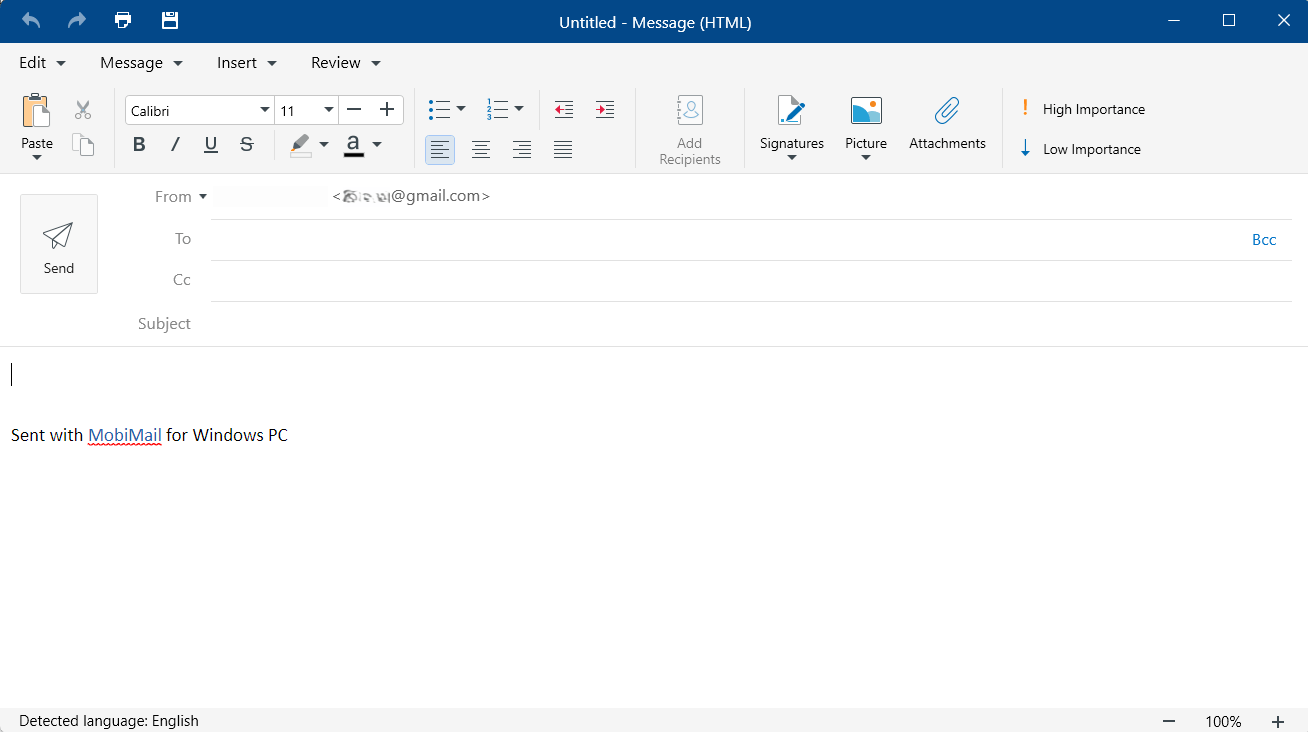
3. (Optional) In the From field, select the account from which the message will be sent if you have multiple accounts added in MobiMail. Attachments are limited to 20 MB each.
4. In the To field, enter the recipient's email address. Add addresses in Cc or Bcc if needed.
5. Enter a Subject.
6. Type your message. Use the formatting tools to change the font, add lists, or emphasize text.
7. (Optional) Click Attach and select a file to send with your message.
8. Click Send.
Tip: MobiMail includes a built-in spell checker. Review any flagged words before you send.
Reply to or forward an email
1. Select or open the message you want to answer.
2. Click Reply, Reply All, or Forward.
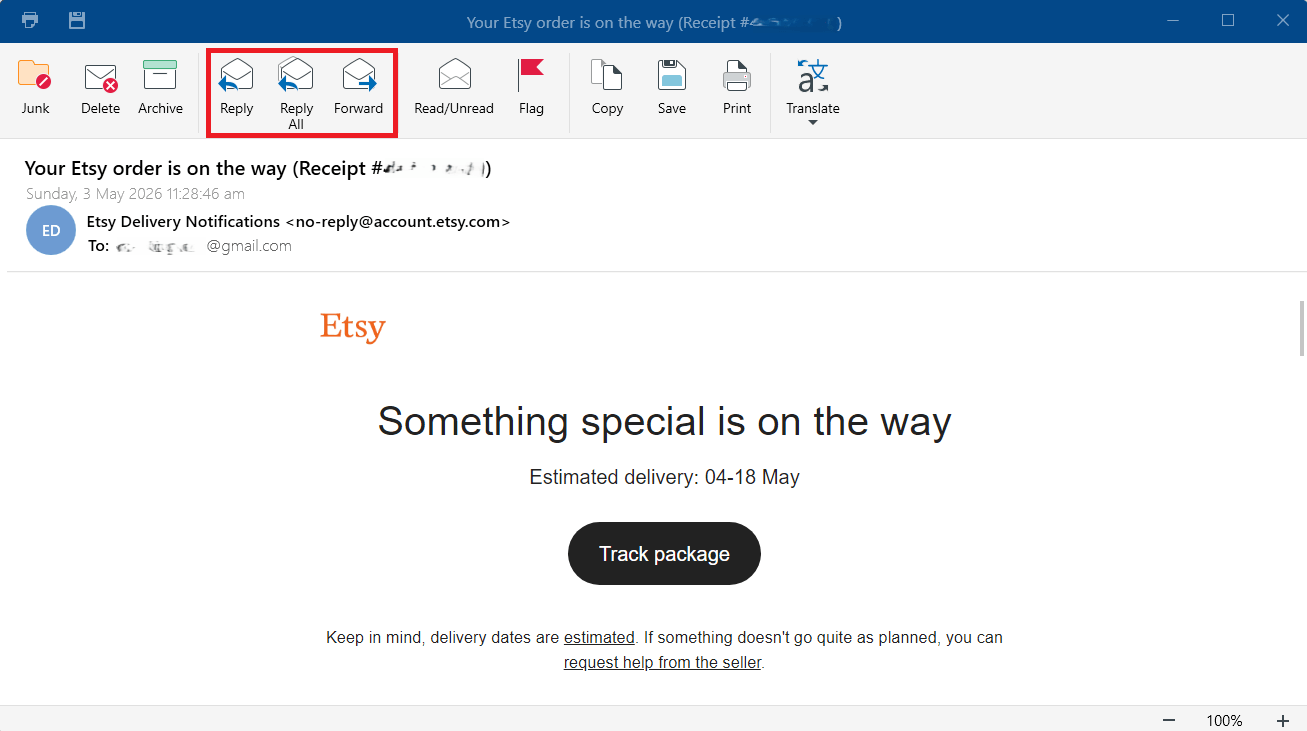
3. For a forward, enter the recipient's email address.
4. Add your message, then click Send.
Attach a file from MobiDrive
You can send a file from MobiDrive via MobiMail.
1. Click New Mail if you’re sending a new message or Reply/Reply All/Forward if you’re replying or forwarding a message.
2. Select Attachments.
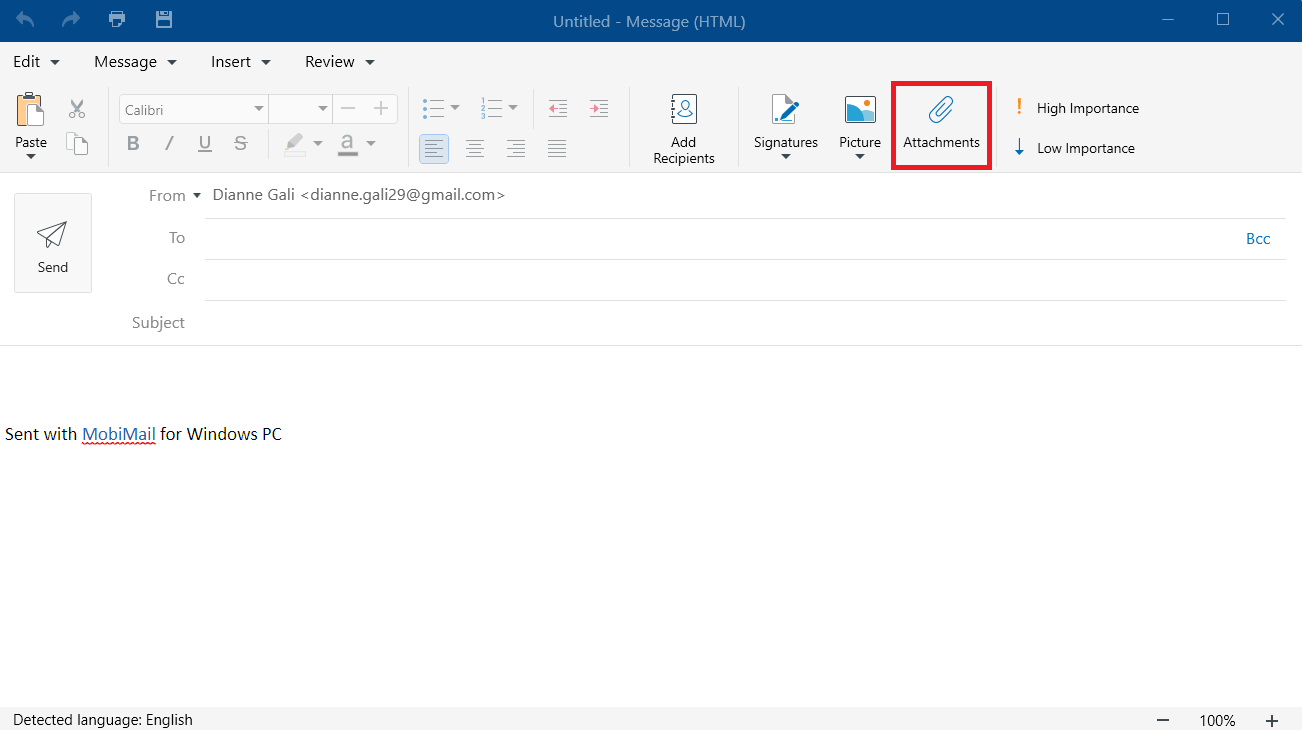
3. Select the file in MobiDrive.
4. Add your recipient, message details, and then click Send.
Save a draft to finish later
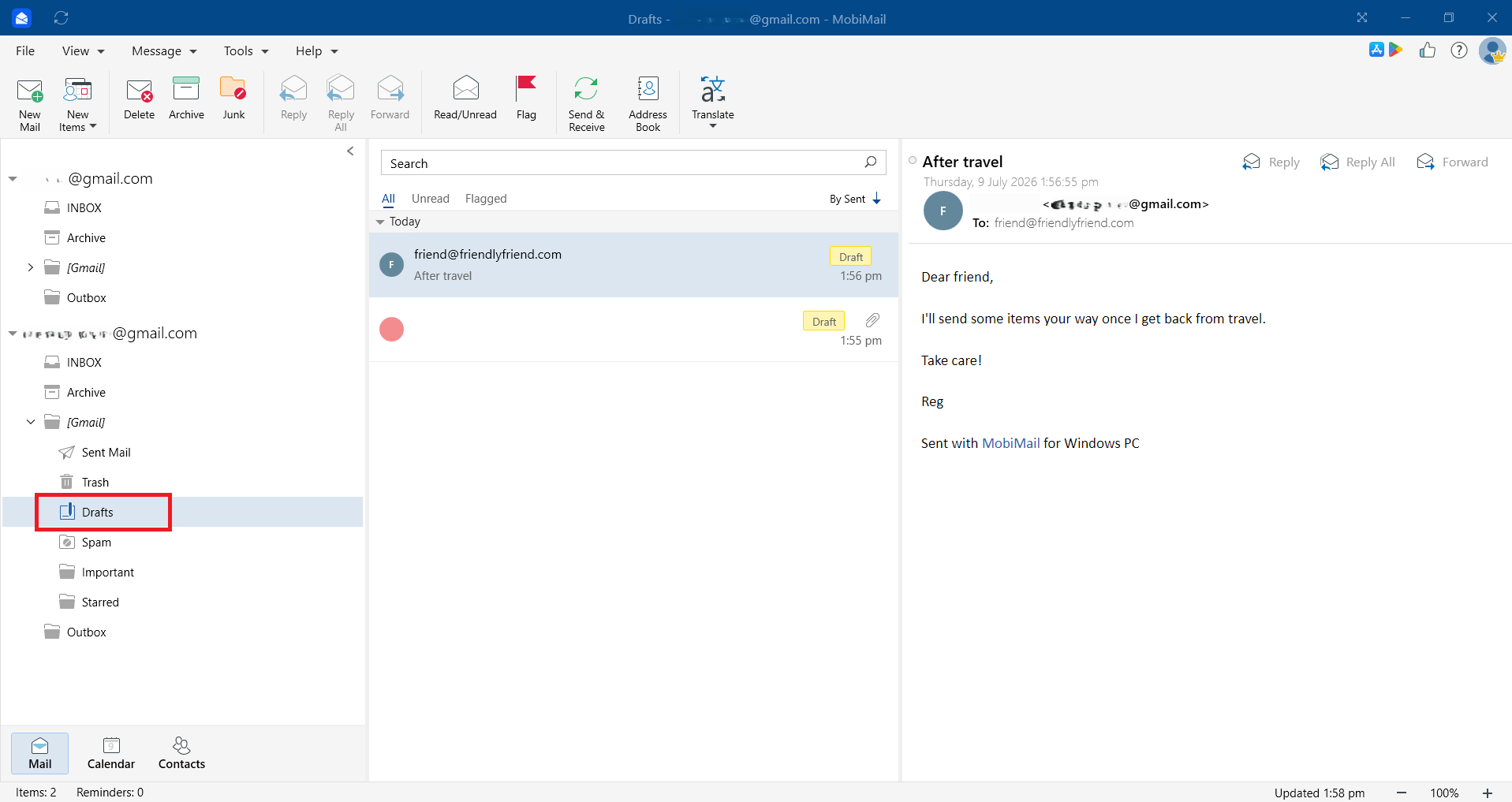
If you're not ready to send, you can save your message as a draft by clicking Message > Save Draft. Open the Drafts folder to finish and send it when you're ready.
Filter your emails
Filters help you sort your inbox so you can focus on what matters.
Filter your messages by clicking View > Filter. Choose among All, Unread, and Flagged to arrange your messages by your selected filter.
Arrange your messages by Received, Subject, Importance, Drafts, Attachments, or other arrangement types. Click View > Arrange by to sort your messages depending on your selected arrangement type.
Flag important messages so they stand out in your list.
Combine filters with search to narrow down your inbox quickly.
Tip: To search for specific messages with search operators, see How to search for specific messages in MobiMail.
Troubleshooting
My email won't send. Check your internet connection. If you're in Work Offline mode, check your Outbox folder after reconnecting to confirm the message went out. Confirm the recipient's address is correct.
MobiMail freezes or stops responding after I attach a file. Close and reopen MobiMail, then try attaching the file again. If it keeps happening, update to the latest version.
I can't find a message. Use the search box and filters and make sure you're looking in the correct account and folder.
Spell check isn't catching errors. Confirm the correct language is set. Open File > Settings > General Preferences to check your language.
Where to go next
You now know how to write, send, and filter emails in MobiMail. Try one of these next:


