

Introduction to MobiMail
MobiMail is the email app included in the MobiOffice suite. It brings your email accounts and a built-in calendar together in one place on Windows, so you can read, write, and schedule without switching between tools. This guide explains what MobiMail does, how to set up your first email account, and where to find the main functionalities. By the end, you'll have an account connected and be ready to send your first message.
Note: MobiMail is available on Windows only. It is not included in MobiOffice on Mac, Android, or iOS.
Before you begin
Make sure you have:
MobiOffice installed on your Windows device. See Installing MobiOffice on multiple devices.
An email account with a supported provider, such as Gmail, Outlook, Yahoo, or iCloud.
An internet connection.
What you can do in MobiMail
MobiMail combines an inbox and a calendar in a single app. Here are the main things it helps you do:
Manage several accounts in one inbox. Add accounts from Gmail, Outlook, Yahoo, iCloud, or any provider that supports IMAP or POP3.
Plan your time with the built-in calendar. Create events, set reminders, and manage invitations.
Write email offline. Messages you compose without a connection send automatically once you're back online. Check your Outbox folder after reconnecting to confirm your message is sent.
Personalize your mail. Add a signature, search for specific messages, and translate emails into other languages.
Note: Syncing more than one account and importing data are premium features.
Set up your first email account
When you open MobiMail for the first time, it guides you through adding an account. Follow these steps for a personal account such as Gmail, Outlook, Yahoo, or iCloud.
1. Open MobiMail from the Windows Start menu.
2. On the sign-in screen, type your email address.
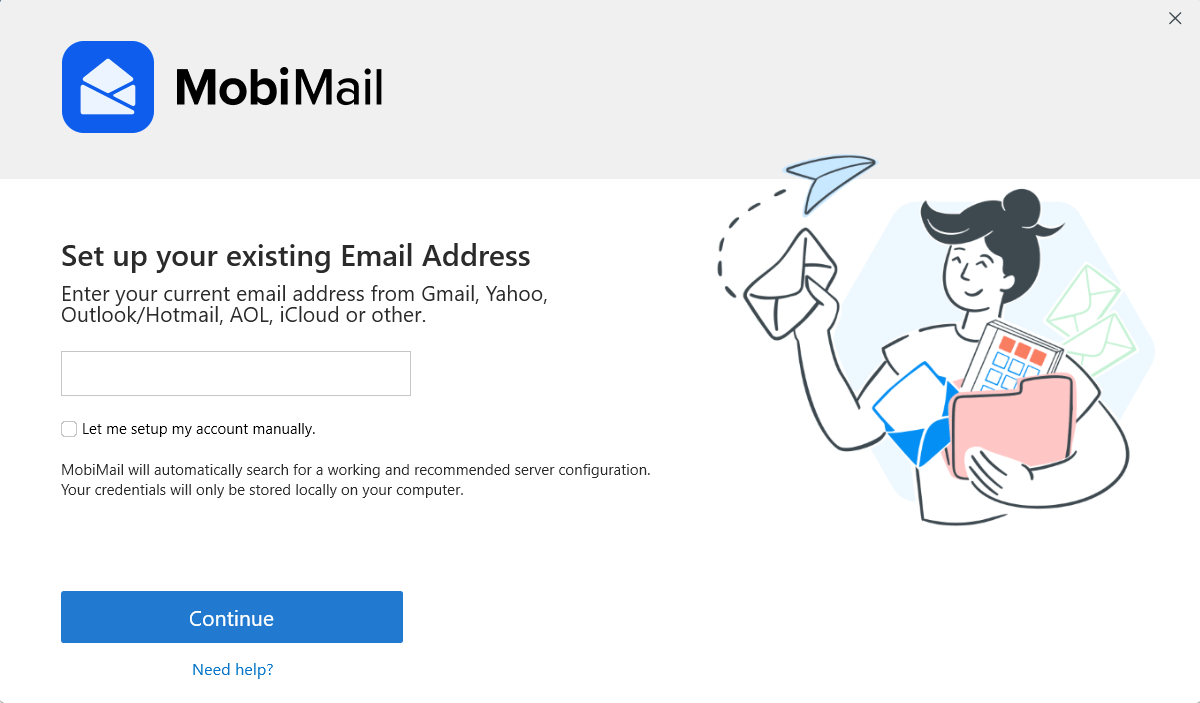
3. Click Continue.
4. A window opens in your browser. Confirm the email address you want to add, then click Continue.
5. If your provider asks, sign in and allow MobiMail to access your account.
6. Click Continue to finish. MobiMail opens your Inbox.
Tip: If the browser window doesn't open after you click Continue, copy the link from the loading screen and paste it into your browser.
Find your way around MobiMail
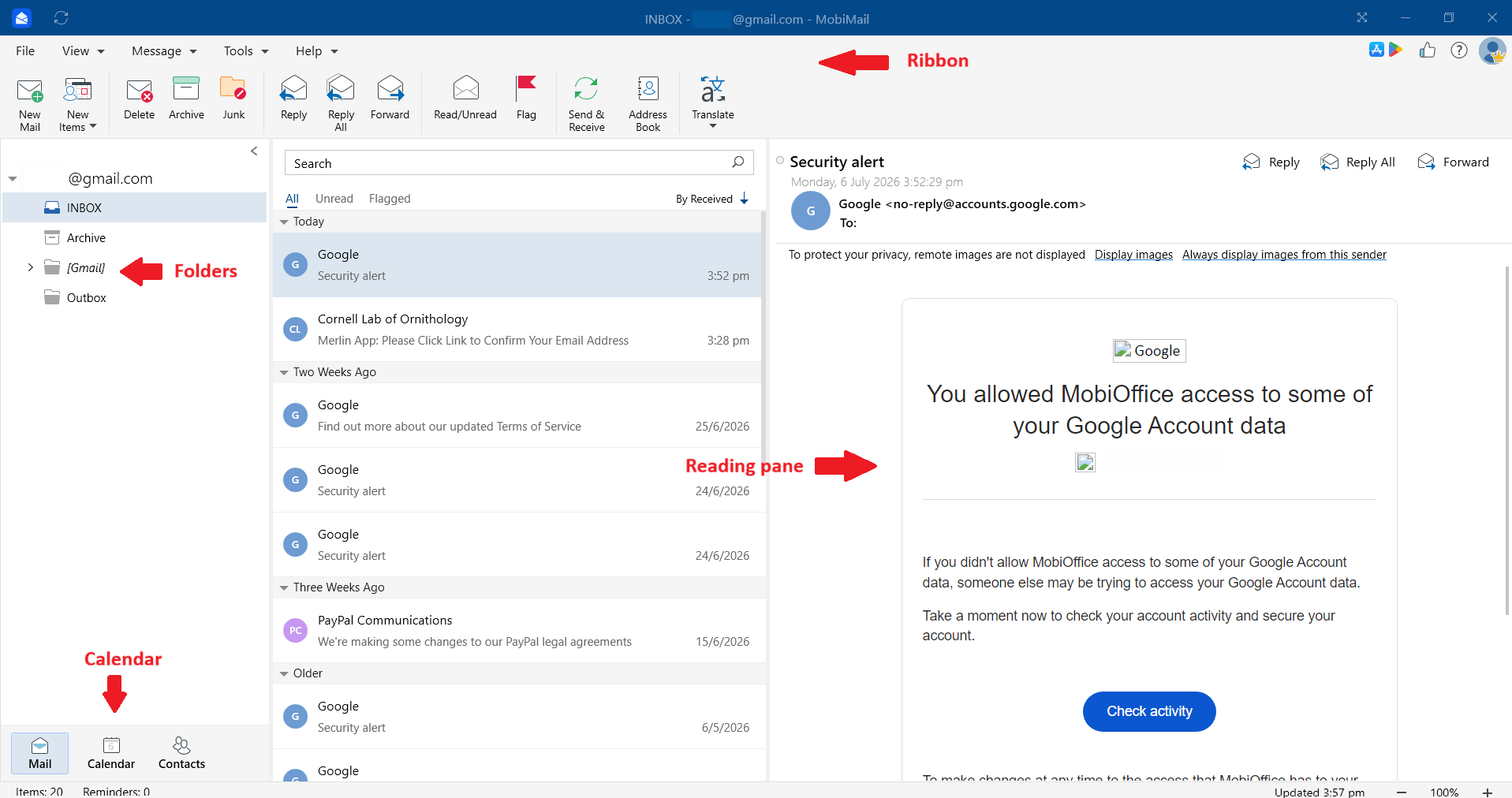
MobiMail opens to your Inbox. The layout will feel familiar if you've used other email apps:
Ribbon: The toolbar across the top. MobiMail uses a Message menu for handling mail and a Tools menu for sync status, sending & receiving, and working offline. View contacts in the Address Book option.
Folders: The list on the left, where you open your Inbox, Sent, and Drafts, plus any folders you create.
Reading pane: The area that shows the selected message. Show or hide it from the View > Reading Pane menu.
Calendar: Switch to the calendar to view your schedule, create events, and set reminders.
Contacts: Switch to Contacts to view all your contacts.
For a fuller tour of the suite, see Navigating the MobiOffice user interface.
Troubleshooting
MobiMail isn't in my MobiOffice apps. MobiMail is only available on Windows. It doesn't install on Mac, Android, or iOS.
My browser didn't open during setup. Copy the link from the loading screen and paste it into your browser to finish signing in.
Email sync is slow. A large mailbox, many folders, or a slow connection can each slow the first sync. Give it time to finish, especially for mailboxes above 300 MB.
I can't add a second account. Syncing more than one account is a premium feature. Check that your subscription is active and that you're signed in to MobiOffice.
I need to change my password. Change it with your email provider. For a Gmail account, use your Google account settings. For a work account, ask your system administrator.
Where to go next
You now know what MobiMail does and how to connect your first account. Next, set up the details that make daily email easier.


