

Frequently asked questions
This page answers the most common questions about MobiOffice, covering your account, installation, syncing with MobiDrive, and everyday use. Use it for quick answers and follow the links when you need full step-by-step instructions.
Accounts
Do I need an account to use MobiOffice?
You need a MobiSystems account to start a free trial, activate a subscription, sync your settings, and use your cloud storage. Creating an account is free.
How do I create an account?
You can create one from the MobiSystems website, the account portal, or inside any MobiOffice app. You can also sign up with your Google, Facebook, or Apple ID. See Creating and managing your MobiOffice account.
Can I sign in with Google, Facebook, or Apple?
Yes. Use the same provider every time. Signing in with a different method creates a separate account that won't have your subscription.
How many devices can I use?
It depends on your plan. Premium covers one desktop (Windows or Mac) and up to two mobile devices. To free up a slot, open My Account > Subscriptions and Products, select your product, and remove a device on the Linked Devices tab.
How do I change or reset my password?
Open My Account > Edit Account > Change Password. If you've forgotten it, click Forgot password? on the sign-in screen and follow the email link.
How do I cancel a subscription without deleting my account?
Go to the Subscriptions and Products section in your dashboard and manage your subscription there. Deleting your account is permanent and erases your files and settings.
Installation
Which platforms does MobiOffice run on?
Windows, Mac, Android, and iOS. One license works across all of them, so you can install MobiOffice on each device and use the same account.
Is MobiOffice free?
MobiOffice has a free version with core features. A Premium subscription unlocks the full set of tools and more devices.
How do I install MobiOffice on Windows?
Go to the MobiOffice download page, click Free Download, run MobiOffice_Setup.exe, and sign in when MobiDocs opens. See Installing MobiOffice on multiple devices.
Which apps come with MobiOffice?
You get MobiDocs, MobiSheets, MobiSlides, MobiMail, and free MobiPDF reader. On Windows, opening MobiOffice opens MobiDocs first; open the other modules from the Start menu. MobiMail and MobiPDF Reader aren't available on Mac, and MobiMail isn't available on Android or iOS.
The installer won't run. What should I do?
Right-click the installer and select Run as administrator and allow the file through your antivirus or firewall. For more fixes, see Fix installation and login issues.
Syncing
What is MobiDrive?
MobiDrive is MobiSystem’s cloud storage. Save your files there to open them on your other devices.
How do I know my files have synced?
Open the MobiDrive widget in your Windows taskbar. The Up to date status means every file is synced between your MobiDrive folder and the cloud.
Why aren't my files syncing?
Check that you're online and signed in, and that the file is saved inside your MobiDrive folder. Only files in that folder sync automatically. For more help, see Issues when using MobiDrive.
Can I use my files without an internet connection?
Yes. While you're online, mark the files you'll need for offline use, then you can open them without a connection.
Where is my MobiDrive folder?
Open it from the MobiDrive widget by clicking the folder icon or click Account > Preferences to view or move its location.
Can I save to Google Drive, OneDrive, or Dropbox?
Yes. When you open or save a file, you can choose your device, MobiDrive, or a connected service such as Google Drive, OneDrive, or Dropbox.
Use
How do I create a new file?
Open a MobiOffice app (for example MobiSheets), go to the Home screen, click New, and choose Blank or a template. On a phone or tablet, tap the + button and pick the file type.
How do I save my work?
Select File > Save As, choose MobiDrive or your device, name the file, and click Save. After that, press Ctrl+S to keep saving your changes.
Where do I find the tools I need?
Tools are grouped on the ribbon: File, Edit, Insert, Review, and View, plus app-specific menus such as Formulas in MobiSheets, Page Layout in MobiSheets and MobiDocs, and Design in MobiSlides. See Navigating the MobiOffice user interface.
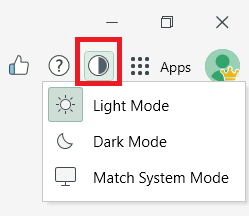
Can I switch to dark mode?
Yes. On the top right corner of the app, click on the Appearance icon then choose Light Mode, Dark Mode, or Match System Mode. Alternatively, you can click File > Settings, then choose the mode that suits you. Theme switching is supported in MobiDocs, MobiSheets, and MobiSlides.
Can I export a file to PDF?
Yes, when MobiPDF is included in your subscription. Use the PDF menu or File > export to PDF.
Does MobiOffice open Word, Excel, and PowerPoint files?
Yes. MobiOffice works with common Office formats, and you can save spreadsheets as XLSX or CSV and documents in standard formats.


