

Installation and login issues
This guide helps you fix the most common installation and login problems in MobiOffice on Windows, Mac, Android, and iOS. Most steps focus on Windows with shorter notes for the other platforms. Work through the section that matches your problem and try the fixes in order until MobiOffice installs and you're signed in.
Before you begin
Make sure you have:
A stable internet connection. MobiOffice needs it to download, activate, and validate your license.
Your MobiSystems account email and password, or the Google, Facebook, or Apple ID you signed up with.
A device that meets the MobiOffice system requirements.
Administrator rights on your Windows PC, so you can install software.
Fix installation issues on Windows
Most installation problems on Windows come from a blocked installer, a Microsoft Store error, or a leftover from an earlier version. Try the fixes below in order.
The installer won't start or won't finish
1. Check your internet connection. MobiOffice downloads files during setup, so a dropped connection can stop it.
2. Run the installer as administrator. Right-click MobiOffice_Setup.exe and select Run as administrator.
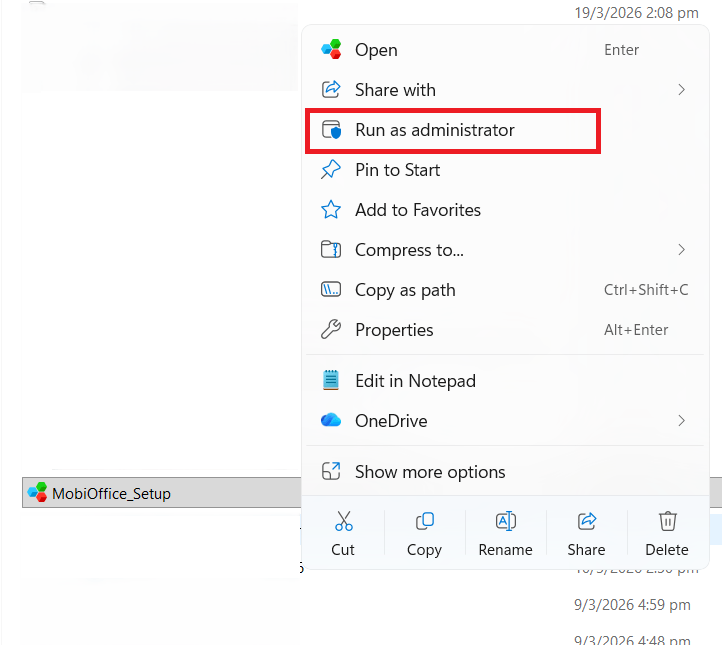
3. Allow the file in your security software. Antivirus, firewall, or VPN tools can block setup. Turn them off for a moment or allow the file, then run the installer again.
4. Install any pending Windows updates, restart your PC, and try again.
Note: On Windows in S mode, you can only install apps from the Microsoft Store. Open the Microsoft Store, search for MobiOffice, and install it from there.
Fix Microsoft Store error codes
MobiOffice uses Microsoft's MSIX installer, which relies on Microsoft Store services even when you download from the MobiSystems website. So, an error code can appear whether you installed from the Store or not. Start with these quick fixes:
1. Check your internet connection.
2. Reset the Microsoft Store cache. Press Windows + R, type wsreset.exe, and press Enter.
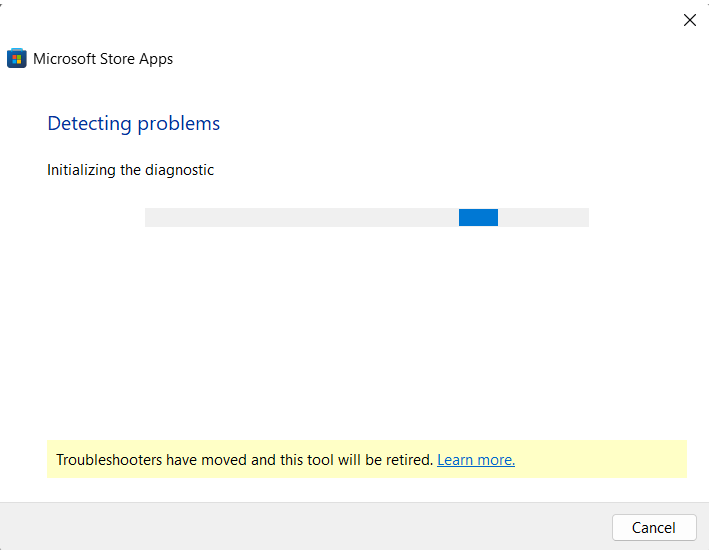
3. Run the Store troubleshooter. Open Settings (Windows + I), then type Microsoft Store Apps in the search bar.
4. Click Next to run the troubleshooter.
Some errors point to a specific cause. Use this table to match the message to a fix:
For full instructions on each error, including exact menu paths, see Troubleshoot common installation errors for Microsoft Store apps.
Do a clean reinstall
If setup keeps failing, remove MobiOffice and install a fresh copy.
1. Open Settings > Apps > Installed apps.
2. Find MobiOffice (or the module name), click the … menu, and select Uninstall.
3. Restart your PC.
4. Download MobiOffice again from the MobiOffice download page and run the installer.
For more ways to remove an app, see Uninstall an app on Windows.
Note: Reinstalling doesn't delete your files or reset your license. Sign in with the same MobiSystems account to restore your subscription.
Fix installation issues on Mac
"The app can't be opened." macOS is protecting you from an app downloaded from the internet. Open System Settings > Privacy & Security, scroll to the security section, and click Open Anyway next to the MobiOffice message. Then open the app again.
The download won't open. Make sure the .dmg file finished downloading. Double-click it, then drag the MobiOffice icon into your Applications folder.
Note: MobiMail and MobiPDF Reader are not available on Mac.
Fix installation issues on Android and iOS
On phones and tablets, MobiOffice installs from the Google Play Store (Android) or the App Store (iOS).
The install won't complete. Check your internet connection and make sure you have enough free storage. Delete unused apps or files if needed.
The app won't open after installing. Restart your device, then open MobiOffice again.
The store won't let you install. Update your device's operating system, then try the install once more.
Fix login and sign-in issues
Many "missing features" problems are sign-in problems. Use the fixes below to get into the right account.
You can't sign in
1. Check that your email and password are correct. Watch for extra spaces or Caps Lock.
2. If you signed up with Google, Facebook, or Apple, use that same button on the Sign In screen. A different method creates a separate account.
3. Reset your password. On the sign-in screen, click Forgot password? and follow the link in the email.
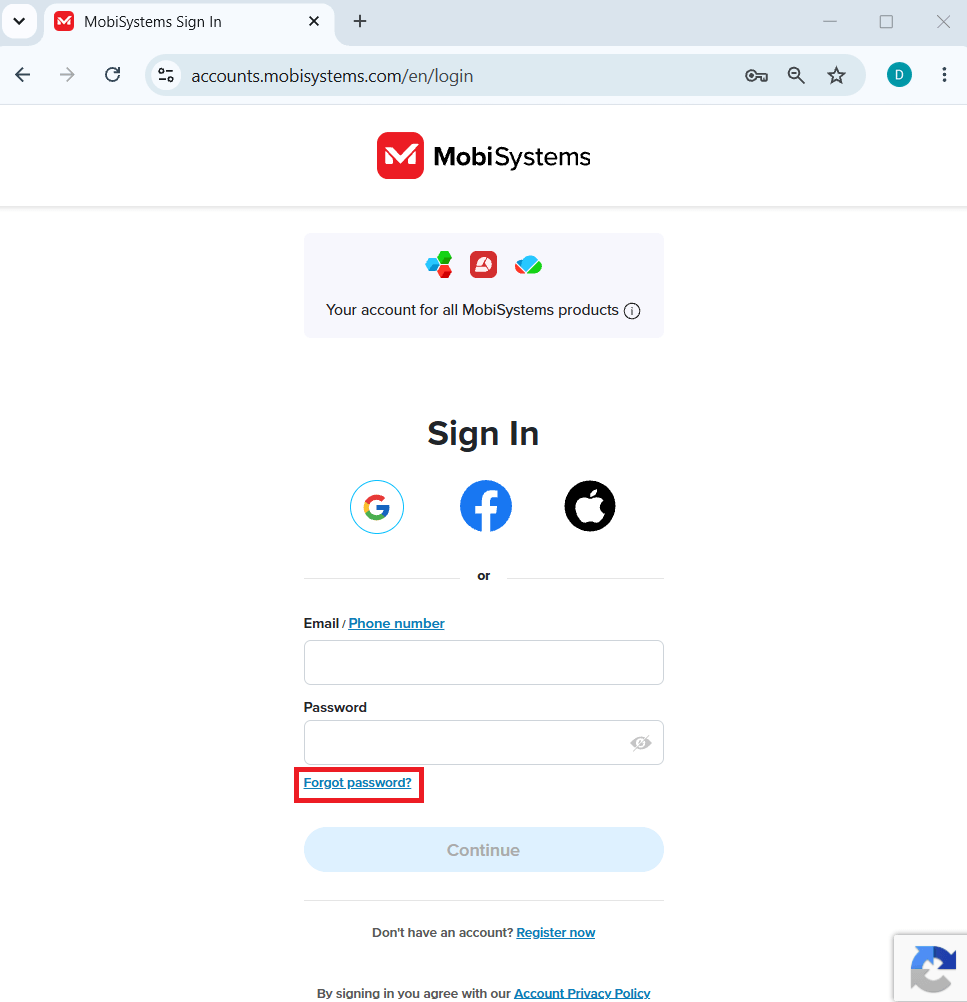
4. If you're not sure which email you used, try each of your addresses, or use Forgot password? to find the right one.
You didn't get the verification or reset email
1. Check your spam or junk folder.
2. Return to the sign-in page and click Resend verification email.
3. Add mobisystems.com to your safe senders, then request the email again.
Note: If you use a Microsoft 365 or Office 365 work email, your company's filter may quarantine MobiSystems emails. Ask your IT administrator to allow the mobisystems.com domain. See How to unblock MobiSystems emails in Microsoft 365.
Premium features don't appear after you sign in
Sign in with the same MobiSystems account you used to buy your subscription. A different email, or a different social login (for example, Google instead of Apple), is treated as a separate account with no subscription.
You've reached your device limit
Your plan allows a set number of devices. Premium covers one desktop (Windows or Mac) and up to two mobile devices. When you reach the limit, free up a slot:
1. Open My Account.
2. Go to the Subscriptions and Products section, select your product, and click View.
3. Open the Linked Devices tab.
4. Click Remove next to a device you no longer use.
The next time you sign in on a new device, MobiOffice activates your license automatically.
Your free trial won't start
Confirm your payment details were entered correctly.
Check that you received the confirmation email with your trial summary.
Make sure you were signed in to your MobiSystems account before starting the trial.
Still need help?
If the steps above don't fix the problem, MobiSystems support can help.
For Microsoft Store install errors, collect your log files first. Press Windows + R, paste %localappdata%\Packages\MobiSystems.MobiOffice_bvgb55c3tfatp\LocalCache\Local\MobiSystemsSideLoading\MobiOffice\Logs, and press Enter to open the folder. (The exact folder name can vary by install — if this path doesn't exist, search your Start menu for a MobiOffice diagnostic or repair tool, which can usually open the logs folder for you.)
Submit a request to MobiSystems support and attach the log files if you have them.
Where to go next
You've fixed your install or sign-in problem. Here's what to do next:


