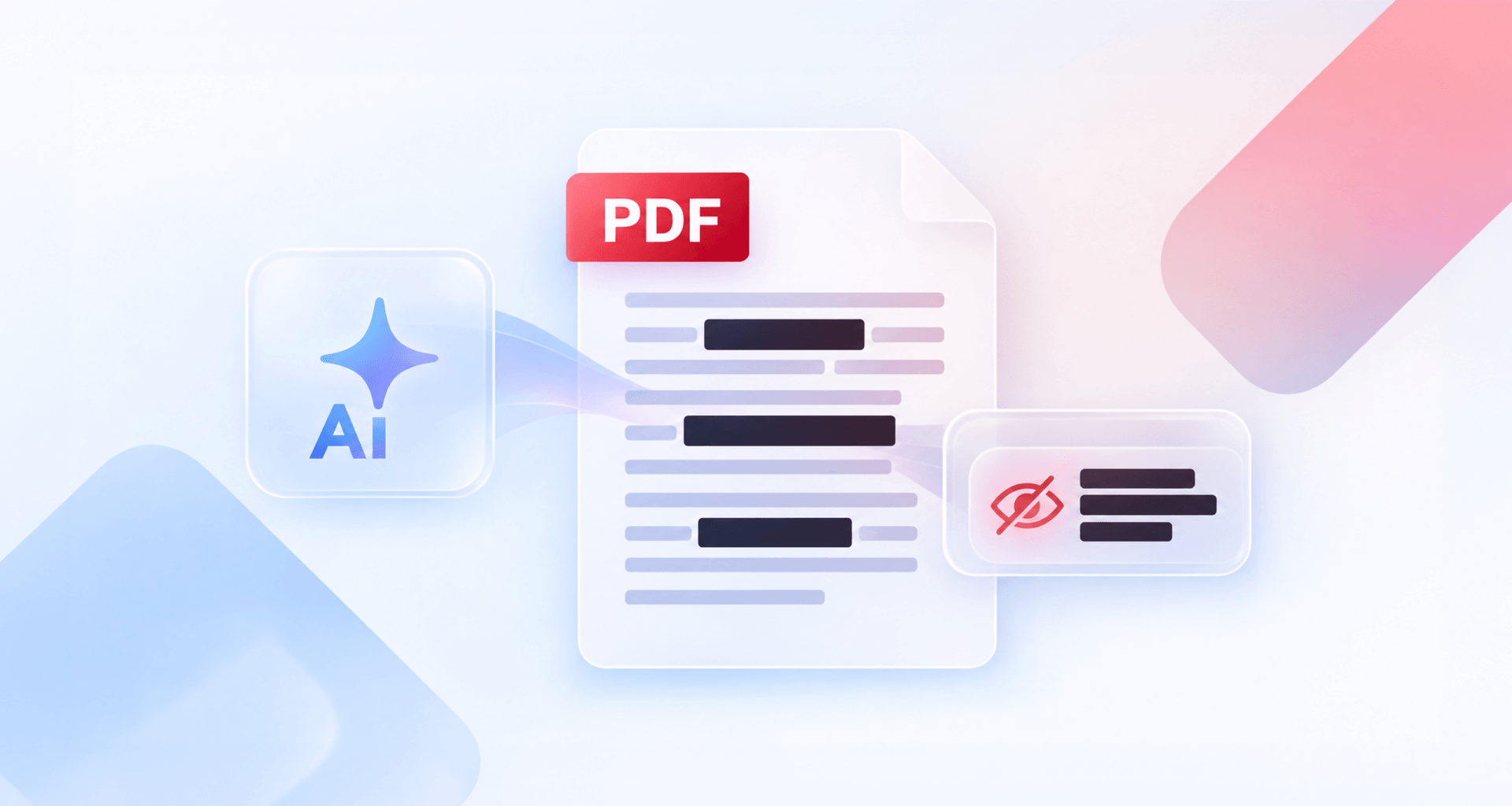
Smart Redact is MobiPDF's automatic redaction tool: it scans a PDF for personal data such as email addresses, dates of birth, card numbers and IBANs, lists every match in a side panel, and lets you mark them for removal. Applying the redaction then deletes the data permanently — not just visually.
What redaction actually means (and what it doesn't)
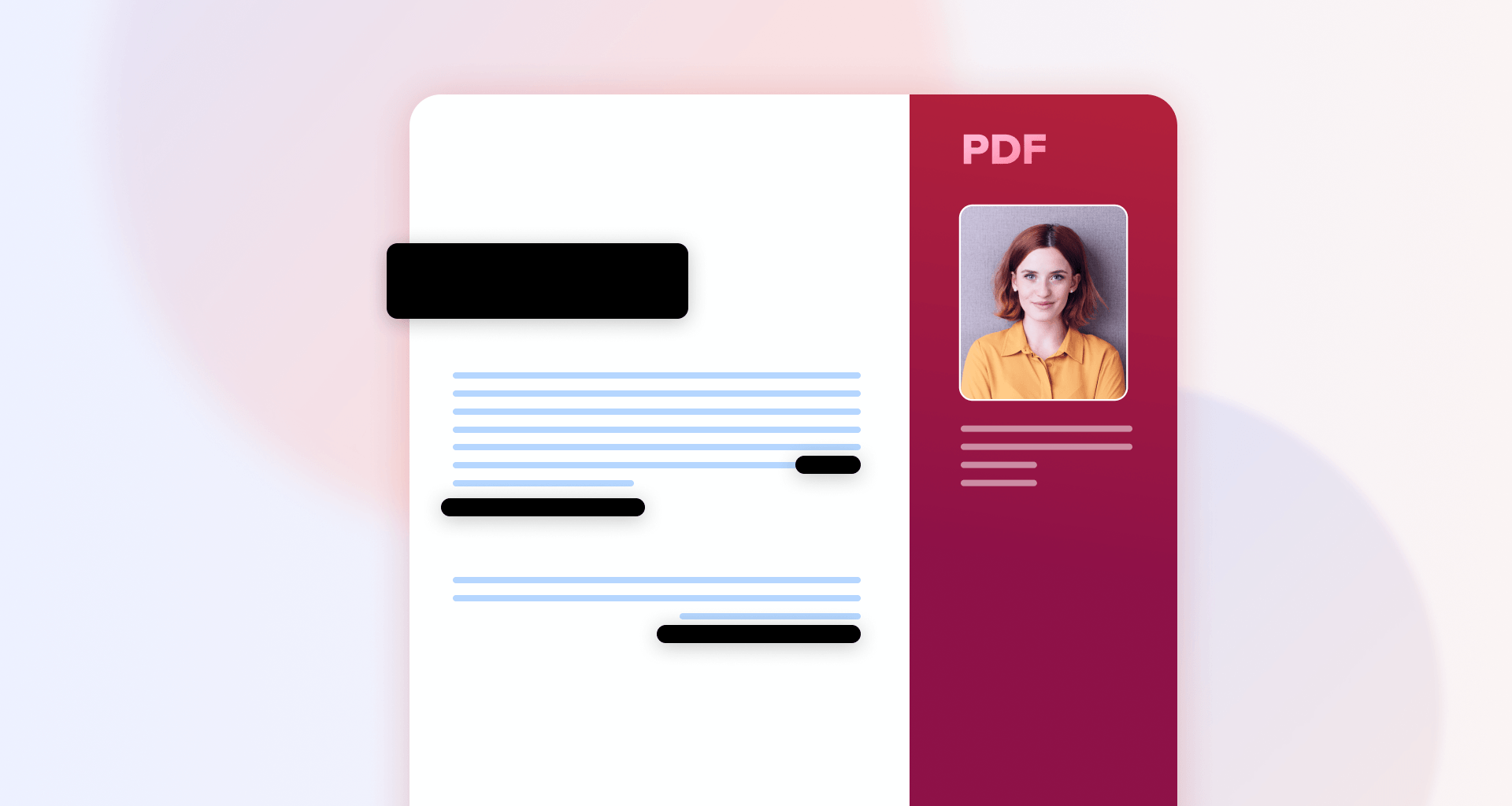
Redaction means deleting information from a document so it cannot be recovered — not covering it up. True redaction removes the underlying text, so there is nothing left to select, copy or extract.
A black rectangle drawn over text, or a highlight set to black, only changes how the page looks. The words are still in the file, and anyone who receives it can:
select the hidden text and copy it into another document
use select-all and paste the whole page into a text editor
pull the text out with a converter or a search
This happens with real documents more often than it should: a filing goes out marked as redacted, and someone copies the blacked-out passages straight into a new file.
The difference comes down to what happens to the data. A black box hides it; true redaction deletes it. For the manual, step-by-step method, our guide on how to black out and redact text covers each click. This article focuses on the automatic side: what a redaction tool can find for you before you redact a PDF.
What Smart Redact finds for you
Smart Redact scans the whole document for personal data and lists every match it finds, so you don't have to read page by page looking for it. It detects sensitive information such as:
email addresses
credit card numbers
dates of birth
phone numbers
national ID number
IBANs
The list goes beyond these three, so the scan catches more than the obvious details. Smart Redact sits in the Mark for Redaction dropdown on the Protect tab.
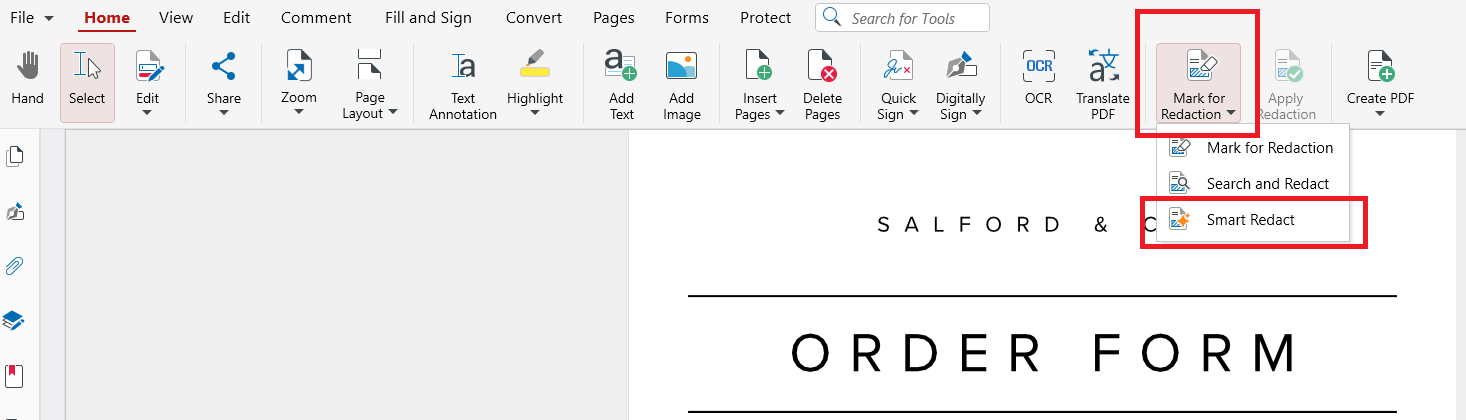
You can choose it, click Scan Document, and the findings appear in its own side panel. That gives you one place to check everything the scan caught, instead of scrolling through every page.
If you have, for example, a 14-page invoice pack going to an external auditor, with a customer email address on every page and an IBAN in each footer, reading every page for those details takes time, and one missed footer is enough to expose an account. A scan lists every occurrence in one pass, so your job becomes reviewing a list rather than hunting through pages.
Try Smart Redact as part of MobiPDF, alongside its manual redaction tools.
The three ways to mark content for redaction
MobiPDF gives you three ways to mark content: draw over it yourself, search for a specific word or phrase, or let Smart Redact scan for personal data. All three sit in the Mark for Redaction dropdown on the Protect tab, and all three only mark content — nothing is removed until you apply the redaction.
The right tool depends on what you're removing and how well you know the document. A single document often needs more than one: Smart Redact for the personal data, Search and Redact for a client name that repeats, and Mark for Redaction for a one-off passage you can see on the page.
From marked to gone: applying redaction
Redaction happens in two stages: marking, which you can reverse, and applying, which you can't. Apply Redaction permanently removes everything you've marked and puts a black box in its place, like a marker pen over printed text. It cannot be undone.

Work in this order:
Mark. Use any of the three tools to mark what should go.
Review. Check every mark on every page and remove any you don't want.
Apply. Click Apply Redaction on the Protect tab. The button stays greyed out until something is marked.
Save as a copy. A save window opens automatically after you apply the redaction. Give the file a new name, so the original survives unchanged.
Keeping the original matters. If you later find you removed too much, the unredacted version is still there to start again from — just store it where only the right people can reach it.
Once the redacted copy is ready, you can also control who opens it by password-protecting the file.
When automatic redaction earns its keep
Automatic redaction pays off when documents are long, repetitive or full of personal data — the cases where a manual read-through is most likely to miss something. Typical examples:
Contracts before sharing. A signed agreement going to a new partner may carry the other party's email addresses and bank details.
Invoices to a vendor or accountant. Payment details repeat on every page, often in footers that are easy to skim past.
CVs and applications. Candidates forwarded to a hiring panel without their personal email addresses.
Litigation bundles. Hundreds of pages from different sources, where the same credit card number or IBAN can turn up anywhere.
For a single page with one line to hide, drawing over it is quicker. Once a document runs to dozens of pages, a scan is the more reliable first pass.
Redaction mistakes that leave data readable
Most failed redactions come down to four mistakes, and each one is easy to avoid once you know it.
Drawing a black rectangle. A shape or black highlight hides text from view but leaves it in the file. Apply Redaction looks similar, but it deletes the text and leaves the black box in its place.
Redacting a copy nobody checked. Marks that were never applied, or a version saved before applying, still contain everything. Open the final file, try to select text where the redactions are, and confirm nothing is there.
Missing repeated occurrences. A name redacted on page 2 may still appear on page 19. Search and Redact finds a word or phrase and marks every occurrence in one step.
Forgetting the metadata. Apply Redaction removes content from the pages, not the document's metadata, such as the title or author. If those fields name the person or case you redacted, clear them in MobiPDF: go to File → Info, edit or delete the Title, Subject, Keywords and Author fields, click OK, then save the file. For a full walkthrough, see our guide on how to view, edit and remove PDF metadata.
Documents with form fields or comments deserve a final look too. Flattening a PDF before sending merges them into the page so they can no longer be edited.
Alternative: MobiPDF
MobiPDF, an affordable alternative to Adobe Acrobat, keeps all three redaction tools in one place: the Mark for Redaction dropdown on the Protect tab. To run Smart Redact in MobiPDF for Windows:
Open the PDF.
Go to the Protect tab and open the Mark for Redaction dropdown.
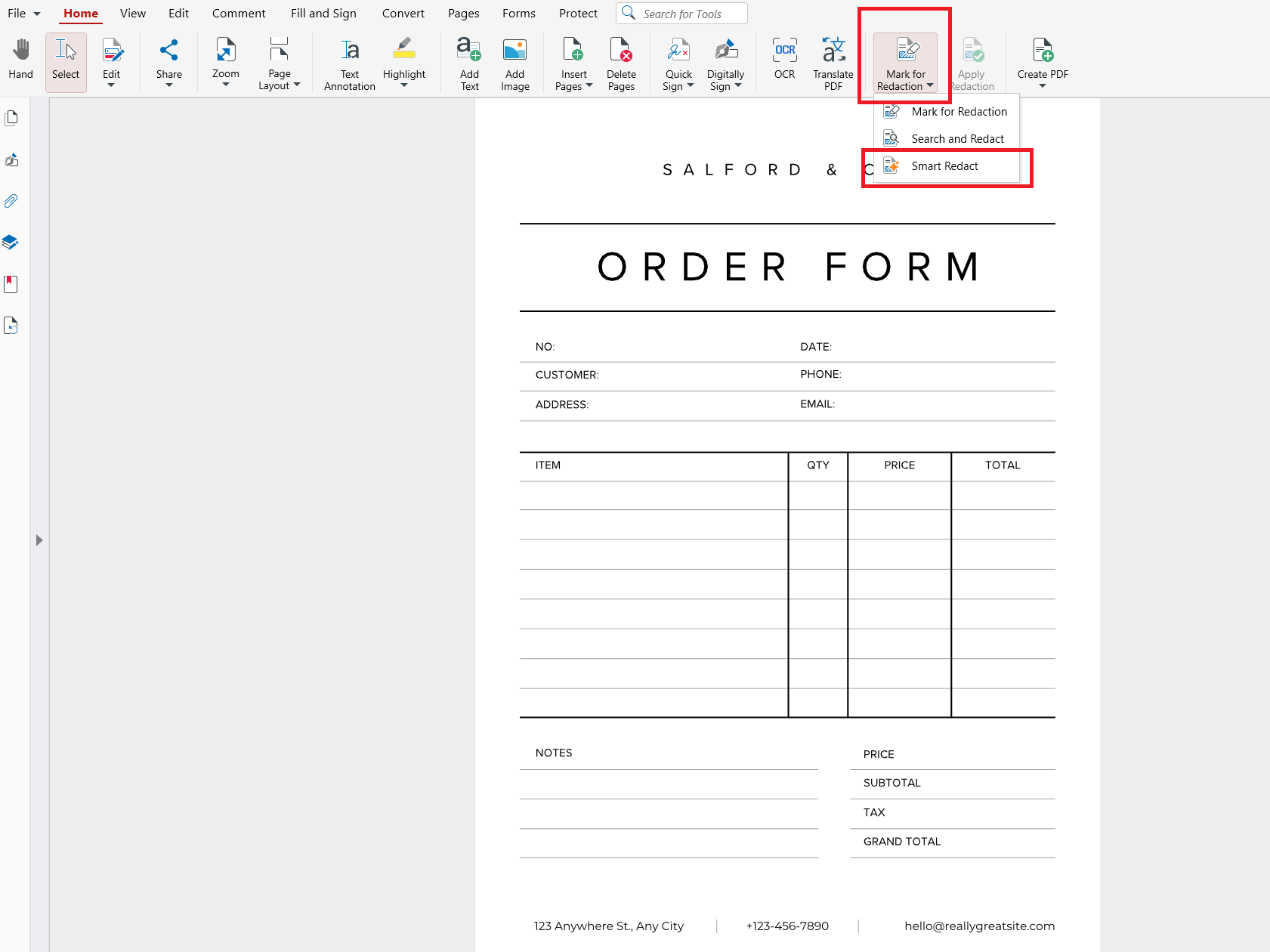
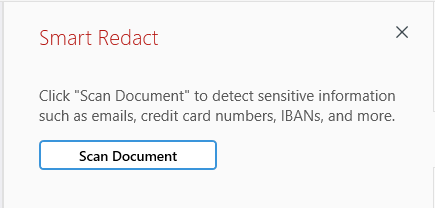
Choose Smart Redact, then click Scan Document. The findings appear in the side panel.
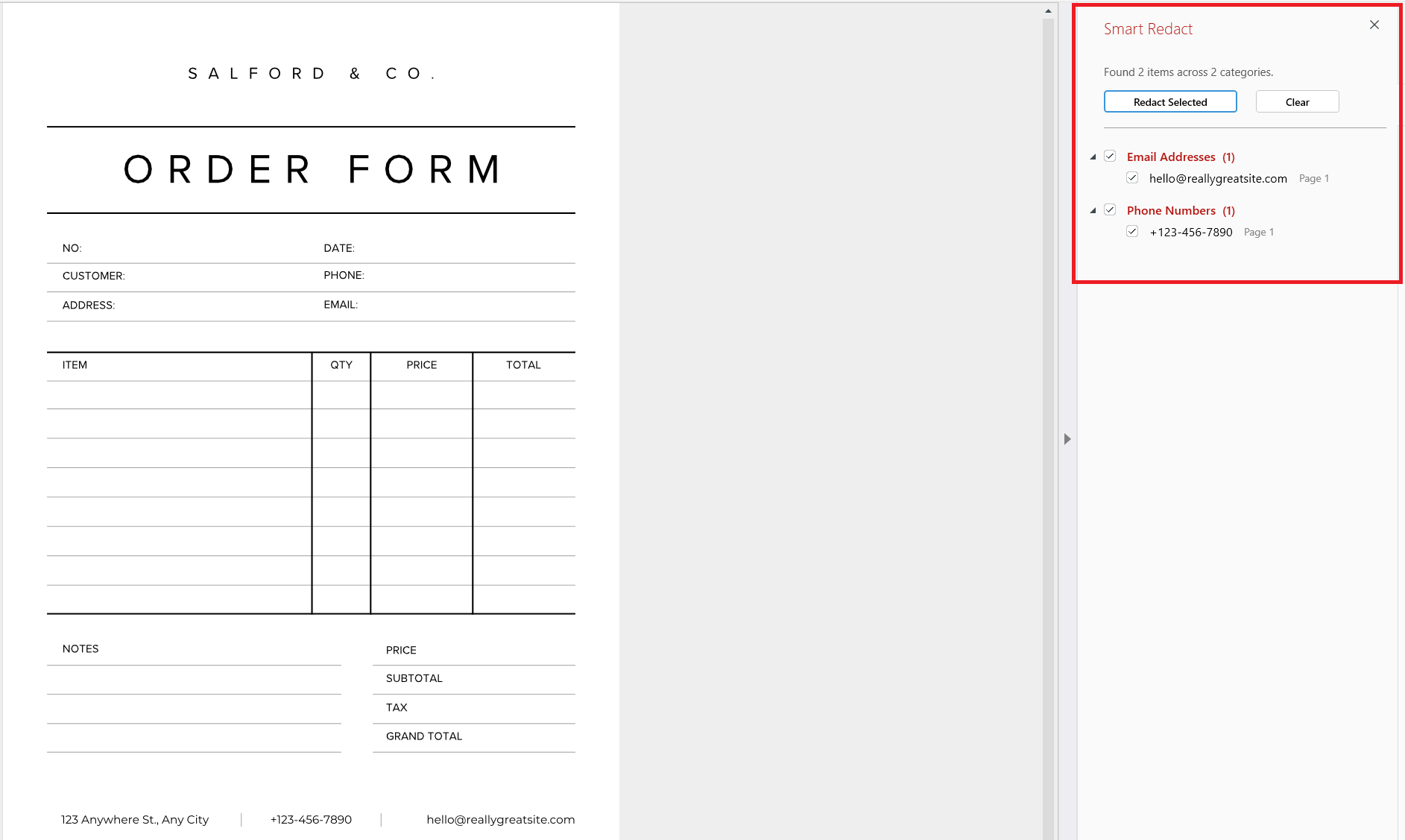
Review the list and mark the matches that should go.
Click Apply Redaction – a save window opens automatically, so you can save the redacted file under a new name.
Redaction is included in the Pro and Lifetime plans. For everything the redaction tools can do, see the Redact feature page.
Want to check your next document before it goes out? Start with MobiPDF.
Frequently asked questions
Smart Redact is MobiPDF's automatic redaction tool. It scans a PDF for personal data such as email addresses, credit card numbers and IBANs, and lists every match in a side panel. You review the list, mark what should go, and Apply Redaction deletes it permanently.
No. A black box only covers the text on screen; the text is still in the file. Anyone can select it, copy it, or use select-all and paste it elsewhere. True redaction deletes the underlying text, so there is nothing left to recover.
Smart Redact detects sensitive information such as email addresses, credit card numbers, IBANs, and more. For anything specific to your document, such as a name or a case number, use Search and Redact to find every occurrence of a word or phrase and mark them all at once.
You can undo marking, but not applying. Marks can be removed at any time before you click Apply Redaction. Once applied, the content is permanently removed from that file, so save the redacted version under a new name and keep the original.
Yes. Smart Redact detects personal data on scanned pages too, so you can run it on a scanned PDF the same way as on any other document. Review the matches in the side panel, mark what should go, and apply the redaction.
No. MobiPDF's pricing page lists redaction in the Pro and Lifetime plans, not in Free. If you need to remove personal data permanently, both paid plans include it.
Final thoughts
Redaction only works when the data is gone and blacked out for good. Smart Redact makes the finding part faster by listing the email addresses, credit card numbers, IBANs and other personal data it finds in one panel, while you stay in charge of what gets marked. Mark, review, apply, then save a copy — and the document you share holds only what you meant to share.
Ready to try automatic redaction on your next document?