
This article was updated on April 20, 2026
You can password protect a PDF by opening it in MobiPDF, applying security settings, and confirming your protection choices in just a few clicks. Start by opening your document with MobiPDF, then click Protect to access the security options. From there, set a password, choose the level of encryption, and define user permissions such as viewing, editing, or printing restrictions. Once everything is configured, click OK to confirm your changes and secure the PDF across devices.
This guide explains how PDF protection works, how to apply it step by step, and why MobiPDF offers a consistent and reliable solution for password security, encryption, and user permissions control.
Key takeaways
Password protection helps keep PDFs private by controlling who can open, view, or modify the file.
Strong PDF encryption, such as AES-256, protects document contents from unauthorized access, even when files are shared.
Clear, step-by-step PDF protection workflows reduce errors and ensure consistent, reliable security results.
What PDF password protection does
Password protection prevents unauthorized users from opening a PDF and allows you to set limits on actions such as printing, editing, or copying.
These controls work best alongside encryption, which adds a secure lock to your PDF and requires a password before the file can be opened. This extra layer of protection helps keep the document unchanged and private while it’s stored or shared. It’s especially useful for PDFs such as:
Contracts and legal agreements
Business and financial documents
Internal company files
Reports and presentations
Any PDFs containing confidential or sensitive information
How to password protect a PDF file step by step with MobiPDF
MobiPDF makes PDF security straightforward, so you can protect your files without second-guessing the settings. The clear workflow helps you apply the same level of protection every time, whether you’re securing one document or dozens.
Steps to protect a PDF using MobiPDF:
Open MobiPDF and upload the PDF.
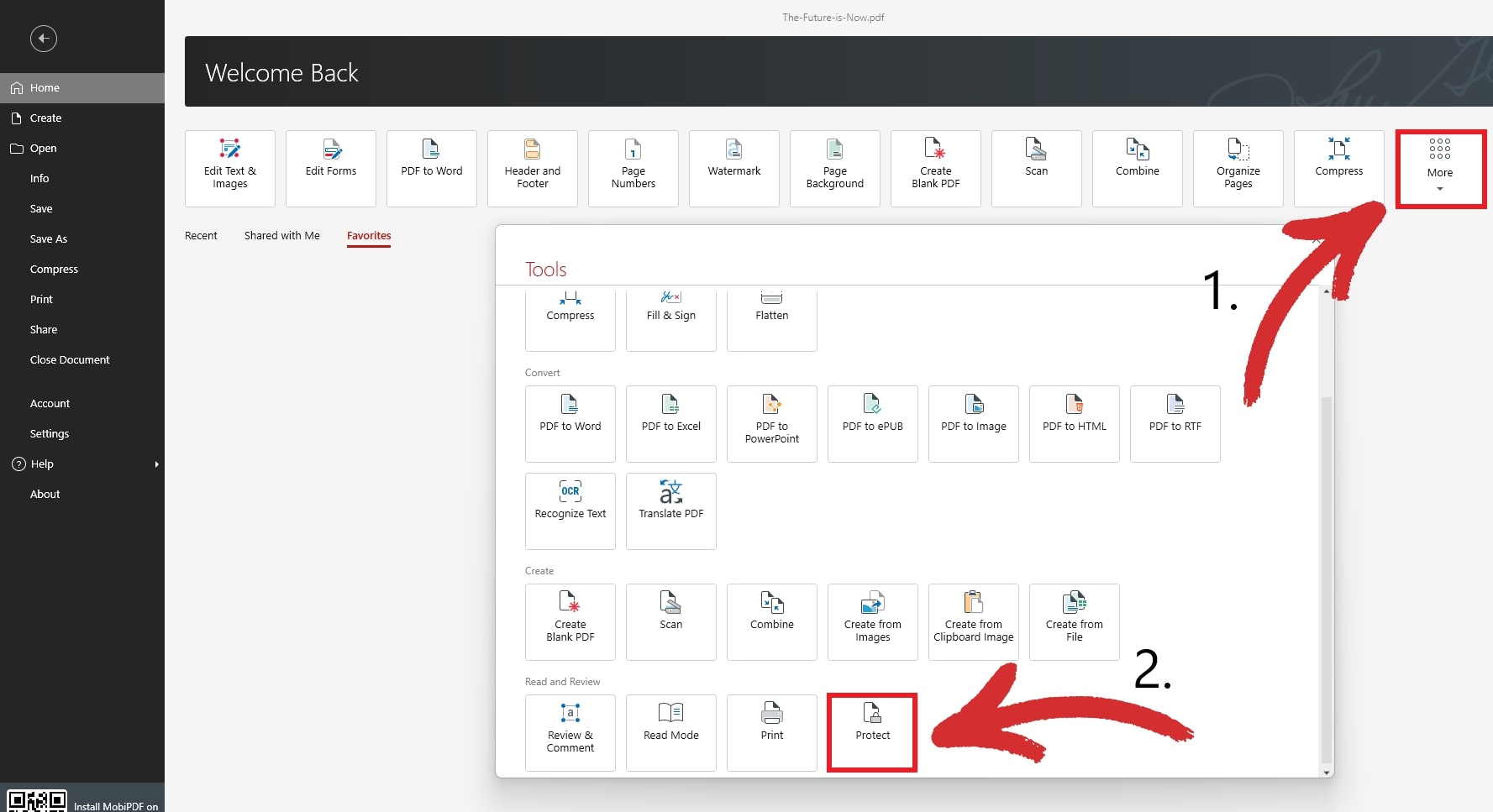
Open the protection panel and enable password security.
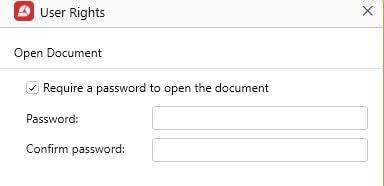
Create a strong, unique password.
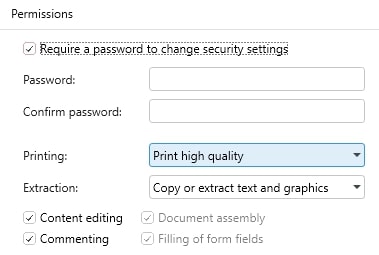
Add restrictions like blocking editing or printing.
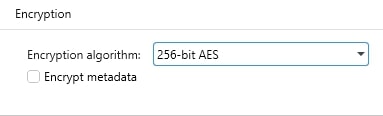
Select an encryption level such as AES-256.
Save the secured file.
TIP: You can also add a password to your PDF by opening your document and clicking Password Protect under the Protect tab.

How to password protect a signed PDF
You can password protect a signed PDF by first completing and saving the signature, then applying password security and restrictions afterward. This order matters because adding protection too early can interfere with the signing process or invalidate the signature. By securing the document after it’s signed, MobiPDF preserves the signature’s integrity while adding encryption and access controls to keep the file protected.
Steps to protect a signed PDF:
Sign the document using MobiPDF.
Open the signed PDF.
Enable password protection.
Select the encryption method.
Add restrictions to control editing or printing.
Save the protected file.
This method keeps legal and compliance documents valid and secure.
How to encrypt a PDF
Encryption turns readable content into protected data that requires a password to unlock. Strong encryption prevents unauthorized access, even if the file is shared accidentally. MobiPDF applies reliable, modern algorithms across all devices.
To encrypt a PDF with MobiPDF:
Open your PDF into MobiPDF.
Click Protect and then Password Protect.
Use the pop-up screen to create a password.
Add restrictions if necessary.
Click OK and save the file.
Encryption is essential for long-term storage, sensitive data, and secure communication.
How to lock a PDF
Locking a PDF restricts what users can do after opening the file. This is useful for templates, finalized documents, or information that must not be altered.
Actions you can restrict:
Editing & commenting
Copying
Document assembly
Printing
Extracting content
Modifying form fields
To lock a PDF with MobiPDF:
Open the PDF in MobiPDF.
Go to Protect → Password Protect
Change the permissions from the pop-up window.
Combine restrictions with encryption.
Save the protected file.
This ensures consistent document behavior in all PDF readers.
Frequently asked questions
What makes a strong PDF password?
A strong password is long, unique, and unpredictable. Use mixed characters and avoid personal information or simple patterns.
Can I remove or change the password later?
Yes. If you know the current password, MobiPDF allows safe updates or removal without damaging the file.
Does locking a PDF prevent screenshots?
No. Restrictions block editing, copying, and printing, but screenshots depend on the device’s operating system.
Is AES-256 necessary for all PDFs?
Not always, but it is ideal for sensitive, confidential, or long-term documents.
Conclusion
Password protection and encryption help ensure that documents stay private, accurate, and secure. Weak or inconsistent tools may leave sensitive information exposed. MobiPDF offers a unified workflow for encrypting, locking, and managing PDFs across devices. By following the methods outlined in this guide, you can confidently protect important files and maintain full control over how they are shared and accessed.