This article was updated on Jan 20, 2026
Compressing a PDF in MobiPDF happens easy: open your file, go to Edit and click on Compress, then choose your preferred quality level, and save the optimized version to reduce file size instantly.
Reducing the size of a PDF is essential when preparing documents for email delivery, online submissions or cloud storage workflows. Large files can slow down collaboration, exceed platform limits, and create unnecessary friction in everyday tasks.
This guide explains how PDF compression works, how to apply it and how MobiPDF provides a workflow on both desktop and web.
Key takeaways
PDF compression reduces file size without changing layout or readability.
Image optimization is the most impactful factor for shrinking PDFs.
Compressing PDFs prevents quality loss and formatting issues.
What PDF compression does
PDF compression reduces the overall file size by optimizing embedded images, removing unnecessary metadata, and eliminating redundant structural elements. This makes documents easier to share, upload, and store while preserving layout and readability. It is especially effective for scanned documents, image heavy files, and professional materials that must remain compact without losing clarity.
How to compress a PDF file step by step with MobiPDF
To compress a PDF in MobiPDF, open your document and use the workflow below to shrink the file without losing quality.
Steps to compress a PDF using MobiPDF:
Open your pdf in MobiPDF.
Go to Home → Compress.
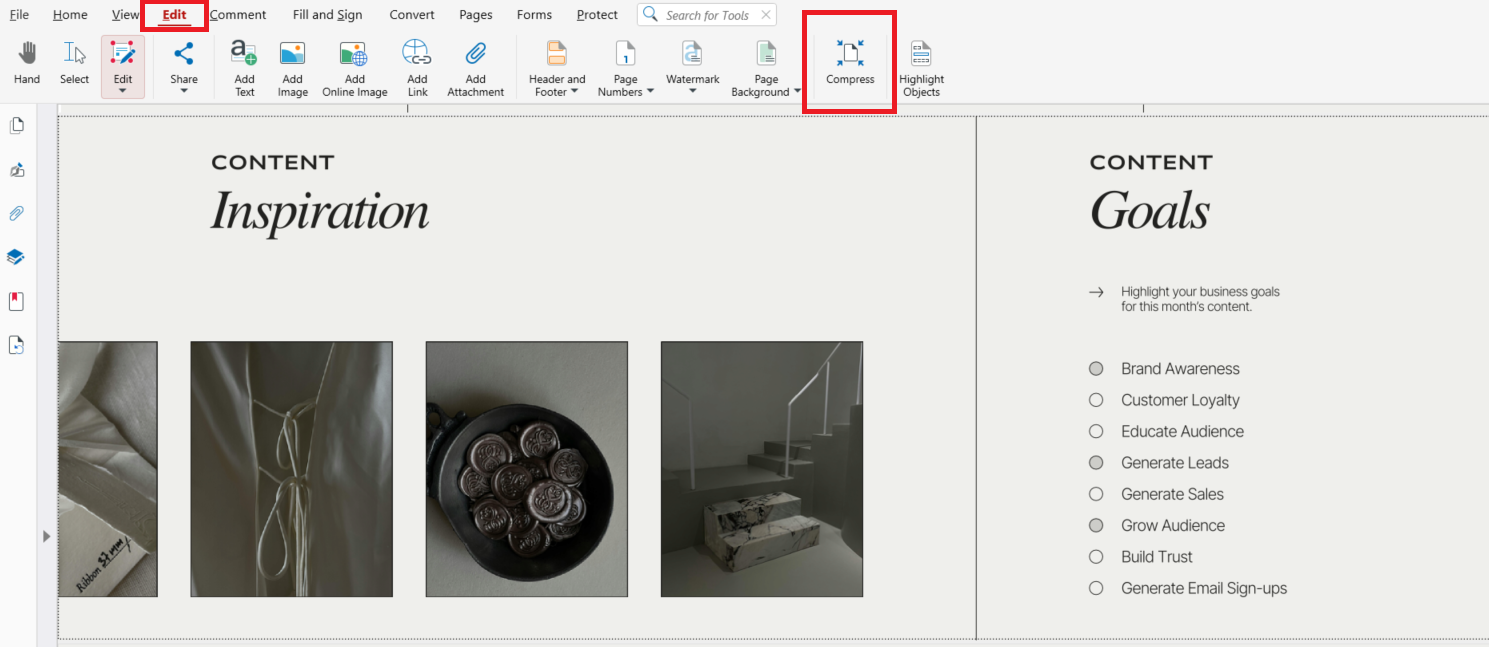
Alternatively, you can use Edit → Compress in the main ribbon.
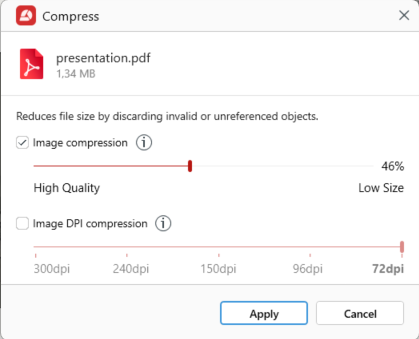
Select your preferences by choosing the percentage of image compression and image DPI compression, then click Apply.
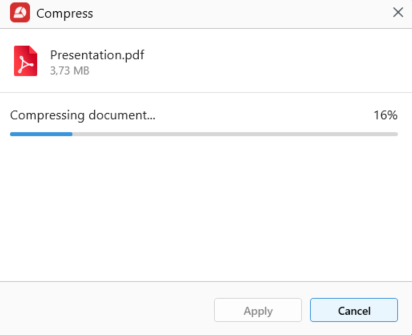
Save your compressed file in a location of your choosing.
Tip: You can sync all your files to MobiDrive and use them wherever you are.
This workflow is reliable for heavy PDFs and repeated optimization tasks.
How to compress a large PDF
To compress a large PDF in MobiPDF, use stronger compression levels and image optimization to reduce file size while keeping the document clear and usable.
Large PDFs often contain high-resolution images, layered graphics, or scanned pages that benefit from more advanced optimization. MobiPDF applies adaptive processing to shrink these files without losing essential detail.
This method works well for proposals, scans, architectural plans and image heavy files.
How compression works internally
MobiPDF uses several coordinated techniques to reduce size while preserving document quality:
Image downsampling
Vector simplification
Metadata removal
Stream optimization
Redundant object cleanup
These processes target unnecessary data without altering document layout.
How to reduce PDF size without losing quality
To reduce PDF size without losing quality, adjust compression settings to optimize images while keeping text and vector elements untouched. MobiPDF maintains clarity by applying targeted compression that lowers file size without affecting readability.
Best practices:
Use 120 to 150 DPI for online documents.
Keep an original uncompressed copy for editing or archiving.
Avoid compressing the same file multiple times.
Use vector graphics whenever possible.
Apply strong compression only when required.
Frequently asked questions
Why is my PDF file so large?
PDFs often become large because they contain high resolution images, scanned pages saved at excessive DPI, embedded fonts or unused layers.
Does compression reduce image quality?
Compression may reduce image clarity only when aggressive settings are used. Medium compression preserves readability while still shrinking size effectively.
Will a compressed PDF still print well?
A compressed PDF will print correctly if DPI settings remain within recommended levels. For print output, images should remain between 200 and 300 DPI.
Can I restore the original size after compression?
You cannot fully restore the original size because compression removes or downscales data permanently.
Conclusion
PDF compression is essential for efficient digital workflows. Many tools create quality loss or fail to reduce size effectively, but MobiPDF offers a unified solution that balances file size reduction with visual clarity. By following this guide, you can shrink PDFs, optimize images and handle large or heavy documents confidently.