
This article was updated on March 6, 2026
To make a good presentation, open strong, structure your ideas logically, use visuals that enhance your message, and practice until you can deliver naturally without reading from slides.
This practical guide lets you in on the elements of a good presentation and shows you the techniques and suggests tools that you need. You’ll also lean how tools like MobiSlides can help you create good presentations quickly.
What makes a good presentation?
A good presentation combines clear messaging, engaging delivery, and visual design that supports your story. It respects your audience's time, addresses their needs, and leaves them with actionable insights.
Three elements separate good presentations from mediocre ones: purposeful content that directly addresses audience needs, visual clarity that makes information easy to process, and authentic delivery that builds trust and connection.
How to make a good presentation step by step
Making a good presentation requires planning your content, designing clear slides, and practicing your delivery. Start by defining your core message, then build a structure that guides your audience without overwhelming them.
Define your objective and audience
Clarify what you want to achieve before opening your presentation software. Research your audience's background, knowledge level, and expectations to ensure your message resonates.
Outline your main points
Identify three to five key points that support your objective. Organize them logically using problem-solution, chronological order, or comparison-contrast structures.
Create an engaging opening
Start with a compelling hook—a surprising statistic, question, story, or bold statement. Clearly state what audiences will learn and why it matters.
Design slides that support your message
Use slides to visualize concepts, not replace your speaking. Each slide should contain one main idea with minimal text. Choose a clean template and maintain consistency.
Add visuals strategically
Use high-quality images, charts, and graphics to illustrate data or show examples. Every visual should support your narrative.
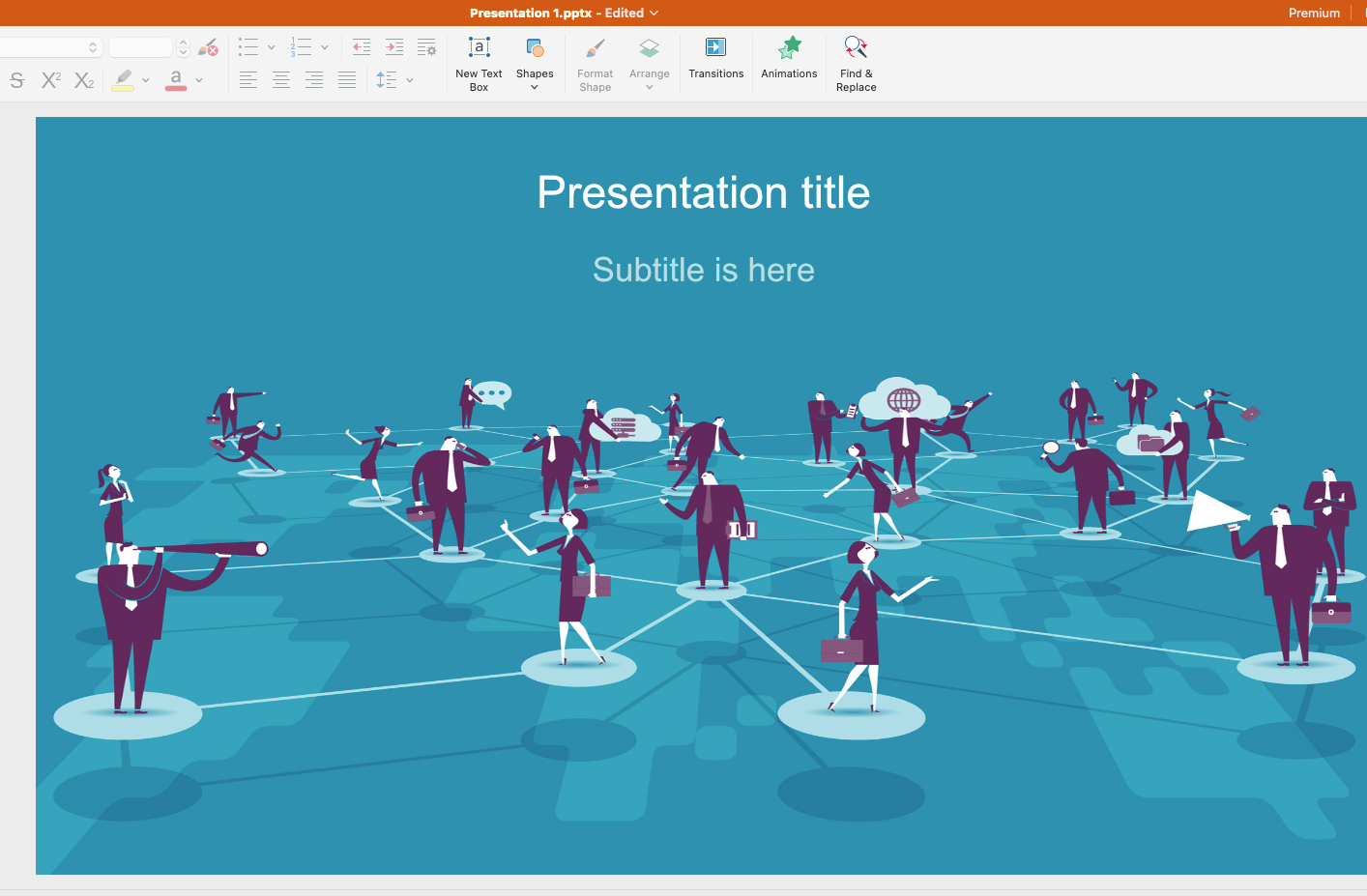
Craft a strong conclusion
End with a clear summary and memorable takeaway. Strong conclusions include a call to action, question, or inspiring statement.
Practice your delivery
Rehearse multiple times to refine timing and build confidence. Know your content well enough to present without reading slides.
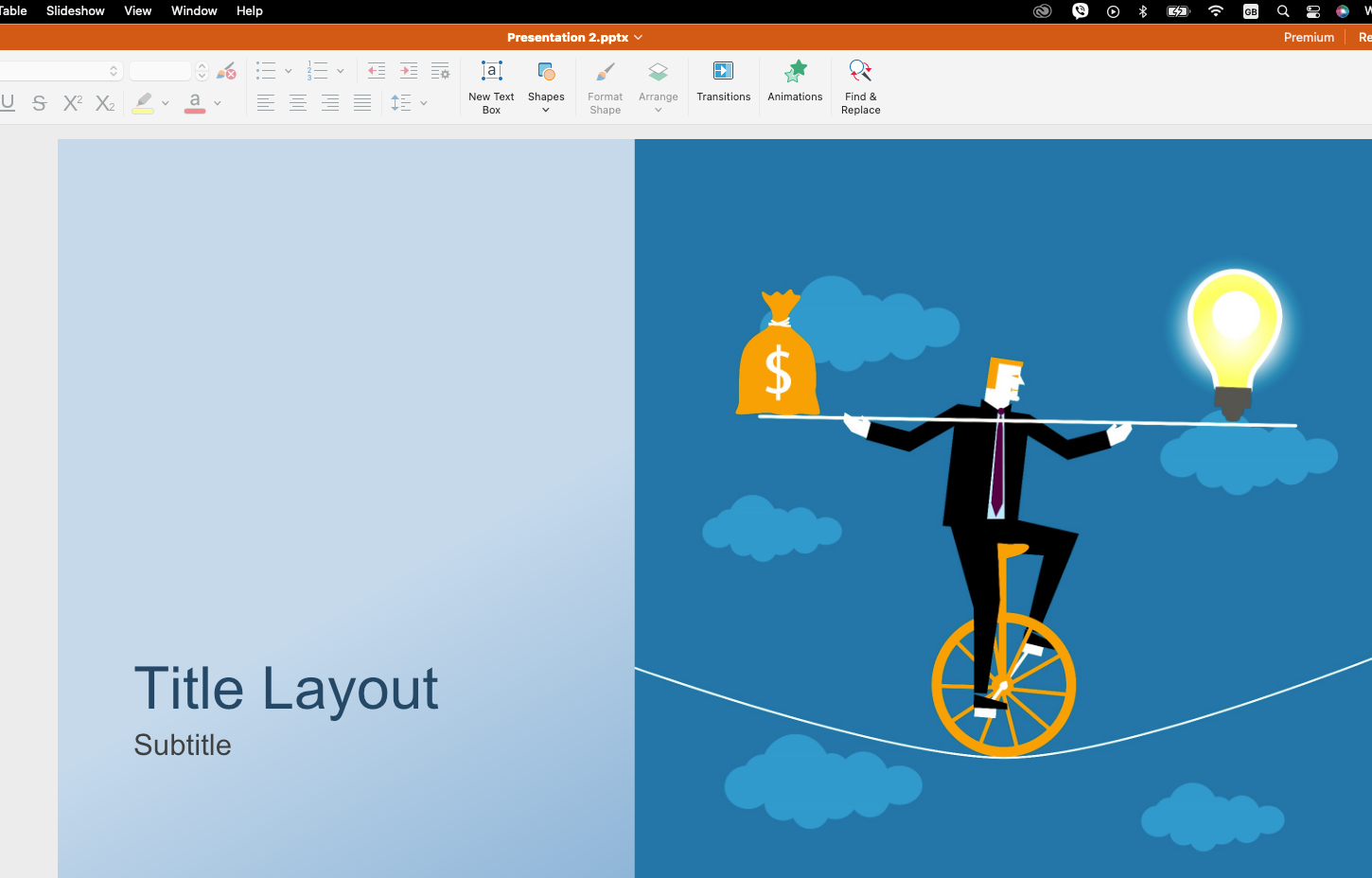
How to start a presentation so people pay attention
To start effectively, grab attention in the first 30 seconds with a hook, then clearly state what audiences will learn. Skip lengthy introductions and dive straight into valuable content.
Use a compelling question
Open with a question about their experiences: "How many of you have sat through a presentation that felt like a waste of time?" This creates immediate engagement.
Share a surprising statistic
Lead with data that challenges assumptions: "67% of professionals say they've made decisions based on poorly structured presentations." This establishes relevance instantly.
Tell a relevant story
Start with a brief anecdote that illustrates your topic. Stories create emotional connections and make concepts concrete. Keep it under 60 seconds.
Want to start building presentations quickly and easily on any device?
Presentation techniques that improve clarity and impact
Effective techniques include the 10-20-30 rule for slide count and timing, visual hierarchy to guide attention, and strategic pauses. These proven methods keep audiences engaged.
The 10-20-30 rule: Use no more than 10 slides, present for no longer than 20 minutes, and use at least 30-point font.
The 5-5-5 rule: No more than 5 bullet points per slide, 5 words per bullet, and no slide stays up longer than 5 seconds without you saying something new.
The 1-6-6 rule: One idea per slide, maximum six bullet points, maximum six words per bullet.
The 7-7-7 rule: No more than 7 lines of text, 7 words per line, or 7 text-heavy slides in a row.
The 10-second rule: Each slide should make sense within 10 seconds. If audiences need longer, it contains too much information.
What makes a presentation high quality
A quality presentation delivers clear value through well-researched content, professional design, and polished delivery. It balances information with engagement, using visuals to enhance understanding.
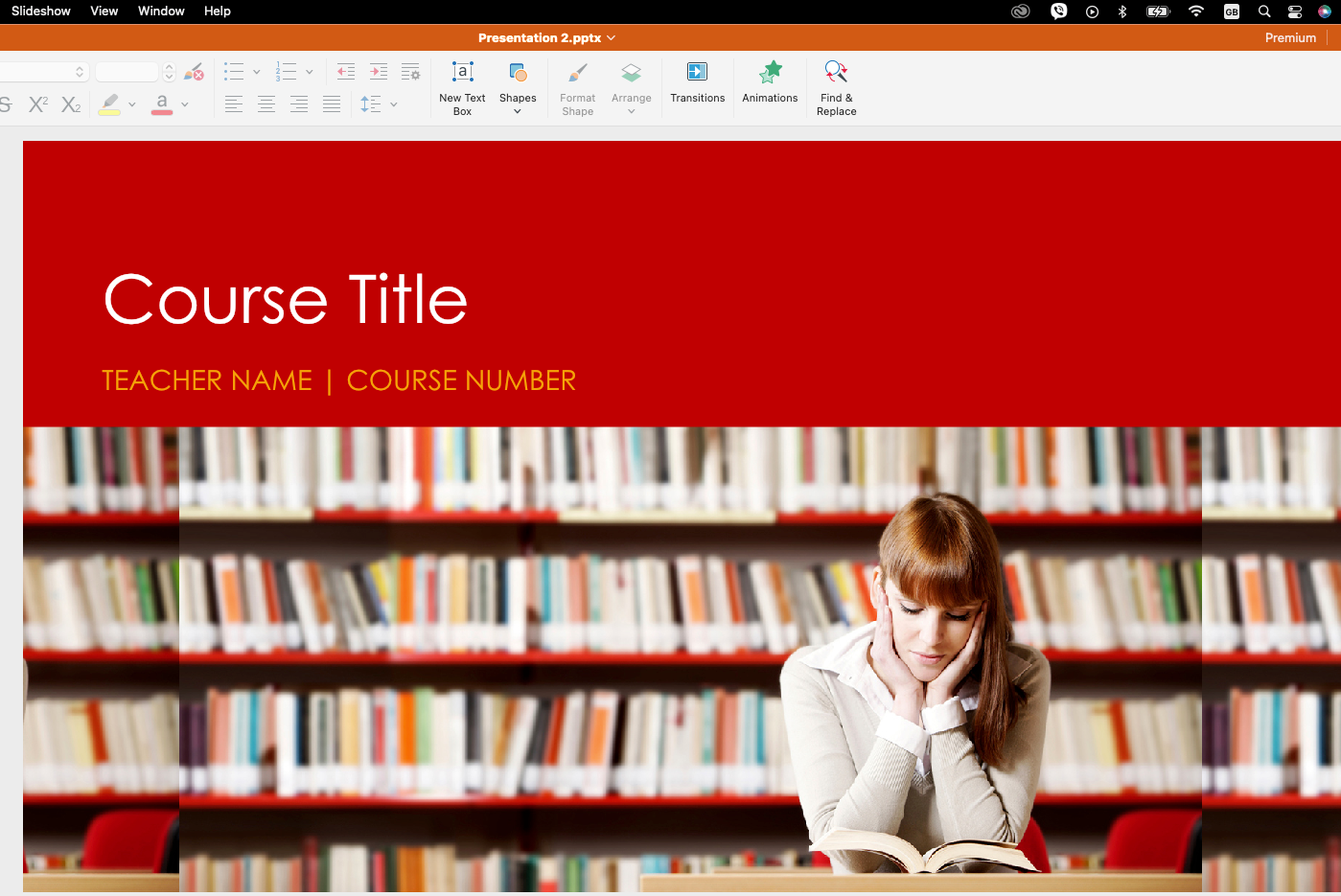
Quality presentations have clear, focused messaging where every element supports your core message; professional visual design with consistent formatting; relevant, accurate content using current data; engaging delivery with eye contact and enthusiasm; and appropriate length that respects audience time.
Common presentation mistakes and how to avoid them
Common mistakes include overloaded slides, reading directly from slides, weak openings, and poor time management. Avoiding these pitfalls dramatically improves presentation quality.
Overloaded slides: Cramming too much text creates visual clutter. Solution: Follow one-idea-per-slide principle and break complex information across multiple slides.
Reading from slides: Reading word-for-word disengages audiences. Solution: Use slides as visual prompts and know your content well enough to expand conversationally.
Weak openings: Starting with "Hi, my name is..." wastes critical attention time. Solution: Open with a hook that creates immediate interest.
Poor time management: Running over disrupts schedules. Solution: Rehearse with a timer and build in buffer time for questions.
How to create a presentation with MobiSlides
Designing your visually stunning PowerPoint presentation is about effectively communicating your ideas. With tools like PowerPoint and alternatives like MobiSlides, you can design presentations that are both professional and engaging.
Follow these steps to creating an exceptional presentation.
Open MobiSlides, then go to File → New.
Select a Blank Document for complete creative control or choose from a variety of ready-made templates designed for business, education, and creative projects.
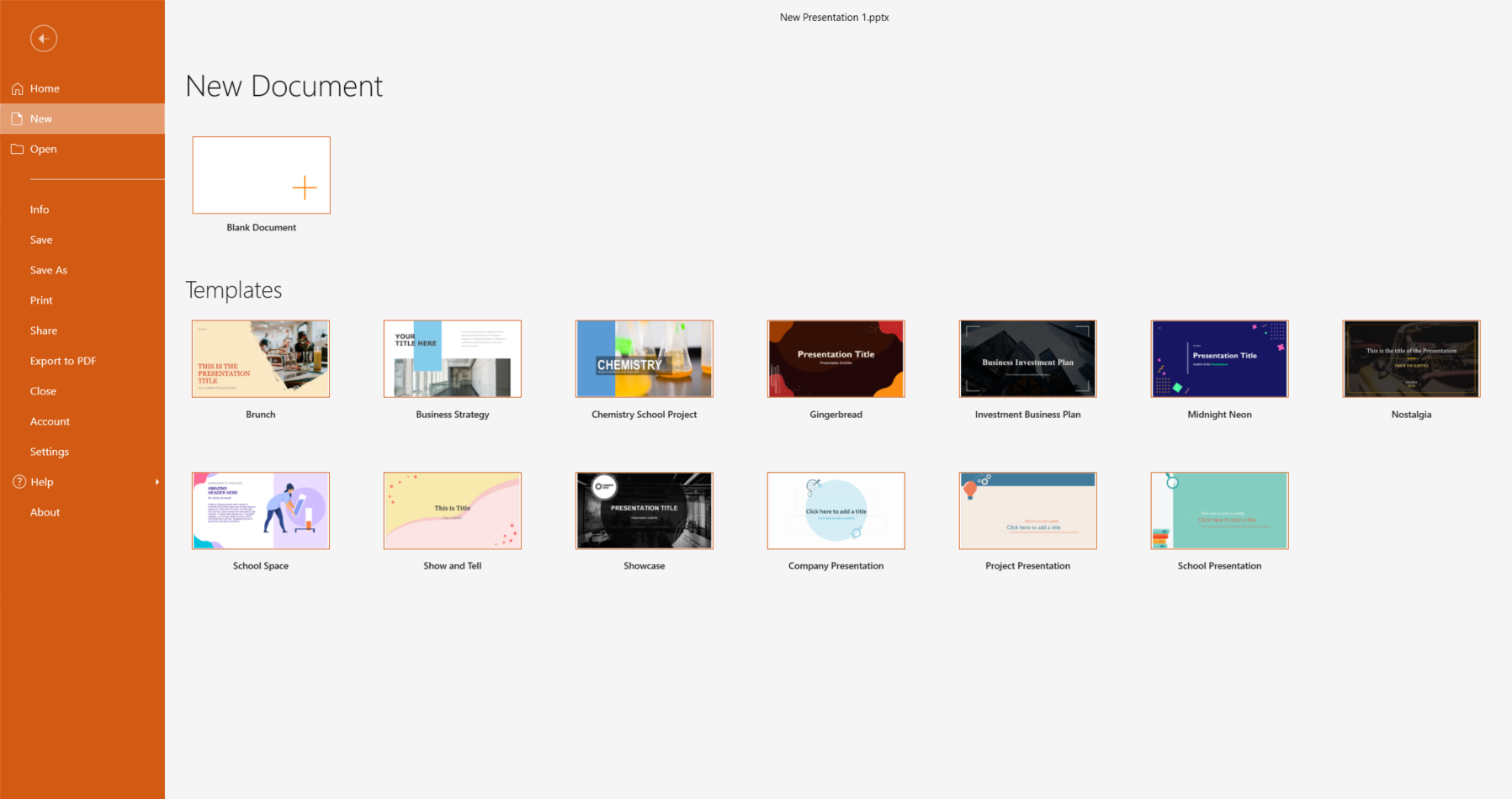
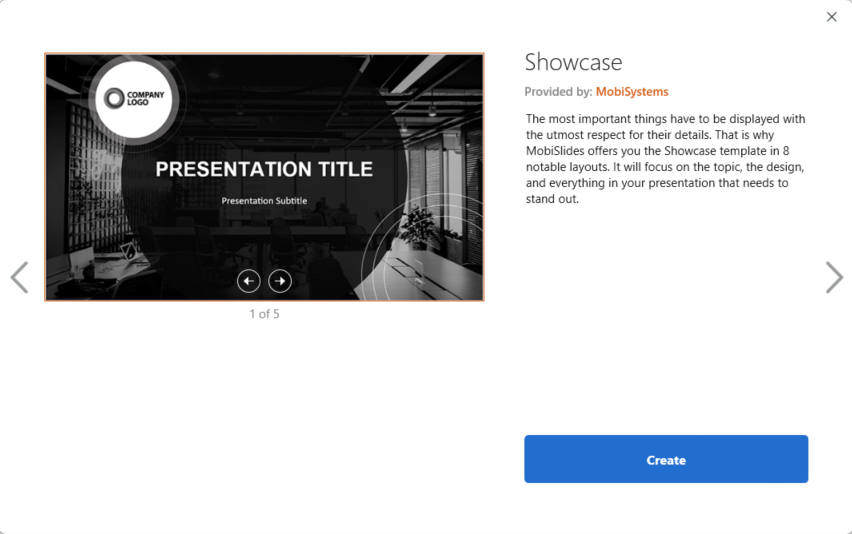
Once you pick a template, click Create to open the template. Each template comes with a pre-built structure, making it easy to jump straight into content without worrying about layout.
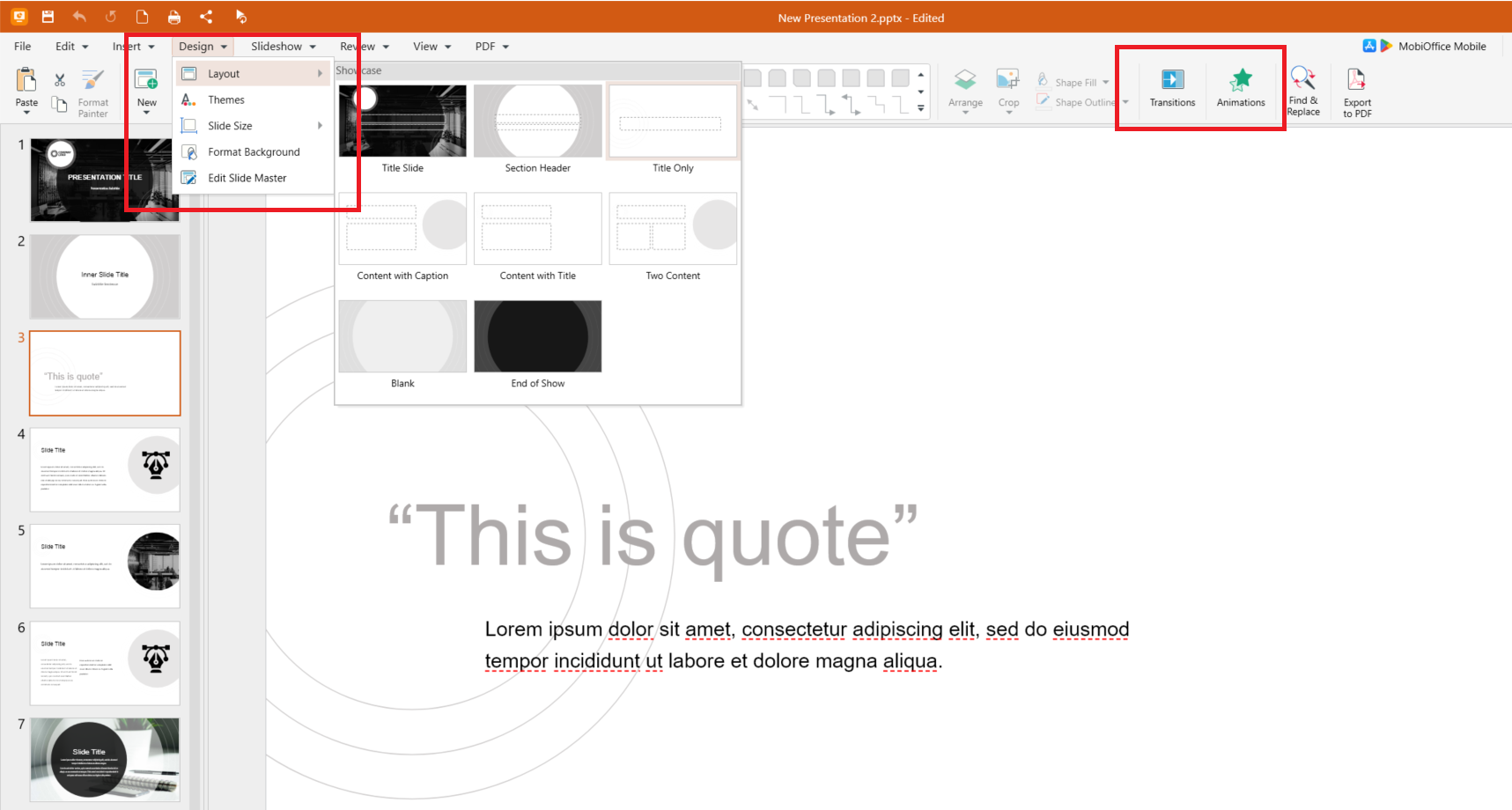
Use the main ribbon to shape your presentation’s look and feel. Go to Design to adjust themes and layouts, then add Transitions and Animations to guide your audience smoothly between slides.
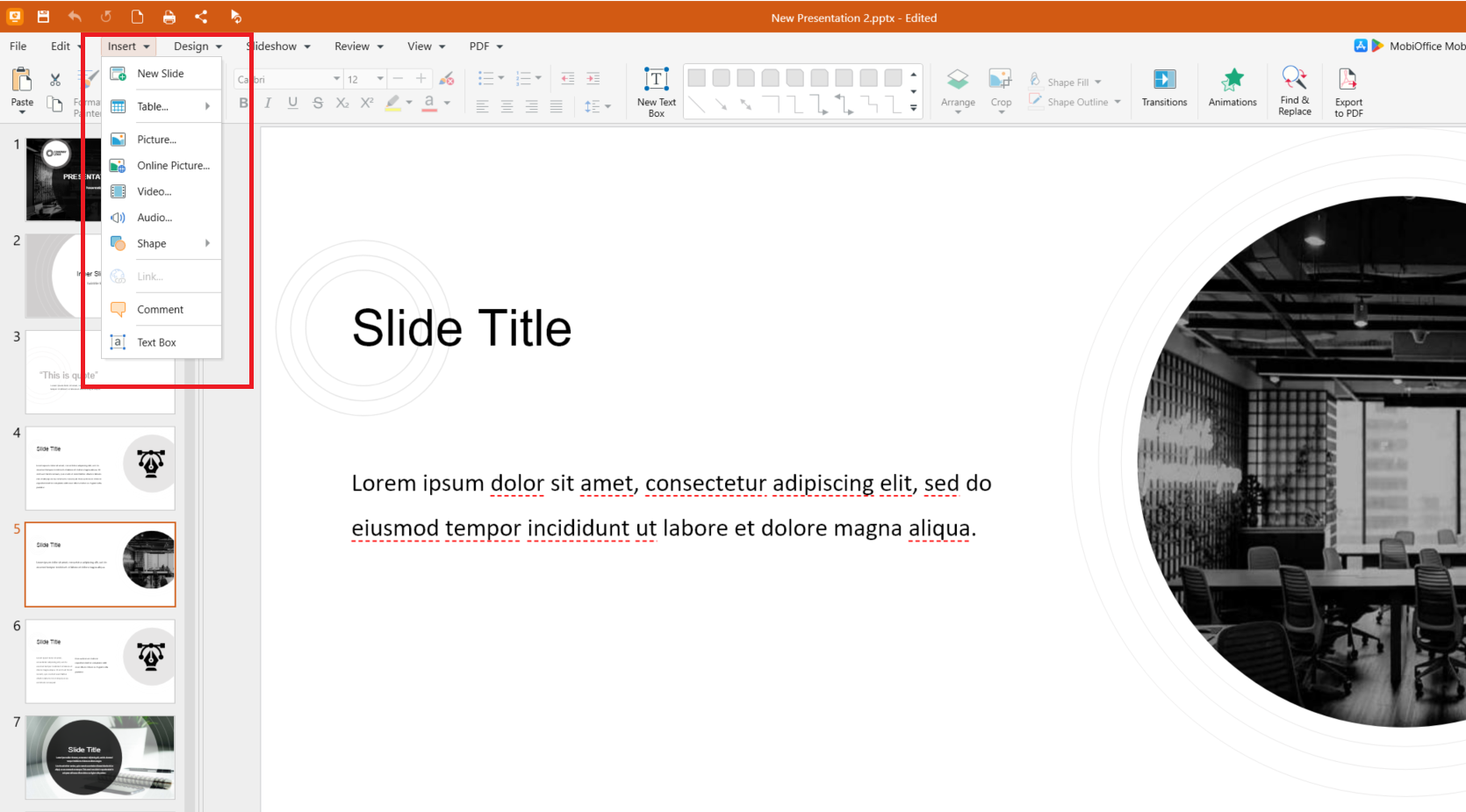
Go to Insert to add images, tables, videos, audio, shapes, comments, or text boxes to support your message. Each element helps bring your ideas to life and keeps audiences engaged.
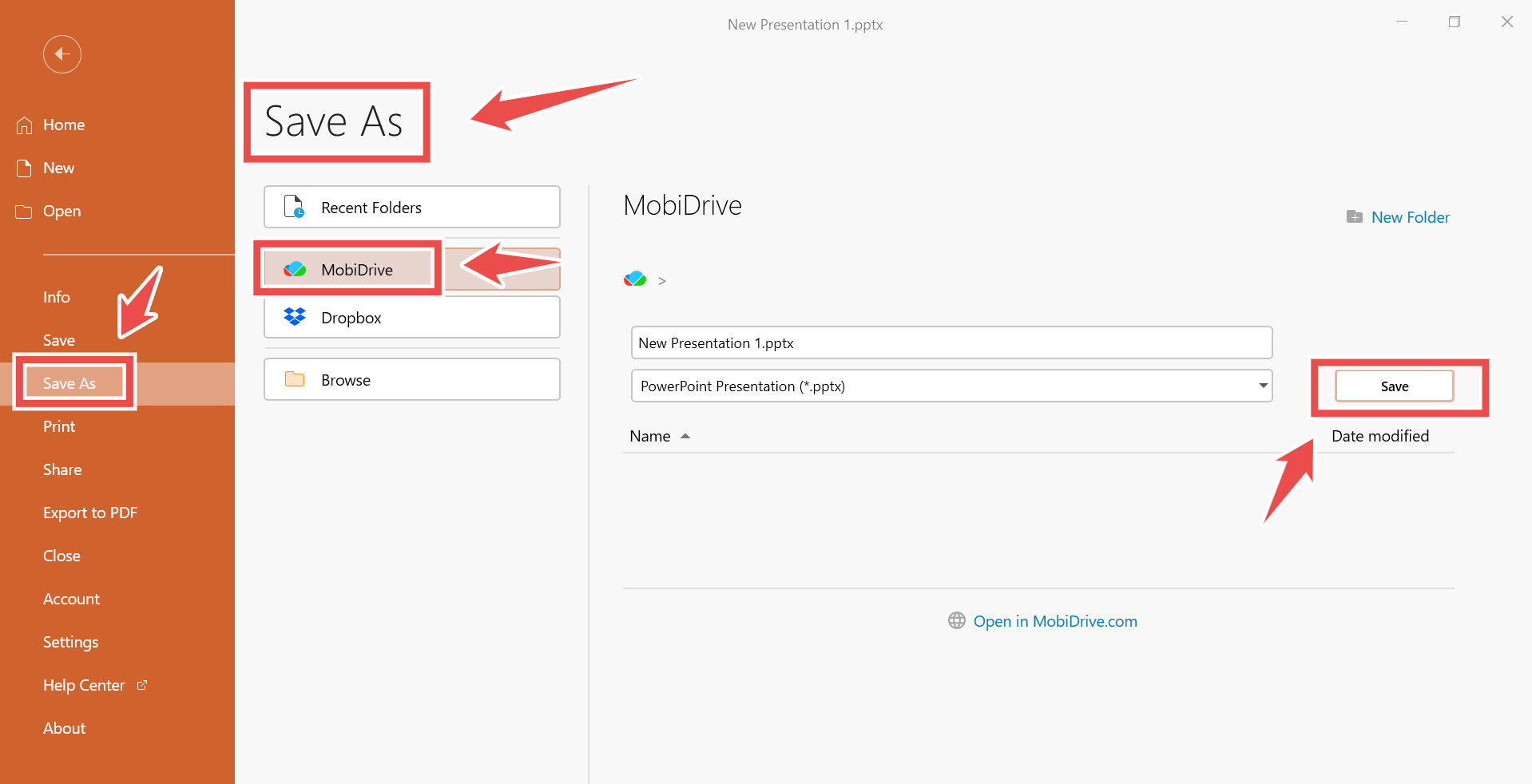
When finished, Save your presentation. You can save it directly to MobiDrive for secure cloud access across devices or save locally to your computer.
Ready to create professional presentations that engage and inspire? Download MobiOffice to start building with MobiSlides.
Frequently asked questions
How do you start a presentation effectively?
Start with a hook that grabs attention—a compelling question, surprising statistic, or brief story. Then clearly state what audiences will learn and why it matters.
What presentation techniques improve clarity and engagement?
Follow proven rules like 10-20-30 (10 slides, 20 minutes, 30-point font) or 5-5-5 (5 bullets, 5 words each, 5 seconds per slide). Use visual hierarchy and strategic pauses.
How many slides should a quality presentation have?
A 20-minute presentation typically needs 10-15 slides. Quality matters more than quantity—fewer well-designed slides work better than many cluttered ones.
What makes a good presentation?
A good presentation combines clear structure, engaging content, and confident delivery. It addresses audience needs, uses visuals to enhance understanding, and respects people's time.
Can a presentation be effective without advanced design?
Yes. Clean, simple designs often work better than complex graphics. Focus on readable fonts, clear layouts, and relevant visuals. Professional means purposeful, not complicated.
How many slides should a 20-minute presentation have?
A 20-minute presentation typically needs 10-15 slides. This allows roughly 1-2 minutes per slide, giving you time to explain concepts without rushing.
What are common PowerPoint mistakes?
Common mistakes include text-heavy slides, reading from slides, inconsistent formatting, poor color contrast, weak openings, running over time, and lack of practice.
Create professional presentations with MobiSlides
Now that you understand how to make a good presentation, the right tools can streamline your creation process. MobiSlides, part of the MobiOffice suite, offers a complete presentation solution compatible with PowerPoint files.
With MobiSlides, you can create polished presentations using professional templates and present confidently whether you're in the office, classroom, or working remotely. MobiOffice works offline, protecting your content while you develop presentations.
Download MobiOffice to access MobiSlides and transform your presentation ideas into compelling visual stories.