This article was updated on April 24, 2026
The #VALUE error in Microsoft Excel appears when a formula can't recognize or process the data you're trying to use. It typically happens when you mix incompatible data types – like trying to add numbers to text, or when hidden spaces disrupt your calculations. This error means Excel can't compute your formula with the current cell contents.
Understanding this error helps you work more efficiently with Excel or spreadsheet alternatives like MobiSheets. Here's a quick overview of the most common causes and their fixes:
Cause
Quick Fix
Text in number cells
Check cells contain only numbers
Hidden spaces
Use TRIM function or clear cells
Wrong data format
Change to correct format (Date, Number, etc.)
Incompatible formula arguments
Review function requirements
Mixed data types
Ensure consistent data types in ranges
What Does #VALUE Mean in Excel?
The #VALUE error in Excel signals a data type mismatch. Excel expects certain data types for calculations – numbers for math operations, dates for date functions, and text for text operations. When you accidentally mix these types or introduce unexpected characters, excel formulas not working becomes the immediate result.
This error appears as #VALUE! in the cell where your formula should display results. It's Excel's way of saying it encountered data it can't process within your formula's logic. The good news? Most #VALUE errors stem from simple, fixable issues.
Common Causes of #VALUE Error in Excel
Understanding what triggers this error helps you fix it faster. Here are the most frequent culprits:
Issue
Description
Example
Text instead of numbers
Cells contain text characters where formulas expect numbers
"100 units" instead of 100
Hidden spaces
Cells appear empty but contain space characters
Cell looks blank but has " "
Wrong data format
Dates formatted as text instead of date values
"12/25/2024" as text
Special characters
Non-numeric symbols in calculation cells
Dashes, asterisks, or letters
Incompatible ranges
Formula references mismatched range sizes
A1:A5 compared to B1:B10
Function argument errors
Wrong number or type of arguments
Missing required parameters
These issues create confusion for Excel's calculation engine. Each requires a slightly different approach to resolve.
How to Fix #VALUE in Excel Formula
Check for Hidden Spaces and Special Characters
Hidden spaces are invisible troublemakers. Cells that look empty might contain space characters that break formulas. Excel treats these cells as text, not blank cells, which causes calculation errors.
Use the ISTEXT function to identify cells with hidden content. To do this, follow these steps:
Find an empty cell in your worksheet.
Type =ISTEXT(A1) in the empty cell.
If it returns TRUE for an apparently empty cell, spaces are present.
Clear these cells completely.
For special characters like dashes or symbols, review your data carefully. You can replace decorative characters with actual numbers.
If you’re using MobiSheets, these solutions work exactly the same way. MobiSheets uses the same formulas and syntax as Excel, so you can follow along with these fixes without any learning curve.
Use Excel Functions Instead of Operators
Built-in functions handle errors more gracefully than basic operators. Functions like SUM, AVERAGE, and PRODUCT are designed to skip over text and focus only on numbers. This makes your spreadsheets more forgiving when data quality varies. MobiSheets supports these same functions with identical behavior.
In the MobiSheets example below, the cell E4 does only contains a dash (-), which means that it can’t be calculated and is causing the #VALUE error.
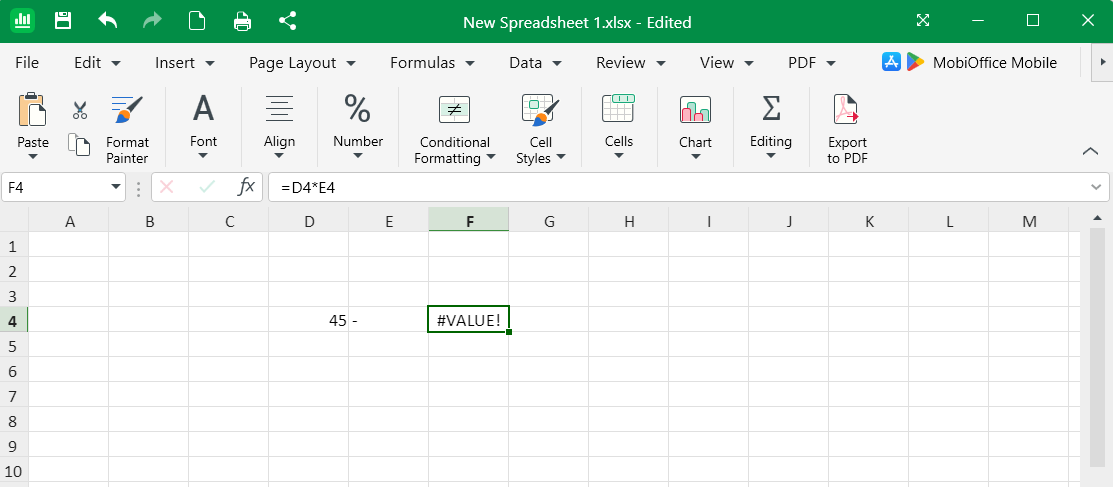 You can fix this error by using the PRODUCT function, which ignores text values automatically. In this case, it successfully returns a value (45) without any errors. This same PRODUCT function works identically in MobiSheets.
Verify Data Formatting
Excel interprets dates, numbers, and text differently based on cell formatting. A common scenario involves the WEEKDAY function, which needs properly formatted dates. In the following MobiSheets example, the #VALUE error appears because of the date formatting in cell B.
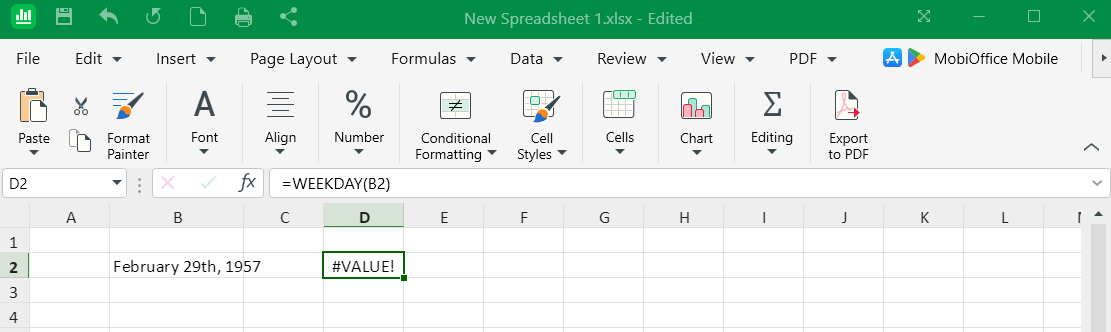 If your date appears as text, how to fix #value in Excel formula starts with fixing the format. In this case, you can select the cell, then go to Home > Number dropdown, and choose Date.
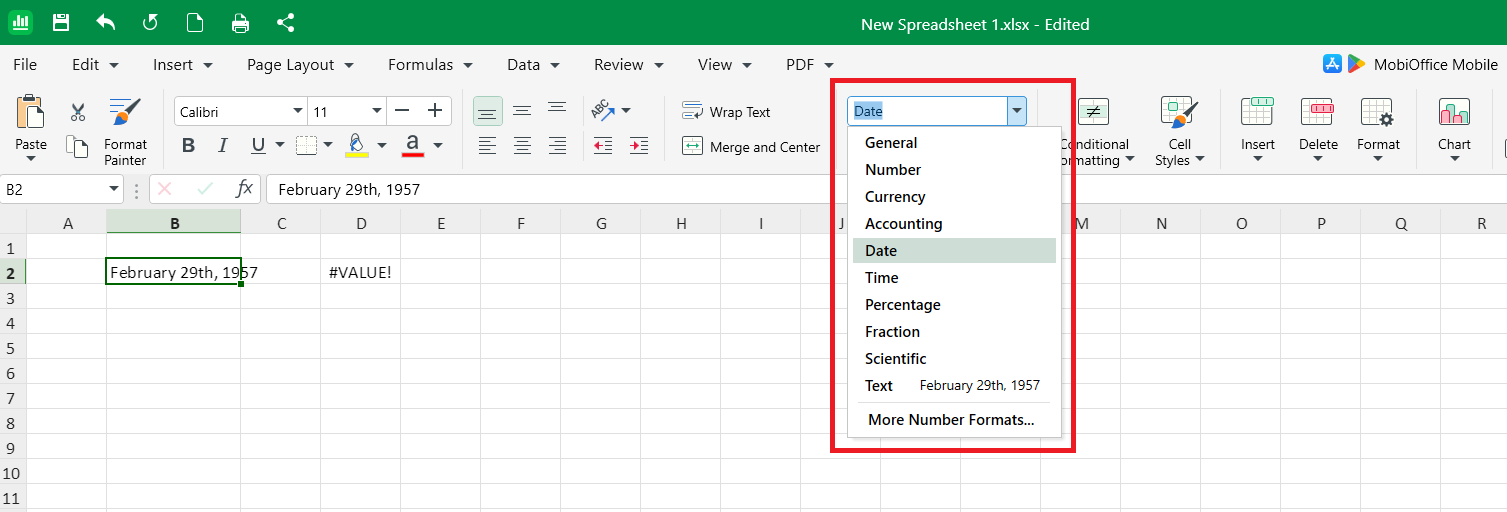 After changing the format, your formula recalculates automatically. This applies to many date and time functions in Excel. Always match your cell format to the data type your formula expects. MobiSheets handles formatting the same way, with the same familiar options.
Replace the Error Message with IFERROR
Sometimes you know certain cells will trigger errors but want to display something more helpful. The IFERROR function catches #VALUE errors and replaces them with your chosen message or value.
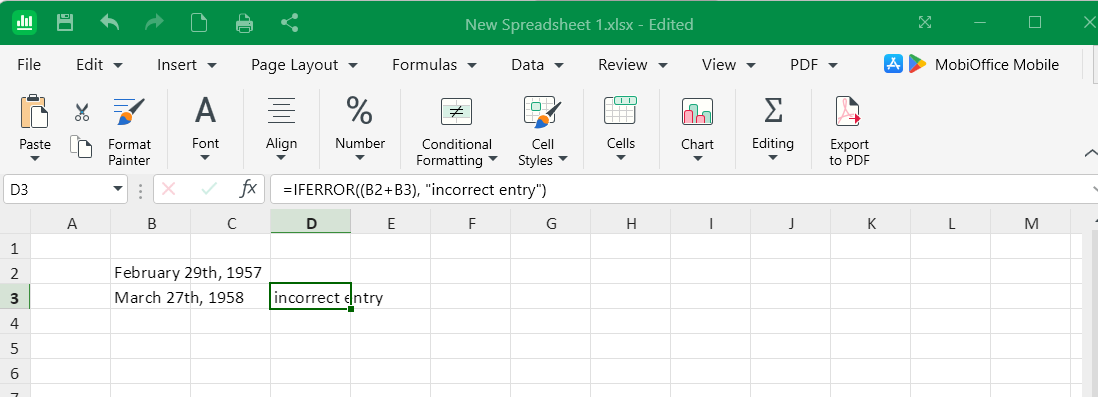 The MobiSheets example above replaces the error with the incorrect entry message. This approach works well for dashboards and reports where errors would confuse viewers. The IFERROR function is available in MobiSheets with the same syntax.
Why Do Formulas Show Text Instead of Results in Excel?
When Excel shows formula instead of value, it's usually due to text formatting or an accidental apostrophe. Excel treats cells formatted as text literally – showing the formula itself rather than calculating the result.
The following are steps when checking results:
Check your cell format. If it's set to Text, change it to the appropriate format like General or Number.
Click into the cell and remove any leading apostrophe. If you copied a formula from other sources, a hidden apostrophe (') at the start might be added.
Check if Show Formulas mode is enabled. Press Ctrl+` (grave accent) to toggle between showing formulas and showing results.
Fixing #VALUE Errors in Specific Formulas
VLOOKUP and HLOOKUP
Lookup functions fail when the lookup value doesn't match the data type in your table. Some common issues and corresponding fixes for lookup function errors include:
Common issues
Fixes
Lookup value data type doesn’t match table data type
Ensure your lookup value and table values share the same format
Column index number exceeds available columns
Verify the column index number falls within your table’s column count
Table range is incorrectly specified
Update the range in the formula to include the missing rows or columns
SUM and AVERAGE
These functions usually tolerate text by ignoring it, but certain scenarios still cause errors. Array formulas or complex range references with incompatible dimensions can confuse Excel's calculation engine.
To fix errors:
Make sure all referenced cells contain numbers or are truly empty.
Remove any text values, dashes, or placeholders from your number columns.
COUNTIF and IF
COUNTIF errors often stem from incorrectly formatted criteria. Text criteria need quotation marks, while cell references don't. Mixing these up creates syntax errors that result in #VALUE.
In the example below, the correct syntax encloses the Yes in quotations while the incorrect syntax lacks these quotations.
Correct syntax: =COUNTIF(A1:A10, "Yes") or =COUNTIF(A1:A10, B1)
Incorrect: =COUNTIF(A1:A10, Yes) without quotes
IF functions fail when arguments contain errors themselves. If your value_if_true calculation produces #VALUE, the entire IF function inherits that error. Debug each argument separately to isolate which part is failing. Simplify complex nested IFs by breaking them into separate helper columns.
How to Prevent #VALUE Errors in Future Spreadsheets
Here are some tips to prevent #VALUE errors in your spreadsheets:
Start with consistent data entry rules. Decide whether numbers should include symbols (like dollar signs) or remain plain numerals.
Use data validation to restrict cell inputs. Under Data tab > Data Validation, set rules that only allow numbers in calculation cells.
Apply Excel tables to your data ranges. Convert ranges to tables using Ctrl+T.
Frequently asked questions
Can a single cell cause a #VALUE! error in an entire formula?
Yes. Even one cell with incorrect data, like text instead of a number or a hidden space, can break the entire formula and return a #VALUE! error.
Why does my formula work in some cells but show #VALUE! in others?
This usually means your data isn’t consistent. Some cells may contain text, spaces, or different formats, causing Excel to calculate correctly in some rows but fail in others.
Does copying data from other sources cause #VALUE! errors?
It can. Data copied from websites or PDFs often includes hidden characters or formatting issues that Excel reads as text, leading to errors in formulas.
Can I ignore #VALUE! errors without fixing the data?
Yes, using functions like IFERROR lets you replace the error with a custom message or blank cell, which is useful for cleaner reports or dashboards.
Is #VALUE! an Excel issue or a data issue?
It’s almost always a data issue. Excel is working correctly, but the formula can’t process the input because of mismatched data types or formatting problems.
Working with Spreadsheets Beyond Excel
Are you using an alternative spreadsheet solution like MobiSheets? MobiSheets brings you spreadsheets made simple with the same familiar functionality you expect. Analyze data with an easy-to-use interface.
Ready to try a spreadsheet app that works intuitively?
All the fixes in this guide apply directly to MobiSheets – a fully compatible alternative that uses the same formulas, same syntax, same familiar workflows. Whether you’re using ISTEXT, IFERROR, PRODUCT, formatting options, or any other feature mentioned here, everything works identically. There’s no learning curve, just spreadsheet tools you already know working seamlessly across all your devices. Download MobiSheets to get started.