To add a hyperlink to a PDF, open it in a PDF editor, choose the link tool, mark the text or area, then pick a web address or a page in the document. If you still have the original Word or Google Docs file, add the link there and save it as a PDF — the link carries over.
Which method should you use?
Use the original document if you still have it, and a PDF editor if you only have the PDF. Adding links in Word or Google Docs is fastest when there are many of them, because they carry over when you save as PDF. A PDF editor works on any PDF you received and can also link to a page inside the file. An online editor suits a single link on a computer you don't use often.
Add links before you export to PDF
If you still have the original file, add the link in Word or Google Docs and save the file as a PDF; the link stays clickable. This is also the quickest way to add many links at once.
In Word for Windows:
Select the text that should become the link.
Go to Insert → Link, or press Ctrl+K.
Type or paste the web address in the Address box and click OK.
Go to File → Save As (or Save a Copy), choose PDF (*.pdf) under Save as type and click Save.
In Google Docs:
Highlight the text you want to link.
Click Insert → Link, or press Ctrl+K.
Paste the web address and click Apply.
Go to File → Download → PDF Document (.pdf).
The one rule that matters: save as PDF, do not print to PDF. Microsoft Print to PDF produces a picture of the printed page, so the text looks right but every link is gone. If a file was already printed to PDF, export it again with Save As, or add the links in a PDF editor.
Add a hyperlink to an existing PDF
To add a link to a PDF you already have, use the link tool in a PDF editor: mark the area that should be clickable, then choose where the link goes. The steps are much the same in every editor.
Open the PDF in a PDF editor.
Choose the link tool, usually on the editing tab or toolbar.
Mark the text or area that should be clickable.
Choose the destination: a web page (paste its address) or a page in the same document.
Set how the link looks, with a visible border or none.
Save the PDF.
The link is a clickable area placed on top of the page, not a change to the text itself. You can put one over a word, a sentence, a logo or a picture of a button.
In Adobe Acrobat, the tool is under Edit → Link → Add or edit a link, and you drag a rectangle over the area to link. Online PDF editors offer a similar tool in the browser, but you upload the file to their server, so it is better to avoid them for contracts, CVs or internal reports.
If you work with PDFs on a Windows PC, MobiPDF has a link tool on its Edit tab that does all of the above in one window.
Link to another page in the same PDF
To link to a page inside the PDF, choose the page option in the link tool instead of a web address, then enter the page number. A click on the link takes the reader straight to that page.
Page links are useful in three common cases:
A clickable table of contents. Put a link over each entry so readers can jump to a chapter or section.
Cross-references. Turn "see page 12" into a link that opens page 12.
A combined document. When a report, its appendix and a price list end up in one file, links on the first page help readers find each part.
If the pages you want to link to sit in separate files, start by combining the files into one PDF, then add the page links. Check the page numbers last, after any pages are added or removed.
Make links easy to see
A link only helps if readers notice it, so give it a visible border or make the text under it look like a link. Most PDF editors let you choose between a visible rectangle around the link area and no border at all.
Use a thin coloured border when the linked text looks like the rest of the page, for example on a scanned form or a flyer. Switch the border off when the text is already blue and underlined, or when the link sits over a button image; a box on top would only add clutter.
The words matter as much as the look. Link text that says what happens, such as "download the price list" or "read the full terms", tells readers what to expect before they click. "Click here" says nothing, and it is no help to anyone using a screen reader.
PDF links not working? Common causes and fixes
The most common reason a PDF link does nothing is that the file was printed to PDF instead of saved as PDF. The other causes are easy to spot once you know them.
The PDF was printed, not saved. Print to PDF keeps the look of the page but drops every link. Export the original again with Save As PDF, or add the links in a PDF editor.
The address is incomplete. A link without https:// at the start, or with a typo, opens nothing or the wrong page. Copy the address straight from the browser's address bar and paste it in.
Blue underlined text that does nothing. The text only looks like a link; there is no link area on top of it. Add one over the words with the link tool.
The viewer asks before opening the page. Many PDF readers show a prompt before they go to a website. Allow it once, and the link opens.
Scanned pages. On a scan, the text is part of an image, so a web address on the page is not detected automatically. Draw the link area over the words by hand.
The link area is in the wrong place. Links sit on top of the page, so they do not move with the text. After editing text and images in a PDF, check that each link still covers the right words, and move or redraw it if not.
One caution in the other direction: links in PDFs from unknown senders deserve the same care as links in email, since a PDF can carry a virus or lead to a harmful site.
Alternative: MobiPDF
MobiPDF adds a web link or a page link to a PDF from a single window on its Edit tab. Here is how:
Open the PDF in MobiPDF.
On the Edit tab, click Add Link.
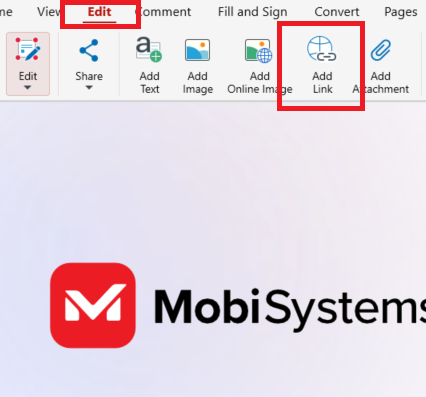
Drag your mouse cursor to select the area for the new link in the document.
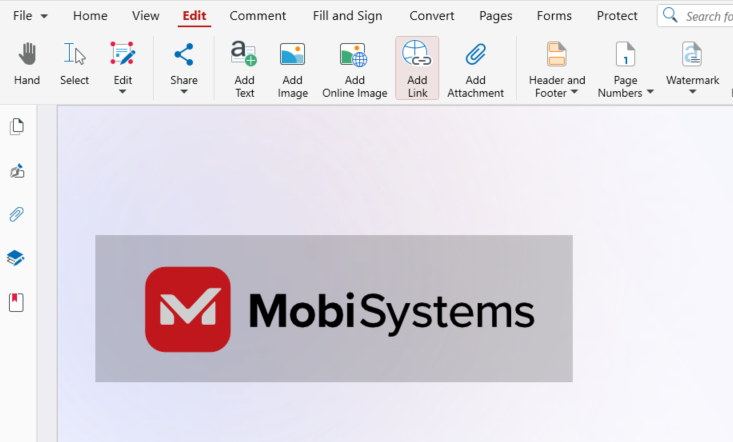
In the Link Actions window, choose Open a web page and paste the address, or Go to a page and enter the page number.
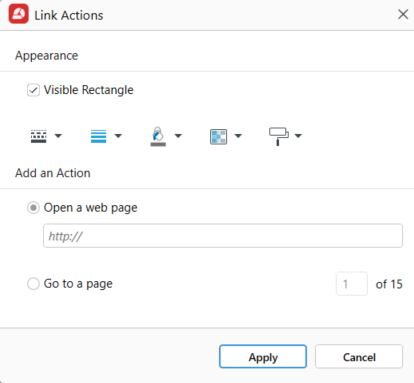
Under Appearance, keep Visible Rectangle on and set the border, or switch it off for an invisible link.
Click Apply, then save the file.
Adding and editing links is part of MobiPDF's Lifetime and Pro plans. Each setting in the window is explained in the guide to adding links in MobiPDF.
MobiPDF for Windows starts with a free download, so you can open your PDF and find the link tool in a few minutes.
Frequently asked questions
Yes. In Word or Google Docs, add a link that starts with mailto: followed by the address, then save the file as a PDF. In MobiPDF, type the mailto: address in the Open a web page field of the Link Actions window. A click opens the reader's email app.
Some PDF editors can, but the link only works while both files stay in the same folder. It's simpler to combine the files into one PDF and link to the page with Go to a page. If the other file is online, link to its web address instead.
Open the PDF in an editor, select the link with its link or edit tool, delete it, then save the file. In MobiPDF, right-click the link and choose Remove Link. The text on the page stays as it was; only the clickable area goes.
Usually, but check first. Hover over a link to see the address it opens and compare it with the text. Treat PDFs from unknown senders like email attachments: if you did not expect the file, do not click its links.
Yes, most mobile PDF readers open web links and page links with a tap. Some ask for permission before they leave the app to open the browser. If the PDF is going to many people, test it on a phone before you send it.
No. Adding and editing hyperlinks is part of MobiPDF's Lifetime and Pro plans. In the free app, the link tool opens a window that describes the feature, with a Start Trial button.
Final thoughts
The easiest hyperlink is the one you add before the PDF exists: put it in Word or Google Docs and save as PDF, never print to PDF. For a PDF you received, a PDF editor's link tool adds the link in a few clicks, whether the link opens a website or another page. Before you send the file, click every link once to check it opens the right place.
If you want a link tool on your Windows PC for the next brochure, CV or price list, MobiPDF is a free download.