
You can add a signature in Word by inserting an image, drawing it directly, using a signature line, or applying a digital signature. The best method depends on whether you need a visual signature, a legally binding signature, or a quick approval mark. With tools like MobiDocs and MobiPDF, you can sign documents securely while keeping full control of your files.
This guide explains how to add a signature in Word easily, avoid common mistakes, and choose the right method for work, school, or personal use.
How to add a signature in Word
You can add a signature in Word using one of these built-in options:
Insert an image of your signature,
Draw your signature with a mouse or stylus,
Add a signature line, or
Apply a digital certificate.
These tools let you sign documents without changing their layout or compromising security.
Different ways to add a signature in Word
Word offers several ways to insert a signature, depending on whether you want a handwritten look, a placeholder, or a secure verification method.
Insert a handwritten signature as an image
You can add a handwritten signature by inserting a scanned or photographed image into your document. Create your signature on paper, scan or photograph it, and save it as a PNG or JPG file. In Word, select Insert, choose Pictures, and place the image where needed.
Use a signature line in Word
A signature line adds a formal placeholder for signing printed or digital documents. Go to Insert, select Signature Line, and enter the signer’s name and title.
Add a digital or electronic signature
To use this method, you need a valid digital certificate. Word applies the signature and locks the document from unauthorized changes.
How to add a handwritten signature in Word
Scan or photograph your signature and save it in high resolution. Insert it into Word, resize it carefully, and place it in the correct location.
How to add a signature line in Word
You can add a signature line in Word to indicate where someone should sign a document.
How to add a signature line without the X
You can remove the X by adjusting signature line settings before inserting it. Deselect options that display signing instructions.
How to add a signature in Word on different devices
You can add a signature in Word on desktop, mobile, and online versions, though features may vary. Knowing device limitations helps you choose the right method.
How to add a signature in Word on Mac
On Mac, you can insert signature images, draw using trackpad tools, or use digital certificates. Most features are available in the desktop version. Use Insert for images and Draw for handwritten signatures.
How to add a signature in Word on iPhone and iPad
On iPhone and iPad, you can draw signatures using touch input or insert saved images. Open the document, use the Draw tool, and sign directly on the screen.
How to add a signature in Word online
Word Online allows you to insert images and basic drawings but does not support advanced digital certificates. It works best for simple signatures.
Common problems when adding a signature in Word
Signature issues in Word usually come from low-quality images, resizing, or format changes. These problems can affect appearance and credibility.
Why the signature becomes blurry or distorted
Blurry signatures often result from low-resolution images or excessive resizing. Stretching small images reduces clarity.
Why the signature disappears after editing
Signatures may disappear if they are anchored incorrectly or linked to removed elements.
Sign Word documents securely with MobiDocs and MobiPDF
You can securely sign Word documents by preparing them in MobiDocs, converting them to PDF, and applying a digital signature in MobiPDF.
MobiDocs is fully compatible with Microsoft Office and all common document formats, making it easy to work with DOCX, DOC, and more.
Create or edit your document in MobiDocs
Open your Word file in MobiDocs and complete all required edits. Since MobiDocs supports Microsoft Office and standard file formats, you can work with existing documents without conversion issues.
Convert the Word file to PDF
Export or save the document as a PDF from MobiDocs by going to File, clicking Save As and choosing PDF.
Open the PDF in MobiPDF
Launch MobiPDF and open your converted file. Make sure the document displays correctly before adding your signature.
Apply your digital signature
Use MobiPDF’s signing or digital signature tools to securely sign the document.
Here is how:
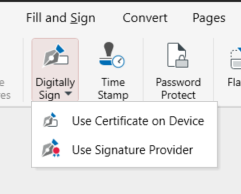
Select Protect from the top menu and click Digitally Sign.

Choose your certificate type.
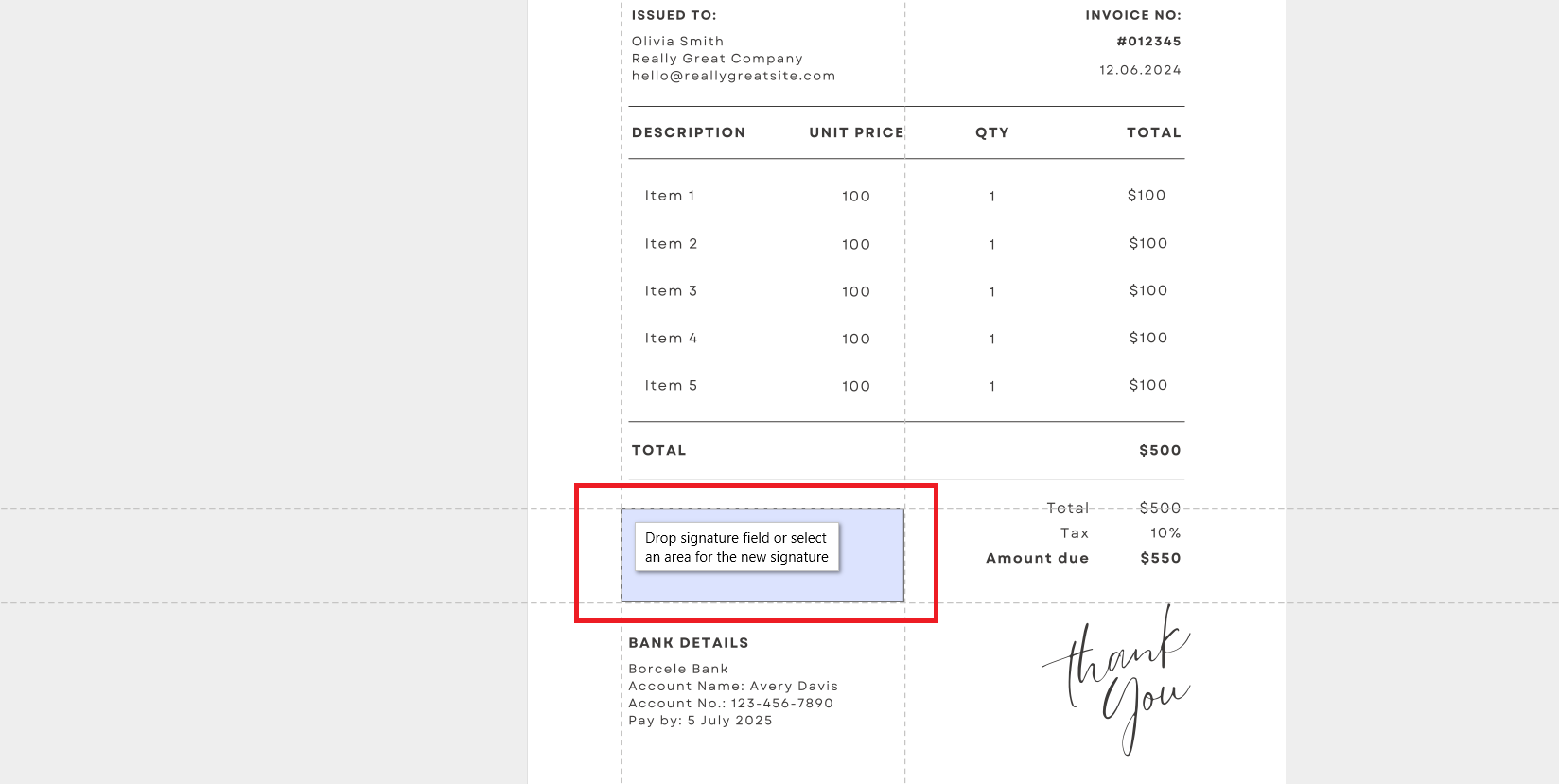
Click wherever you want to position the digital signature.
Your digitally signed document is now encrypted against tampering and can be synced to MobiDrive for secure sharing or backup on any device.
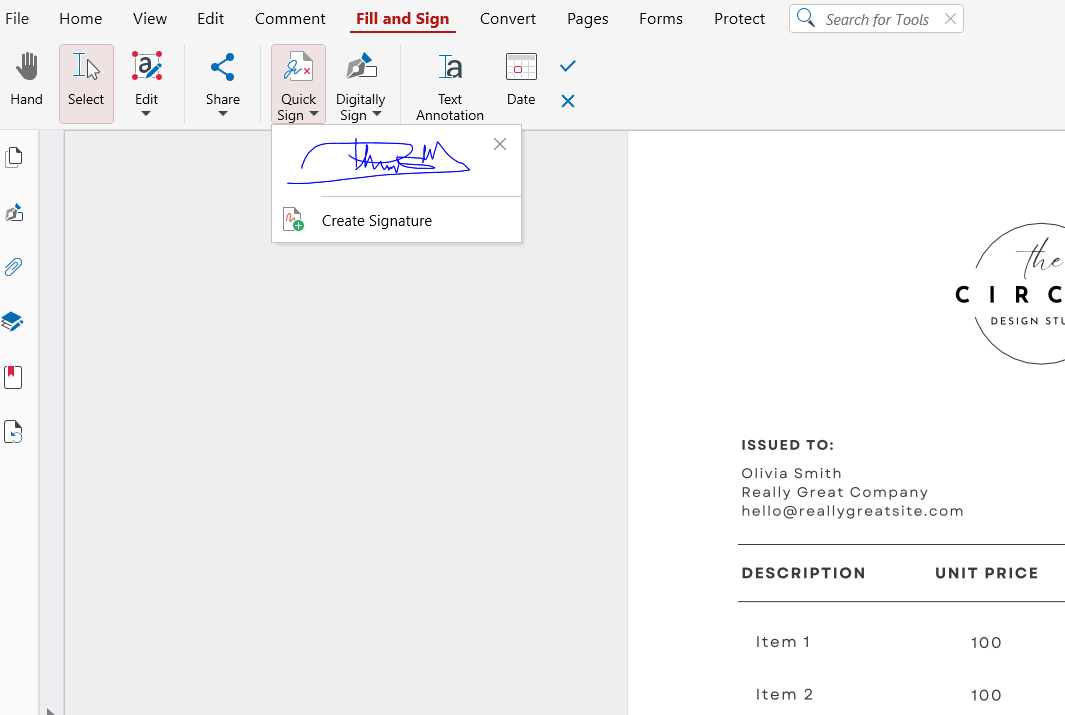
You can also choose to use a custom signature by choosing Quick Sign on the ribbon.
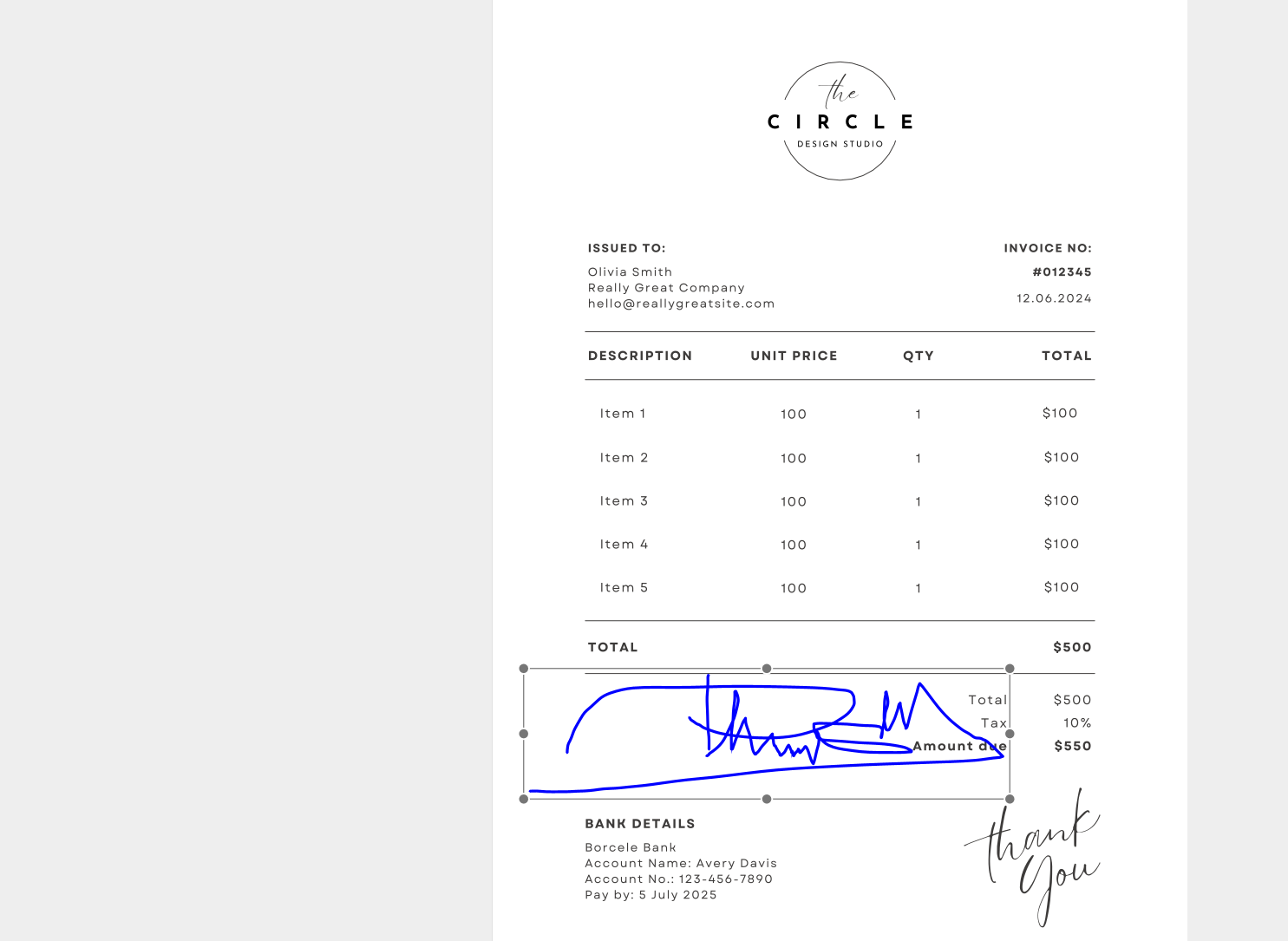
After that, simply click anywhere to place the signature.
By combining MobiDocs for editing and MobiPDF for signing, you maintain full control from creation to approval. This step-by-step approach is recommended for contracts, official forms, and confidential documents.
Frequently asked questions
How do I add a handwritten signature in Word?
You can insert an image of your handwritten signature or draw it using Word’s drawing tools.
Can I add a digital signature in Word?
Yes, Word supports digital signatures using valid certificates. This method verifies identity and prevents unauthorized changes. It is recommended for official documents.
How do I add a signature line in Word without the X?
Disable signing instructions before inserting the signature line. You can also format the line manually after adding it.
How can I add a signature in Word on iPhone or iPad?
Open the document in Word and use the Draw tool to sign with your finger or stylus. You can also insert a saved signature image.
Why does my signature look blurry or distorted in Word?
This usually happens due to low-resolution images or improper resizing. Always use high-quality files and maintain aspect ratio.
Sign Word documents securely with MobiDocs and MobiPDF
You can create and prepare your document in MobiDocs, then convert it to PDF and apply a secure digital signature in MobiPDF. This workflow is ideal when you need stronger identity verification, tamper protection, or long-term document integrity.
By combining MobiDocs for editing and MobiPDF for signing, you gain full control over your documents from creation to approval. This approach is recommended for contracts, official forms, and sensitive files.