You can send a PDF to Kindle three ways: through the Send to Kindle app or website, by emailing it to your Kindle's address, or by transferring it directly via USB cable. Each method takes just minutes and works with textbooks, research papers, work documents, and manuals.
This guide shows you how to use each method, helps you choose the right one for your situation, and fixes the most common problems like delivery delays and unreadable formatting.
Different ways to send a PDF to a Kindle
Online or via the Amazon Kindle app
Follow these steps to upload PDF to Kindle online:
Go to amazon.com/sendtokindle and sign in with your Amazon account.
Click Select files from device and choose your PDF.
If you have multiple Kindle devices, pick which Kindle device should receive the file. If you have one Kindle device, the Add to your library is automatically toggled on to send to that device.
Click Send and wait for the file to appear in your library.
If you’re uploading using the Send to Kindle app (desktop or mobile), follow these steps:
Download the app for your device (Windows, Mac, iOS, or Android).
Right-click the PDF file and select Send to Kindle (or use the share menu on mobile).
Choose your Kindle and confirm.
This method works great when you're connected to Wi-Fi and want your PDFs available across multiple devices. The file stays in your Amazon account permanently unless you delete it.
Send a PDF to Kindle by email
To send a PDF to Kindle using email, follow these steps:
Sign in to your Amazon account.
Go to Help & Settings > Your Account.
Choose Content and Devices under Digital Content and Devices.
In Preferences, take note of your Kindle email address and approved sender address.
In your preferred email client, compose a new email using your approved sender address.
Enter your Kindle email in the To field then attach the PDF (up to 50MB).
Send the email.
This method is perfect when you receive PDFs via email and want to forward them straight to your Kindle without downloading them first. It's also useful for sending files from computers where you can't install apps.
Transfer a PDF to Kindle via USB
Here are the steps to transfer a PDF file to Kindle using a USB cable:
Connect your Kindle to your computer using a USB cable. Your Kindle appears as a removable drive in File Explorer (Windows) or Finder (Mac).
Open the documents folder on your Kindle.
Drag and drop your PDF files into this folder.
Remove the Kindle from your computer.
Files transferred via USB only appear on that specific device. They won't sync to your phone or other Kindles. This method works best when you have large files, unreliable internet, or want to keep certain documents completely offline.
Which method should you use?
Common issues (and how to fix them)
The three most common problems are PDFs that won't send or take forever to deliver, files that won't open on your Kindle, and documents that look unreadable due to poor formatting. Here's how to fix each one.
The PDF won't send (or delivery takes forever)
Files over 50MB won't send via email, unapproved sender addresses get rejected silently, and Wi-Fi sync delays prevent files from appearing immediately. Here's how to fix each issue.
File size issues:
Compress the PDF before sending. A compressed version sends faster and uses less storage space on your Kindle.
Approved sender problems:
Add your email to the approved sender list in your Amazon account. To do this, sign in to your Amazon account. Go to Help & Settings > Your Account, then choose Content and Devices under Digital Content and Devices. In the Preferences tab, navigate to Approved Personal Document E-mail List section and add your email address. Wait a few minutes for the change to take effect, then try again.
Wi-Fi sync delays:
Open Settings on your Kindle, tap Sync and wait for the process to complete. Make sure you're connected to a working Wi-Fi network.
The PDF won't open on Kindle
Corrupted files and password-protected PDFs cause opening errors on Kindle. Test the file on your computer first to verify it works and remove password protection before sending.
Corrupted files:
Open the PDF on your computer first to verify it works. If it opens fine there, try sending it again. If it won't open anywhere, you might need to re-download or request a new copy.
Password protection:
Remove the password before sending. Most PDF tools let you unlock files if you know the password. Save the unlocked version and send that instead.
The PDF looks badly formatted on Kindle
Here are some fixes to try when a PDF looks badly formatted on your Kindle:
Rotate the PDF to landscape if that makes text larger.
Crop white margins to give text more screen space.
Use pinch-to-zoom on Kindle (though this requires constant panning).
Read on the Kindle app where you have a larger screen.
Scanned PDFs:
If you can, request a text-based version instead of a scan, or using PDF editing software to crop and enhance the scan quality before sending. Another option is to try reading the PDF on larger devices.
How MobiPDF can help you prepare a PDF for Kindle
MobiPDF compresses large files for faster sending, optimizes formatting for better readability, organizes long documents into manageable sections, and handles quick edits before you send. These adjustments prevent common Kindle reading problems and take just minutes.
Compress the PDF so it sends faster and syncs more reliably
MobiPDF reduces file sizes by compressing images and removing unnecessary data. To compress a PDF, follow these steps:
Open your PDF in MobiPDF.
Go to File > Compress.
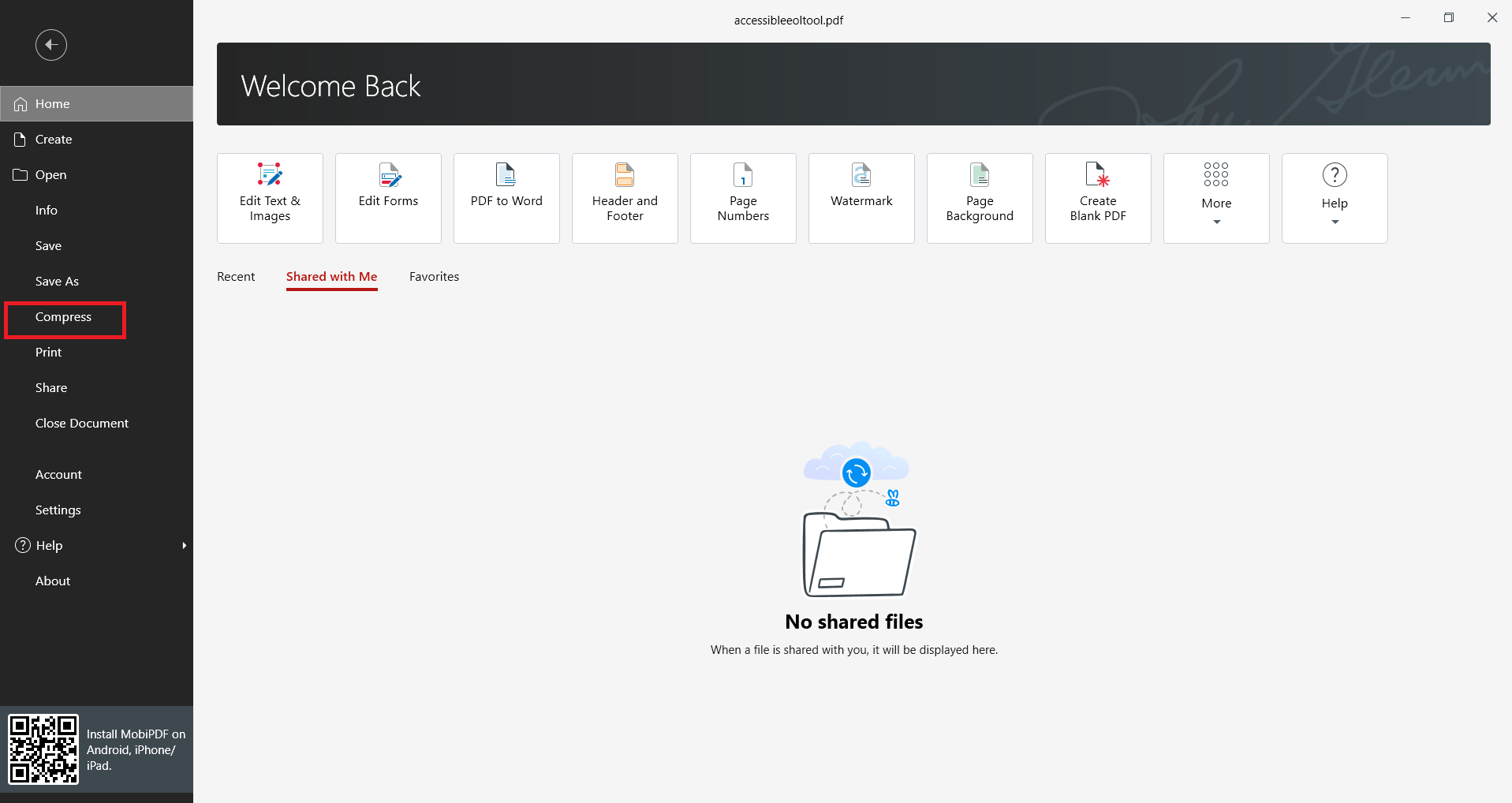
In the dialog box, drag the sliders under Image compression to low size.
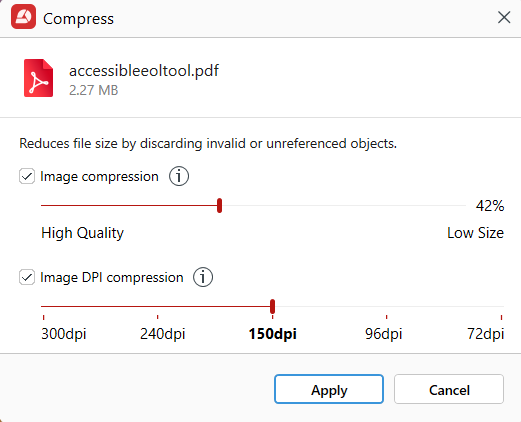
Click Apply.
Optimize readability for a better reading experience
With MobiPDF, you can organize PDFs to crop white margins to maximize screen space, rotate pages to landscape for larger text, and adjust contrast to clarify faded scans. Preview how the PDF looks on a smaller screen and make adjustments before sending.
Organize long PDFs
Split large PDFs into smaller sections, merge multiple files into one document, reorder pages to prioritize important content, and add bookmarks for navigation in MobiPDF. You can extract sections and send it as a standalone file.
Quick edits before sending
MobiPDF can help you edit your PDF, add notes and highlights you want to keep, remove blank pages, and fill in forms before saving.
Prepare your documents for Kindle easily.
Frequently asked questions
The Send to Kindle app is usually the easiest method. Install it once, then right-click any PDF and select Send. The file syncs across all your devices automatically. If you can't install apps, email works almost as easily once you add your email address to the approved sender list.
The most common reasons are Wi-Fi sync delays or unapproved sender addresses. Make sure your Kindle is connected to Wi-Fi, then go to Settings and tap Sync. If you sent via email, verify your email is on the approved sender list.
No, Kindle cannot open password-protected PDFs. You need to remove the password using PDF software on your computer before sending the file. PDF tools like MobiPDF let you unlock files if you have the original password.
The email method has a 50MB limit. The Send to Kindle app and USB transfer can handle larger files, though extremely large documents may be slow to open and navigate on the device. Compressing PDFs before sending improves performance and saves storage space.
PDFs designed for full-sized paper don't scale well to small Kindle screens. The entire page gets shrunk down, making text tiny. Solutions include cropping white margins before sending, rotating to landscape orientation, or reading on a larger device like a tablet.
MobiPDF prepares PDFs for Kindle by compressing large files for faster sending, cropping margins and rotating pages for better readability, organizing long documents into manageable sections, and making quick edits to remove blank pages or add navigation bookmarks.