

Using Read Mode for Better Focus
Read Mode fills your screen with your document and hides everything else, including the app's menus and your Windows taskbar. It's useful for reading long reports, e-books, or contracts without distractions. This guide shows you how to open Read Mode in MobiPDF Reader on Windows, use the toolbar to navigate and mark up your PDF, and exit when you're done.
Before you begin
Make sure you have:
MobiOffice installed on your Windows device, with MobiPDF Reader included. See Introduction to MobiPDF Reader.
Signed in with your MobiSystems account.
A PDF open in MobiPDF Reader. See Opening and navigating PDF files.
How to open Read Mode
There are two ways to start Read Mode.
From an open PDF:
1. Open your PDF in MobiPDF Reader.
2. Press Ctrl+H.
From the Home screen:
1. Click View.
2. Click Read Mode.
Your PDF fills the screen. The menus and the Windows taskbar are hidden.
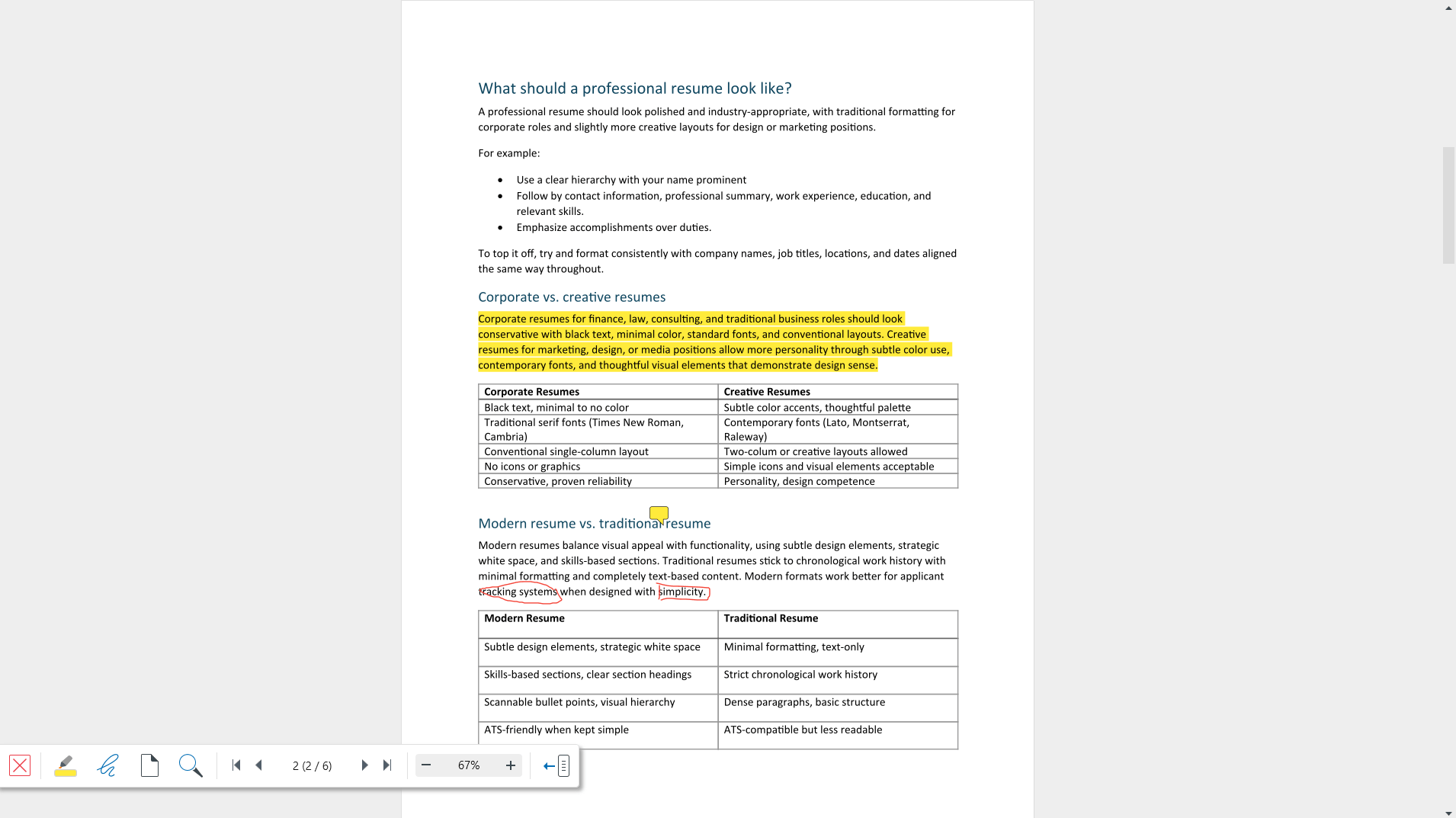
The Read Mode toolbar
You don't have to leave Read Mode to use the tools you need most. They sit in a toolbar in the bottom-left corner of the screen.
From left to right, the toolbar has:
X: exits Read Mode.
Highlight Text: highlights words and phrases in the color you choose.
Free Draw: lets you sketch anywhere on the page.
Page View: zooms and switches between page modes.
Find: searches for text in your PDF.
Navigation controls: move between pages.
Zoom controls: zoom in and out.
Collapse: hides the toolbar.

How to move through your document
Use the navigation controls in the toolbar:
1. Click the arrows to go back one page or forward one page.
2. Click the first or last page buttons to jump to either end of the document.
3. To go to a specific page, double-click the page counter in the middle, type the page number, and press Enter.
Zoom in and out
Click the zoom controls to zoom in or out in 10% steps.
To set your own level, double-click the zoom percentage and type a value.
Click Page View to switch between page modes.
How to find text
1. Click Find, or press Ctrl+F.
2. Type the word or phrase you're looking for.
Note: Scanned pages are images, not text, so search can't find words inside them. Making scans searchable requires OCR, which is available in the full MobiPDF.
How to highlight and draw
You can mark up your PDF without leaving Read Mode.
To highlight text:
1. Click Highlight Text in the toolbar.
2. (Optional) Choose a color.
3. Select the text you want to highlight.
To draw on a page:
1. Click Free Draw in the toolbar.
2. Click and drag on the page to draw.
Your highlights and drawings are saved with the document, just as they are in the main view. Press Ctrl+S to save your changes.
Tip: For sticky notes and a full list of your markups, use the main view instead. See Highlighting and commenting PDFs.
How to hide the toolbar
For a completely clear screen, you can hide the toolbar.
Click Collapse to hide the toolbar.
Click it again to bring the toolbar back.
How to exit Read Mode
Press Escape, or
Click X in the toolbar.
You return to the main view, with your menus back in place.
Troubleshooting
I can't find the toolbar. It may be collapsed. Move your pointer to the bottom-left corner of the screen and click Collapse to show it again.
Ctrl+H doesn't do anything. Make sure a PDF is open first. Read Mode needs a document to display.
Search doesn't find text I can see. The page is probably a scan. Text inside scans is only searchable after you apply OCR in the full MobiPDF.
I want to add a sticky note but can't. Read Mode includes highlighting and free draw only. Press Escape and use the Comment menu in the main view.
My highlights disappeared. Press Ctrl+S to save. If the file is in the cloud, check your internet connection.
Where to go next
You can now read without distractions in MobiPDF Reader. Here's where to go next:


