
This article was updated on Feb 20, 2026
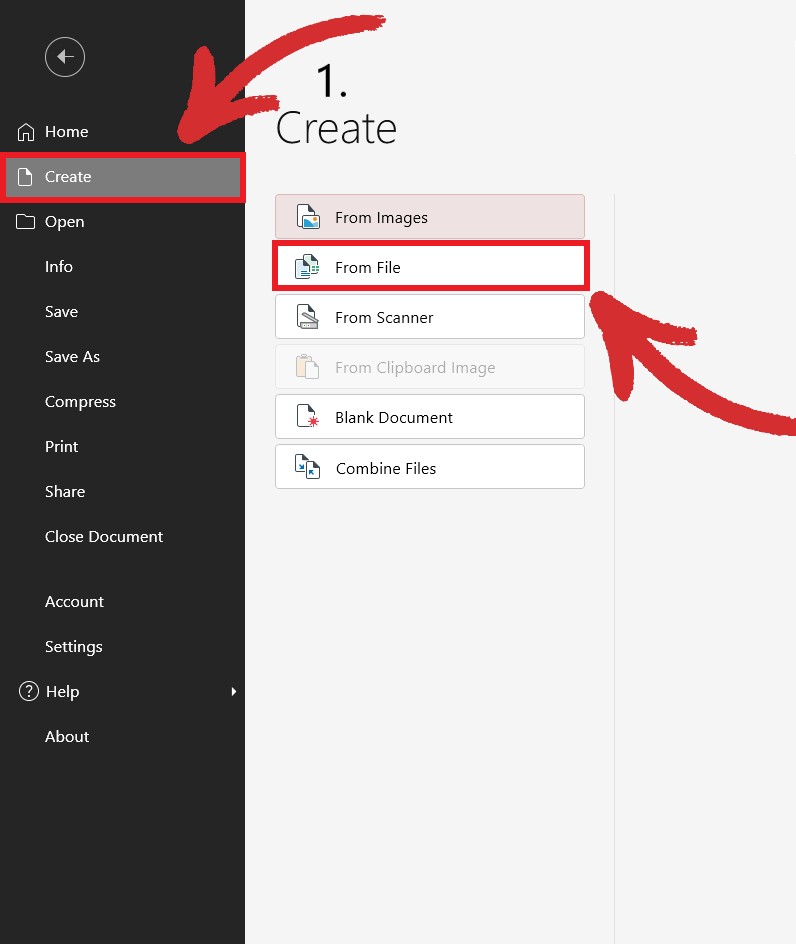
There are several ways to fill out a PDF in MobiPDF. For forms in PDF format, simply open your file and all interactive fields and checkboxes will be highlighted in blue, ready for you to fill out. If your form is in a Word format, go to Create → From File to convert your DOCX form into a PDF. You can also scan any paper document and turn it into a fillable PDF using MobiPDF for Android and iOS devices.
Filling and signing forms can be a frustrating experience, especially in traditional fields like banking and accounting. Whether it’s filling detailed surveys, applications, or contracts, creating a fillable PDF is a handy skill that anyone can learn – even if you’re tasked with making a custom form from scratch.
Join us as we look at all the ways you can effortlessly manage form fields and checkboxes using MobiPDF, as well as some practical tips.
Key takeaways
Here are the main takeaways from our guide on making fillable forms:
You can easily create fillable PDFs through automatic field recognition, converting existing Word documents, scanning physical papers with your phone, or building custom forms from scratch.
Unlike physical paperwork, which is vulnerable to theft or damage, PDFs protect your data through advanced tools like text redaction, encryption, and passwords.
When building forms from scratch, you can set "rules" such as required fields or specific formats (e.g., dates or phone numbers). This logic minimizes user error and ensures you receive standardized, accurate data.
You can also use your phone to scan hard copies. Take a picture of your document and it will be converted into a PDFs ready for you to fill & sign.
Why use fillable PDF forms?
According to a study published by PDF Association in 2015, 73 million new PDF documents have been saved each day in Google Drive and Gmail alone. Skipping to present day, we can only guess at the number of PDFs being made every single hour.
So, why do so many people choose to make a fillable PDF over traditional methods? Here are the benefits.
Improve your productivity
Gone are the days of printing out forms, filling them out by hand, and scanning them back into your PC. Today, you can do it all digitally in a few minutes time, allowing you to focus on tasks that that move you closer to your goals.
Do better work faster
Digital PDFs are much easier to store and share than paper documents, removing the need for filing cabinets or other outdated storage methods. You can also quickly update them when needed, which is often complicated with paper-based forms.
Maintain consistent formatting
PDF forms will always retain their formatting no matter on which device you view them on, ensuring that you always appear professional in front of your colleagues and clients. The file format is also compatible with every operating system.
Enjoy better privacy
Unlike a paper document that can be easily stolen, copied, or even destroyed, you can protect PDF forms with a variety of tools like text redaction (using white stripes to mask sensitive information) password protection, encryption, or set user permissions such as “no printing”.
What is the easiest way to create a fillable PDF?
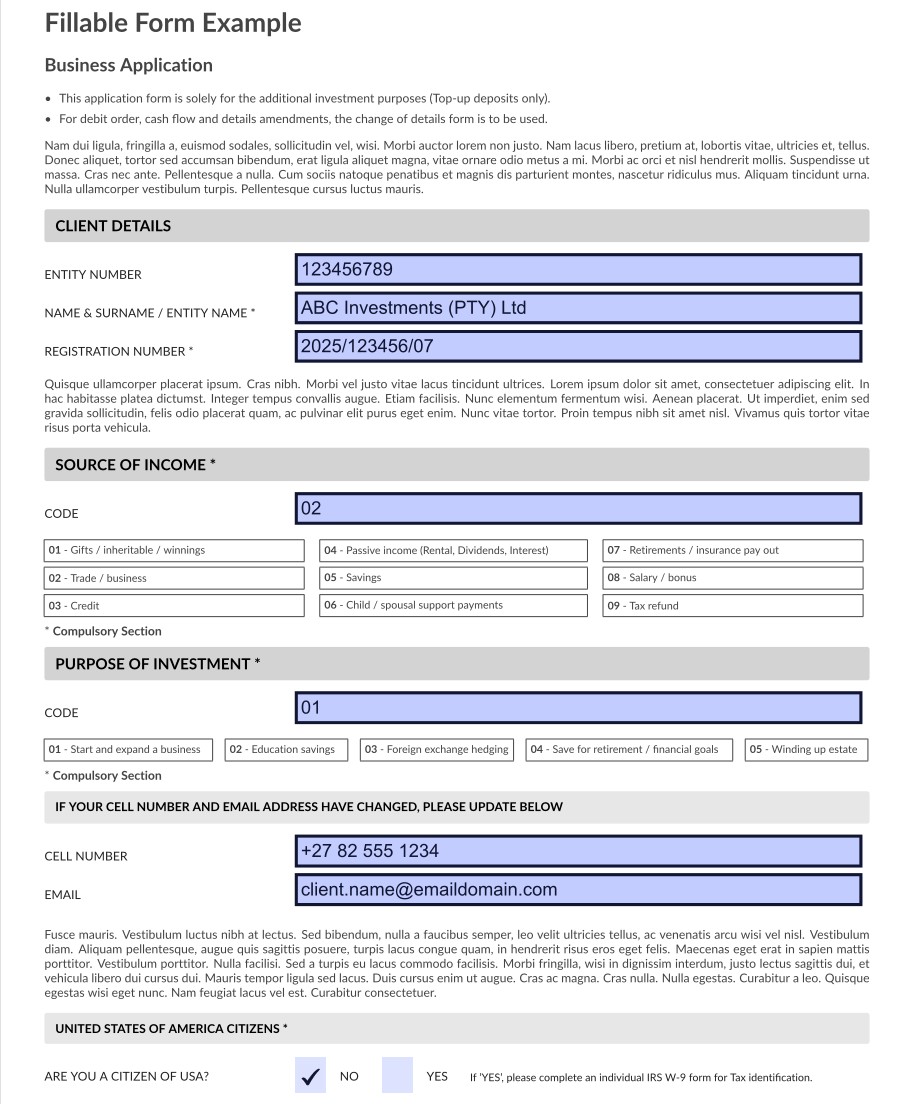
The simplest way to start typing into a PDF form is by opening it in a PDF editor and converter like MobiPDF. This will automatically highlight all interactive fields and checkboxes in blue, which you can then easily fill like with a regular text editor.
Here are the steps with MobiPDF:
Download and install MobiPDF for Windows 10 and 11.
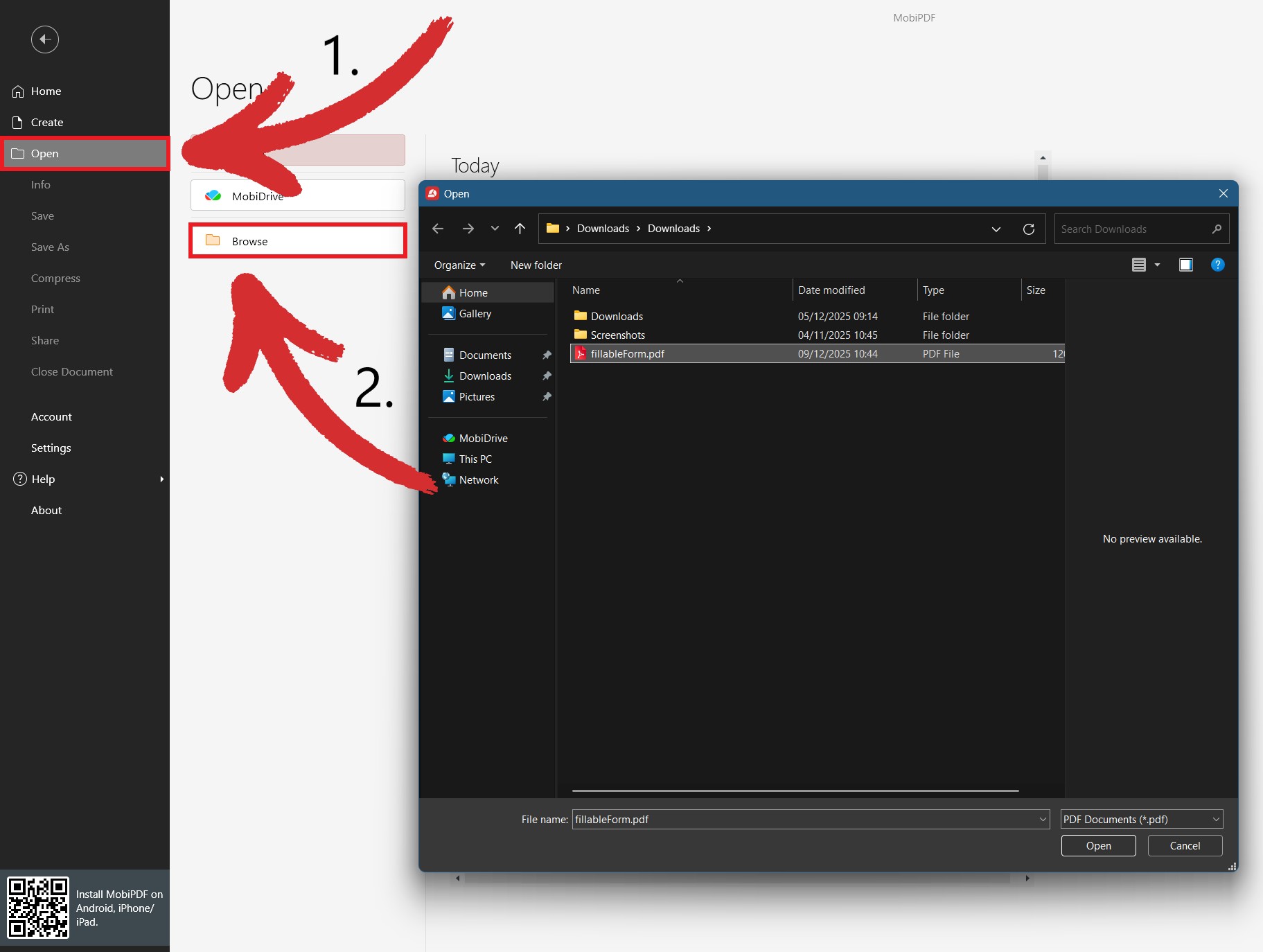
Go to Open → Browser and open your PDF form.
Start typing into the highlighted empty fields. For check boxes, simply click them once to place a checkmark.
Save your document to make your changes permanent.
IMPORTANT: If the fillable form is password-protected, you will not be able to fill it out until you provide the correct password.
How to convert a Word form to PDF
This is useful when you want to make sure that your form will retain the original formatting on any device. By converting DOCX to PDF, you can also access useful PDF protection tools like passwords, file encryption, and digital signatures.
Here are the simple steps with MobiPDF:
Start MobiPDF and click More → Create from Office Documents.
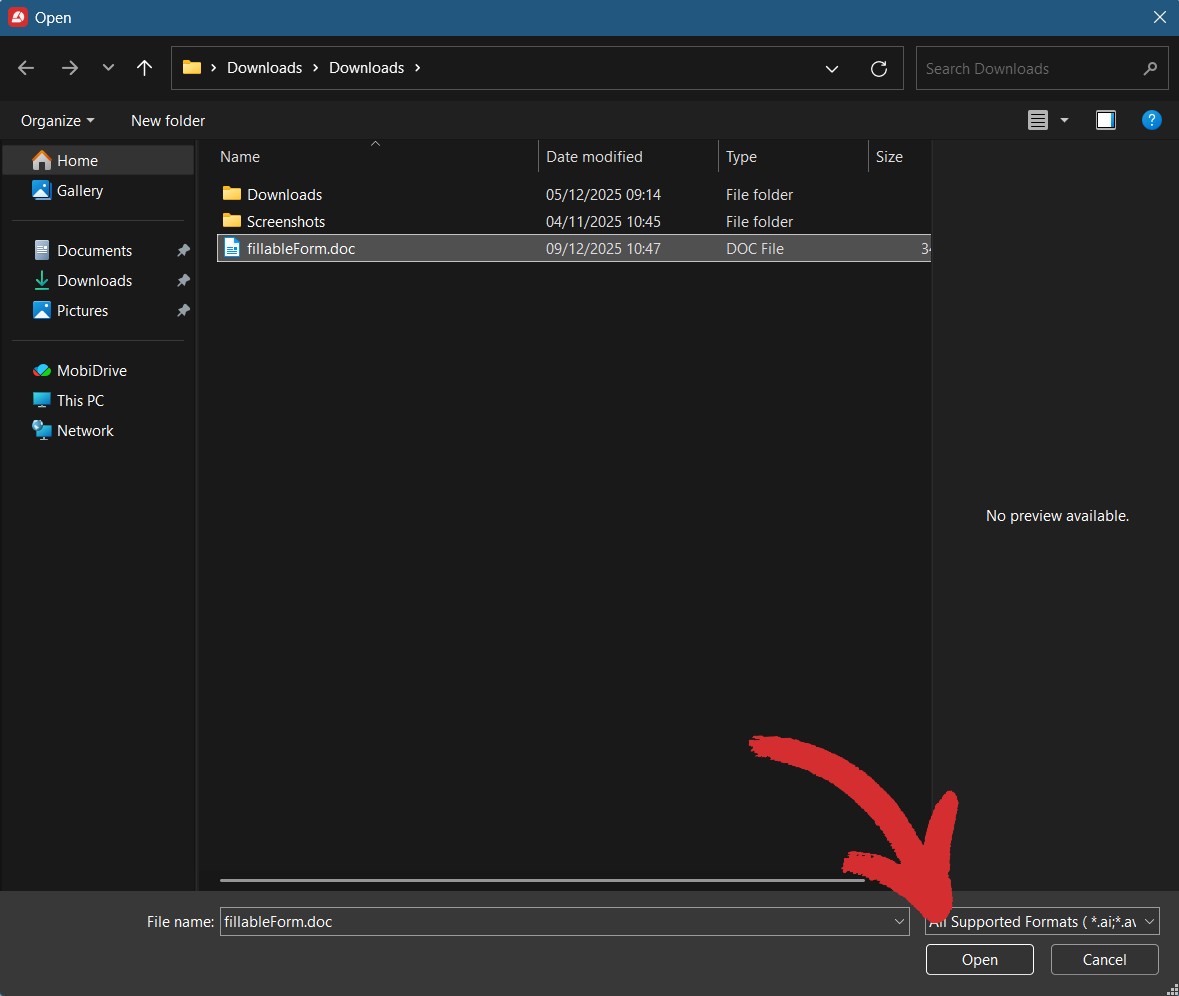
Choose the Word form that you wish to convert to a PDF and click Open.
Wait a few seconds as MobiPDF converts your file.
Start filling out your PDF form.
How to make a fillable PDF using your phone
Imagine that you need to email a government form that was only handed to you as a physical document. The best thing you can do is to scan it with your phone’s camera using an app like MobiPDF.
Here is how to quickly digitize and fill out your paper form:
Download MobiPDF from Google Play or the Apple App Store.
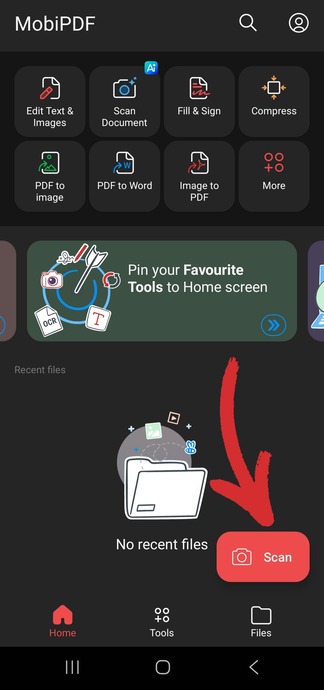
Tap on the red Scan button or Scan to PDF in the top menu.
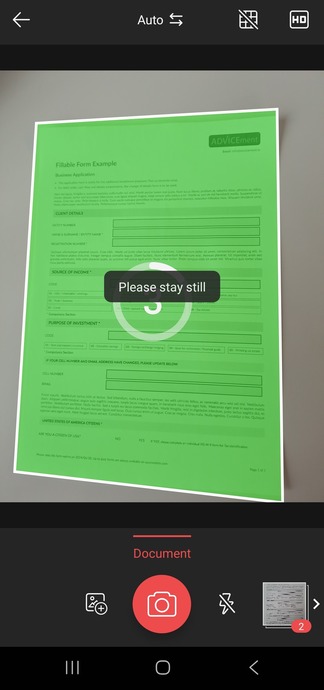
Choose Document from the listed options and hold still to take a picture.
If you’re satisfied with the preview, name and save your file, otherwise repeat the steps above.
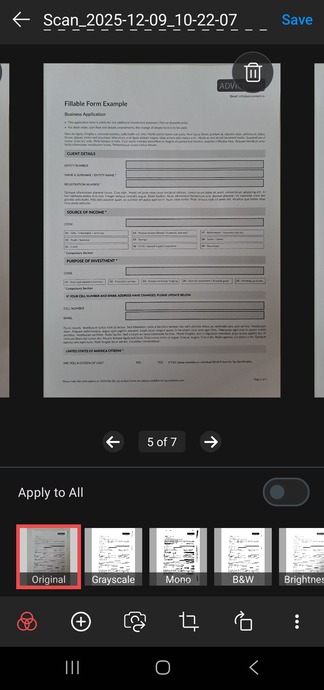
Your paper form will now convert to a PDF ready for you to fill & sign.
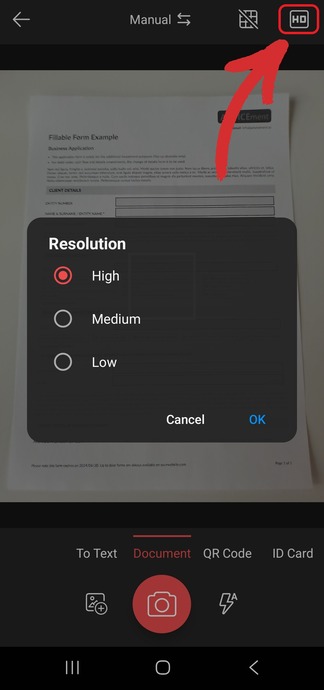
TIP: If you have enough space on your device, make sure to select a high-resolution setting to get the best possible document quality.
Filling out your PDF form
Once your PDF file is ready, the next thing is to actually fill out your information and submit your form for review. MobiPDF has several fill & sign tools to help you quickly get the job done even if you're on the move.
From the Home menu, tap Fill & Sign.
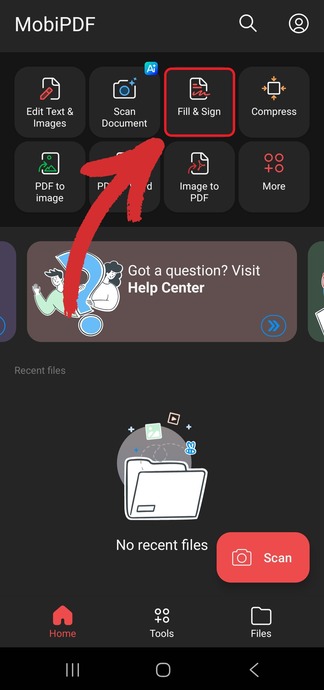
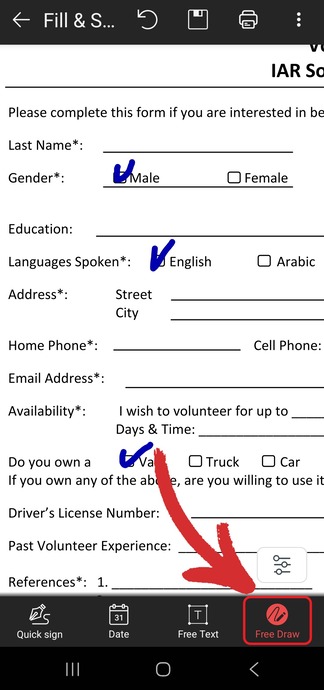
Choose Free Draw to draw in checkmarks.
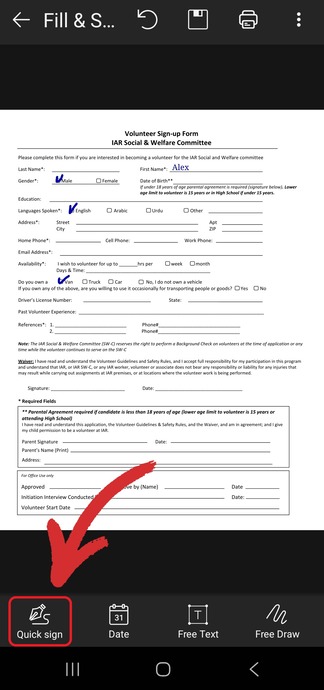
Choose Quick sign to draw in your signature.
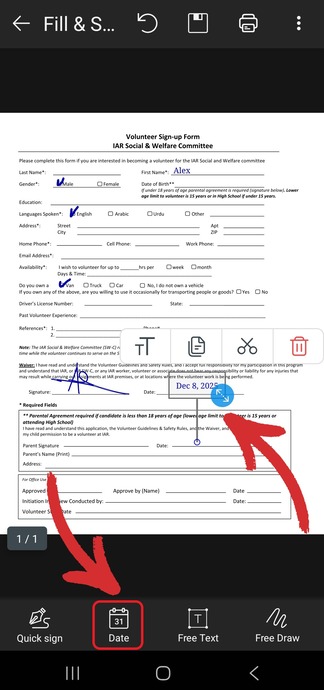
Choose Date to generate a stamp with the current date.
TIP: Tap Free Text to freely place editable text boxes anywhere within your PDF form, then simply tap away to save your changes.
How to create a fillable PDF from scratch
If you are working with sensitive information and want to ensure that all submitted information is safe or if you want others to change just specific fields, we recommend starting from a blank slate.
Things to know before creating a fillable PDF
Before you start adding boxes and buttons, you need to think about your document outline. Here are two things you need to keep in mind.
1. Text vs. interactive fields
When designing your form, consider the type of data you need. Text fields are for open-ended answers like names or addresses, while interactive fields – such as checkboxes, radio buttons, and dropdown menus – streamline the user experience and ensure you get specific, standardized answers.
2. Form logic and validation
Think of these as the “rules” of your form that your users must follow. This includes things like:
Required fields: Which sections must be completed before the user hits save?
Data validation: Do you need to ensure a phone number has 10 digits or that a date follows a specific format (MM/DD/YYYY)?
The more of these rules you set up in advance, the fewer errors users are going to make, resulting in more successful form submissions.
How to make a document fillable with MobiPDF
Creating any fillable PDF is simple, as long as you know your end goal in advance. Here is how to make your first form with MobiPDF:
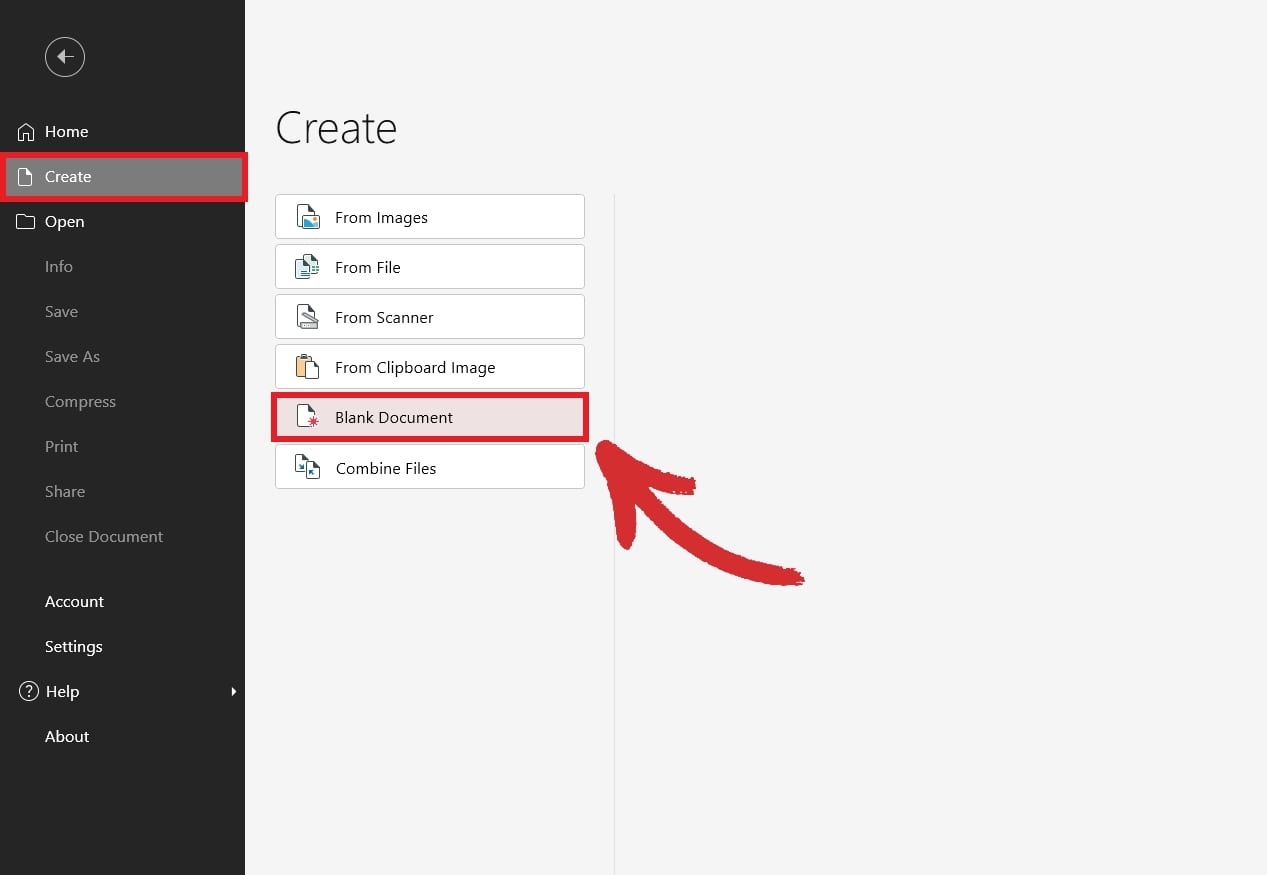
Start MobiPDF and go to Create → Blank Document.
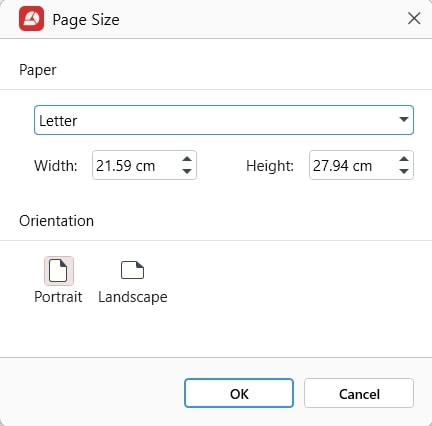
Choose paper size and orientation, then click OK.
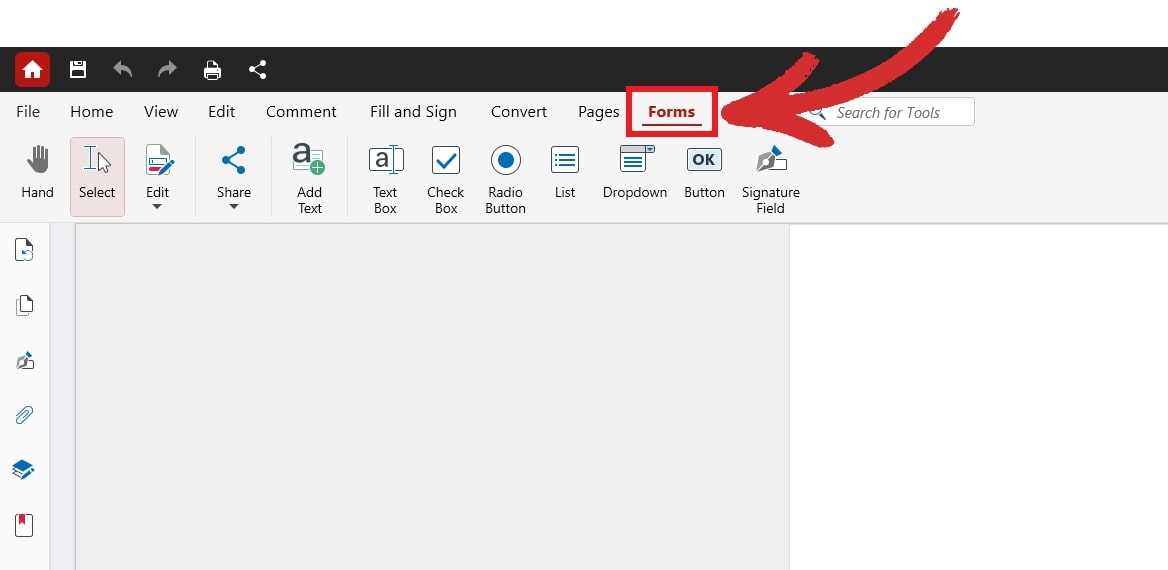
Click the Forms tab in the top tool ribbon.
Click any of the available elements and place them freely into your document.
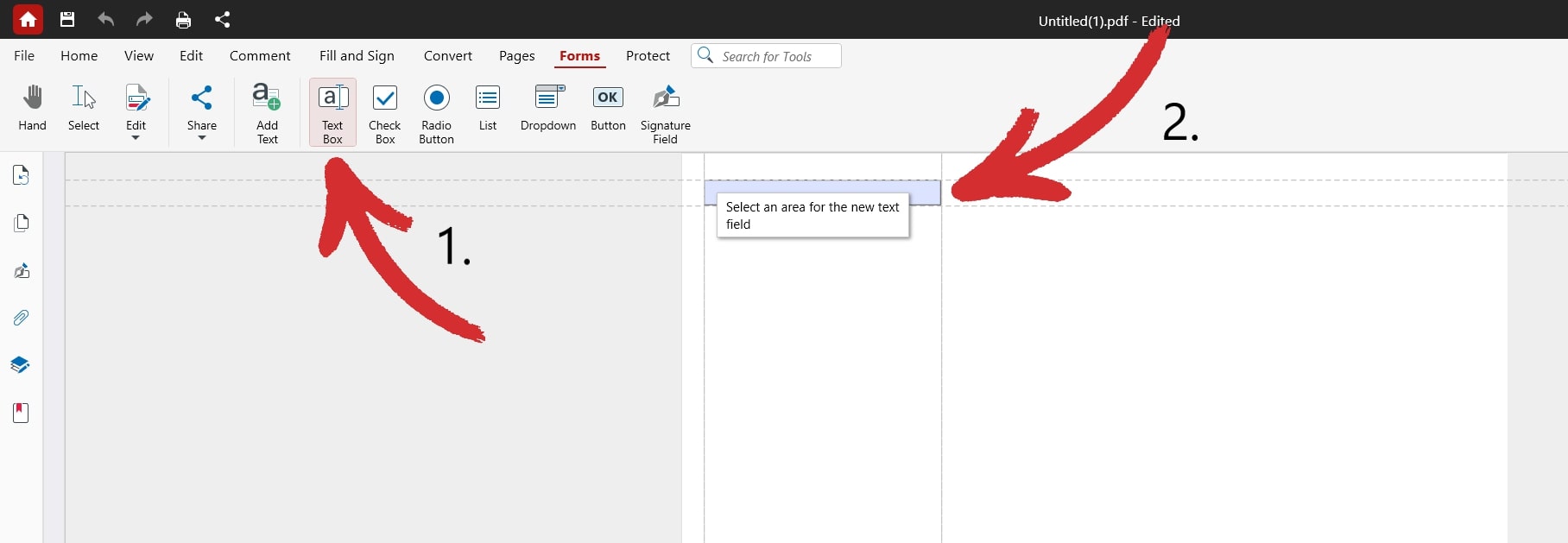
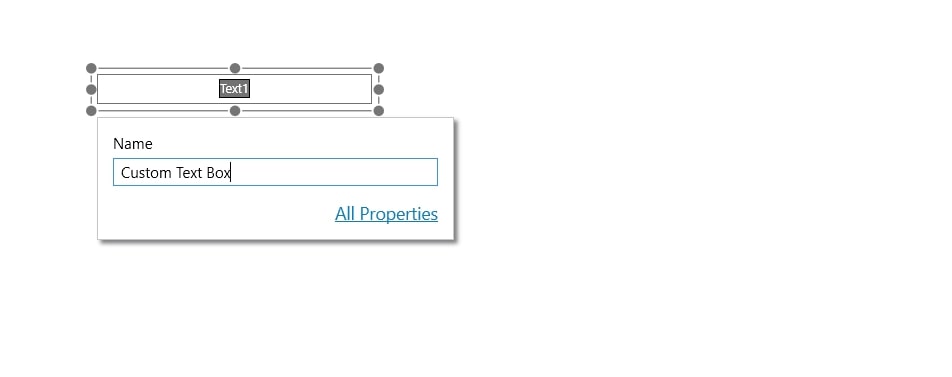
Name your elements any way you wish.
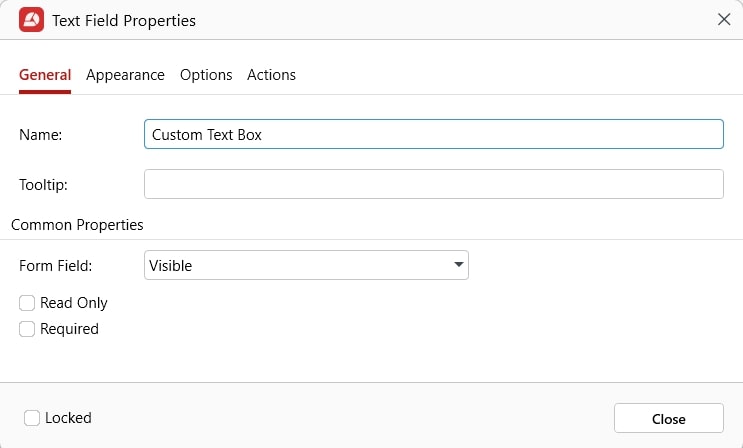
To access advanced options, click All Properties.
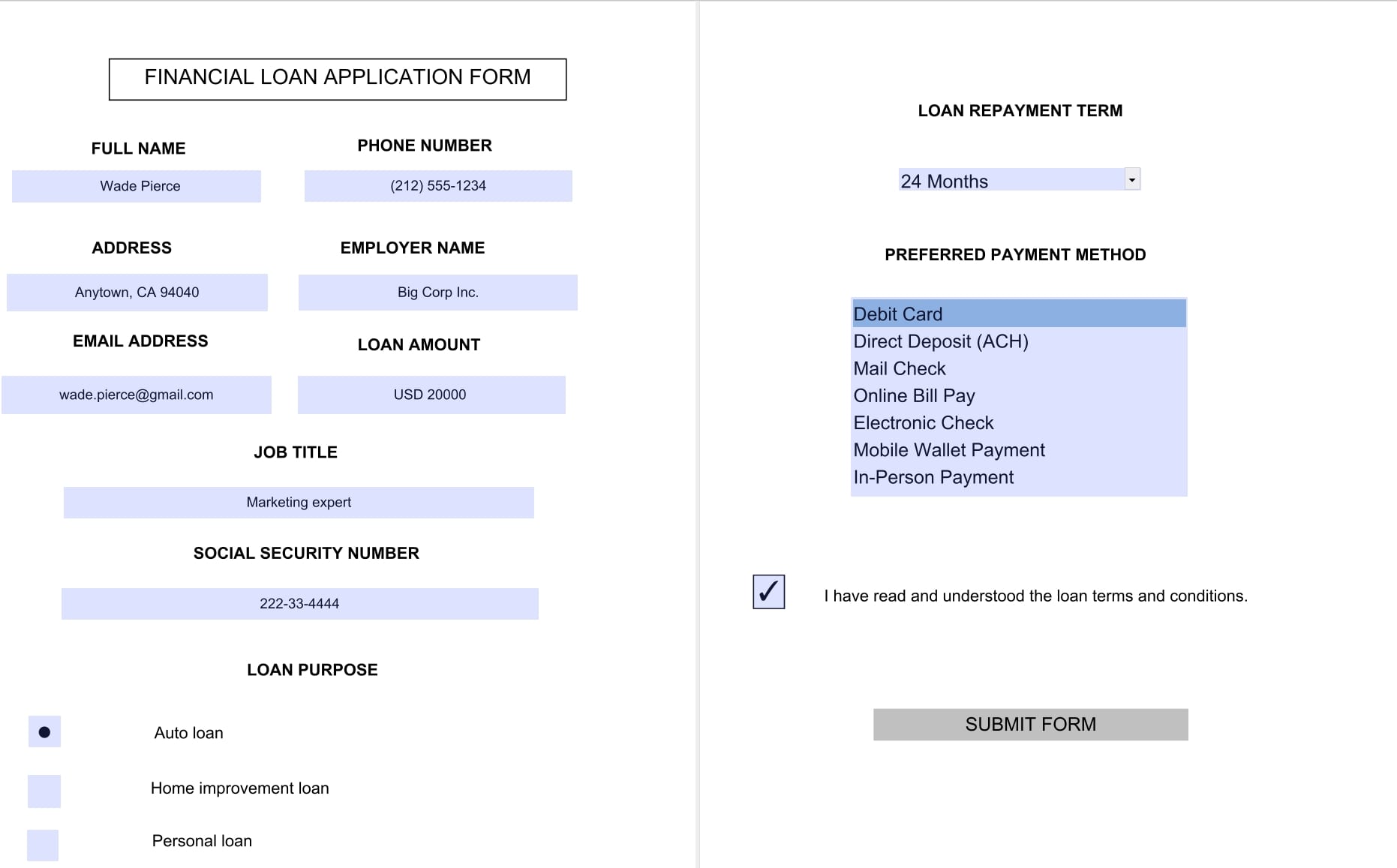
Insert, customize, and rearrange as many form elements as you need until you are happy with what you have, then simply save your form to confirm your changes.
Frequently asked questions
Can I create a fillable PDF without Acrobat?
Yes – while Adobe invented the format, Adobe alternatives do exist. With MobiPDF, you can just as easily create custom forms without overpaying for your PDF tools.
What is the difference between an editable PDF and a fillable PDF?
An editable PDF is the general term for a PDF that can be modified in any way, but it does not always include fillable content. Examples of fillable PDFs are forms, questionnaires, and contracts where the user only has permissions to sign or fill in the blanks.
How do I create a fillable PDF?
You need to have specialized PDF editor like MobiPDF that supports the creation of custom form elements, such as dropdown lists, radio buttons, and fillable fields.
How do I convert a regular PDF into a fillable form?
Simply open the form inside PDF software like MobiPDF and you should be able to fill the contents right away. If you are dealing with a scanned document, we recommend performing OCR (optical character recognition) first before attempting to fill anything.
How do I create a fillable PDF from a scanned document?
Some software supports this using OCR. Once you open your document, click on the OCR tool to convert your file into an interactive form.
Can I create a fillable PDF for free?
No, creating custom fillable PDFs is a complex feature that takes a lot of time to develop and is typically not offered free of charge.
Can I create a fillable PDF on my phone?
Yes, you can. Simply point your camera at your paper form and take a picture. MobiPDF will then convert your image into a PDF that you can fill out with checkmarks, signatures, dates, and text boxes.
How to create a fillable PDF on a Mac?
You can easily fill out PDFs using the native Preview app. You can also use solutions like Wine or CrossOver if you wish to run MobiPDF on your Mac.
Simplify PDF form filling with MobiPDF
These days, learning how to create fillable PDF forms is not only a good idea – it’s a necessary step to save valuable time, your sanity, and stay ahead of your competition. Working with e-forms is also much faster, more eco-friendly, ensures forms are opened and displayed correctly on all devices, and comes with strong data security tools.
So, whether it's editing existing user survey forms or digitizing whatever you currently have in store inside your file cabinet, tools like MobiPDF have you fully covered.
Try out MobiPDF today and experience the difference first-hand.