

Creating and editing spreadsheets
In this guide, you'll learn how to create a new spreadsheet in MobiSheets, enter and edit data, and save your work. The steps start with Windows, followed by shorter sections for Mac, Android, and iOS.
Before you begin
Make sure you have:
MobiOffice installed on your device. See Installing MobiOffice on multiple devices.
Signed in to MobiSheets, so you can save your files and use all features. See Signing in to MobiSheets.
An internet connection, if you want to save to the cloud.
Create a new spreadsheet on Windows
1. Search for MobiSheets on the Windows Search bar or open it from the Start menu.
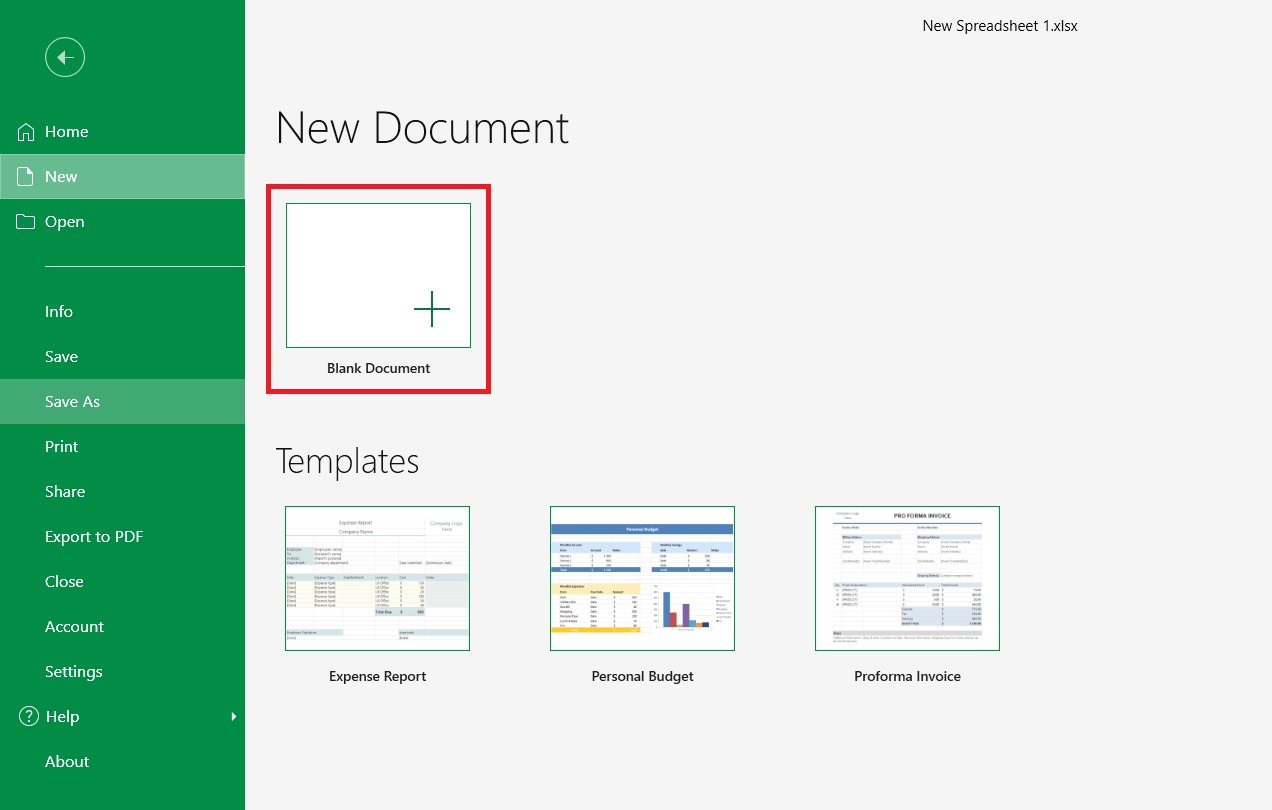
2. On the Home screen, click New.
3. Select Blank Document to start from scratch or choose one of the templates.
Enter and edit data
1. Click a cell, then type your text or numbers.
2. Press Enter to confirm and move down, or Tab to move right.
3. To change a cell, double-click it and edit the contents, or select it and type a new value to replace what's there.
4. To move or copy data, select the cells, then use Cut, Copy, and Paste on the Home tab.
5. To reverse a change, press Ctrl+Z to undo or Ctrl+Y to redo.
Tip: To add more space, right-click a row number or column letter and select Insert to add a row or column.
Save your spreadsheet
1. On the File tab, select Save As.
2. Choose where to save it:
Save to MobiDrive to open it on your other devices, or
Select Browse to save it to your device or another folder.
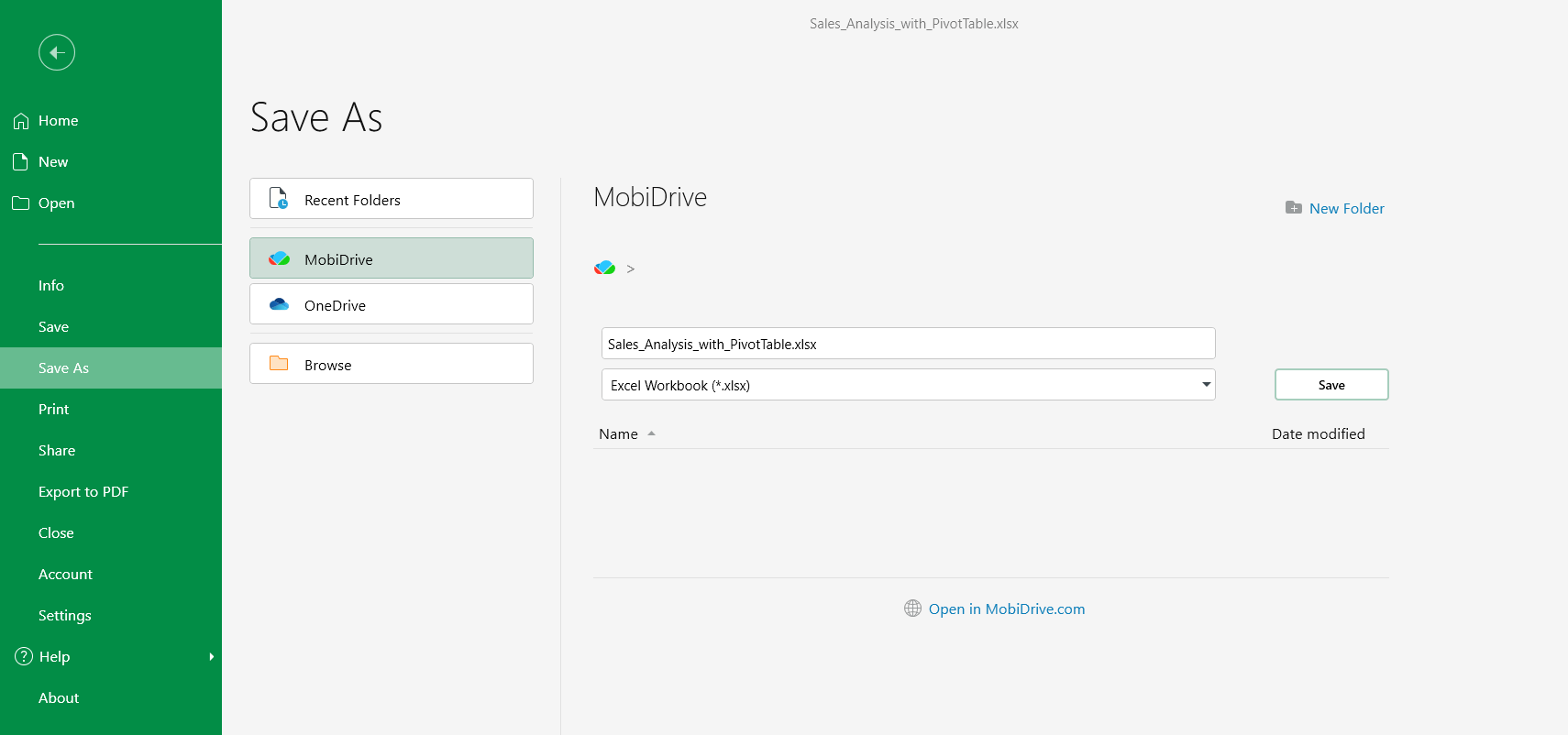
3. Enter a name for your spreadsheet.
4. (Optional) Change the file format, such as XLSX or CSV.
5. Select Save.
After the first save, select File > Save (or press Ctrl+S) to keep saving your changes.
Open an existing spreadsheet
1. On the Home screen, select Open.
2. Choose where the file is stored: your device, MobiDrive, or a connected service such as Google Drive, OneDrive, or Dropbox.
3. Select the spreadsheet and click Open.
Create and edit on Mac
1. Open MobiSheets from Launchpad or your Applications folder.
2. On the File tab, click New, then select Blank or a template.
3. Enter and edit your data the same way as on Windows.
4. On the File tab, select Save As to name and save your spreadsheet.
Create and edit on Android and iOS
On phones and tablets, MobiSheets is part of the MobiOffice app.
1. Open the MobiOffice app.
2. Tap the + button, then choose Sheet to create a spreadsheet.
3. Tap Blank to create a blank spreadsheet or choose from the templates.
4. Tap a cell and type to enter data. Tap a cell again to edit it.
5. Tap Save, then choose where to store the file.
Troubleshooting
My changes aren't saving. After editing, select File > Save or press Ctrl+S. If you're saving to the cloud, check your internet connection.
A cell shows ##### instead of a number. The column is too narrow. Widen it by dragging the border of the column letter or double-click the border to fit the contents.


