

Using formulas and functions
In this guide, you'll write formulas in MobiSheets to calculate your data and use built-in functions like SUM and AVERAGE to do the math for you. Formulas let you add, subtract, and compare values, while functions handle common calculations in one step. MobiSheets includes over 280 functions, grouped by category on the Formulas tab. The steps start with Windows, followed by shorter sections for Mac, Android, and iOS.
Before you begin
Make sure you have:
MobiOffice installed on your device. See Installing MobiOffice on multiple devices.
A spreadsheet with data open in MobiSheets. See Creating and editing spreadsheets.
Signed in to MobiSheets. See Signing in to MobiSheets.
An internet connection, if you want to save to the cloud.
Write a formula on Windows
Every formula starts with an equals (=) sign.
1. Click the cell where you want the result.
2. Type = to start the formula.
3. Enter your calculation using cell references and operators. For example, type =A1+B1 to add the values in cells A1 and B1.
4. Press Enter.
The result appears in the cell. The formula stays in the formula bar, so you can click the cell to see or edit it.
Common operators:
+ to add
- to subtract
* to multiply
/ to divide
Tip: Instead of typing cell references, click a cell to add it to your formula. Type =, click the first cell, type an operator, then click the next cell.
Add a total with AutoSum
AutoSum is the fastest way to total a row or column. It's on the Formulas tab.
1. Click the cell below a column of numbers, or to the right of a row.
2. Click AutoSum then choose a calculation. Alternatively, you can open the Formulas dropdown menu then click AutoSum.
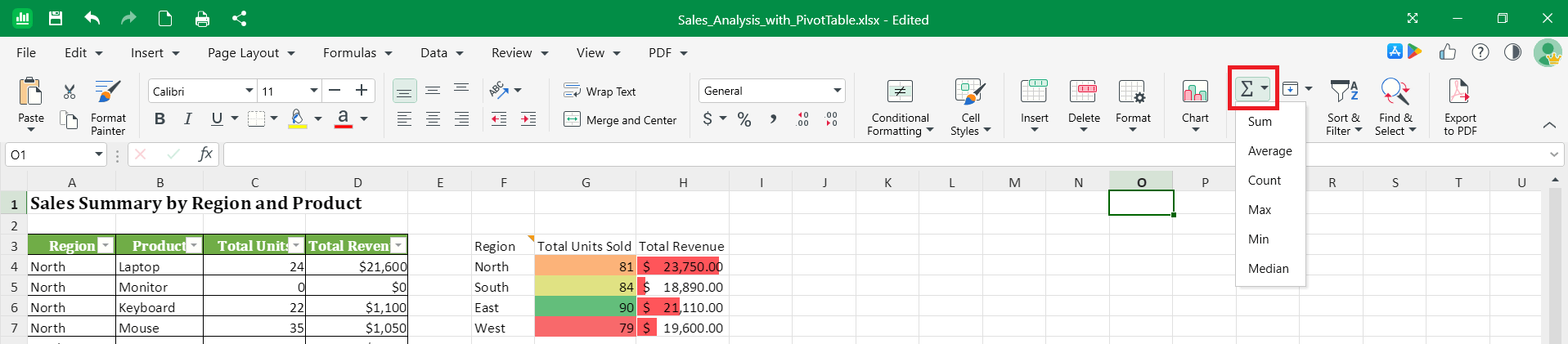
3. Choose a calculation that you need. Example calculations are:
Sum to add the values
Average to find the average
Count to count the cells with numbers
Min or Max for the smallest or largest value
Median for the middle value
4. Check the range MobiSheets selected, then press Enter.
Use a function
Functions are ready-made formulas. You can type a function directly, or pick one from the Formulas tab.
Type a function
1. Click the cell where you want the result.
2. Type = followed by the function name and an opening bracket, such as =SUM(.
3. Select the range of cells you want to include, or type it, such as A1:A10.
4. Type a closing bracket ) and press Enter.
For example, =SUM(A1:A10) adds every value from A1 to A10, and =AVERAGE(A1:A10) finds their average.
Pick a function from the Formulas tab
If you're not sure of the function name, browse by category on the Formulas tab.
1. Click the cell where you want the result.
2. Click the Functions icon, then search for a specific function. You can also open the Formulas dropdown, then click the category that fits what you need.
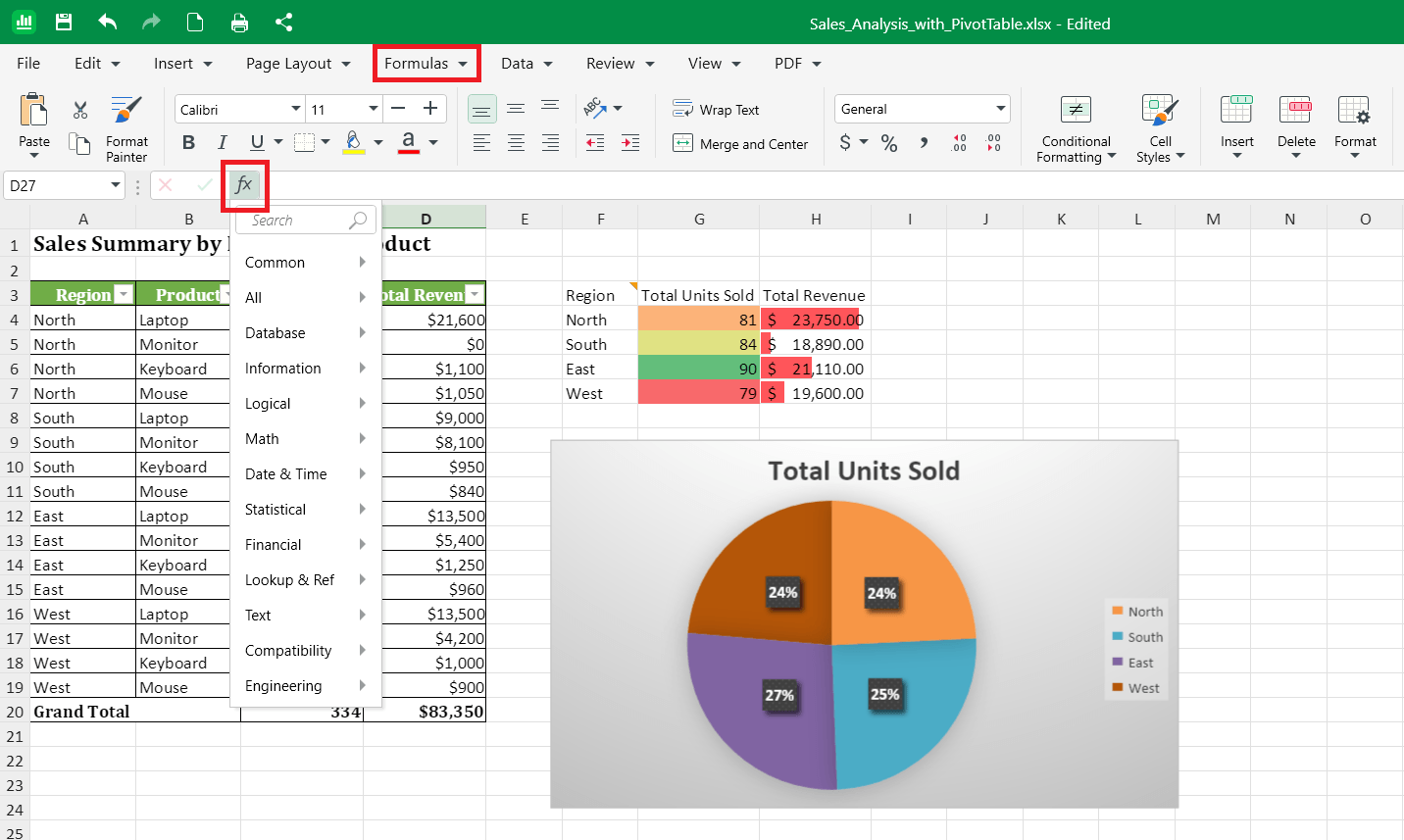
3. Choose from the following function categories:
Financial for loans, interest, and depreciation, such as PMT or FV.
Logical for tests and conditions, such as IF, AND, and OR.
Text for working with text, such as CONCAT, LEFT, and TRIM.
Date & Time for dates and times, such as TODAY, NOW, and DATE.
Reference for finding values, such as VLOOKUP, XLOOKUP, and INDEX.
Maths for math and trigonometry, such as ROUND, SUMIF, and POWER.
More functions for every other category.
4. Select a function from the list.
5. Enter values or select the cells it should use, then confirm.
Copy a formula to other cells
When you copy a formula down a column, MobiSheets adjusts the cell references for each row automatically.
1. Click the cell with the formula you want to copy.
2. Drag the small square at the bottom-right corner of the cell down or across the cells you want to fill.
For example, if =A1+B1 is in row 1, copying it down gives you =A2+B2 in row 2, and so on.
Formulas on Mac
1. Open your spreadsheet in MobiSheets.
2. Click a cell and type = to start a formula.
3. Enter your calculation or a function, such as =SUM(A1:A10).
4. To browse functions, open the Formulas tab and choose a category.
5. Press Enter.
Formulas on Android and iOS
On phones and tablets, MobiSheets is part of the MobiOffice app.
1. Open your spreadsheet in the MobiOffice app.
2. Tap the cell where you want the result.
3. Type = followed by your formula or function.
4. Confirm to see the result.
Troubleshooting
My formula shows as text instead of calculating. Make sure the formula starts with =. If the cell is formatted as text, change it to a number format, then re-enter the formula.
I see #### in the cell. The column is too narrow to show the result. Widen the column to see the value.
I see an error like #DIV/0! or #NAME?. #DIV/0! means the formula divides by an empty or zero cell. #NAME? usually means the function name is misspelled. Check the formula and try again.
AutoSum selected the wrong cells. AutoSum guesses the range based on nearby numbers. If the range is wrong, drag to select the correct cells before you press Enter.
My results didn't update after I changed the data. Most formulas update automatically. If a result looks wrong, check that you referenced the correct cells.


