

Creating and editing presentations
In this guide, you'll learn how to create a new presentation in MobiSlides, add and edit slides, and save your work. The steps start with Windows, followed by shorter sections for Mac, Android, and iOS.
Before you begin
Make sure you have:
MobiOffice installed on your device. See Installing MobiOffice on multiple devices.
Signed in to MobiSlides, so you can save your files and use all features. See Signing in to MobiSlides.
An internet connection, if you want to save to the cloud.
Create a new presentation on Windows
1. Search for MobiSlides on the Windows Search bar or open it from the Start menu.
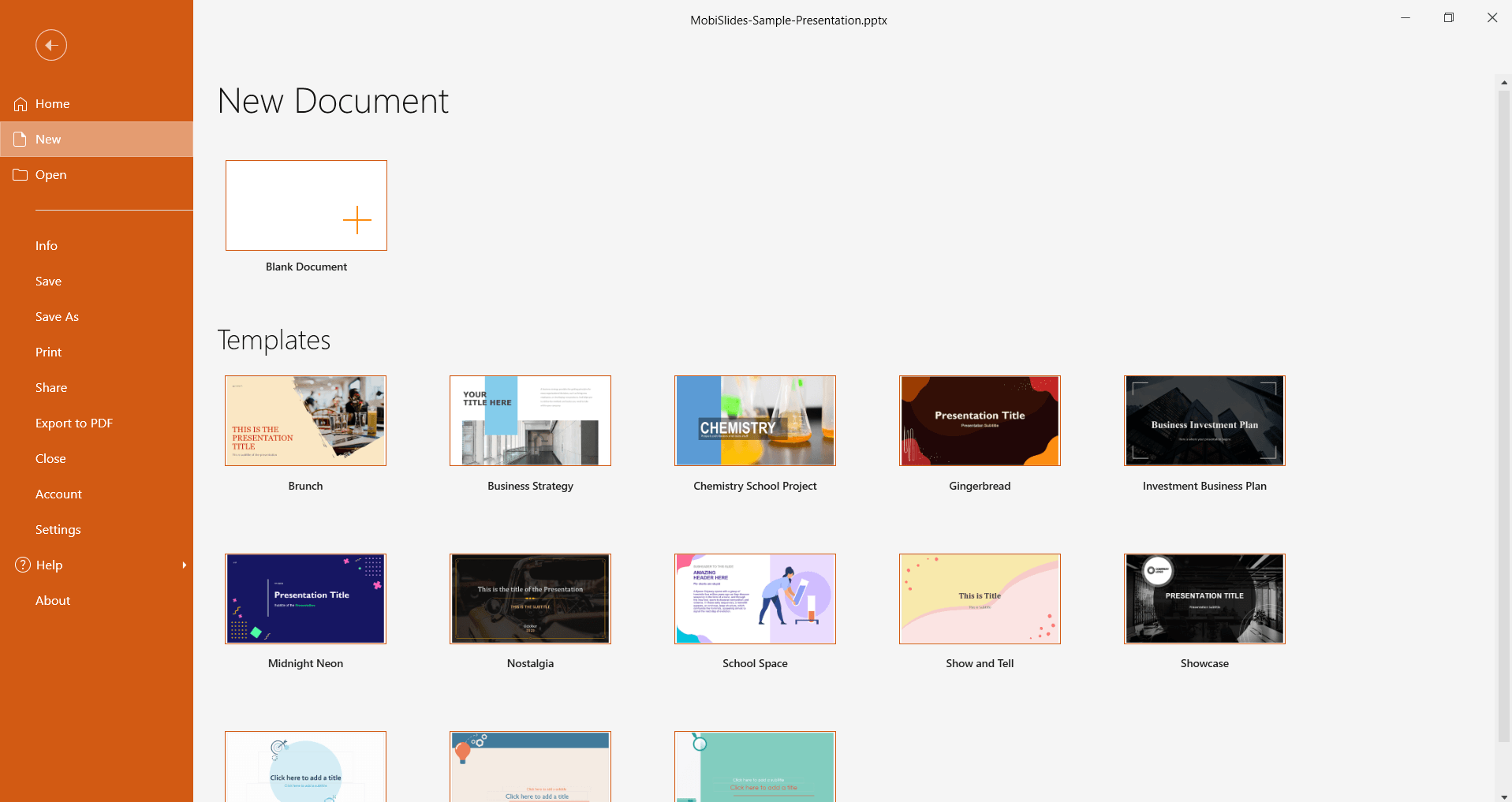
2. On the Home screen, click New.
3. Select Blank Document to start from scratch or choose one of the templates.
Add and edit slides
To add a slide, click the + icon on the left pane. Alternatively, you can click New or Insert > New Slide from the ribbon menu.

To add text in a slide, click a text placeholder and type. To add a text placeholder, click New Text Box.
To add a table, image, shape, video, audio, or text box, use the Insert menu.
To reorder slides, drag a slide up or down in the slide panel on the left.
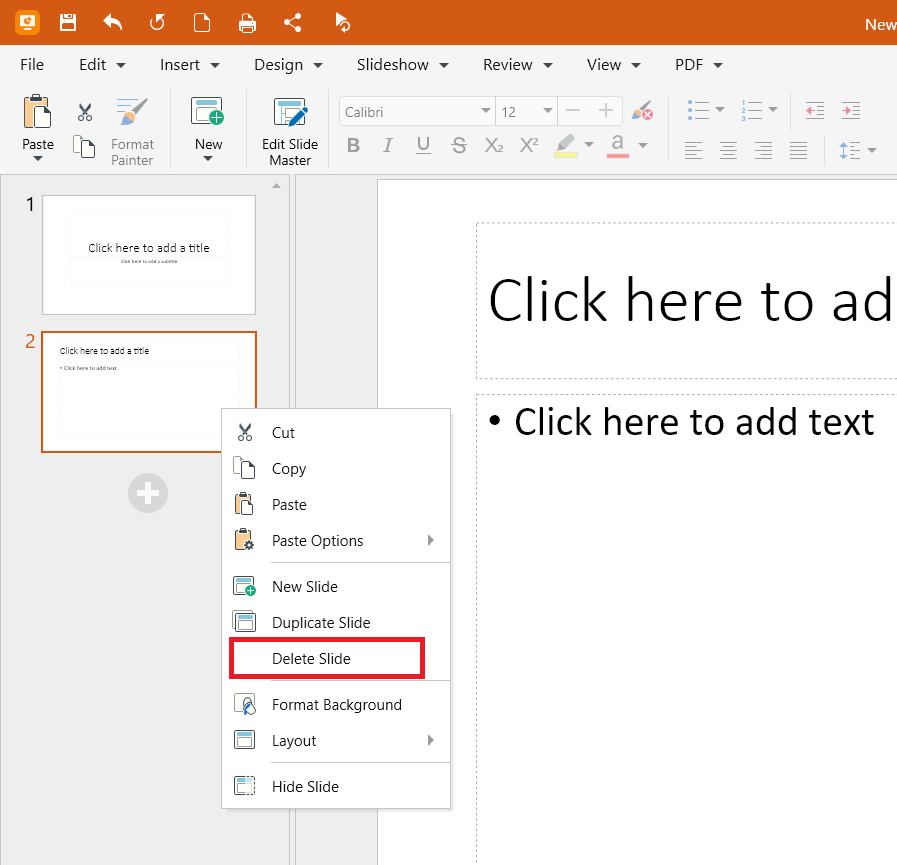
To delete a slide, right-click it in the slide panel and select Delete Slide.
To reverse a change, press Ctrl+Z to undo or Ctrl+Y to redo.
Tip: To change a slide's layout, click Design > Layout and pick a new one. To add motion between slides, click Transitions on the quick access toolbar.
Save your presentation
1. On the File tab, select Save As.
2. Choose where to save it:
Save to MobiDrive to open it on your other devices, or
Select Browse to save it to your device or another folder.
3. Enter a name for your presentation.
4. (Optional) Change the file format, such as PPTX or PPT.
5. Select Save.
After the first save, select File > Save (or press Ctrl+S) to keep saving your changes.
Open and edit an existing presentation
1. On the Home screen, select Open.
2. Choose where the file is stored: your device, MobiDrive, or a connected service such as Google Drive, OneDrive, or Dropbox.
3. Select the presentation and click Open.
Once the presentation is open, edit the content by following the steps in Add and edit slides.
Create and edit on Mac
1. Open MobiSlides from Launchpad or your Applications folder.
2. From File, click New, then select Blank or a template.
3. Add and edit your slides the same way as on Windows.
4. In File, select Save As to name and save your presentation.
Create and edit on Android and iOS
On phones and tablets, MobiSlides is part of the MobiOffice app.
1. Open the MobiOffice app.
2. Tap the + button, then choose Presentation to create a presentation.
3. Tap Blank to create a blank presentation or choose from the templates.
4. Tap a text placeholder and type to add text. Tap a slide element again to edit it.
5. To add a slide, tap the + or New Slide option.
6. Tap Save, then choose where to store the file.
Troubleshooting
My changes aren't saving. After editing, select File > Save or press Ctrl+S. If you're saving to the cloud, check your internet connection.
I can't add text to a slide. Click New Text Box or add a text box from the Insert menu, then click inside it and type.
My fonts or layout look different after I share the file. If a font isn't installed on the other device, MobiSlides substitutes a similar one. Use common fonts or save a copy as PDF to keep the exact look (Export to PDF is a Premium feature).


